How To Compare Two Documents In Google Docs?


Effortlessly compare two documents in Google Docs with our step-by-step guide. Enhance collaboration and streamline editing with ease.
In the dynamic realm of collaborative writing and editing, the ability to compare documents seamlessly is a game-changer. Google Docs, a powerhouse in online document creation, offers a user-friendly feature to compare two documents effortlessly. This guide walks you through the process, ensuring you harness the full potential of this indispensable tool.
How To Compare Two Documents In Google Docs?
Before diving into the comparison process, ensure you are well-acquainted with the basics of Google Docs. If you haven't already, sign in to your Google account and open Google Docs from the Google Workspace.
Step 1: Open Google Docs
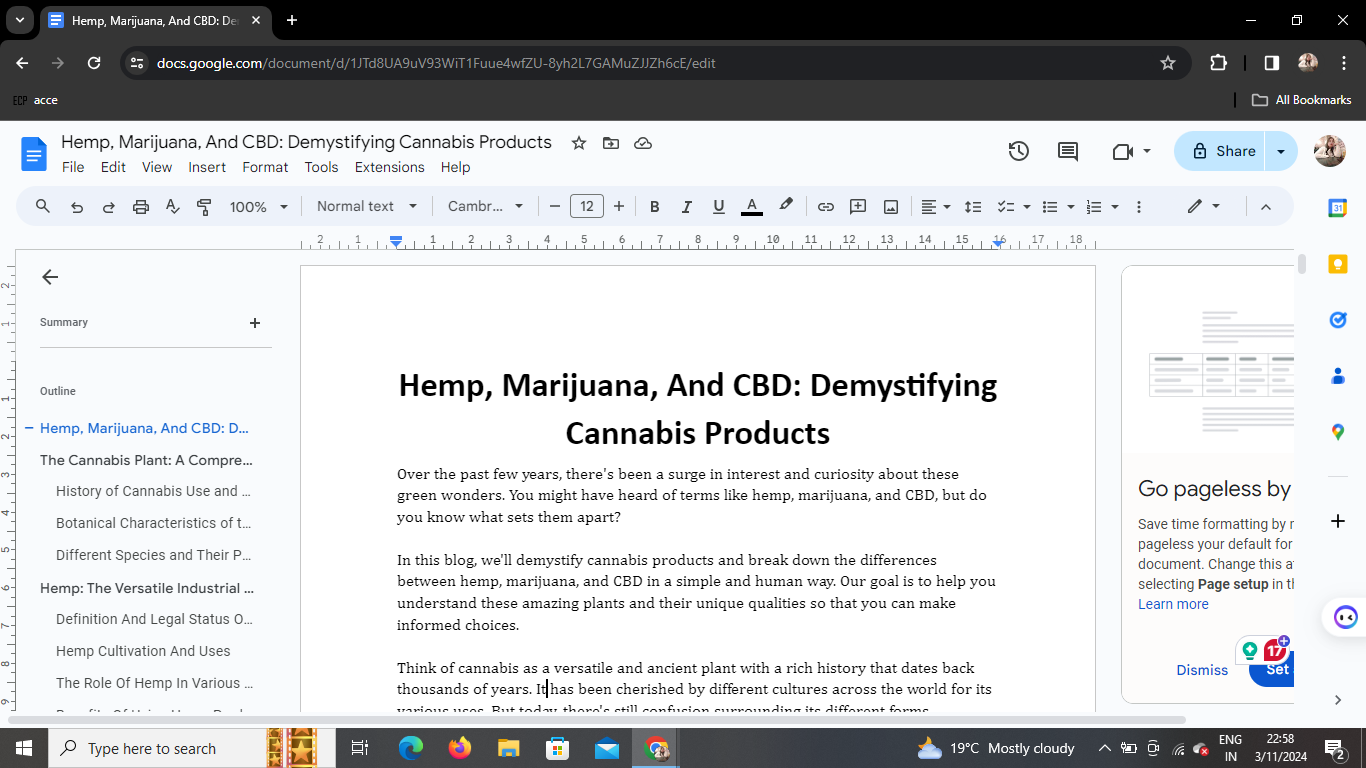
Begin by navigating to Google Docs in your web browser. If you're not signed in, do so to access your documents and enjoy the full range of features.
Step 2: Click on "Tools"
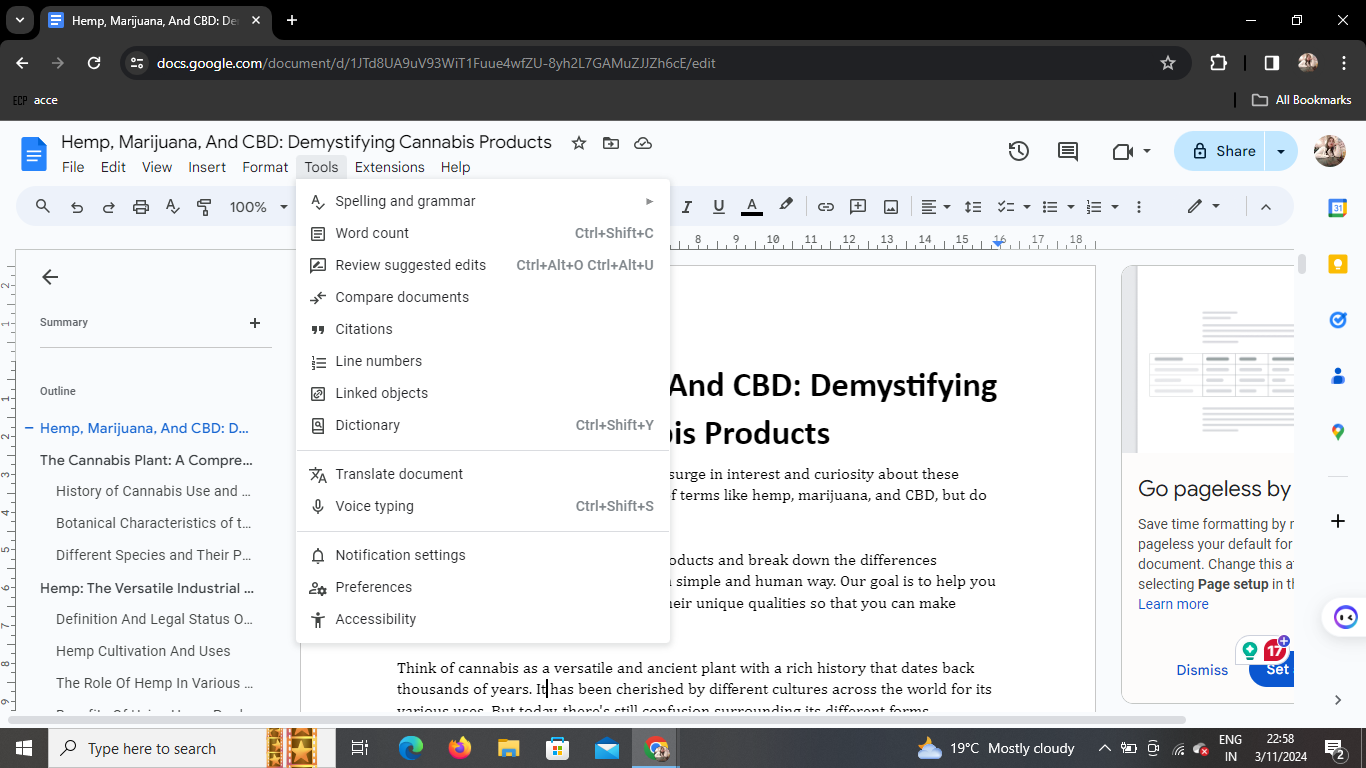
Once you have your document open, navigate to the top menu and locate the "Tools" option. Click on it to reveal a dropdown menu with various tools and features.
Step 3: Click on "Compare Document"
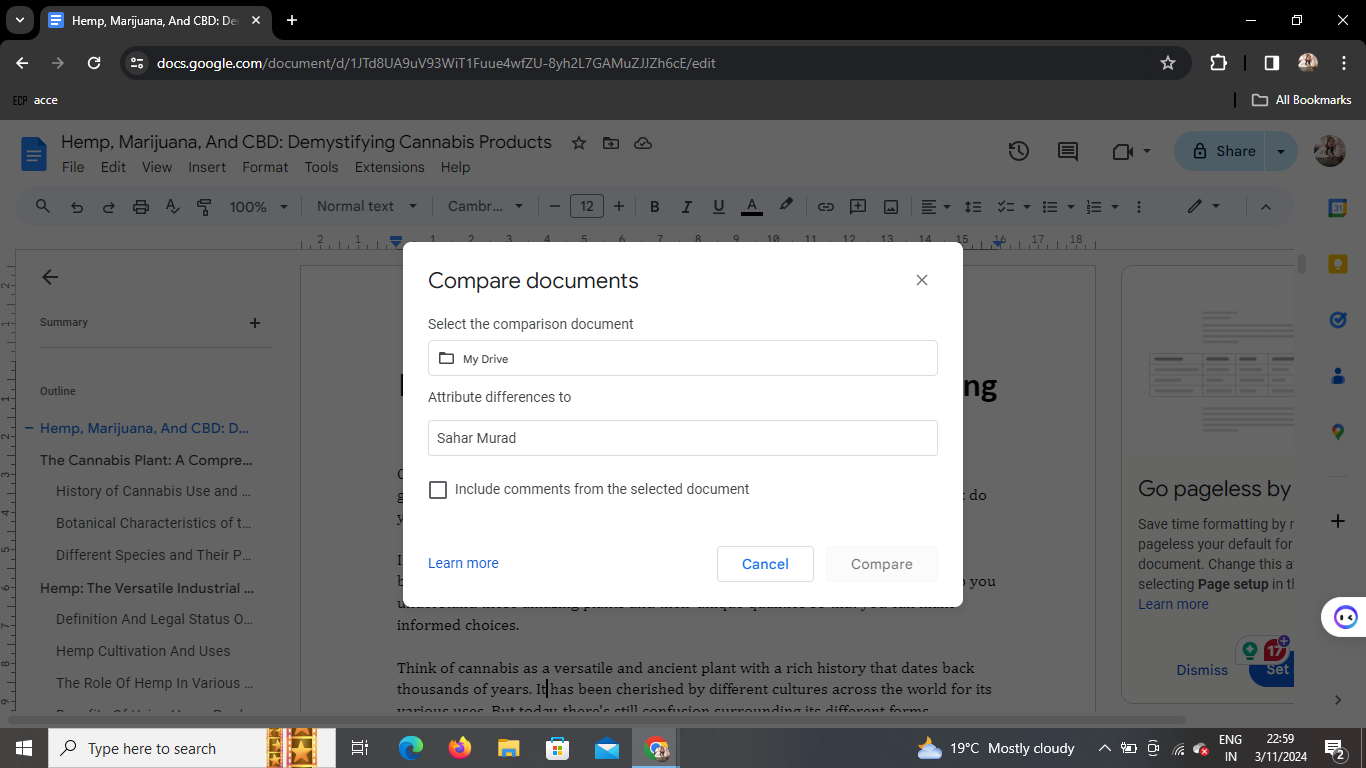
Within the "Tools" menu, find and click on "Compare Document." This action will prompt a menu box to appear on your screen, offering options for document comparison.
Step 4: Select the Document You Want to Compare
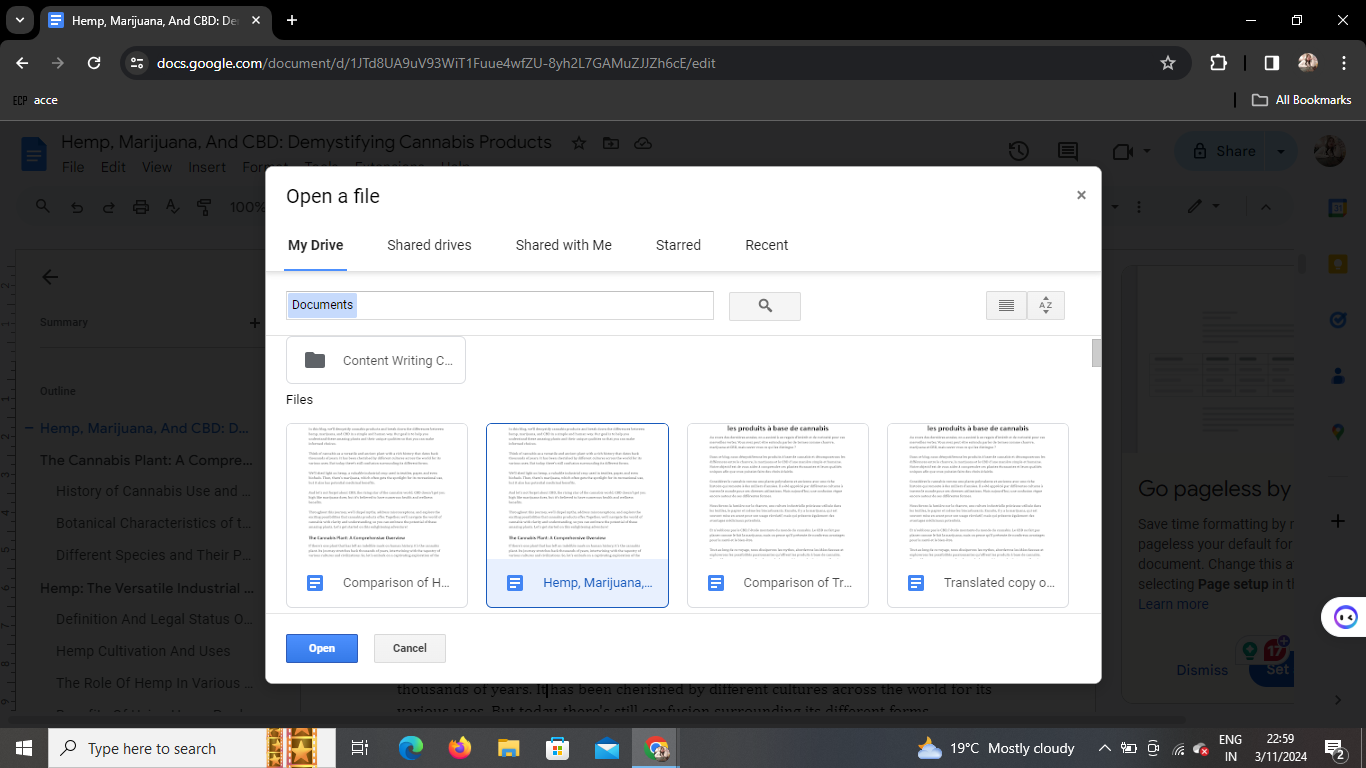
In the menu box, choose the document you wish to compare with the current one. This step is crucial to ensure an accurate and relevant document-to-document comparison.
Step 5: Click on "Compare"
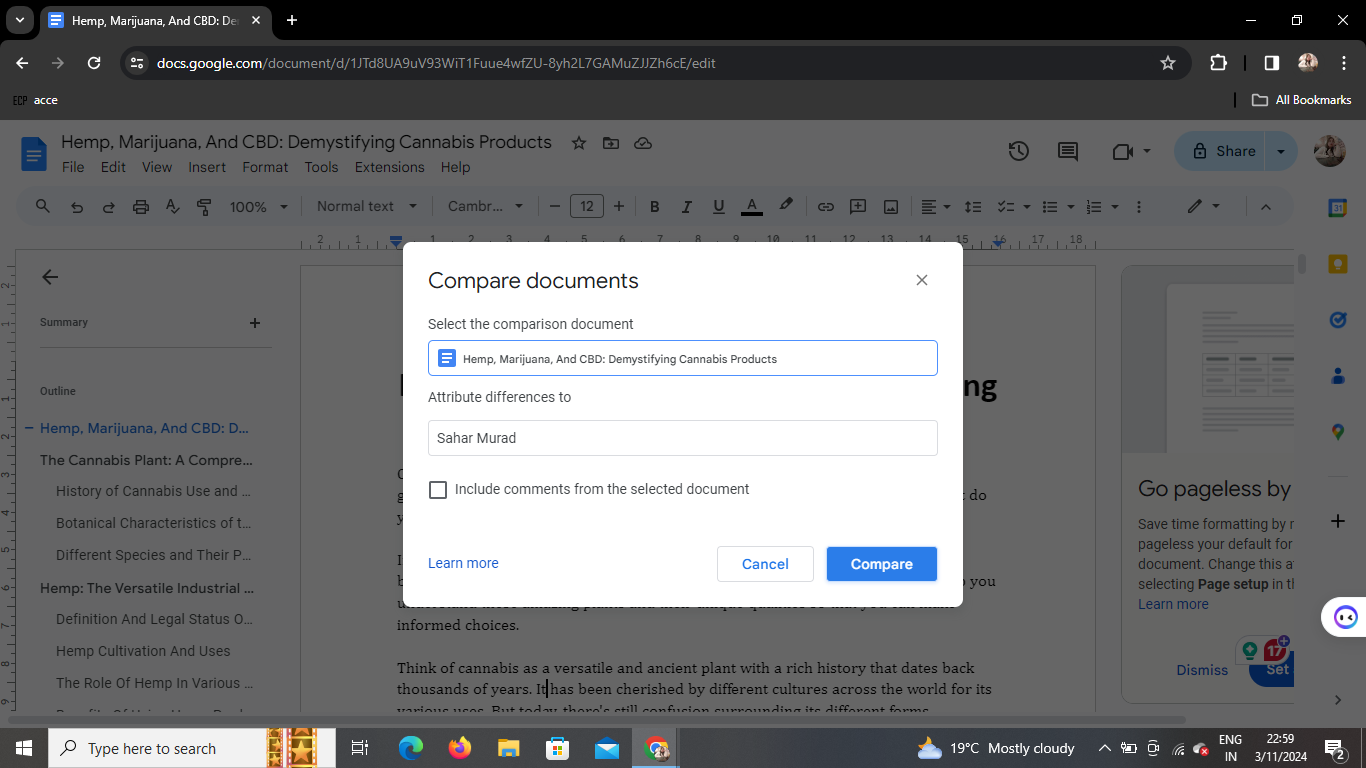
With the desired document selected, click on the "Compare" button. Google Docs will initiate the comparison process, analyzing the two documents and highlighting the variations.
Step 6: A New Tab Will Open with Your Compared Document
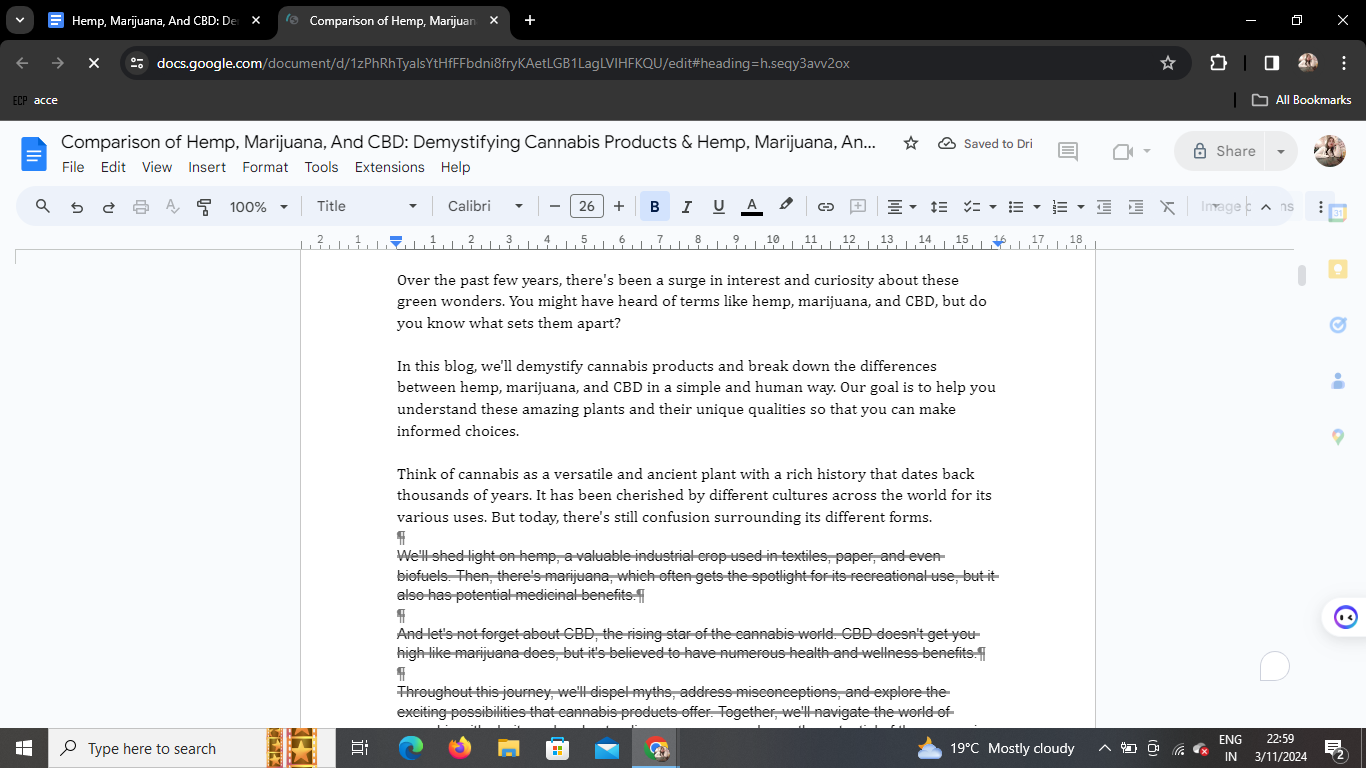
Sit back and let Google Docs work its magic. After a moment, a new tab will open, displaying the compared document. The differences between the two documents will be clearly highlighted for your review.
Conclusion
Google Docs' document comparison feature simplifies the task of identifying changes and collaborating seamlessly. By following these straightforward steps, you can streamline your editing process and enhance collaboration with your team.
Frequently Asked Questions (FAQs)
How does Google Docs identify changes in the compared documents?
Google Docs uses a sophisticated algorithm to analyze the content of the two documents and highlights the differences, making it easy for users to identify changes.
Can I compare more than two documents simultaneously?
No, Google Docs currently supports the comparison of two documents at a time. If you need to compare multiple documents, repeat the process for each pair.
Is there a limit to the size of documents I can compare?
While Google Docs can handle reasonably large documents, extremely lengthy files may experience slower processing times. Consider breaking down large documents into smaller sections for more efficient comparisons.
Can I revert changes made during the comparison process?
Yes, Google Docs provides an option to accept or reject changes individually, allowing you to retain control over the final document.
Is the compared document saved automatically?
No, the compared document is not saved automatically. Ensure to review and save the changes manually if you wish to keep the compared version.
Unlock the potential of Google Docs by mastering the art of document comparison. This feature not only saves time but also enhances the collaborative experience, making your editing process more efficient and effective.


