How to Convert an Essay or Written Content to a PowerPoint Presentation?


Transform your written brilliance into engaging presentations! Learn how to convert essays to PowerPoint seamlessly with expert tips and tricks.
In today's fast-paced digital world, the ability to transform written content into engaging presentations is a valuable skill. Whether you're a student, a professional, or someone who wants to share information more dynamically, this step-by-step guide will help you seamlessly convert your essays or written content into a compelling PowerPoint presentation.
How to Convert an Essay or Written Content to a PowerPoint Presentation?
Visit Google Slides
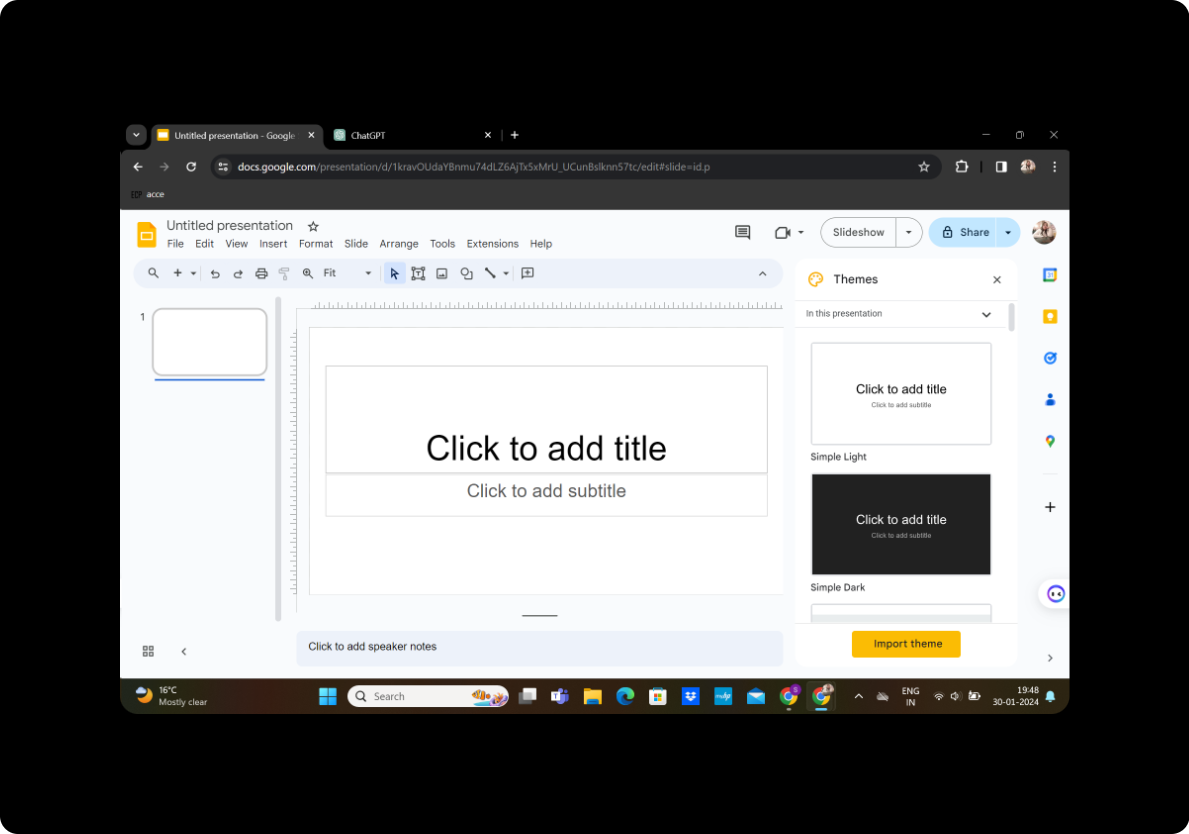
Begin by heading to Google Slides, a user-friendly cloud-based presentation platform provided by Google. If you don't have a Google account, you'll need to create one. Once logged in, create a new presentation to initiate the conversion process.
Sign in with Google to Google Slides
Ensure you are signed in with your Google account to access all the features of Google Slides seamlessly.
Step-by-Step Guide
1. Download MagicSlides GPT (if not installed)
If you don't have the MagicSlides GPT extension, download it from the extensions store. Open Google Slides and navigate to extensions. Click on "MagicSlides GPT" to install it.
2. Activate MagicSlides GPT
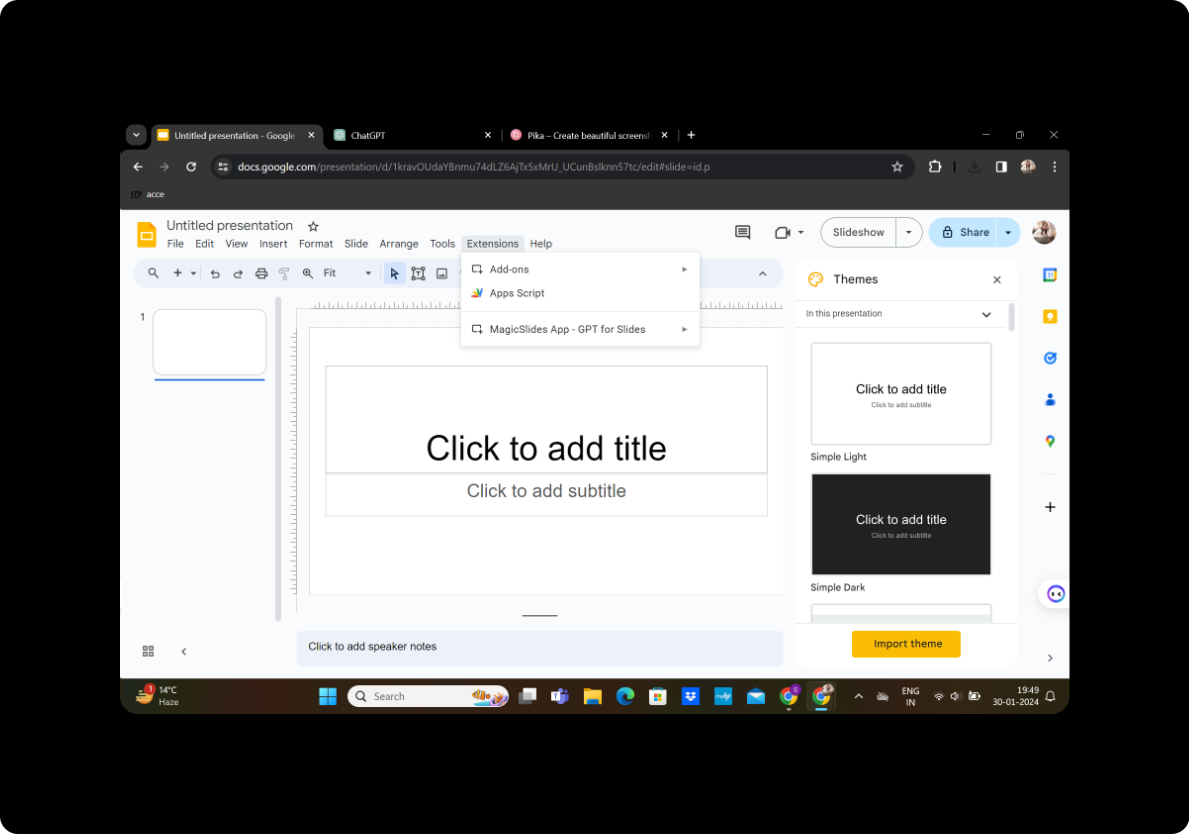
After installation, click on the MagicSlides GPT extension to activate it. This tool will streamline the process of converting your written content into PowerPoint slides.
3. Generate PPT in MagicSlides GPT
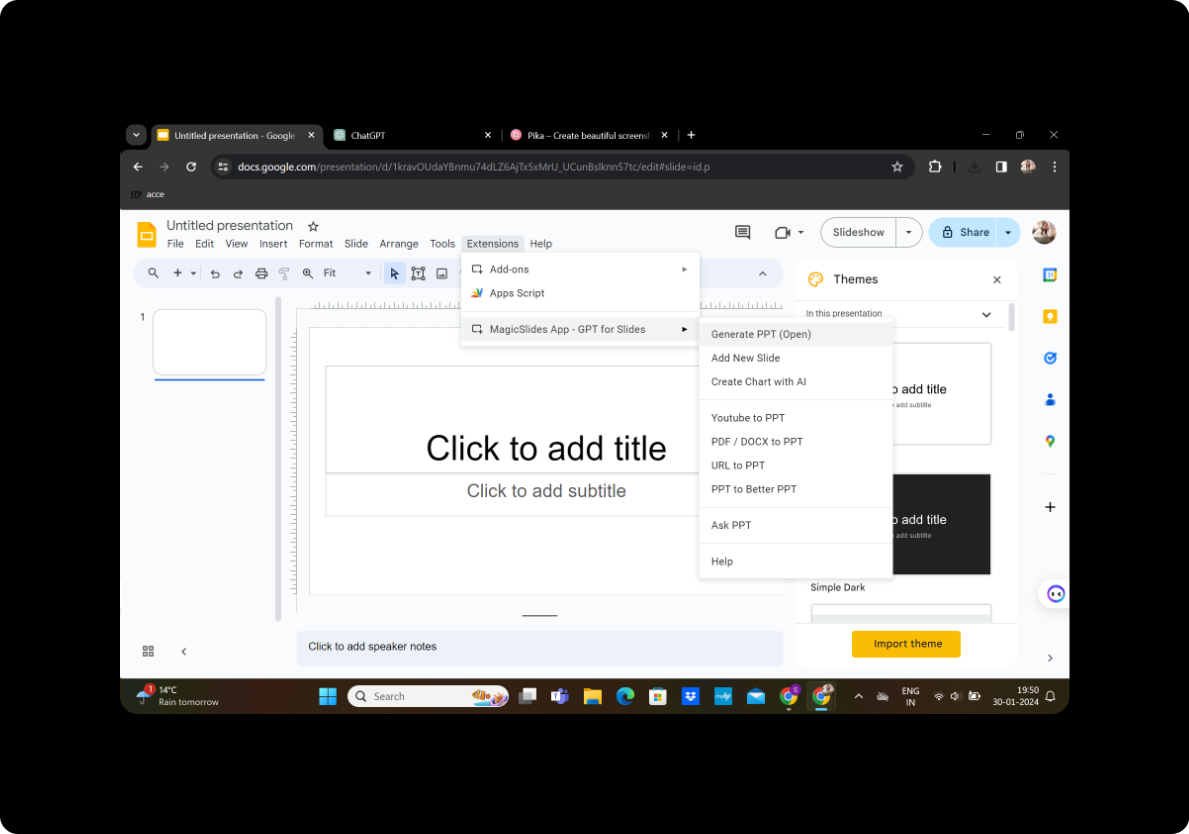
In the MagicSlides GPT interface, locate and click on "Generate PPT." This action will initiate the conversion process.
4. Title Your Presentation
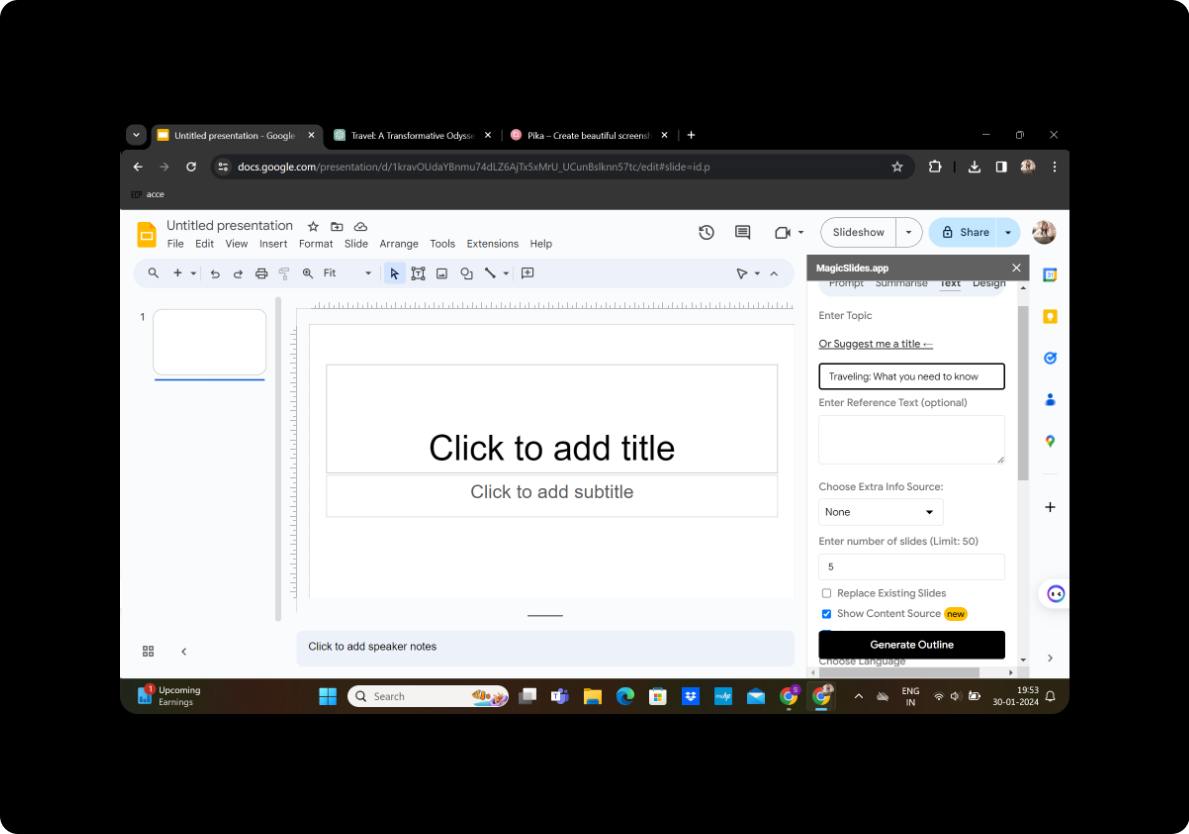
In the box provided for the title, add a suitable title for your presentation. This will be the first slide of your PowerPoint.
5. Copy and Paste Your Content
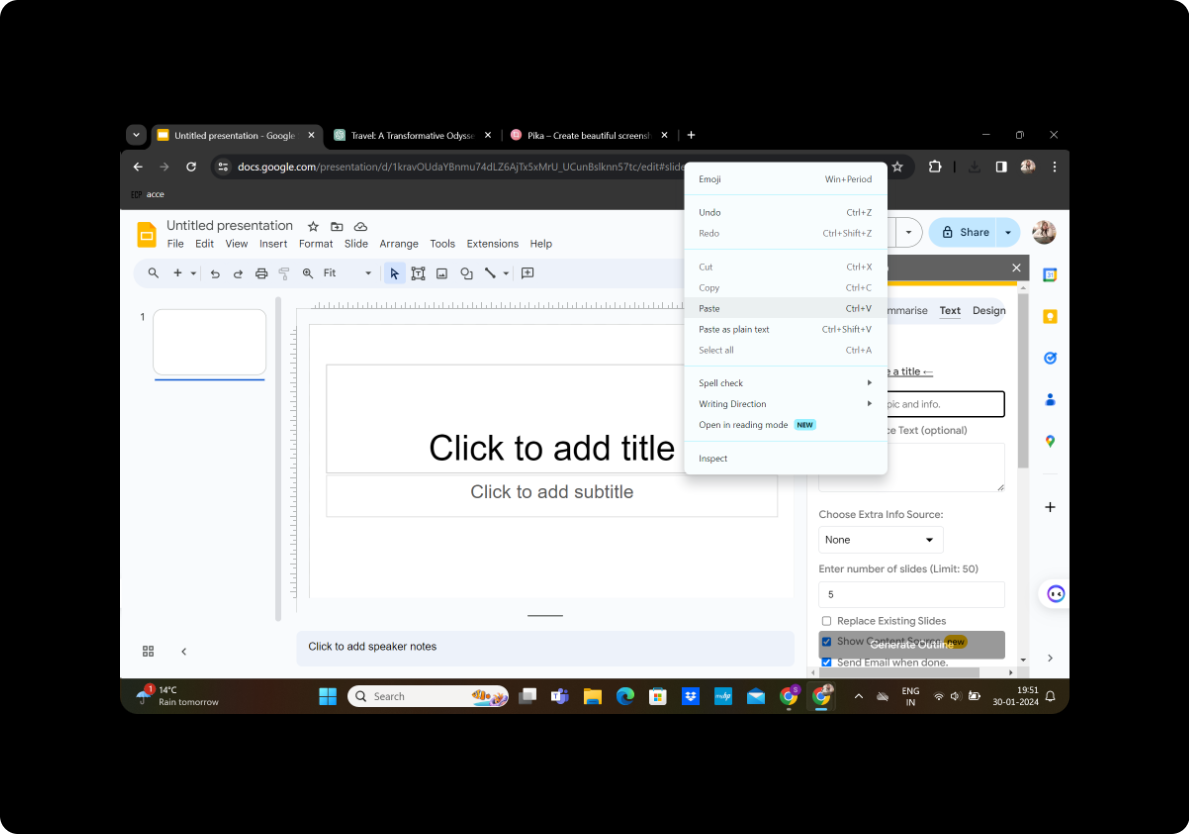
Copy the written content you want to convert into slides and paste it into the designated text box within MagicSlides GPT.
6. Select the Number of Slides
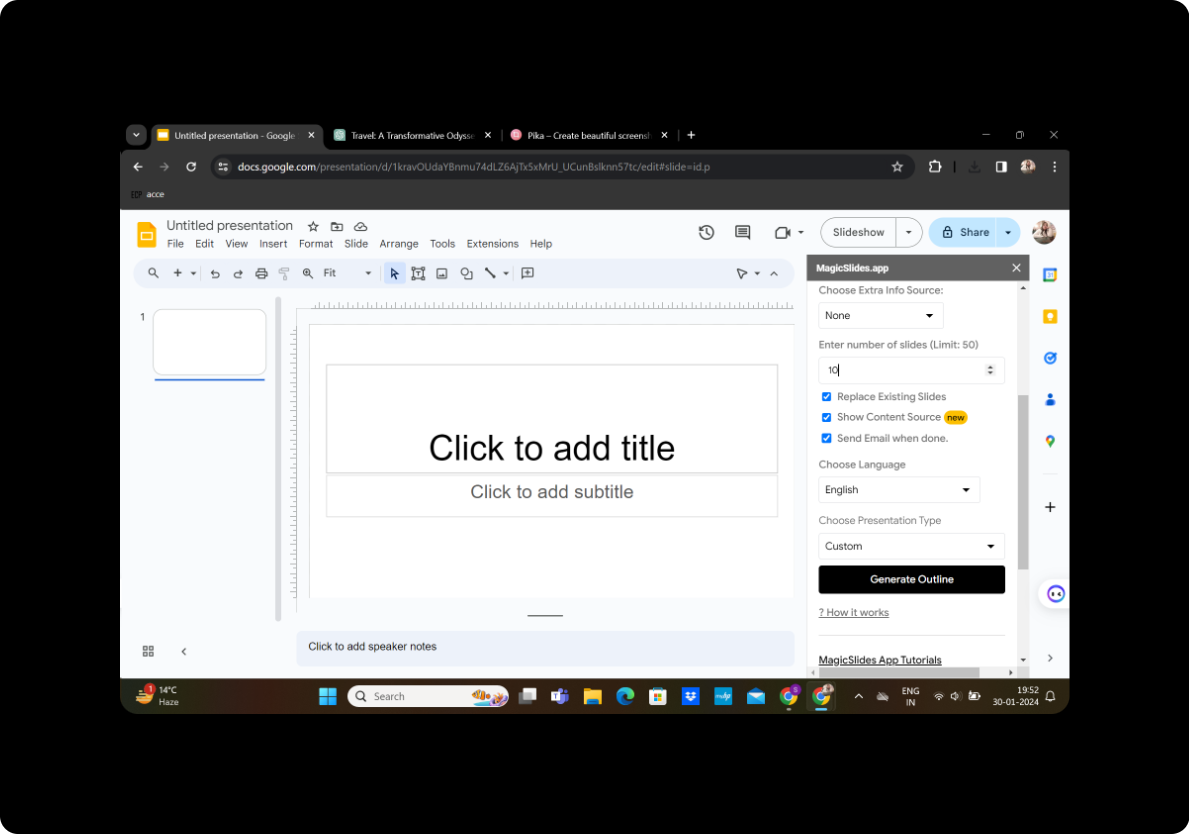
Decide the number of slides you want in your presentation. Adjust this according to the content's flow and your presentation preferences.
7. Click on "Generate Presentation"
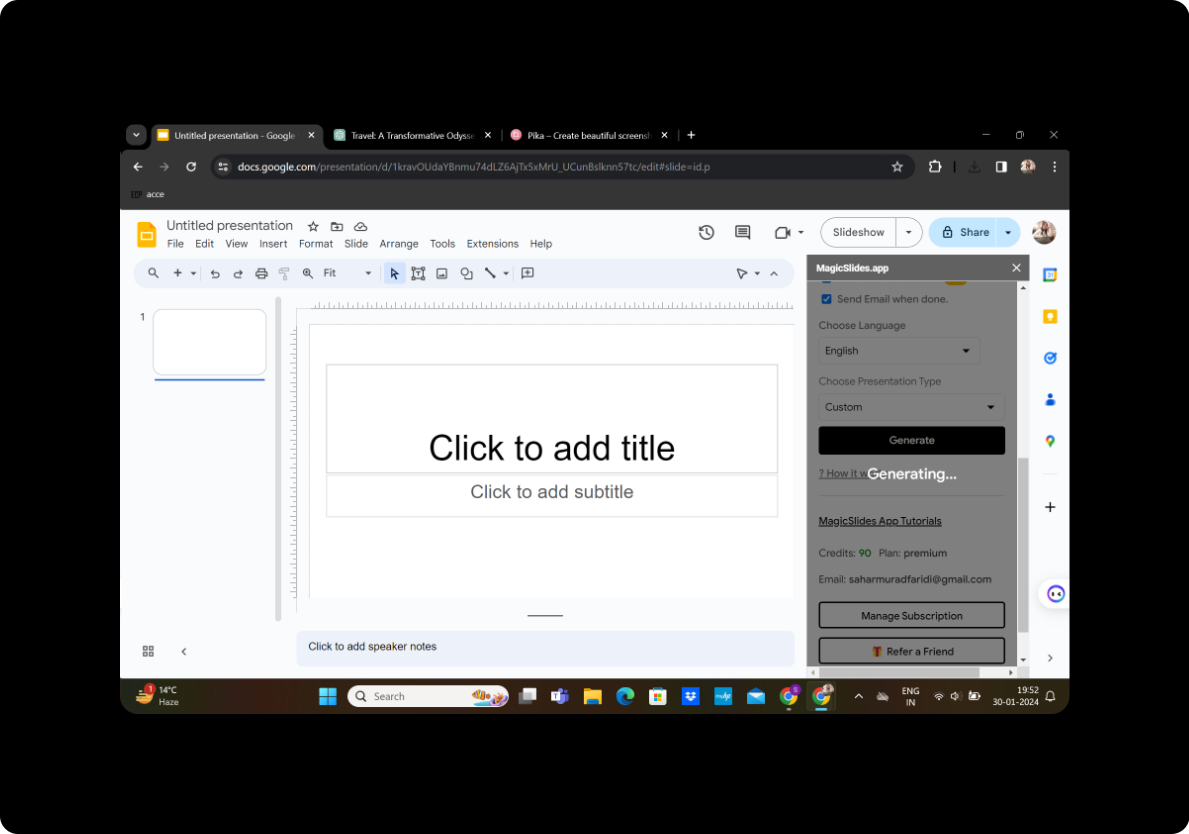
Once everything is set, click the button labeled "Generate Presentation" to let MagicSlides GPT work its magic.
8. Modify and Finalize
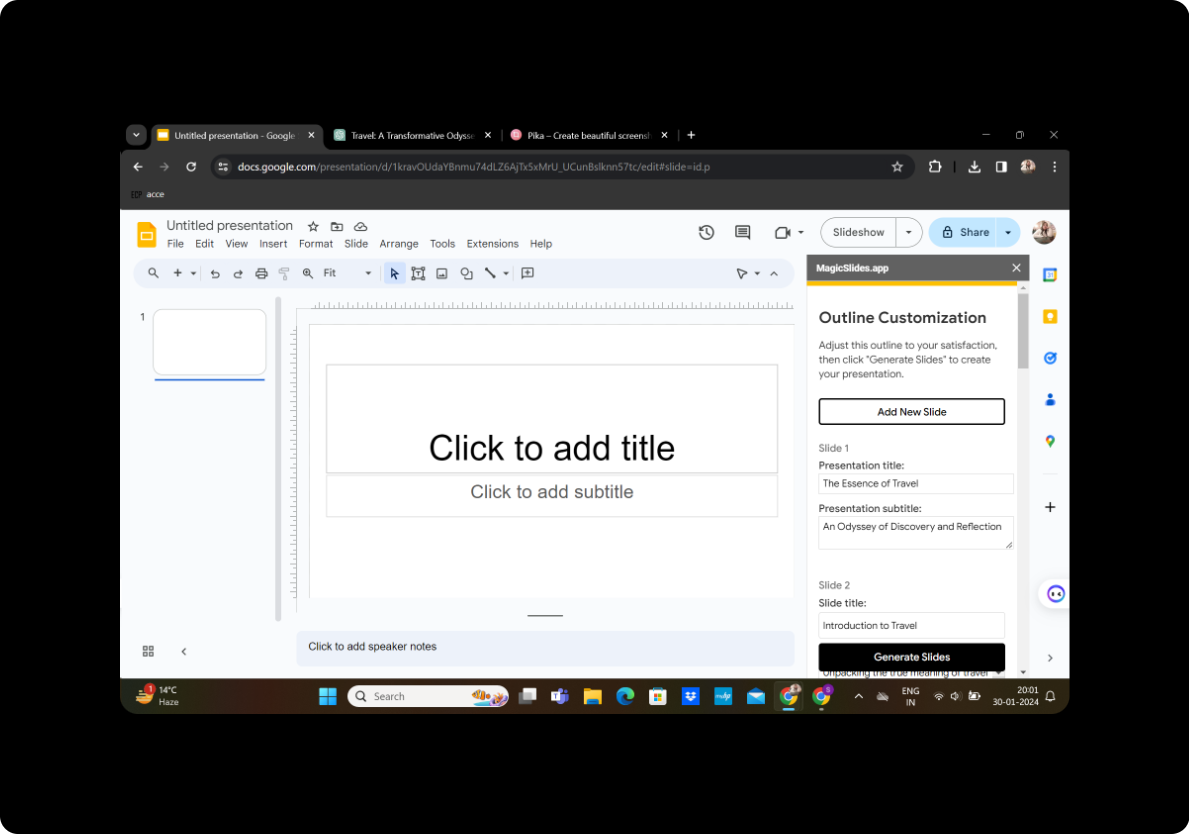
MagicSlides will provide you with an outline for your presentation. Review the slides and modify anything according to your preferences. You have the flexibility to adjust content, formatting, and layout.
9. Click on "Generate Presentation"
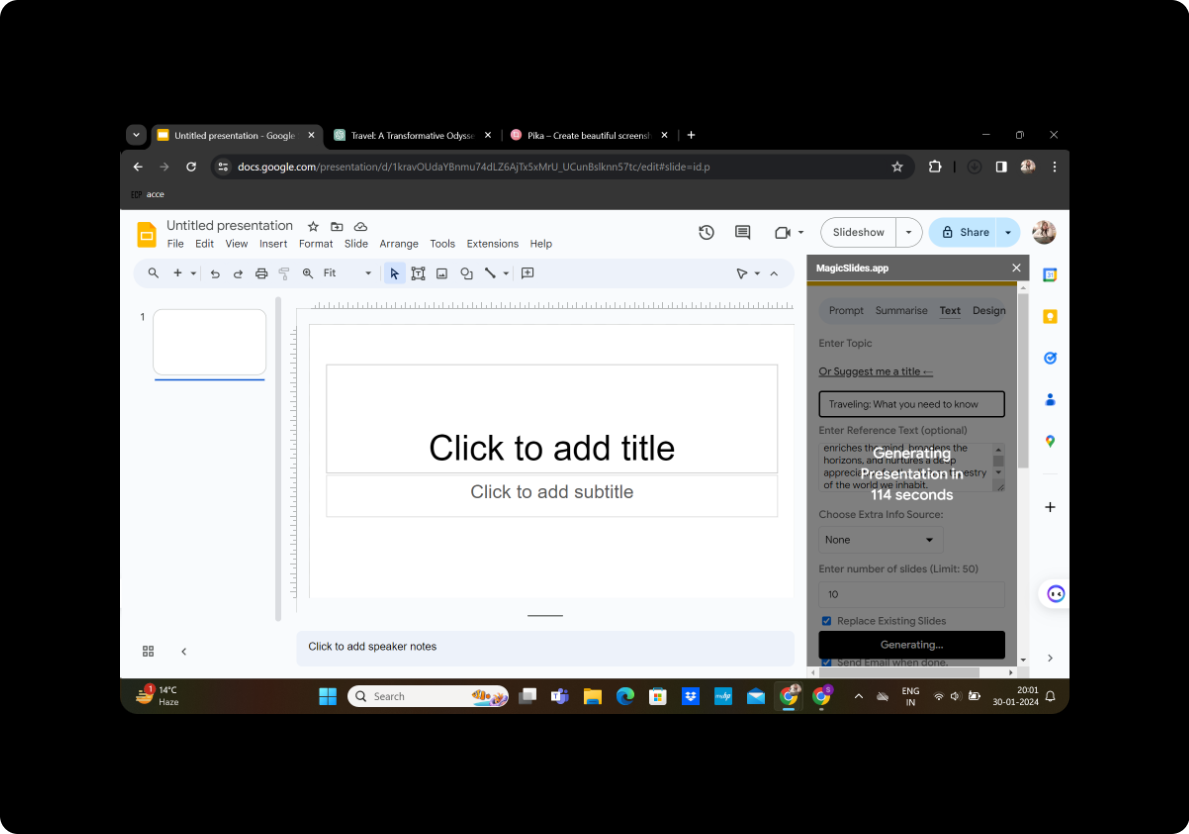
After making necessary modifications and ensuring everything meets your satisfaction, click on "Generate Presentation" once more to finalize your work.
Conclusion
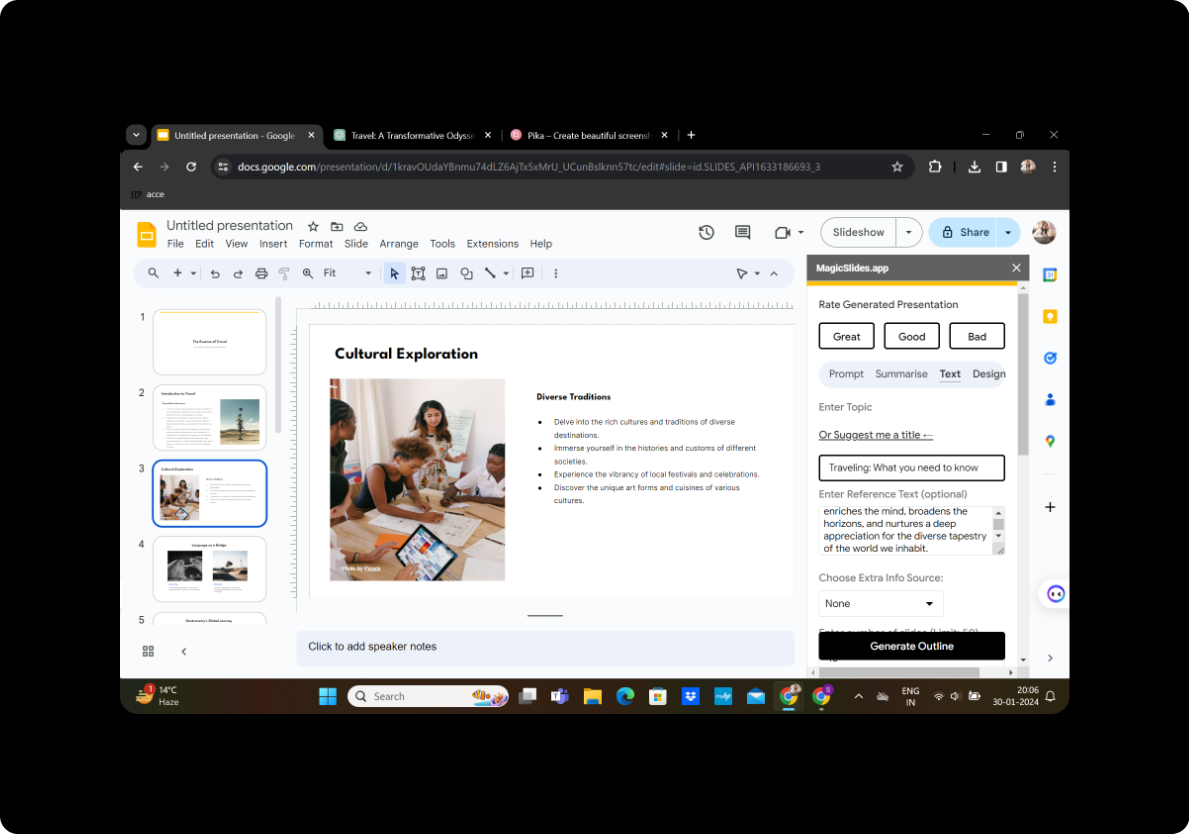
Your presentation is now ready! Converting written content into a dynamic PowerPoint presentation has never been easier. Whether for academic purposes, business presentations, or creative projects, this method ensures a professional and visually appealing result.
Frequently Asked Questions
Can I edit the generated slides? Yes, after the conversion, you can review and edit the slides within Google Slides to refine your presentation further.
Is MagicSlides GPT free? Yes, MagicSlides GPT is a free extension available for use within Google Slides.
Can I add images to my presentation? Absolutely! Enhance your presentation by easily adding images or graphics within Google Slides.
Are there limitations to the number of slides I can generate? While there isn't a strict limit, consider the attention span of your audience and keep your presentation concise.
Can I share my presentation with others? Yes, Google Slides allows easy sharing and collaboration. Simply click on the share button and enter the email addresses of your collaborators.


