How to Convert PDF images and charts data to PowerPoint slides


Transform PDF visuals effortlessly with MagicSlides: A guide to convert data into dynamic PowerPoint presentations on Google Slides.
In the ever-evolving digital landscape, we often find ourselves grappling with various file formats, especially when it comes to sharing visual data. If you've ever wished for a seamless way to transform PDF images and charts into engaging PowerPoint slides, your wish is about to come true. Enter MagicSlides, a game-changing extension for Google Slides that makes the conversion process a breeze. In this step-by-step guide, we'll walk you through the simple process of turning your PDF data into a dynamic presentation.
How to Convert PDF images and charts data to PowerPoint slides
Step 1: Visit Google Slides
Begin your journey by heading to the Google Slides platform at slides.google.com. If you don't have a Google account, sign up or log in to your existing one.
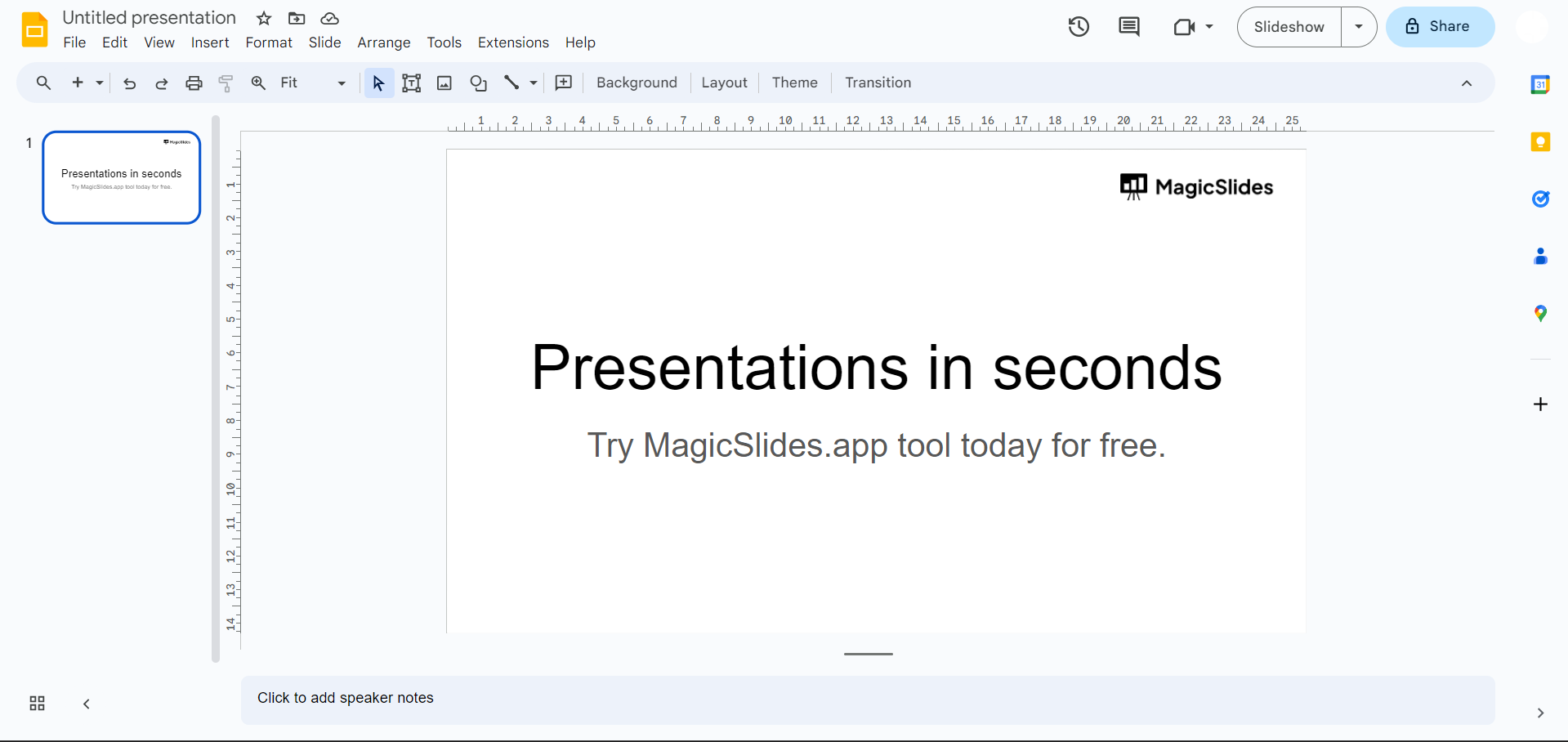
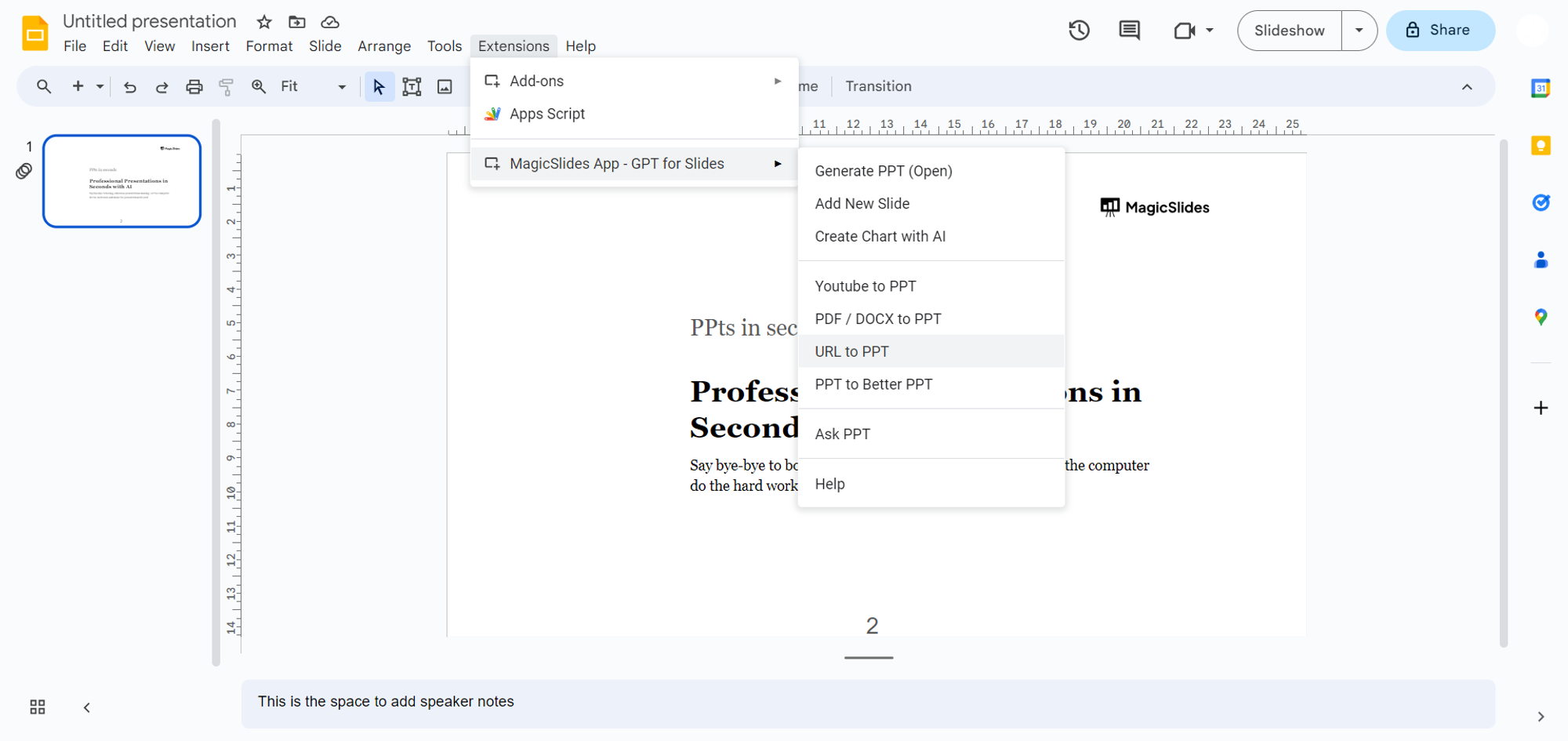
Step 2a: Open MagicSlides Extension (If Already Installed)
If you've already installed MagicSlides, simply open it from the extensions tab in your browser.
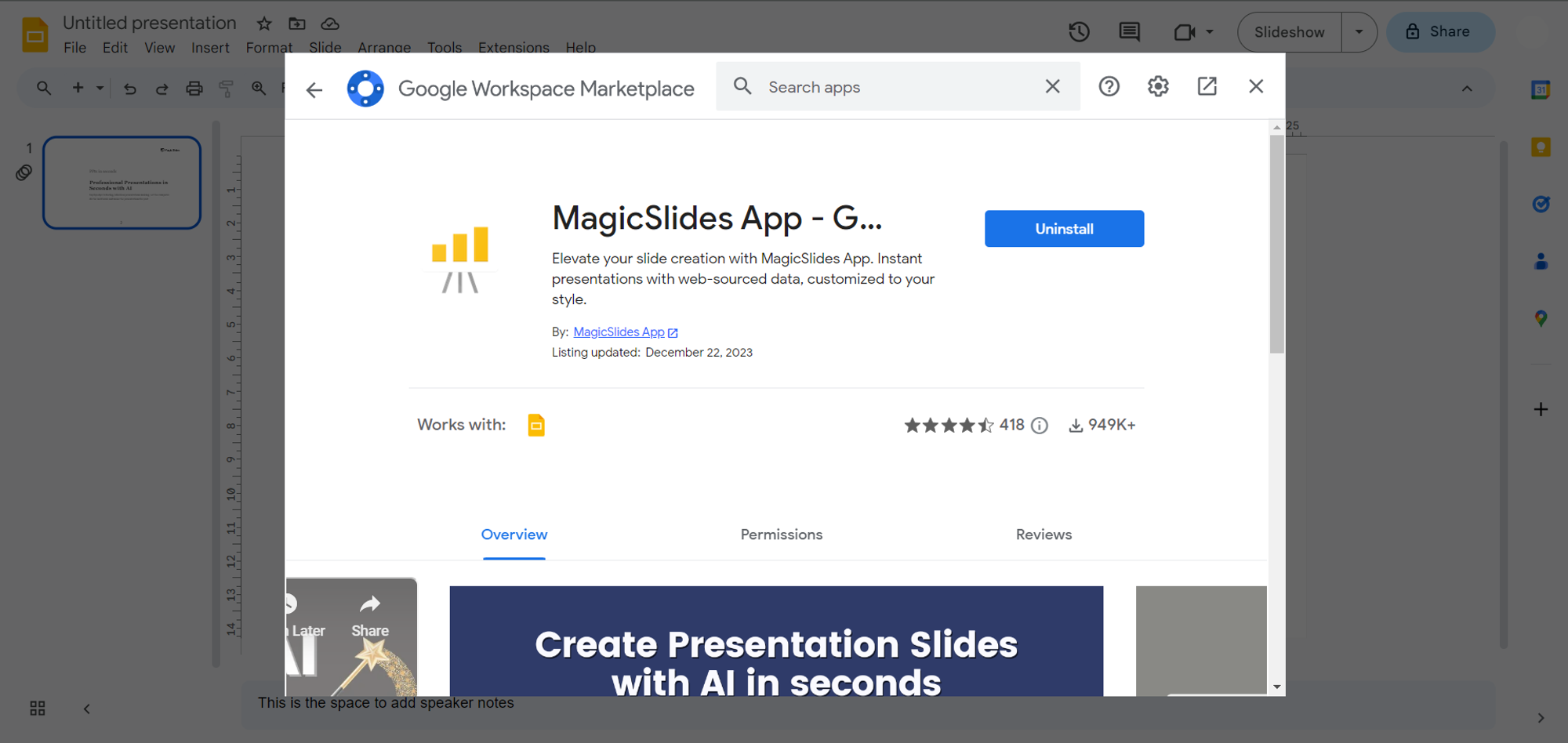
Step 2b: Install MagicSlides Extension (If Not Installed)
If you don't have MagicSlides, head to the extensions marketplace, search for "magicslides.app," and download the extension to your Google Slides.
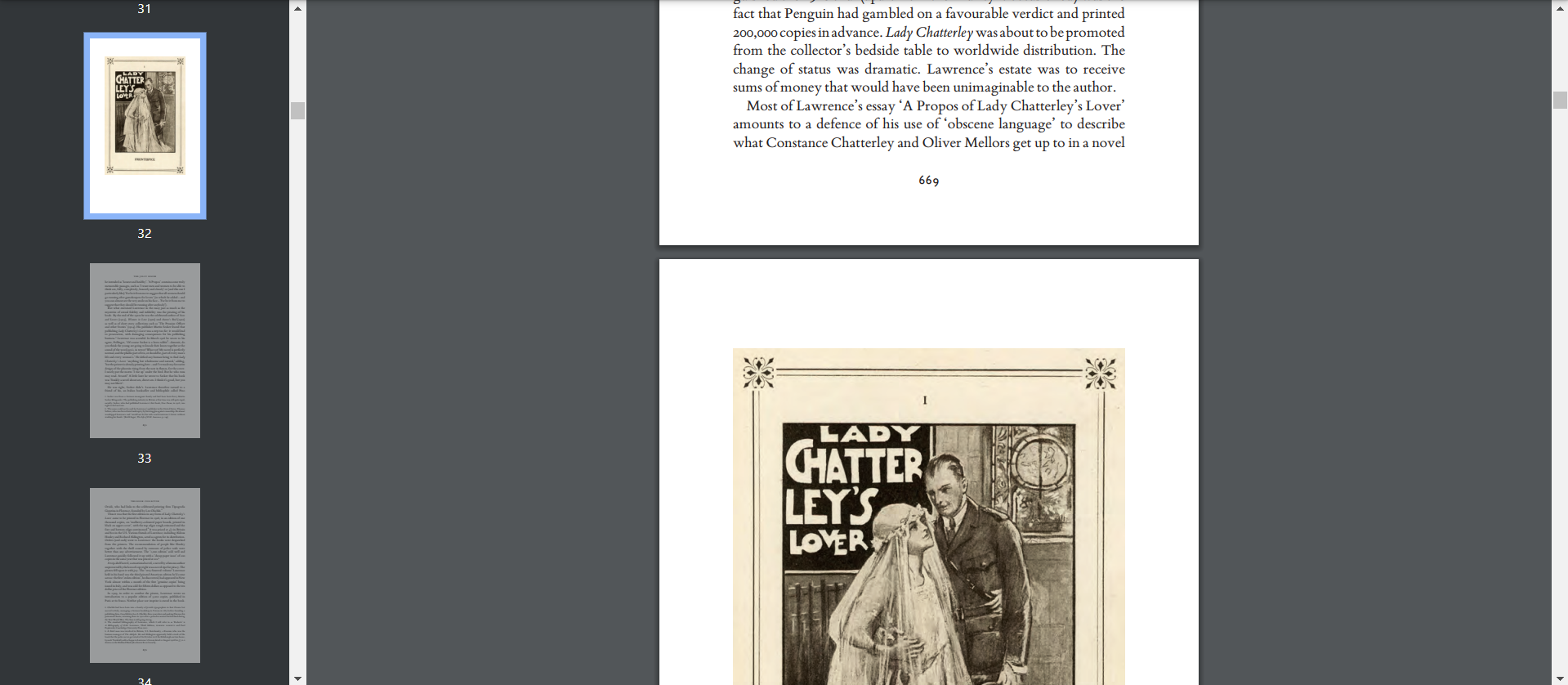
Step 3: Choose Your PDF containing the visual Data
Now that MagicSlides is set up, navigate to the PDF file containing the visual data you want to convert. You can either copy the URL of the online PDF or download the file to your device.
Step 4: Enter URL or Upload PDF
Paste the URL of the online PDF or upload the downloaded file directly into MagicSlides. This step ensures that the extension knows which data to convert into a presentation.
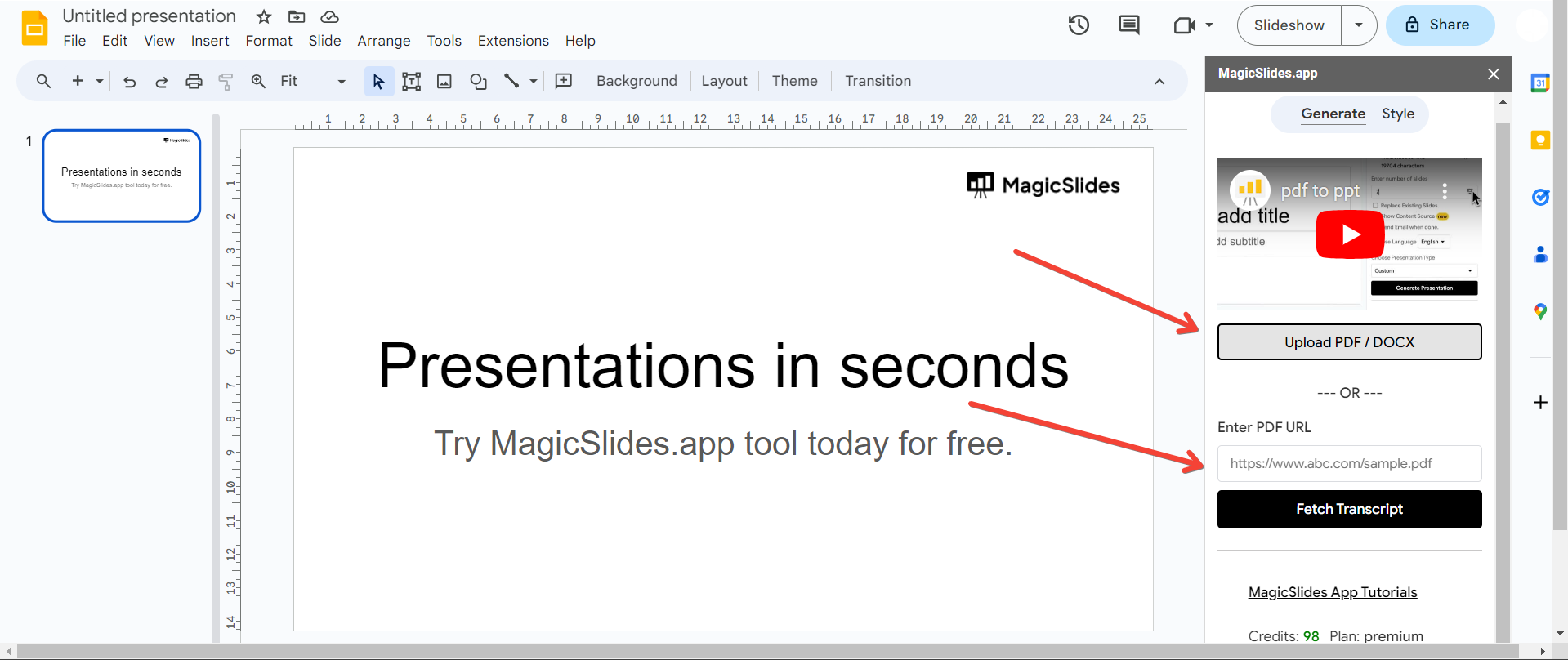
Step 5: Click "Generate to Presentation"
With the PDF data in place, click the "Generate to Presentation" button. MagicSlides will work its magic, extracting the images and charts from the PDF and turning them into a captivating PowerPoint presentation.
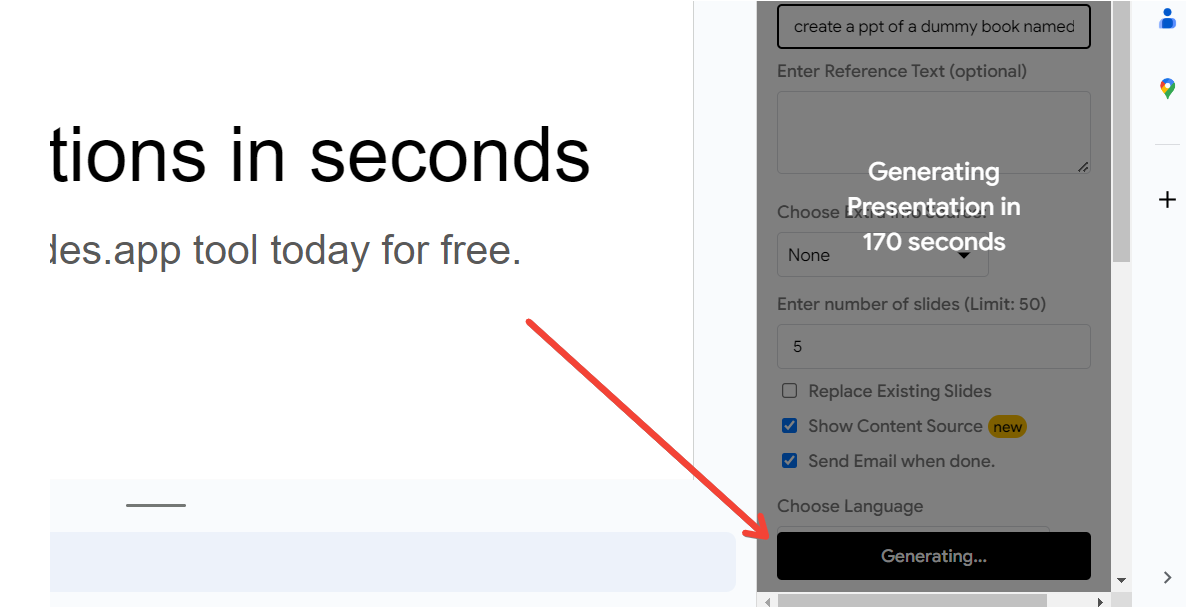
Step 6: Your Presentation is Ready!
Sit back and revel in the simplicity of it all. Your PDF, now transformed into a presentation, is ready for your audience. Feel free to customize and enhance the slides within Google Slides to suit your preferences.
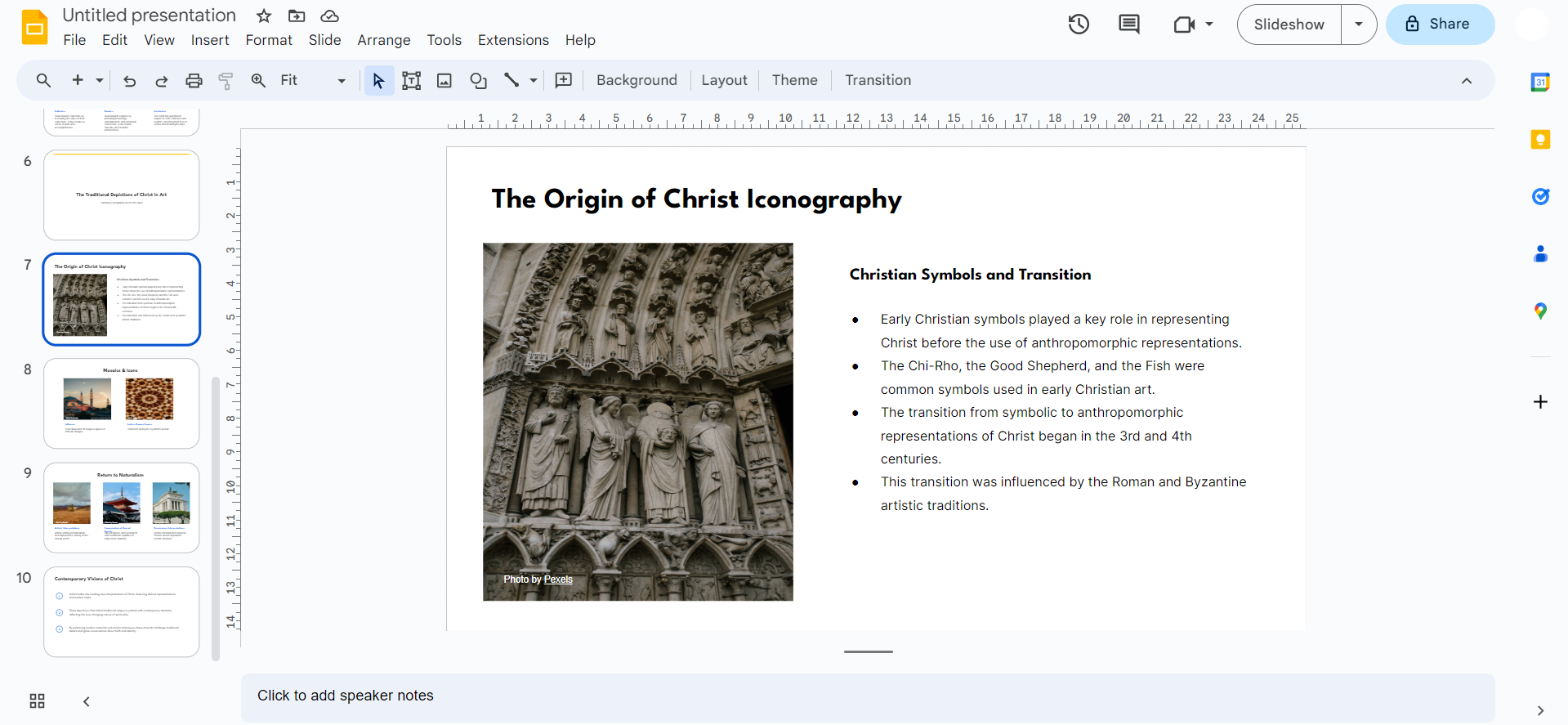
Want to see how MagicSlides can create a PPT from PDFs? watch this quick video by us and subscribe to our channel:-
Conclusion:
Say goodbye to the hassle of manually recreating visuals from PDFs. MagicSlides streamlines the process, allowing you to effortlessly convert PDF images and charts into dynamic PowerPoint slides. Embrace the magic and elevate your presentation game with this user-friendly Google Slides extension. Give it a try, and let the magic unfold in your next presentation!
Frequently Asked Questions:
Is MagicSlides compatible with all types of PDFs?
Yes, MagicSlides is designed to work with a wide range of PDFs, including those with images and charts.
Can I edit the converted presentation in Google Slides?
Absolutely! Once MagicSlides works its magic, you can further customize and edit the presentation to suit your needs.
Does MagicSlides retain the quality of the original PDF visuals?
Yes, MagicSlides maintains the quality of images and charts during the conversion process, ensuring a professional and polished presentation.
You might also like:
- How To Convert PDF Lecture Notes To PowerPoint: https://www.magicslides.app/blog/how-to-convert-pdf-lecture-notes-to-powerpoint
- How To Summarize Blog Posts Text Into Visual Slideshows: https://www.magicslides.app/blog/how-to-summarize-blog-posts-text-into-visual-slideshows
- How To Create Concise Presentations From Lengthy Articles: A Step-By-Step Guide: https://www.magicslides.app/blog/how-to-create-concise-presentations-from-lengthy-articles-a-step-by-step-guide


