how to convert ppt to pdf


Learn how to effortlessly convert your PowerPoint presentations into PDF format for easy sharing and compatibility.
Converting your PowerPoint presentations to PDF format is a common and practical way to share your slides while ensuring that the formatting remains consistent across different devices and platforms. In this guide, we'll walk you through the simple steps to convert your PPT files to PDF, making it easier to distribute and share your valuable content.
Steps: How to Convert PowerPoint (PPT) to PDF
- Open Your PowerPoint Presentation:
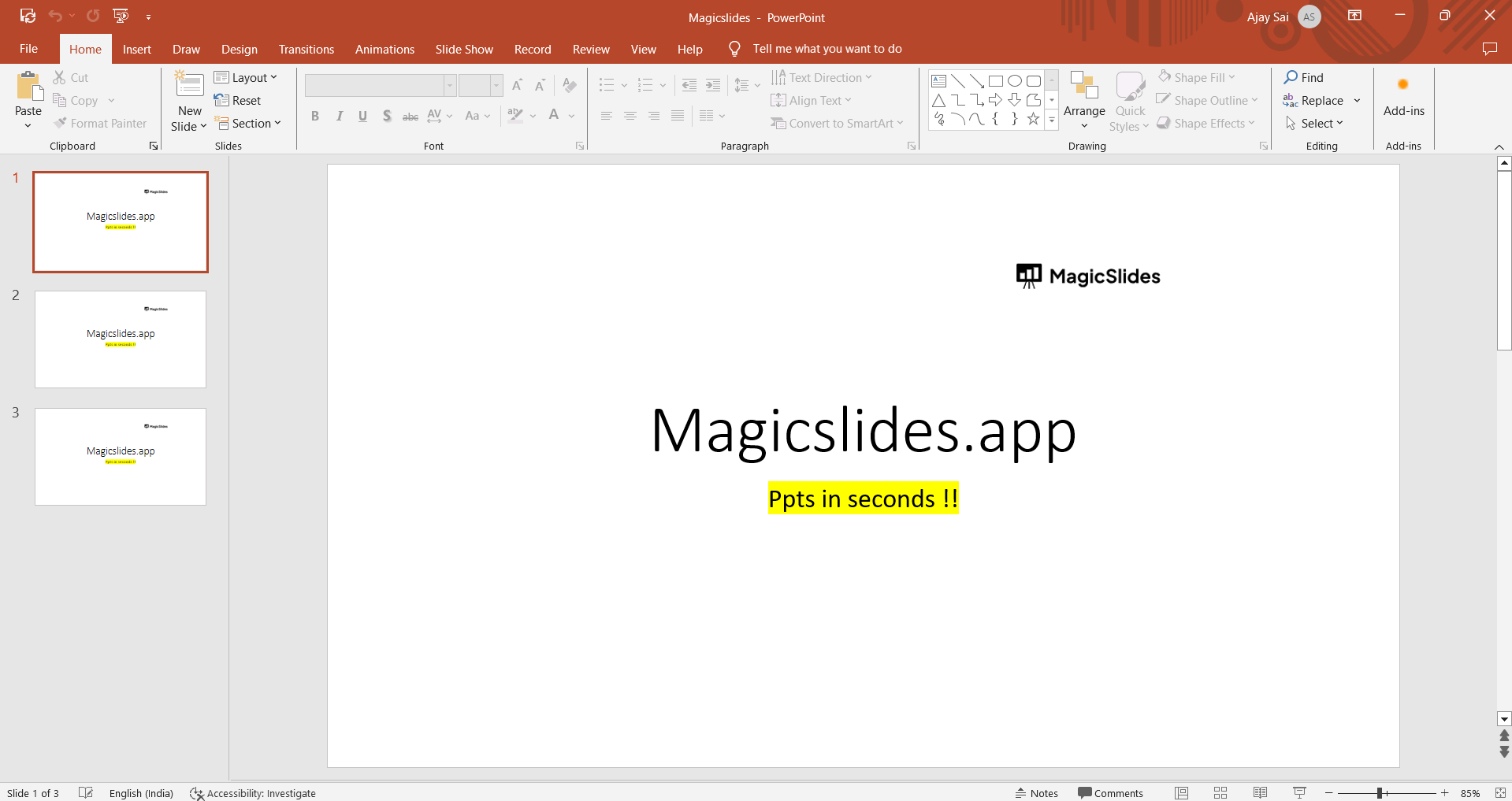
- Start by opening the PowerPoint presentation you want to convert to PDF. Ensure your presentation is complete and ready for sharing.
- Go to the "File" Menu:
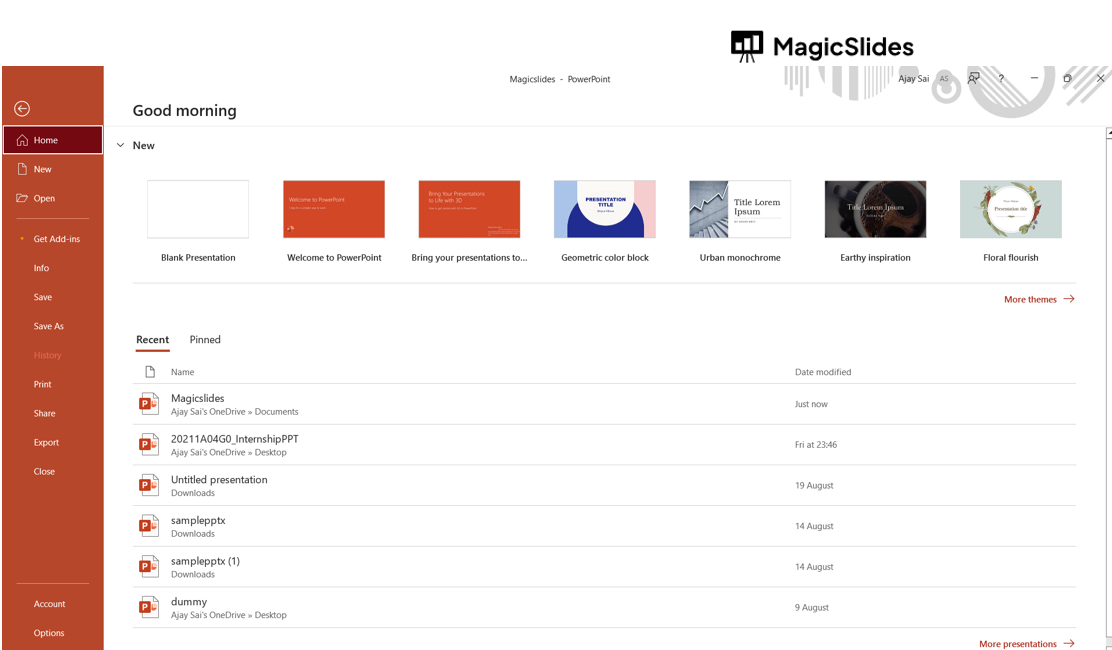
- In the top-left corner of the PowerPoint window, click on the "File" tab to access the File menu.
- Select "Save As":
- In the File menu, select the "Save As" or "Save a Copy" option. This will open a window where you can specify the save location and file format.
- Choose the PDF Format:
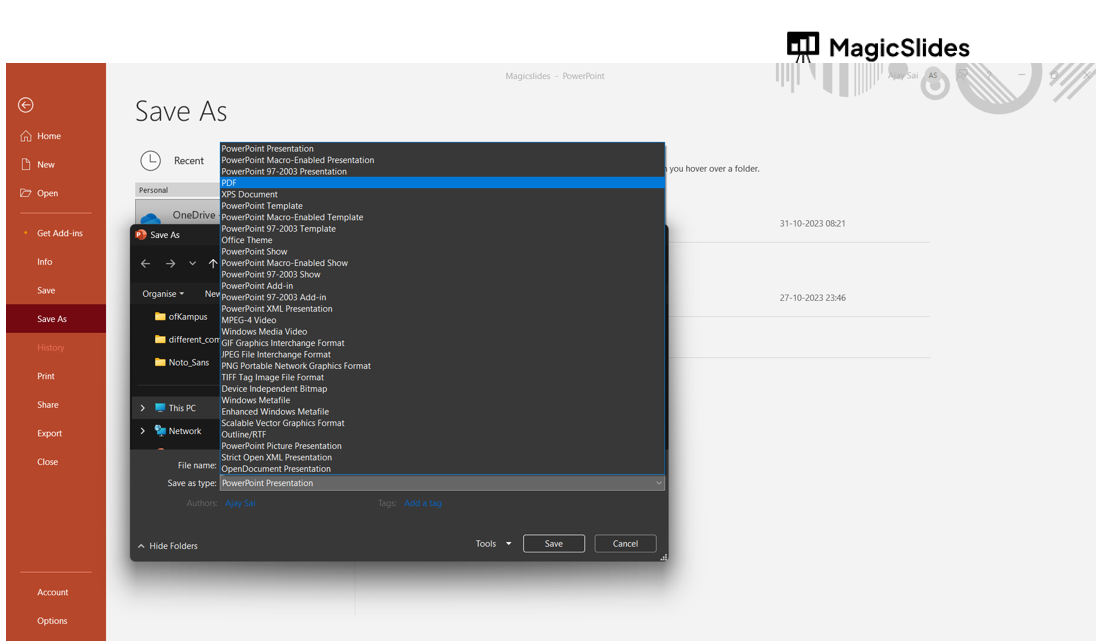
- In the "Save As" window, navigate to the location where you want to save the PDF file. Next, open the "Save as type" dropdown menu and select "PDF" as the file format.
- Adjust PDF Settings (Optional):
- You can click on "Options" or "More Options" (the label may vary depending on your PowerPoint version) to adjust PDF settings. This allows you to configure aspects such as slide range, quality, and more. Once you've made your choices, click "OK."
- Name Your PDF File:
- In the "Save As" window, you can give your PDF file a name. Choose a meaningful name that reflects the content of your presentation.
Conclusion:
Converting your PowerPoint (PPT) files to PDF is a quick and effective way to share your presentations with a wider audience, regardless of their devices or software.
By following these straightforward steps, you can preserve the content and layout of your slides, making it easy to distribute your valuable information and ideas in a universally compatible format.
Frequently Asked Questions:
Why should I convert my PowerPoint presentation to PDF?
- Converting to PDF ensures that your presentation maintains its formatting and is easily viewable on different devices and platforms.
Can I convert multiple PowerPoint presentations to a single PDF file?
- Yes, you can combine multiple PowerPoint presentations into a single PDF file using various PDF merging tools or by printing them as PDFs sequentially.
Will hyperlinks and animations work in the PDF version?
- Hyperlinks will work in the PDF, allowing users to click and access linked content. However, animations and transitions may not be preserved.
What if I don't have Microsoft PowerPoint installed? Can I still convert PPT to PDF?
- Yes, there are various online and offline tools that allow you to convert PPT to PDF without needing to have PowerPoint installed.
Is the process the same for both Windows and Mac users?
- Yes, the process of converting PowerPoint to PDF is similar for both Windows and Mac users, with slight variations in menu labels and options.


