How to convert YouTube tutorials to PowerPoint for collaborative learning sessions


Transform YouTube tutorials into interactive presentations with MagicSlides, enhancing collaborative learning for dynamic educational experiences.
In the era of online learning, harnessing the power of YouTube tutorials for collaborative sessions is a game-changer. Learn how to seamlessly convert these tutorials into dynamic PowerPoint presentations using the MagicSlides extension on Google Slides.
How to convert YouTube tutorials to PowerPoint for collaborative learning sessions
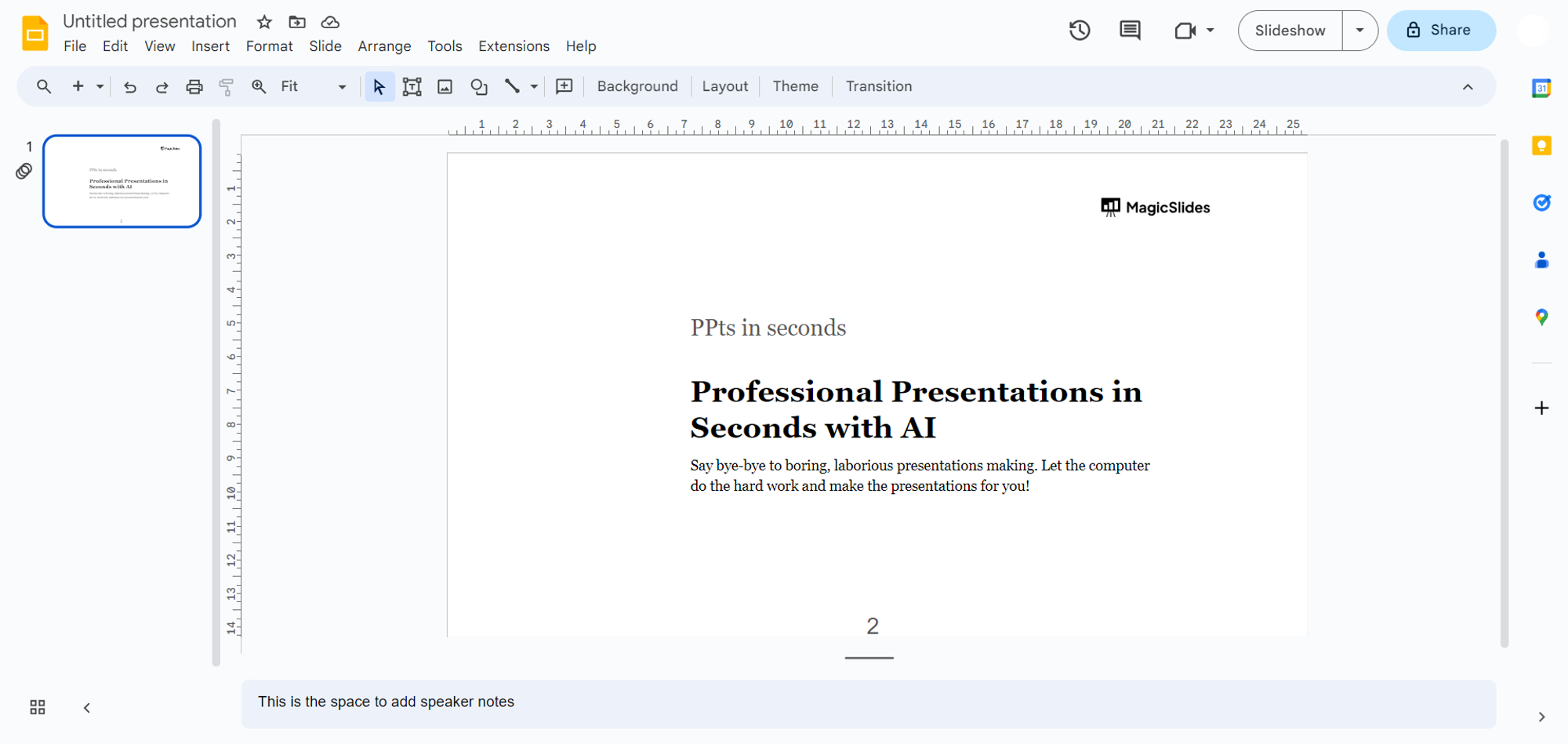
Step 1: Visit Google Slides (slides.google.com)
Begin your journey by navigating to Google Slides at slides.google.com, the canvas for your collaborative presentations.
Step 2: Sign In with Google
Ensure a personalized experience by signing in with your Google account, providing access to the suite of Google applications.
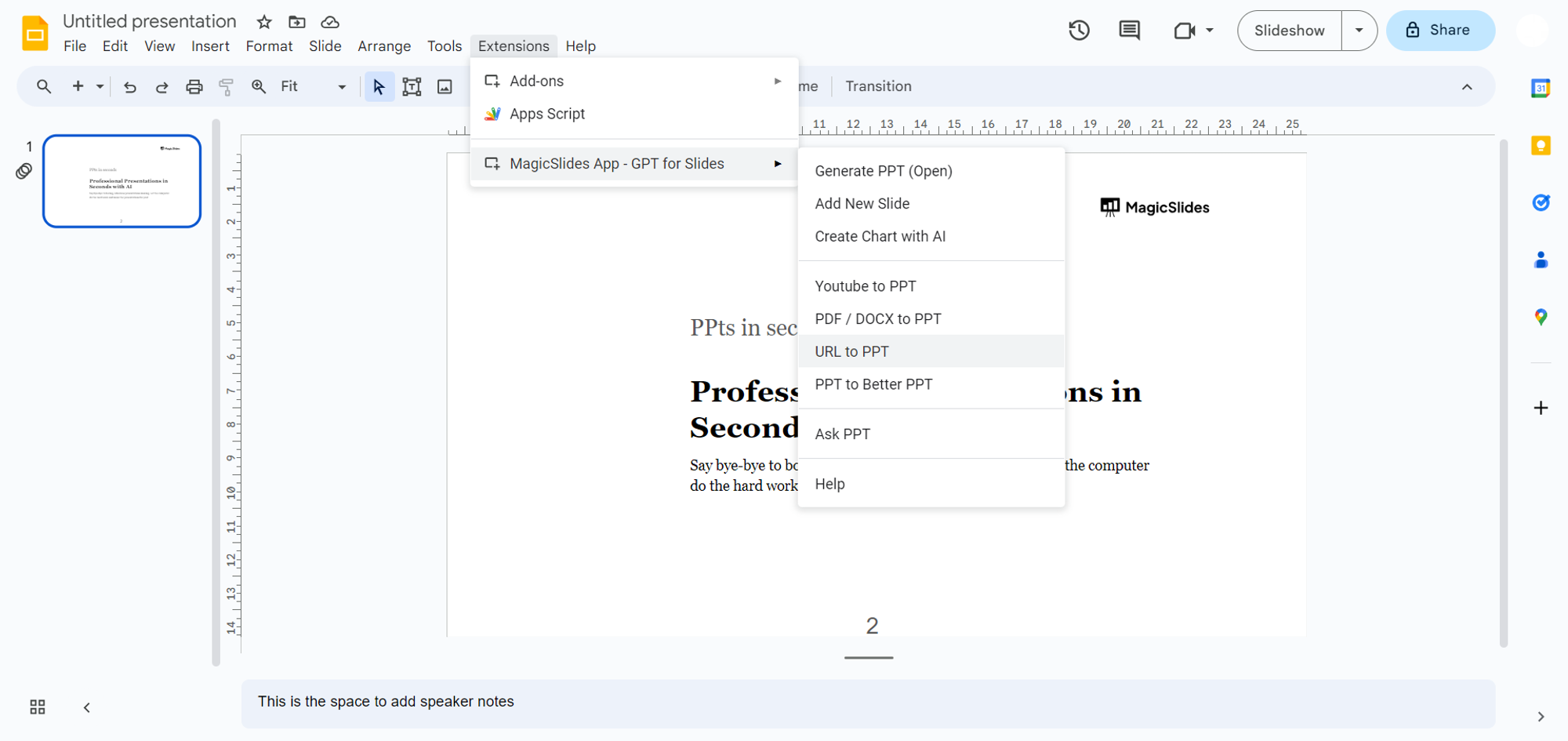
Step 3a: Open MagicSlides Extension (If already downloaded)
If you've previously downloaded MagicSlides, effortlessly access it by opening the extensions tab in Google Slides.
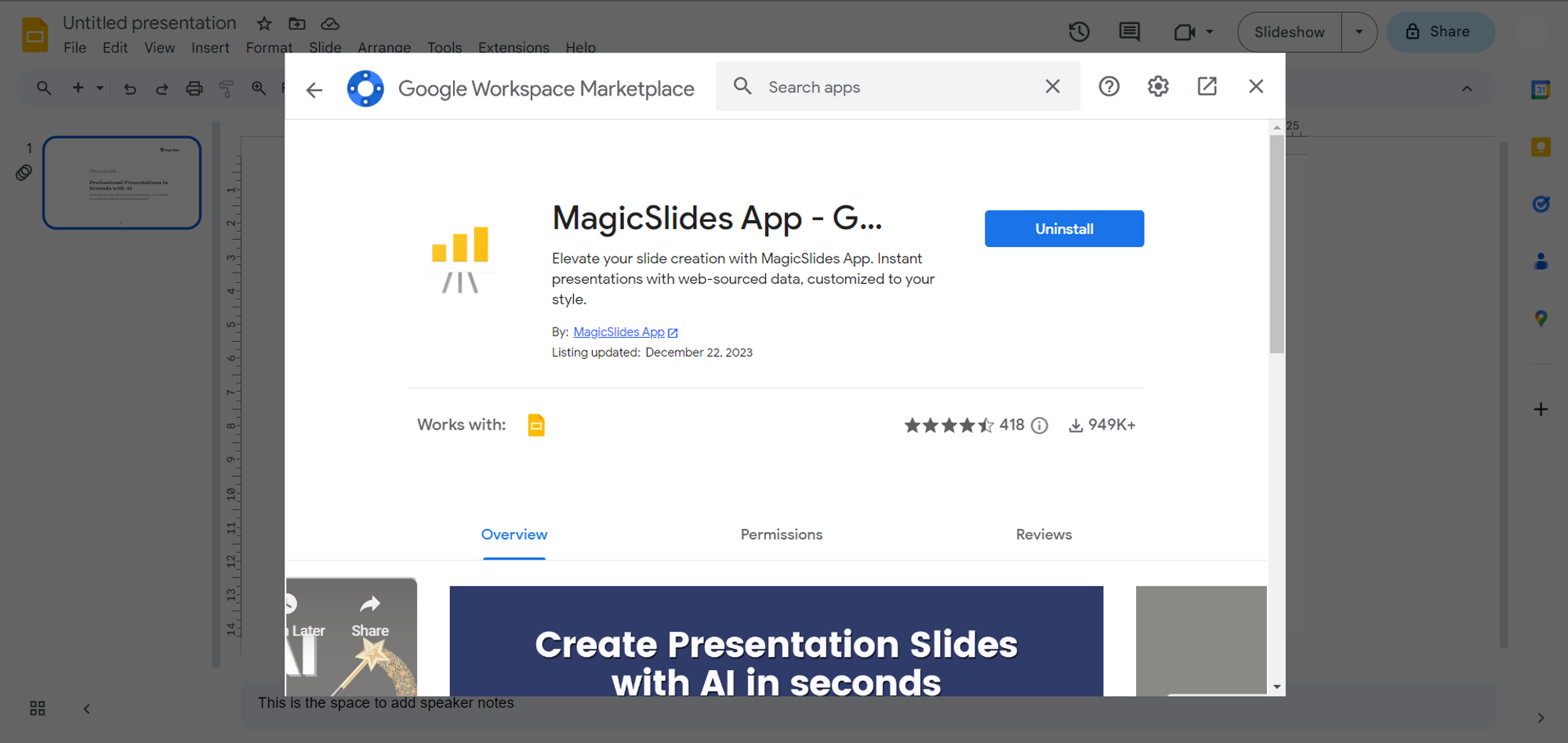
Step 3b: Download MagicSlides Extension (If not downloaded)
For those new to MagicSlides, explore the extensions marketplace within Google Slides. Search for "magicslides.app," download the extension, and add it to your Google Slides toolbox.
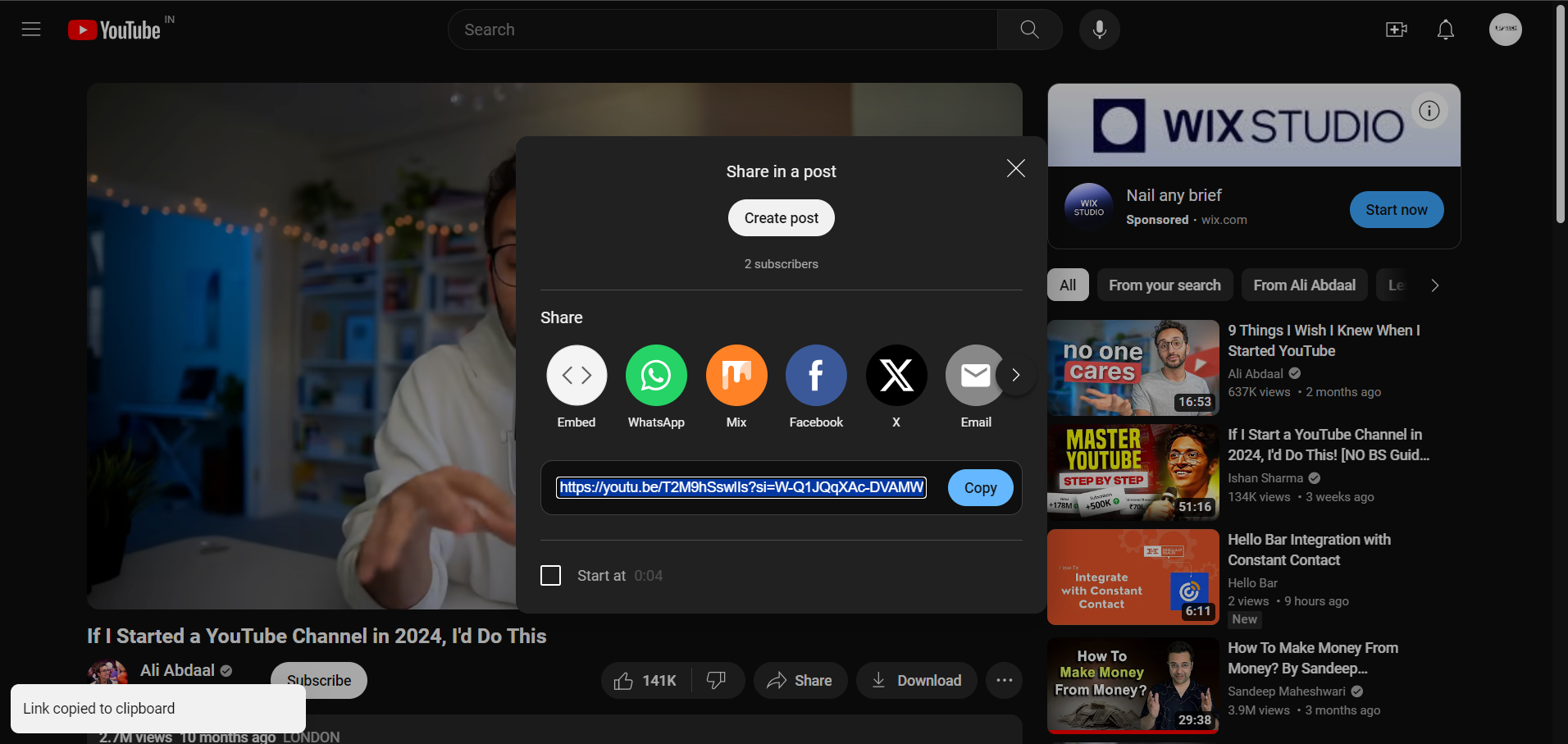
Step 4: Copy the YouTube Tutorial URL
Navigate to the YouTube tutorial you wish to convert. Copy its URL; this is the key to transforming your tutorial into an engaging presentation.
Step 5: Enter the YouTube Tutorial URL
Back in Google Slides, use the MagicSlides extension. Paste the YouTube tutorial URL into the designated field.
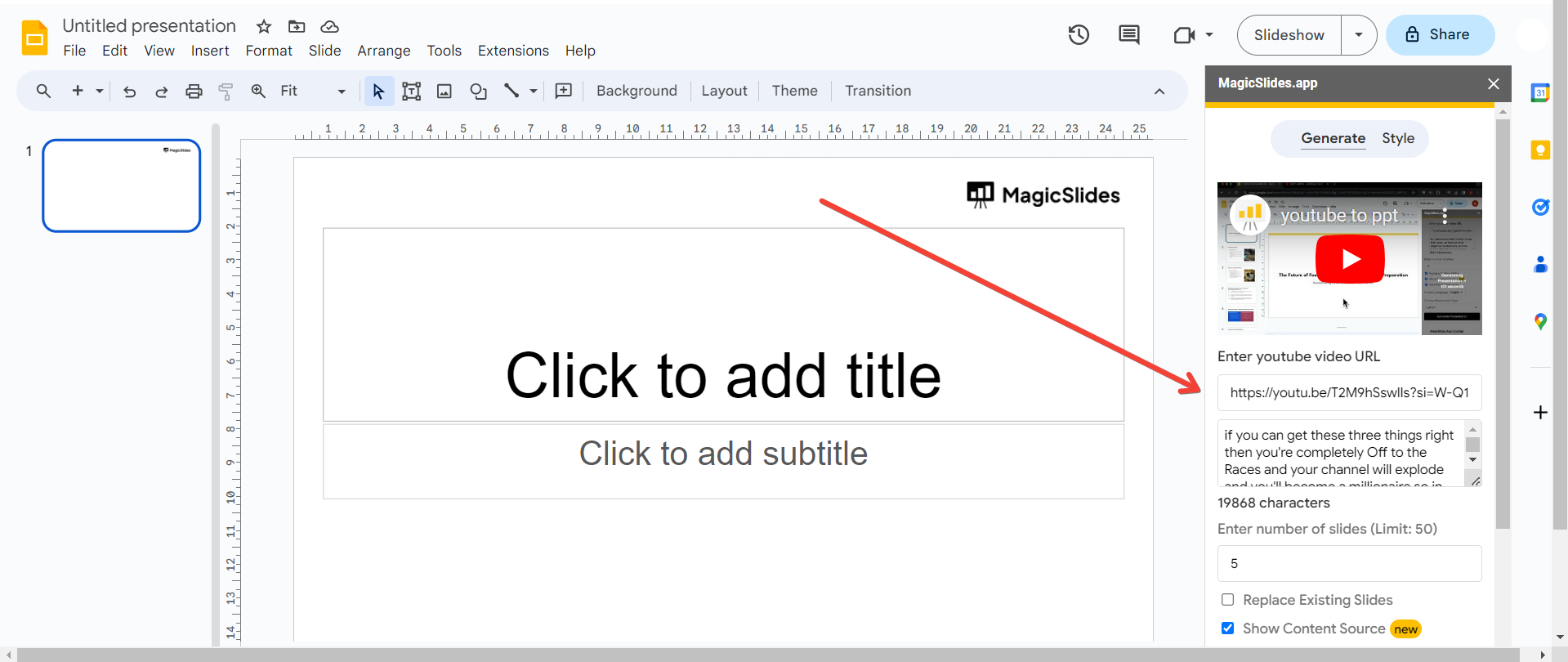
Step 6: Click on "Generate to Presentation"
Hit the magic button! Click "Generate to Presentation" and witness the transformation of your YouTube tutorial into a well-structured PowerPoint presentation.
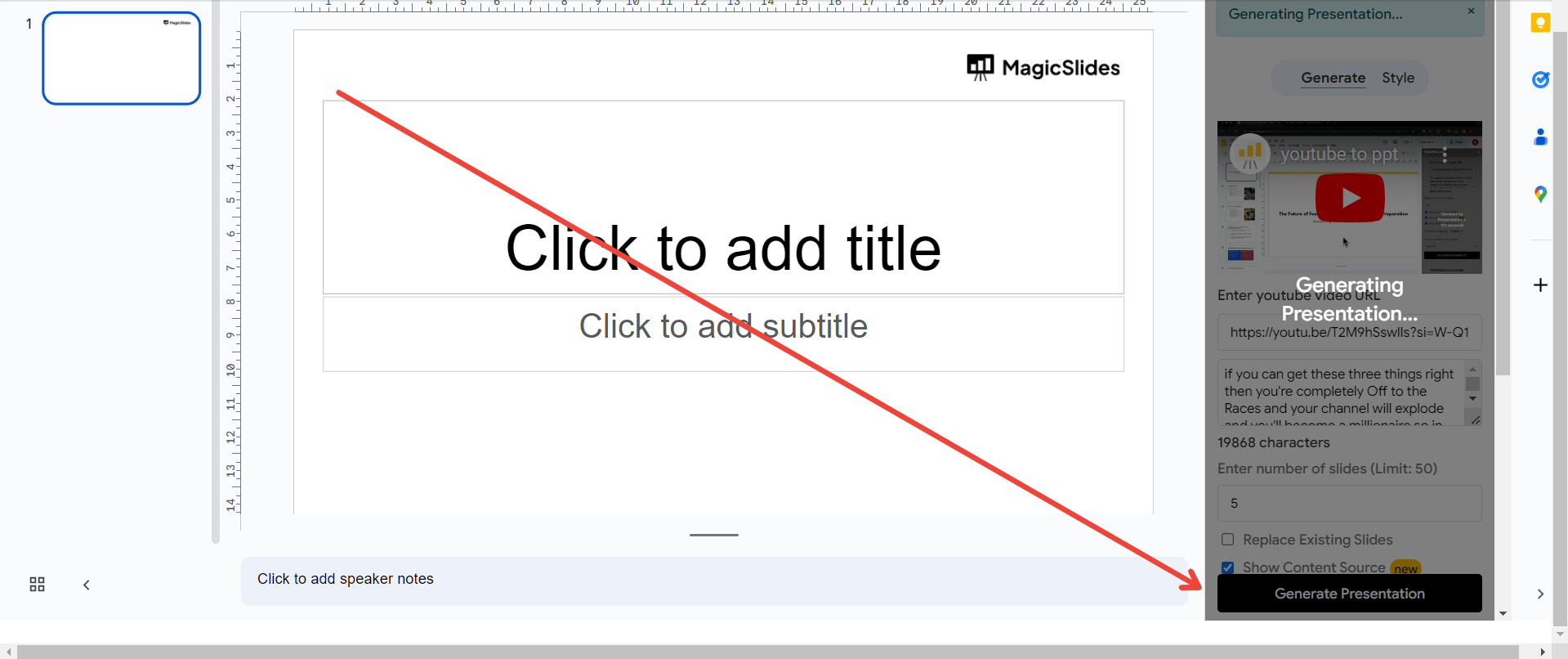
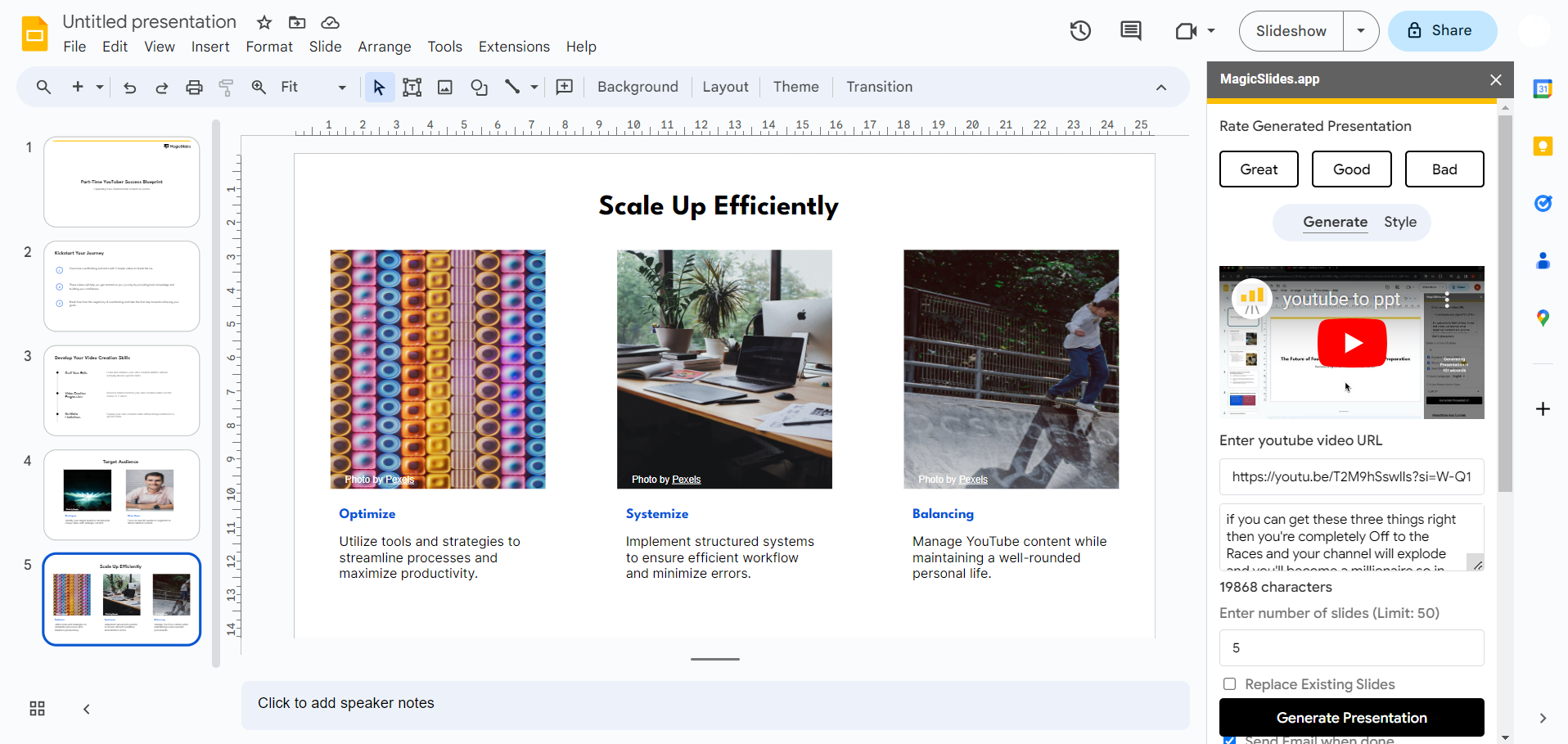
Step 7: Your YouTube Tutorial is Now a Presentation
Congratulations! Your YouTube tutorial is now a dynamic presentation, ready for collaborative learning sessions or as a concise summary.
Conclusion:
With MagicSlides and Google Slides, converting YouTube tutorials into PowerPoint presentations is a breeze. Elevate your collaborative learning experience by seamlessly translating online tutorials into engaging, interactive sessions. Embrace the power of technology to unlock a new dimension of educational collaboration.
Frequently Asked Questions:
Q: Can I convert any YouTube tutorial, regardless of length or content, into a presentation?
Ans: Yes, MagicSlides allows you to convert a wide range of YouTube tutorials into dynamic presentations.
Q: Are there limitations on the number of slides generated from a YouTube tutorial?
Ans: The number of slides generated depends on the content, but MagicSlides is designed for flexibility.
Q: Can I customize the generated presentation after using MagicSlides on a YouTube tutorial?
Ans: Absolutely. After conversion, you have full control to customize, edit, and enhance the presentation as needed.
Have a look @these informative blogs by us:
- How To Create PPTs For Seminar Topics From Website URL: https://www.magicslides.app/blog/how-to-create-ppts-for-seminar-topics-from-website-url
- How To Convert A Research Paper PDF To PowerPoint Slides?: https://www.magicslides.app/blog/how-to-convert-a-research-paper-pdf-to-powerpoint-slides
- How To Remove An App From Slack: https://www.magicslides.app/blog/how-to-remove-an-app-from-slack
- How To Convert Blog Post To Presentations: https://www.magicslides.app/blog/how-to-convert-blog-post-to-presentations


