Addon google slides iconPPT with AISlide TemplatesPPT TemplatesPricingBlog
    PPT with AISlide TemplatesPPT TemplatesPricingBlog
    1. Home
    2. Blog
    3. How to create a poll on Google Forms


    How to create a poll on Google Forms

    magicslides app

    Published By

    magicslides app
    Mohit Kumar Jha

    Approved By

    Mohit Kumar Jha

    Published On

    July 23th, 2024

    Reading Time

    3 min read

    Elevate engagement and gather valuable insights by mastering Google Forms for crafting interactive and dynamic polls.

    Unlock the power of real-time feedback and engagement by creating polls with Google Forms. This versatile tool allows you to design polls for various purposes, from gathering opinions to making data-driven decisions. In this comprehensive guide, we'll take you through each step, empowering you to effortlessly create dynamic and effective polls that facilitate meaningful interactions.

    How to create a poll on Google Forms

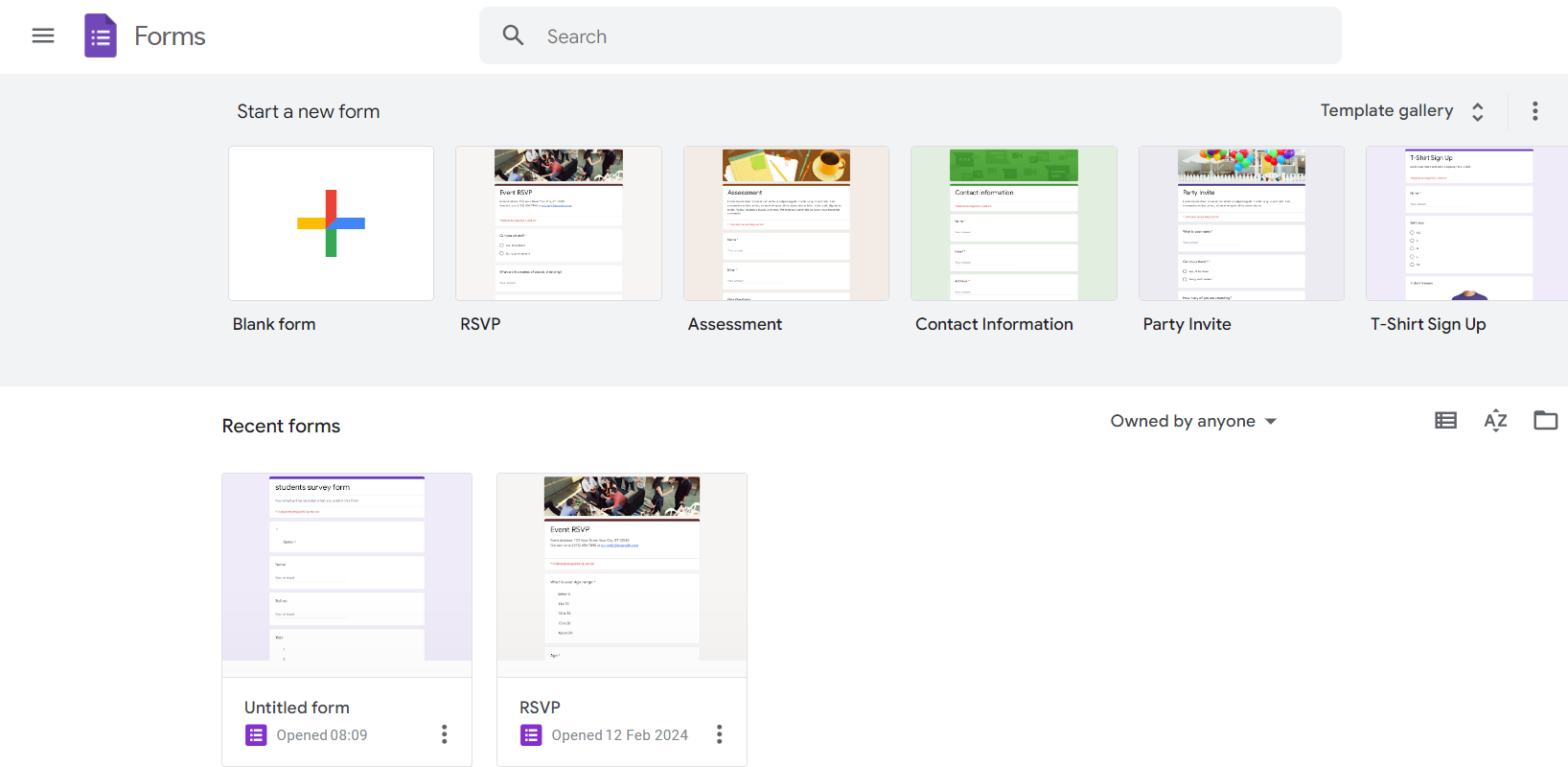
    Step 1: Access Google Forms

    Start by navigating to your Google Drive and clicking on the "+ New" button. From the dropdown menu, select "Google Forms" to initiate the process of creating your poll.
    notion image

    Step 2: Choose a Poll Template or Start Blank

    Opt for a pre-existing poll template or start with a blank form to customize your poll based on specific needs and preferences.
    notion image

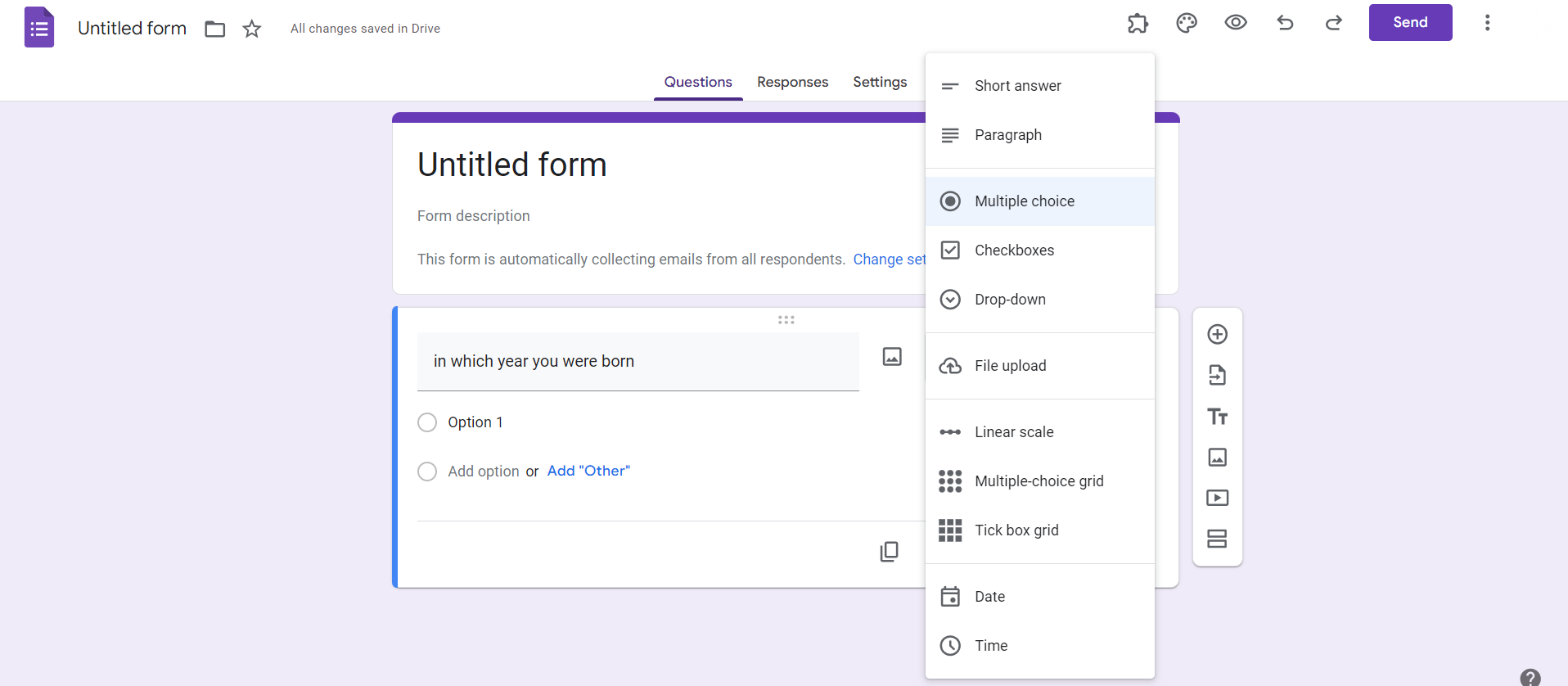
    Step 3: Add Poll Questions

    Utilize the question types available in Google Forms, such as multiple-choice or checkbox, to craft diverse and engaging poll questions. Use the "Add question" button to insert each new query.
    notion image

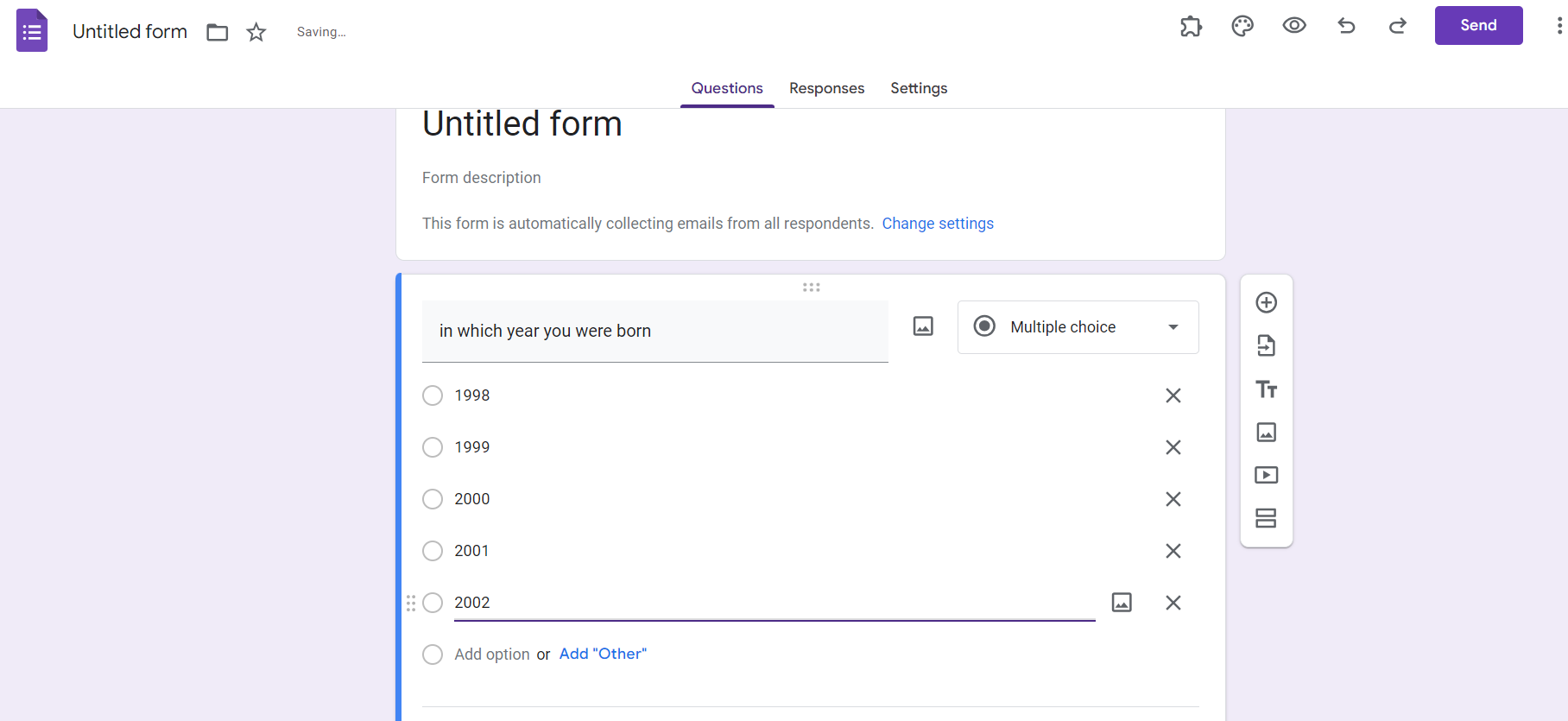
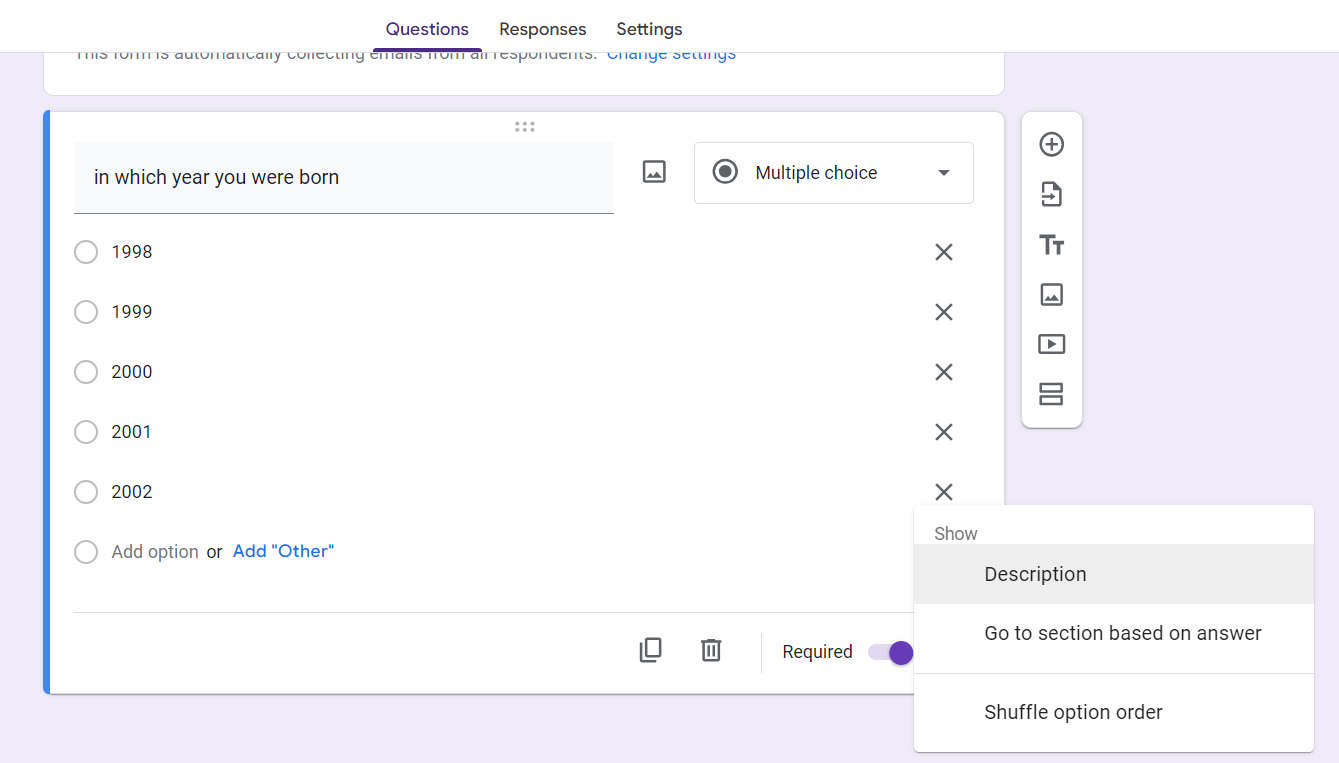
    Step 4: Customize Question Settings

    Personalize each question by adjusting settings such as required responses and answer choices. Tailor these settings to align with the specific requirements of your poll.
    notion image

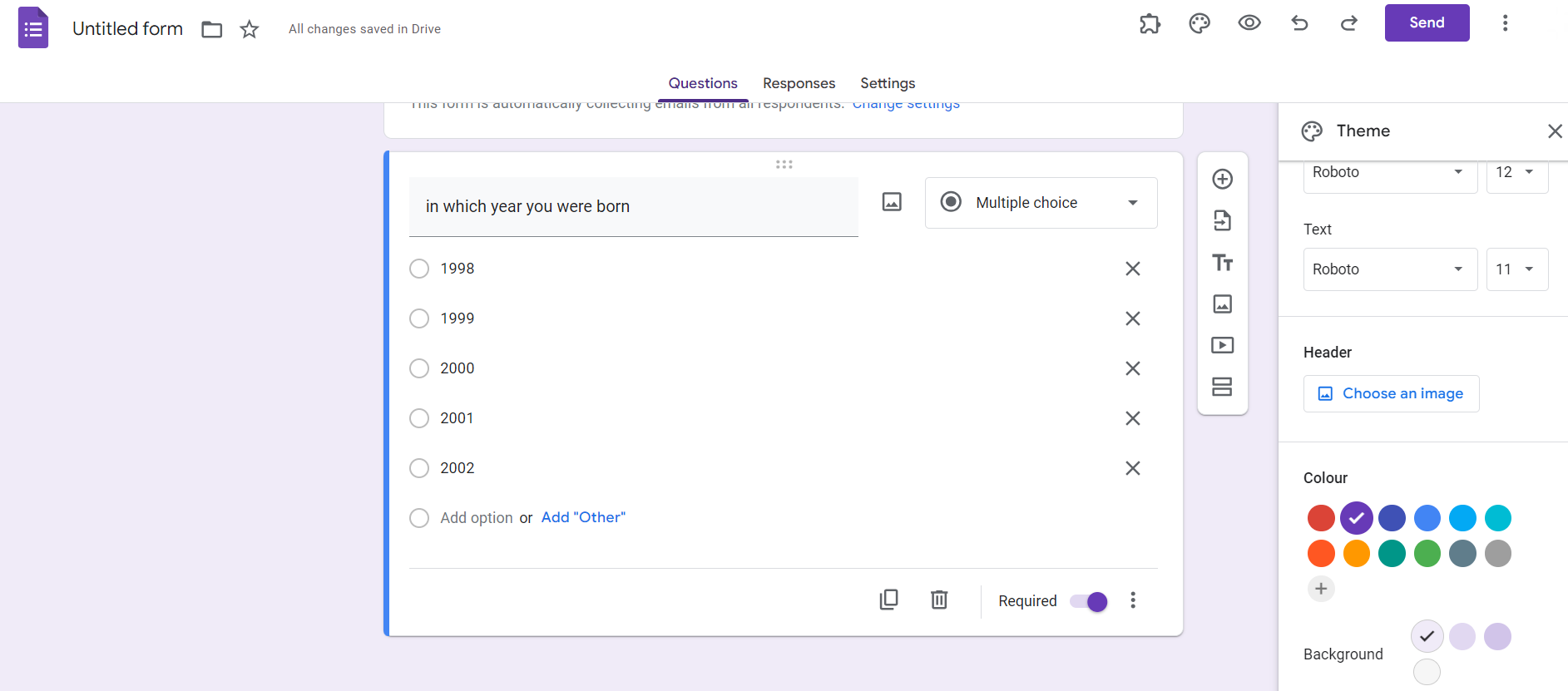
    Step 5: Theme and Style

    Give your poll a polished look by customizing the theme and style. Click on the color palette icon to choose a theme or manually adjust colors, fonts, and backgrounds for a personalized touch.
    notion image

    Step 6: Preview and Test

    Before sharing your poll, click on the eye icon to preview the form. Test the poll to ensure questions, options, and settings work seamlessly.

    Conclusion:

    Google Forms simplifies the process of creating interactive polls, making it accessible to users of all levels. From soliciting opinions to conducting surveys, this versatile tool provides a platform for dynamic and engaging polls. By following these step-by-step instructions, you'll not only streamline the poll creation process but also create interactive and effective surveys that cater to your specific needs. Experiment with different question types, themes, and customization options to make your Google Forms polls a standout component of your data-gathering toolkit.

    Frequently Asked Questions:

    Can I customize the appearance of my Google Forms poll to match my brand or theme?

    Absolutely, use the theme customization options to personalize colors, fonts, and backgrounds.

    Is it possible to restrict poll responses to one per person on Google Forms?

    Yes, access form settings, click on "Limit to 1 response," ensuring accurate and unbiased results.

    Can I view real-time responses as participants submit their answers to the Google Forms poll?

    Unfortunately, real-time response tracking isn't a built-in feature, but responses can be viewed instantly.

    How do I share my Google Forms poll with participants for feedback or voting?

    Share your poll by clicking on the "Send" button, either through email, a link, or embedding it.

    Share on socials

    About the author

    Sanskar Tiwari profile photo
    Sanskar Tiwari— Founder at MagicSlides

    Sanskar is Founder at IAG Tech, For the past 3 years sanskar have build more than 24+ products, taught 100k students how to code.

    More from Sanskar

    More from the blog

      250+ Good Morning Messages for Her (Romantic, Deep, Cute & Sweet)

      30 January 2026

      200+ Heart Touching Birthday Wishes for Sister (Short, Funny and More)

      29 January 2026

      50+ History Presentation Topics For 2026

      28 January 2026

      How to Add Music to Your Canva Presentation: A Step-by-Step Guide

      27 January 2026

      15 Quick Tips To Use ChatGpt At Work

      22 January 2026

      11 Best AI Tools for Business in 2025

      22 January 2026

      How to Create an Infographic That Clearly Communicates Your Message

      20 January 2026

      How to Create a Sales Presentation Template in Google Sheets

      20 January 2026

      How to Make a Pie Chart on Google Slides in Simple Steps

      19 January 2026

    Table of Contents

    Create Presentations in Seconds

    Transform your ideas into professional presentations with AI. No design skills needed.

    Try MagicSlides Free

    Create Stunning Presentations with AI in Seconds ✨

    Transform any topic, text, YouTube video, PDF or URL into beautiful presentations instantly with MagicSlides AI.

    Try MagicSlides AI Presentation Maker
    MagicSlides AI Presentation

    Footer

    Solutions

    • MagicSlides App
    • Google Slides Add-on
    • MagicSlides in Chrome
    • MagicSlides in Figma
    • MagicSlides in ChatGPT
    • MagicSlides in Telegram
    • MagicSlides in Zapier
    • MagicSlides in Figma Slides

    Tools

    • AI PPT Tools
    • QR Code Generator
    • Design Tools
    • PPT Templates
    • Slide Templates
    • PDF Tools

    Examples

    • AI Presentations
    • PPT by MagicSlides
    • Quizzes
    • Charts
    • Coloring Pages

    Resources

    • Changelog
    • Documentation
    • API Docs

    Top Blogs

    • How to Create Presentation Using ChatGPT
    • 100+ Best Seminar Topics for Students in 2025

    Company

    • Help
    • MCP
    • Blog
    • Pricing
    • Affiliate Program
    • Manage Subscription
    • Privacy Policy
    • Contact Us
    • Terms & Conditions
    • Refund & Cancellation Policy

    We also built

    • SheetAI - GPT For Sheets
    • MagicForm - GPT For Google Forms
    • SecondBrain.fyi
    • BlogBee - Free Blogging Platform

    © 2026 IndianAppGuy Tech Pvt Ltd. All rights reserved.