How to create a PPT from Project term Paper document?


Learn step-by-step: Transform your project term paper into a captivating PowerPoint presentation with our comprehensive guide. Elevate your presentation skills!
Embarking on the journey of transforming your detailed project term paper into an engaging PowerPoint presentation? Look no further – we'll guide you through the process seamlessly. With the help of Google Slides and the MagicSlides GPT extension, you can efficiently convert your document into a visually appealing presentation.
How to create a PPT from Project term Paper document
Visit Google Slides
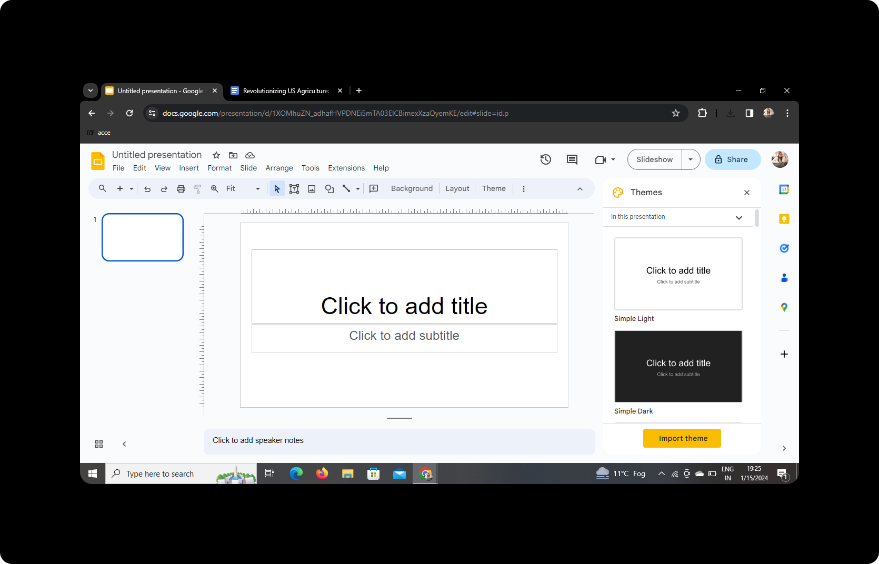
Begin by opening your web browser and navigating to Google Slides. If you don't have a Google account, create one to access the full suite of Google Workspace tools.
Sign In with Google to Google Slides
Log in to Google Slides using your Google account credentials. This ensures that your presentation is saved in the cloud and can be accessed from any device.
Step 1: Download MagicSlides GPT Extension
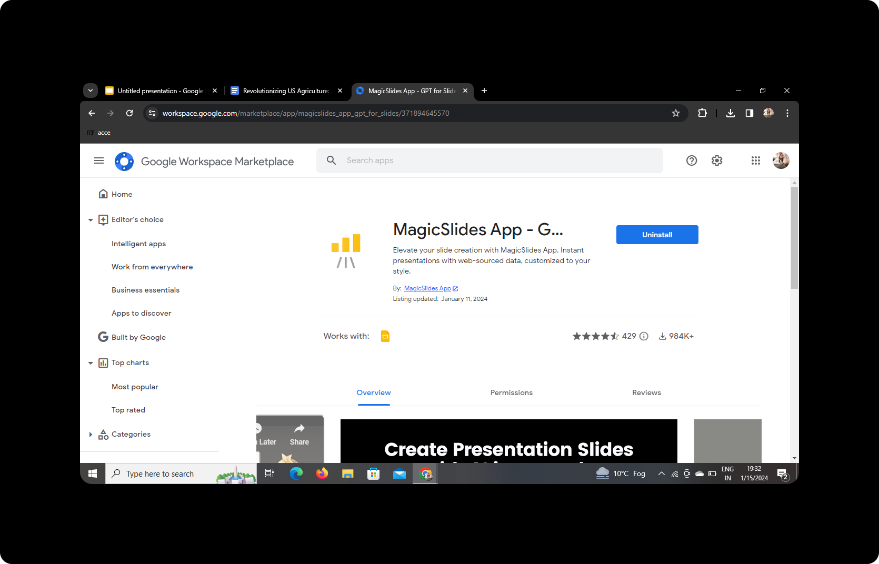
In Google Slides, navigate to the Extensions menu. If you've already downloaded the MagicSlides GPT extension, proceed to the next step. If not, download it as an extension and open it.
Step 2: Click on PDF/DOCX to PPT in MagicSlides GPT
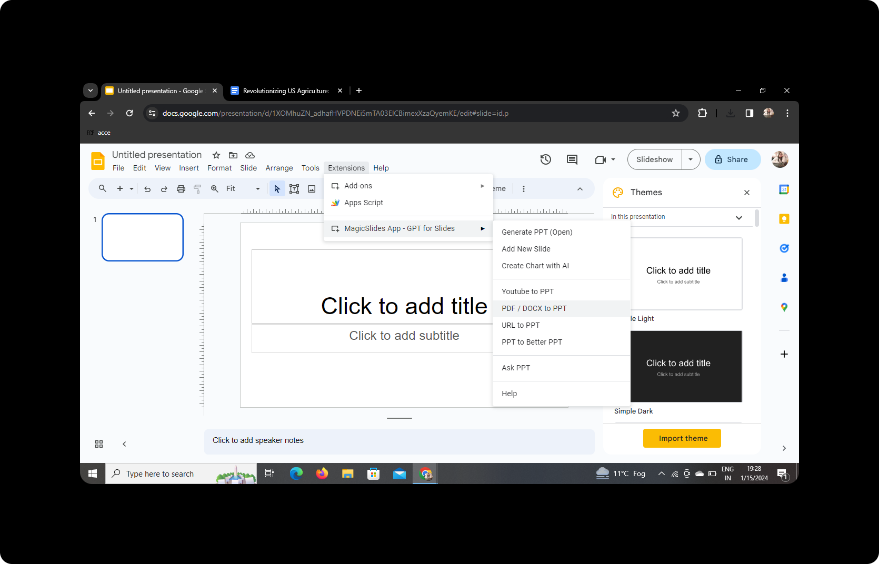
Once MagicSlides is open, click on the "PDF/DOCX to PPT" option. This feature allows you to seamlessly convert your project term paper into PowerPoint slides.
Step 3: Click on 'Upload PDF/DOCX' Option and Upload Your Content
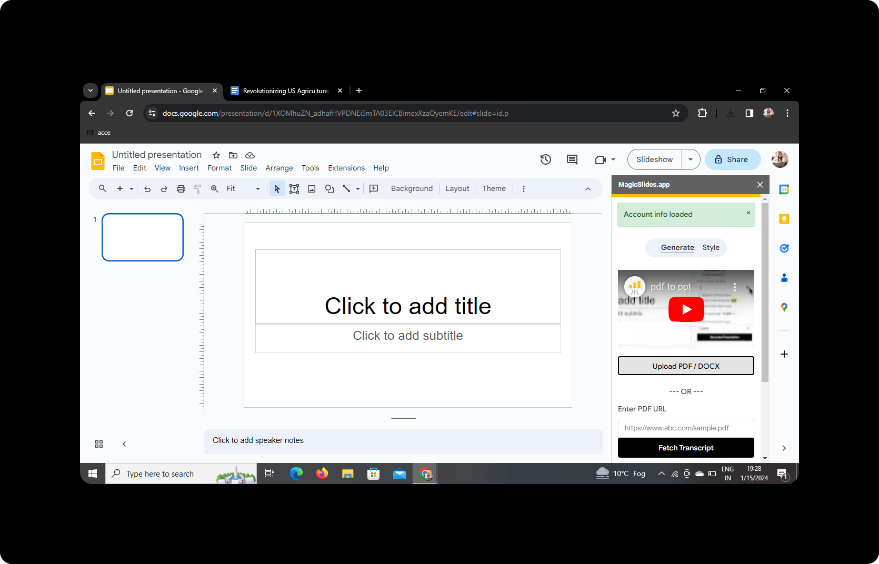
Select the "Upload PDF/DOCX" option within MagicSlides. Upload your project term paper document to initiate the conversion process.
Step 4: Upload Your Word Content
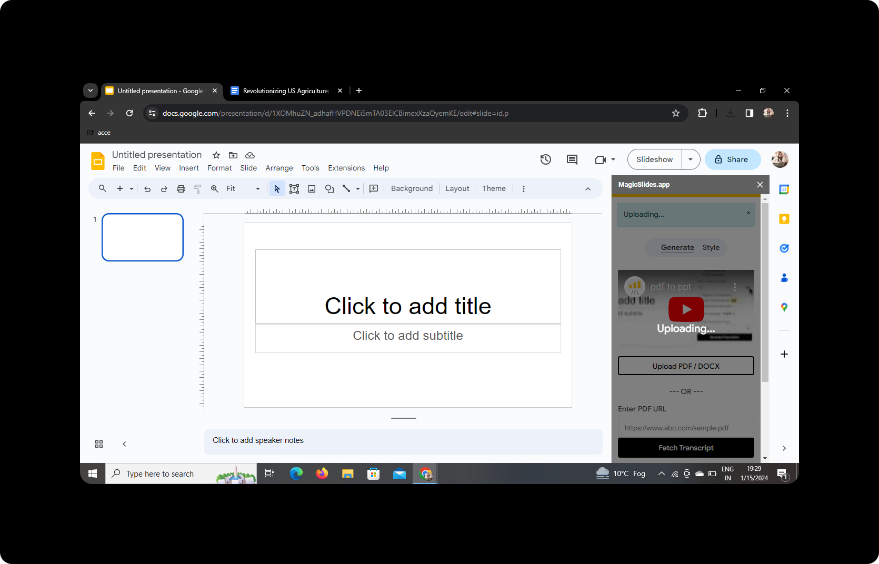
After uploading your document, MagicSlides will automatically analyze the content. Ensure that your Word document is well-structured for optimal slide generation.
Step 5: Select the Number of Slides
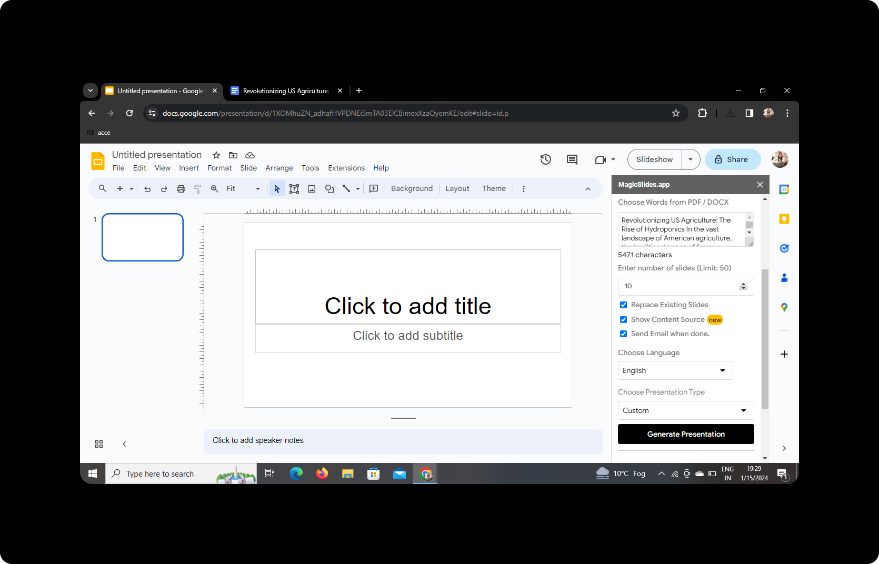
Customize your presentation by selecting the number of slides you want. Adjust this based on the content and desired pacing of your presentation.
Step 6: Click on Generate Presentation
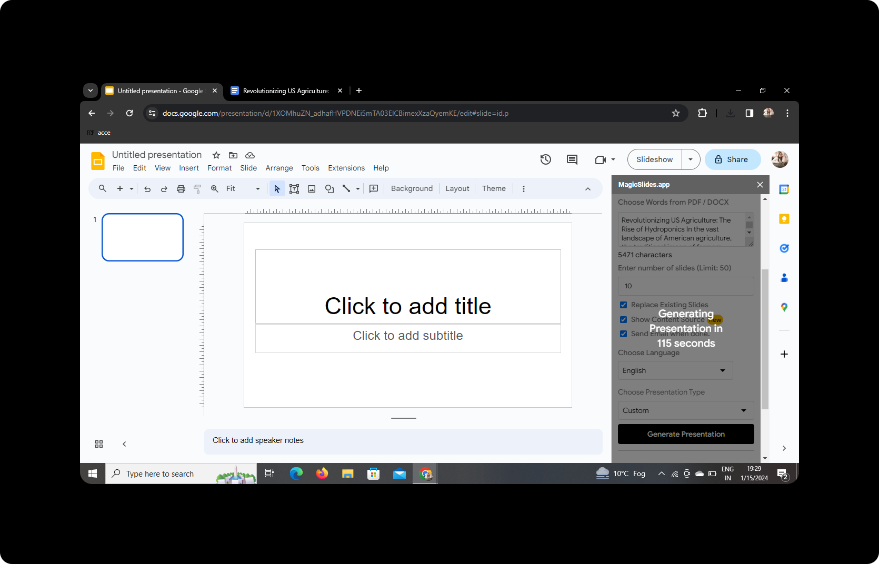
Click the "Generate Presentation" button, and MagicSlides GPT will work its magic, creating a series of slides that encapsulate the key points of your project term paper.
Your Presentation is Ready!
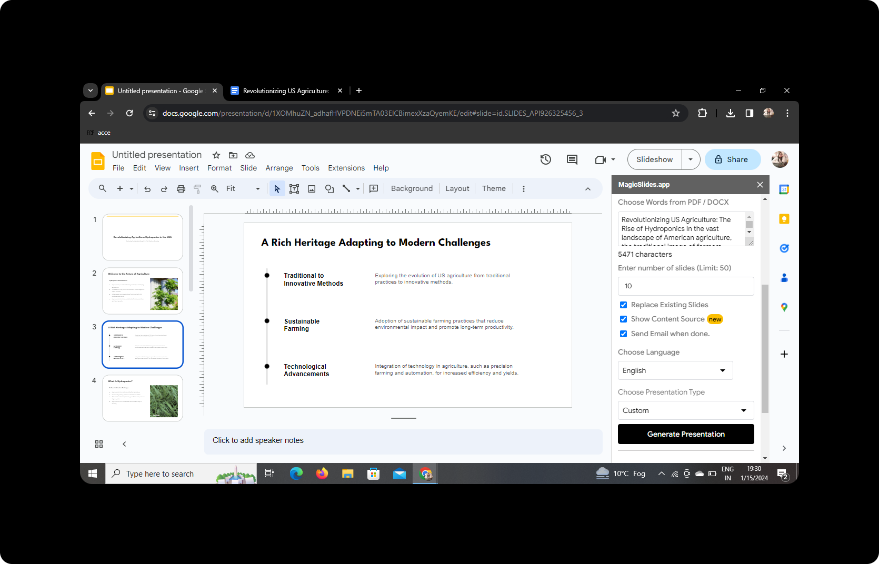
Congratulations! Your PowerPoint presentation is now ready. Review the slides, make any necessary edits, and add visuals to enhance engagement.
Conclusion
In conclusion, the process of converting your project term paper into a PowerPoint presentation is made remarkably simple with the integration of Google Slides and MagicSlides GPT. This method not only saves time but also ensures a visually appealing and organized presentation.
Frequently Asked Questions
Can I use MagicSlides GPT with any type of document?
Yes, MagicSlides GPT supports various document formats, including PDF and DOCX.
Do I need to download the MagicSlides GPT extension separately?
Yes, you'll need to download the MagicSlides GPT extension from the Google Workspace Marketplace.
Can I customize the slide layout and design?
Absolutely! Google Slides allows you to customize the layout, add visuals, and personalize the design to suit your preferences.
Is my presentation automatically saved in Google Drive?
Yes, once you're signed in, your presentation is automatically saved to Google Drive for easy access.
Can I edit the generated slides after conversion?
Certainly! MagicSlides GPT generates a foundation, but you can edit and refine the slides in Google Slides as needed.


