How to create a slideshow in powerpoint


Craft dynamic presentations: Master the essentials for creating a compelling slideshow in Microsoft PowerPoint effortlessly.
Unlock the power of visual storytelling with this comprehensive guide on creating a compelling slideshow in PowerPoint. From the inception of your presentation to the finishing touches, each step is curated to elevate your content, engage your audience, and transform your ideas into a dynamic, professional presentation. Let's dive into the world of effective presentations and master the art of crafting impactful slideshows.
How to create a slideshow in powerpoint
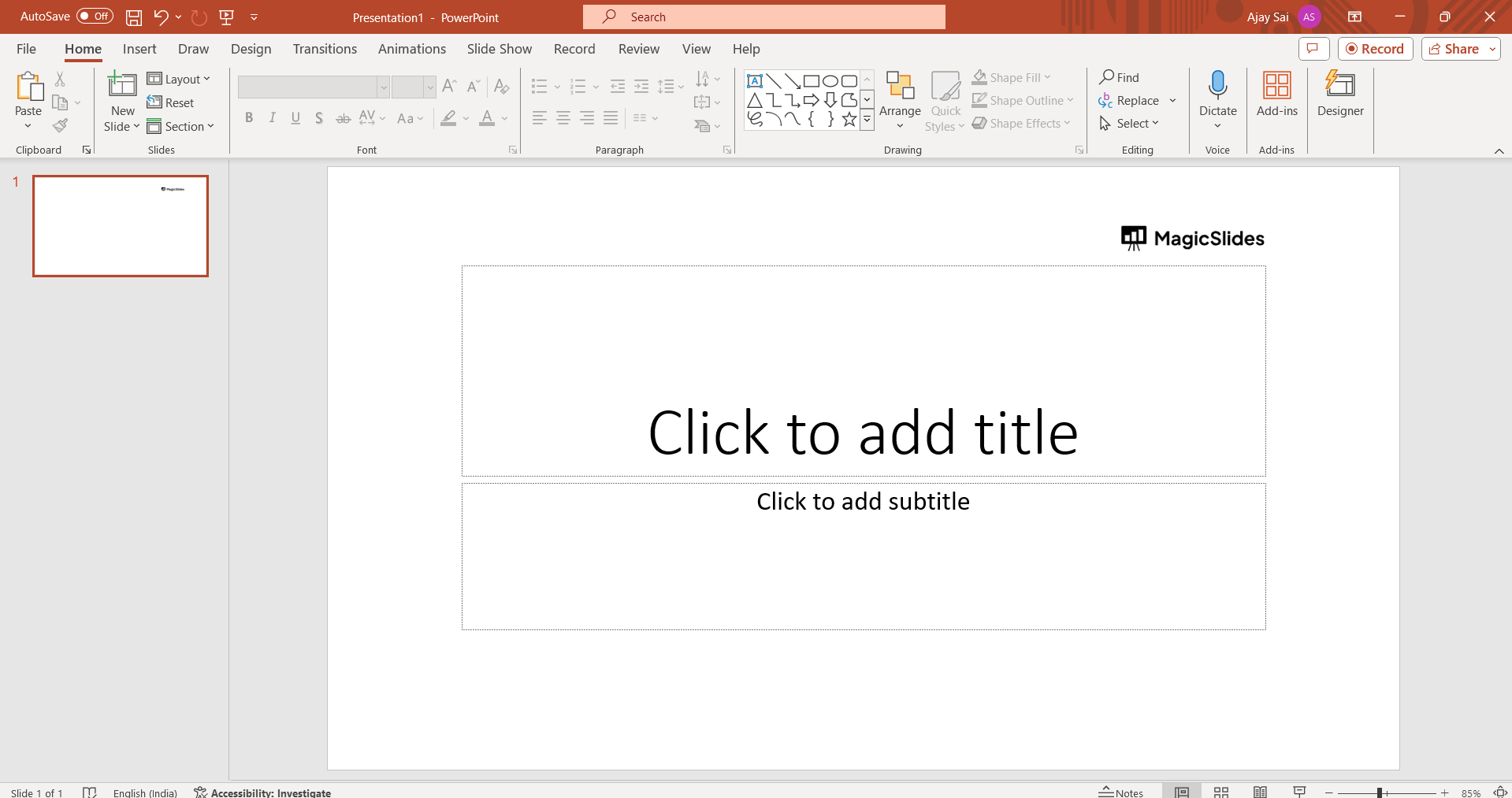
Open PowerPoint:
Launch PowerPoint on your computer. Choose a blank presentation or a template that suits your theme.
Add Slides and Content:
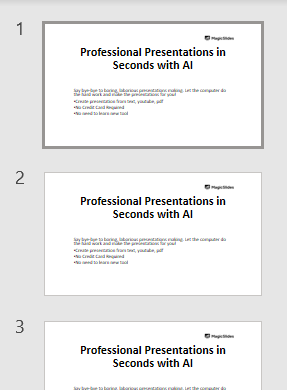
Click on the "New Slide" button to add slides. Populate each slide with content using the "Insert" tab. You can add text, images, charts, or any other elements relevant to your presentation.
Design Slides:
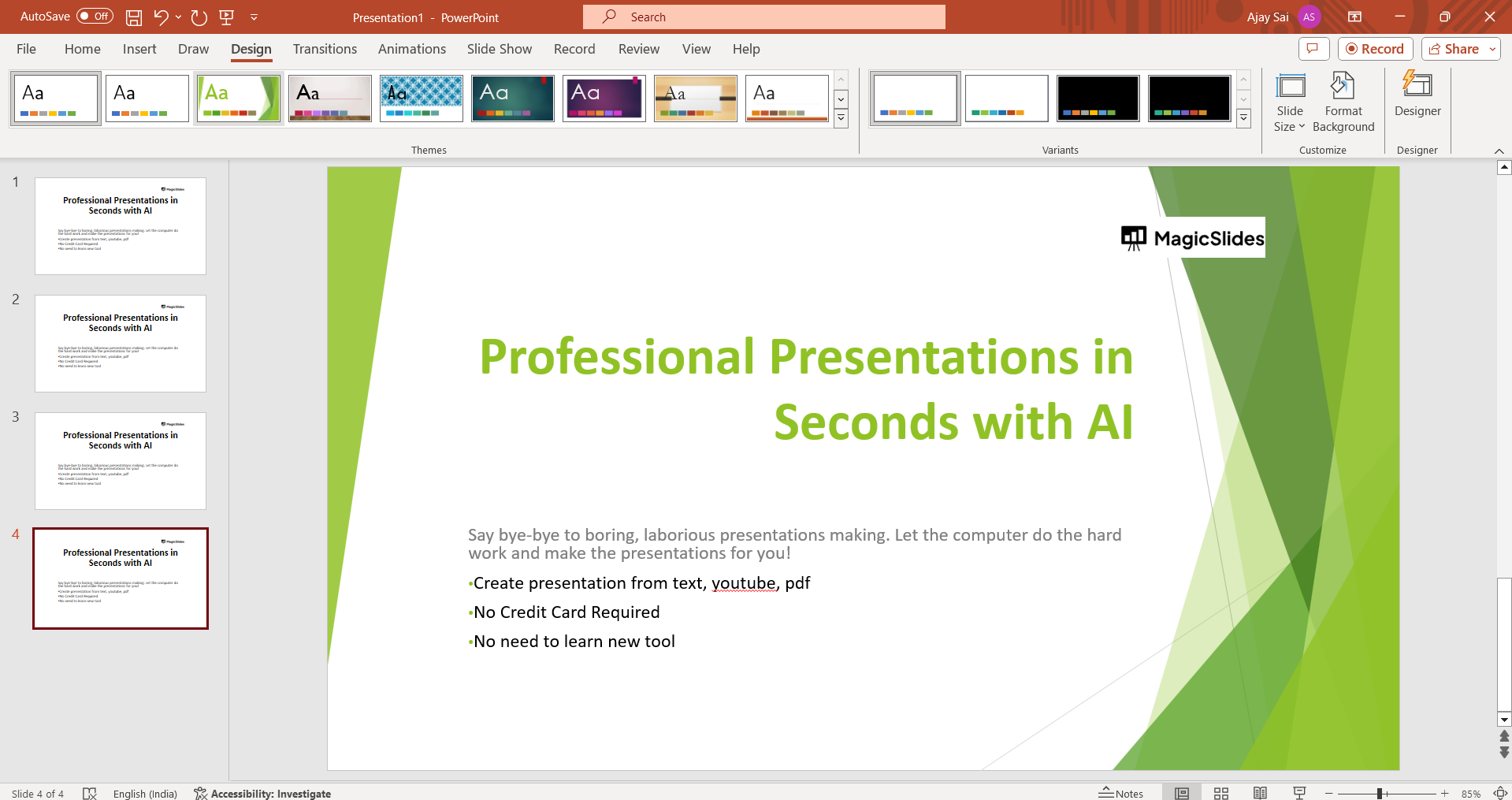
Access the "Design" tab to enhance the visual appeal of your slides. Choose a theme that aligns with your content or customize background colors, fonts, and styles for a cohesive and professional look.
Arrange and Edit:
Utilize the "Slides" pane on the left to easily reorder and edit slides. Drag and drop to arrange them according to the logical flow of your presentation. Edit content and fine-tune details for clarity.
Add Transitions:
Navigate to the "Transitions" tab to add slide transitions. Choose from various styles and set durations to ensure a smooth visual flow between slides. This step adds a dynamic touch to your presentation.

Present:
Review your slideshow in Slide Show mode by clicking the "Slide Show" button or pressing F5. This allows you to experience the presentation as your audience would. Also if you want to improve your productivity by using AI in your work place checkout this article: click here

Conclusion:
A well-crafted PowerPoint slideshow that not only delivers your message effectively but also engages your audience with a visually appealing and professionally designed presentation. Save your work for future edits and confidently present your ideas. With your polished and engaging slideshow, step confidently into the spotlight, knowing your presentation is a testament to both your content and your mastery of the PowerPoint canvas. Cheers to compelling presentations and impactful storytelling!
Freqently Asked Questions:
Can I change the design theme of my PowerPoint slideshow after creating the content?
Ans: Absolutely! You can access the "Design" tab at any point, select a new theme, and watch as it seamlessly transforms the look of your entire presentation.
How can I ensure a smooth transition between slides in my PowerPoint presentation?
Ans: In the "Transitions" tab, choose from various transition styles and set durations. This ensures a visually pleasing and professional transition between each slide.
Can I collaborate with others on my PowerPoint slideshow for real-time editing?
Ans: Yes, PowerPoint offers collaboration features. By saving your presentation on cloud platforms like OneDrive, you can collaborate with others, making real-time edits and updates.


