How to Make Labels in Google Docs Without Add-ons?


Discover how to make labels in google docs without add-ons using built-in tools. Create labels in Google Docs, print them accurately, and reuse your label templates.
Creating labels is a common task, especially when you’re looking to print multiple address labels, product tags, or name badges.
While many people often resort to using add-ons or third-party tools to create labels in Google Docs, it’s possible to make labels directly within Google Docs using its built-in features.
This blog post will walk you through a simple, step-by-step process to create labels without the need for add-ons.
Why Use Google Docs for Labels?
Google Docs is a free, easy-to-use platform with features that are useful for tasks like label creation. You don’t need any special software to get started, and everything you create is automatically saved in the cloud, so you can access it from anywhere. Additionally, since Google Docs integrates well with Google Sheets, you can even automate the process of inserting personalized data, such as addresses or names, for bulk labels.
If you’re preparing your document before printing labels, you can also add a new page in Google Docs whenever you need extra space for a new label sheet or a different layout.
How to Make Labels in Google Docs Without Add-ons
If you want to create labels in Google Docs without installing any extensions, you can do it using a simple table. This method works well for address labels, shipping labels, product stickers, and more.
Step 1. Set Up a Table for Labels
The easiest way to organize your labels is by using a table. Each cell in the table will represent one label.
- Open a new Google Docs document.
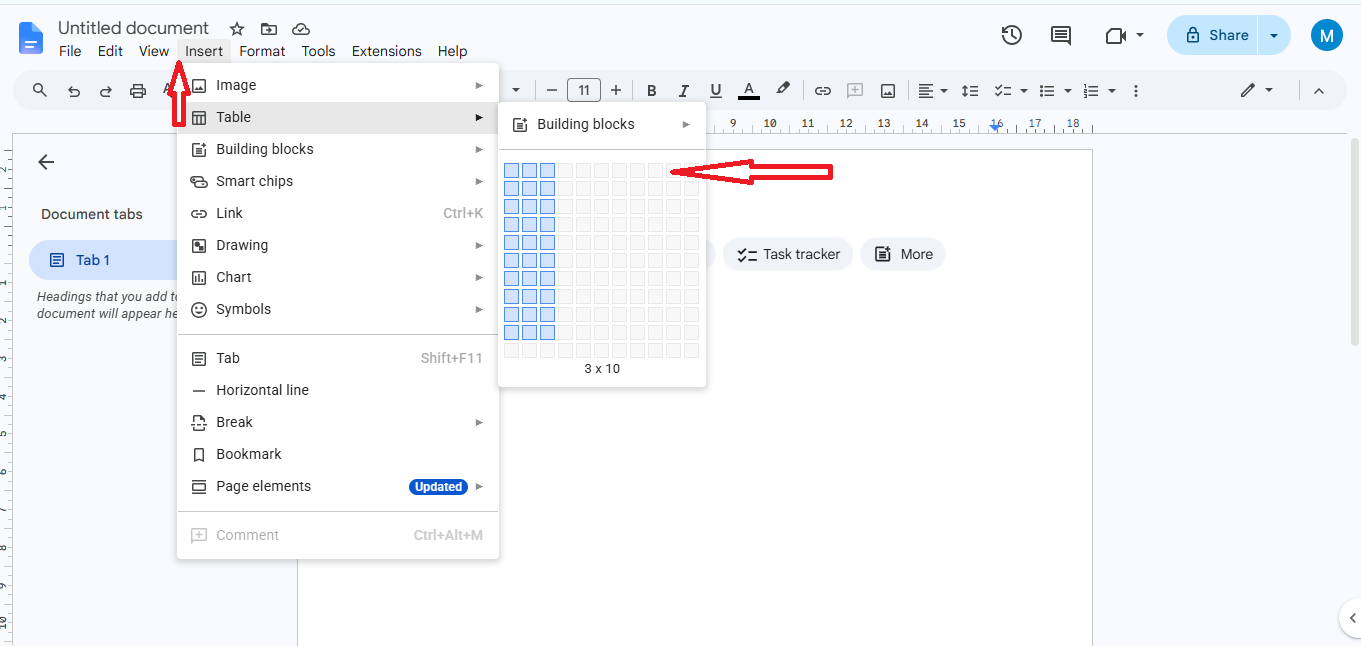
- Go to the Insert menu and choose Table.
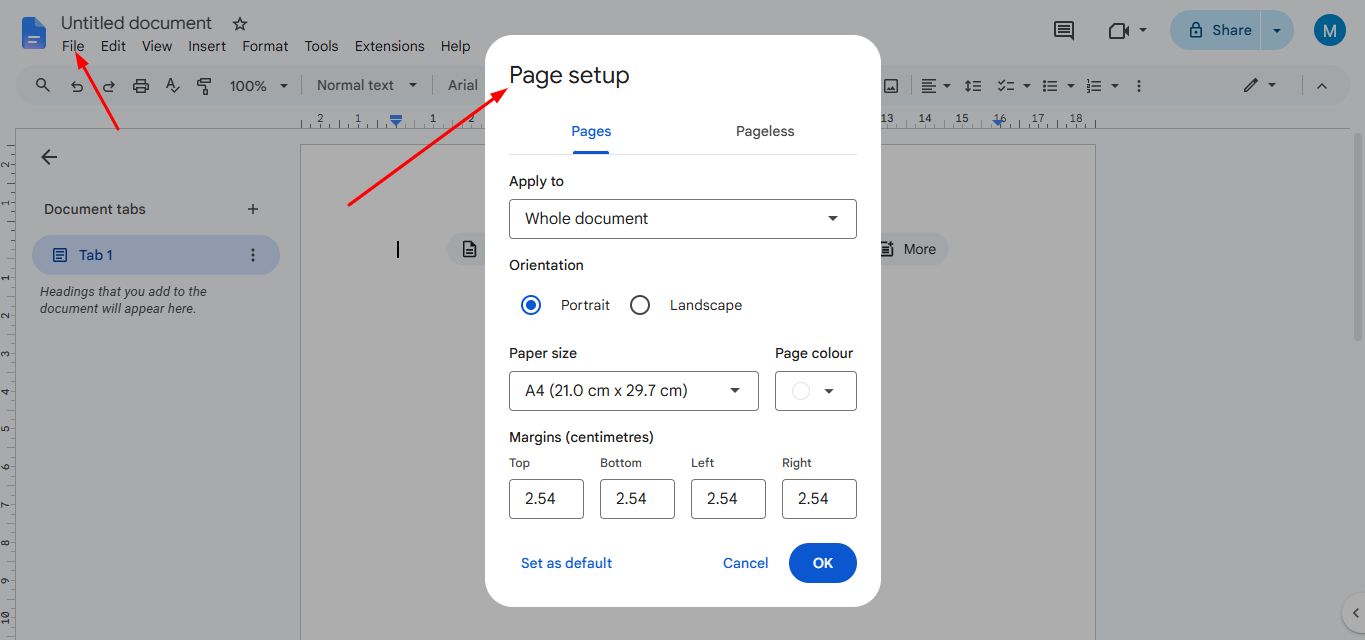
- For standard label sizes, insert a 3×10 table (3 columns and 10 rows). This setup will give you a grid of 30 cells to design your labels.
- Note: You can adjust the number of columns and rows based on the size of the labels you want to create. A 2×4 table, for instance, might be a good option for smaller labels.
Step 2. Insert a Table
Once your table is inserted, you need to adjust the table’s dimensions to match the size of your labels.
- Click anywhere inside the table to select it.
- To adjust the width of the columns, hover over the lines between the columns (or rows) and drag to resize them to your desired label width and height.
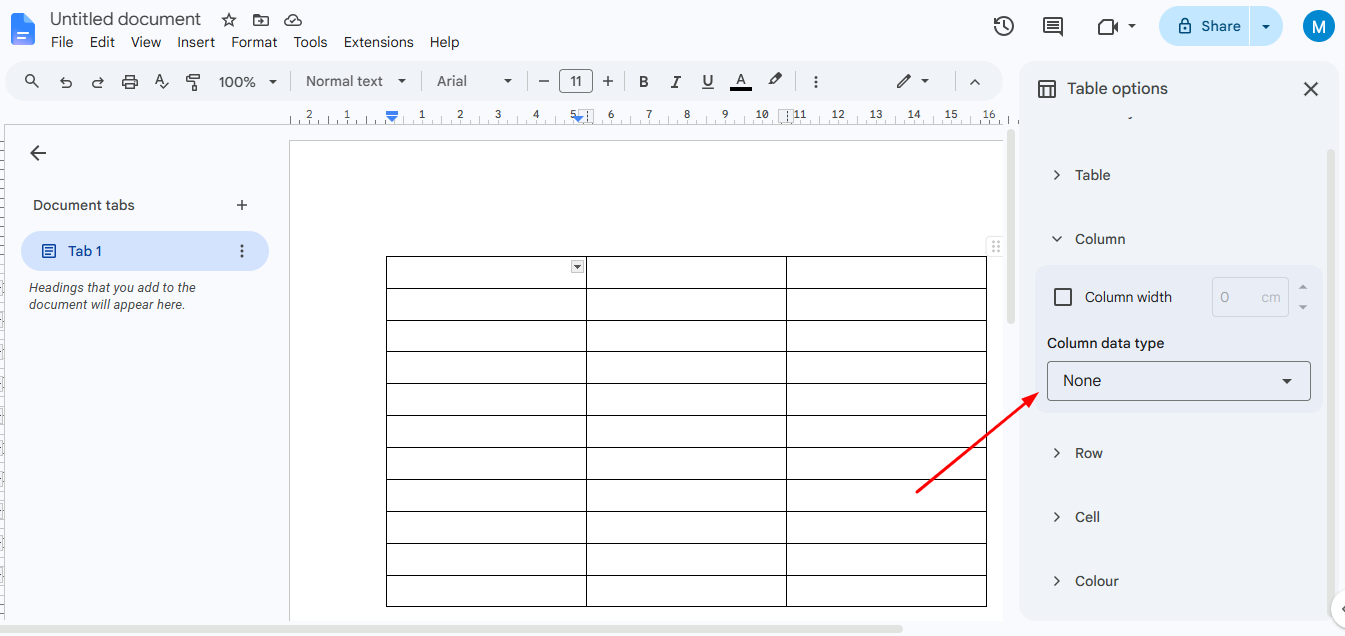
- If you want your labels to fit a specific size (like a 2.5″ x 1″ label), right-click on the table and choose Table properties.
- In the Table properties menu, you can adjust the row height and column width with more precision by entering the exact measurements in the Row and Column sections.
Step 3. Resize the Table Cells
For more accurate sizing
- Right-click inside the table.
- Select Table properties.
- Adjust the column width and row height to fit your label dimensions.
This step is essential when learning how to make labels in google docs without add-on, as properly sized cells ensure your labels print correctly.
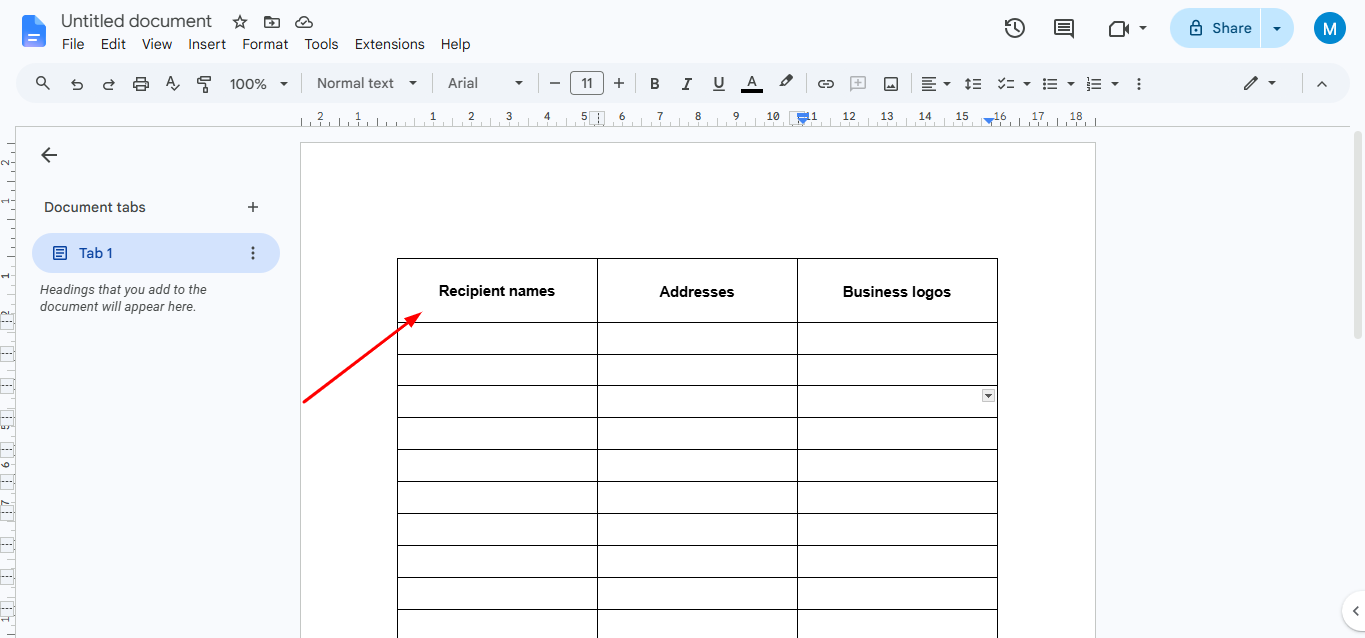
Step 4. Design Your First Label
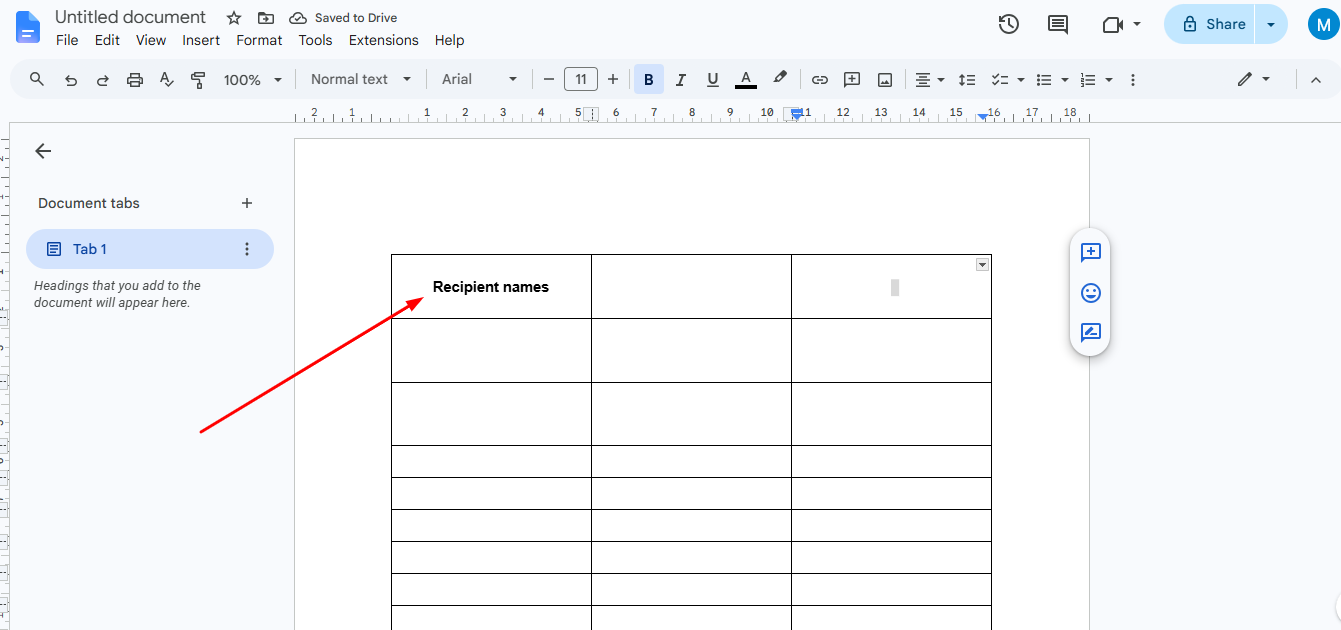
Now create your first label. Depending on your needs, you can add:
- Recipient names
- Addresses
- Business logos
- Product names
- QR codes or barcodes
- Images and icons
Use bold text, font colors, and alignment tools to make your labels easy to read.
Step 5. Copy the Label
Once you’re happy with the design, copy the entire contents of the first cell. Paste it into the remaining table cells. If each label is different, simply edit the text in each cell after pasting.
This is the easiest way to create labels in Google Docs manually.
Step 6. Printing Your Labels
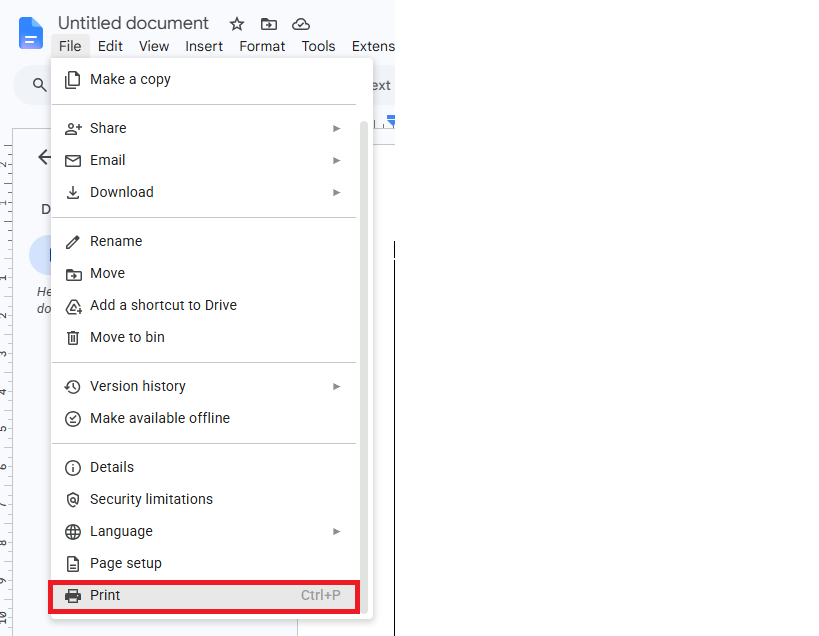
After you’ve created and formatted your labels in Google Docs, the final step is printing them.
- Once you are happy with your label design, click File > Print, or press Ctrl + P (Cmd + P on Mac).
- Ensure your printer settings are correct and that the labels are aligned with the paper you are using. If you’ve created a standard size, such as 2.5” x 1” labels, use the appropriate label paper size for your printer.
Tip: Use label paper sheets (available from various brands such as Avery) that match the size of your labels. These often come with a template that can help you match the positioning of the labels when printing.
Step 7. Save and Reuse Your Google Docs Label Template
If you plan on using this label format again in the future, you can save the document as a template. Just keep a copy of the file, and when you need to make changes, open it and modify the text in each label. This will save you time and effort when creating labels for similar tasks.
Tips and Tricks for Creating Labels in Google Docs
- Use Google Sheets for Mail Merge: If you have a large number of labels to create, like address labels for holiday cards, you can use Google Sheets in combination with Google Docs to automate the process of inserting personalized data. By creating a mail merge, you can auto-fill each label with data from your Google Sheets (for example, names, addresses, etc.).
- Use Page Breaks for Multiple Pages of Labels: If you have a long list of labels to create, you can insert a page break after your first page of labels. This way, when you print, it will be easier to print multiple pages of labels.
- Consistency: Ensure consistency in formatting, alignment, and font sizes so that your labels look professional when printed.
Create Matching Presentations in Minutes
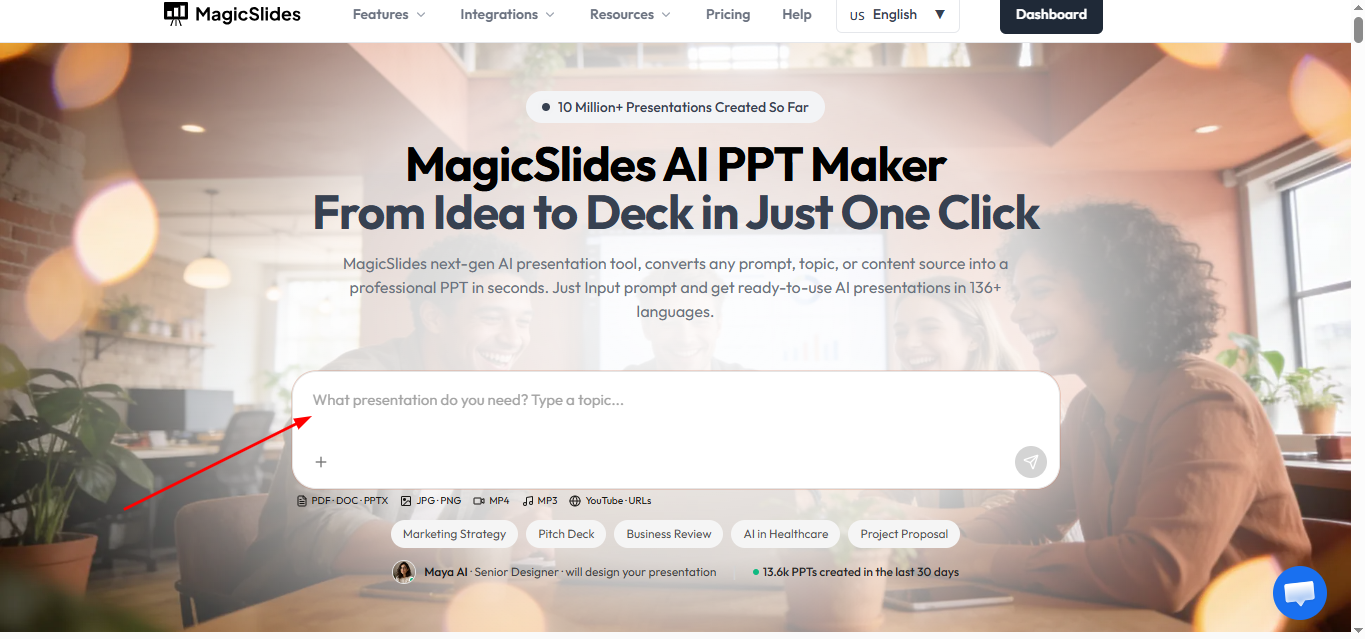
If you’re creating product labels, classroom materials, or business documents, you may also need a presentation to showcase them. Instead of building slides manually, MagicSlides AI presentation maker helps you turn your ideas, documents, or outlines into professional presentations in just a few clicks.
Whether you’re presenting a new product line, training employees, or sharing marketing materials, MagicSlides saves time by generating polished slides while you focus on your content. It’s a useful companion for anyone who regularly works with Google Workspace.
Conclusion
Creating labels in Google Docs without add-ons is easy and can be done with just a few simple steps. By using tables, adjusting cell sizes, and formatting your text, you can create personalized labels that are ready for printing.
Whether you need address labels, name tags, or any other type of label, Google Docs offers an accessible and effective way to design them.
With a little practice, you’ll be able to quickly create and print your labels without the need for additional software or add-ons!


