How to crop images in google slides


Unlock the power of visual precision in your Google Slides presentations with our step-by-step image cropping guide.
In the realm of creating visually captivating presentations, the ability to crop images with precision can make a substantial difference. Google Slides, a dynamic presentation tool, provides users with an intuitive process for image cropping. In this comprehensive guide, we will explore the step-by-step approach to cropping images in Google Slides, empowering you to elevate the visual impact of your presentations.
How to crop images in google slides
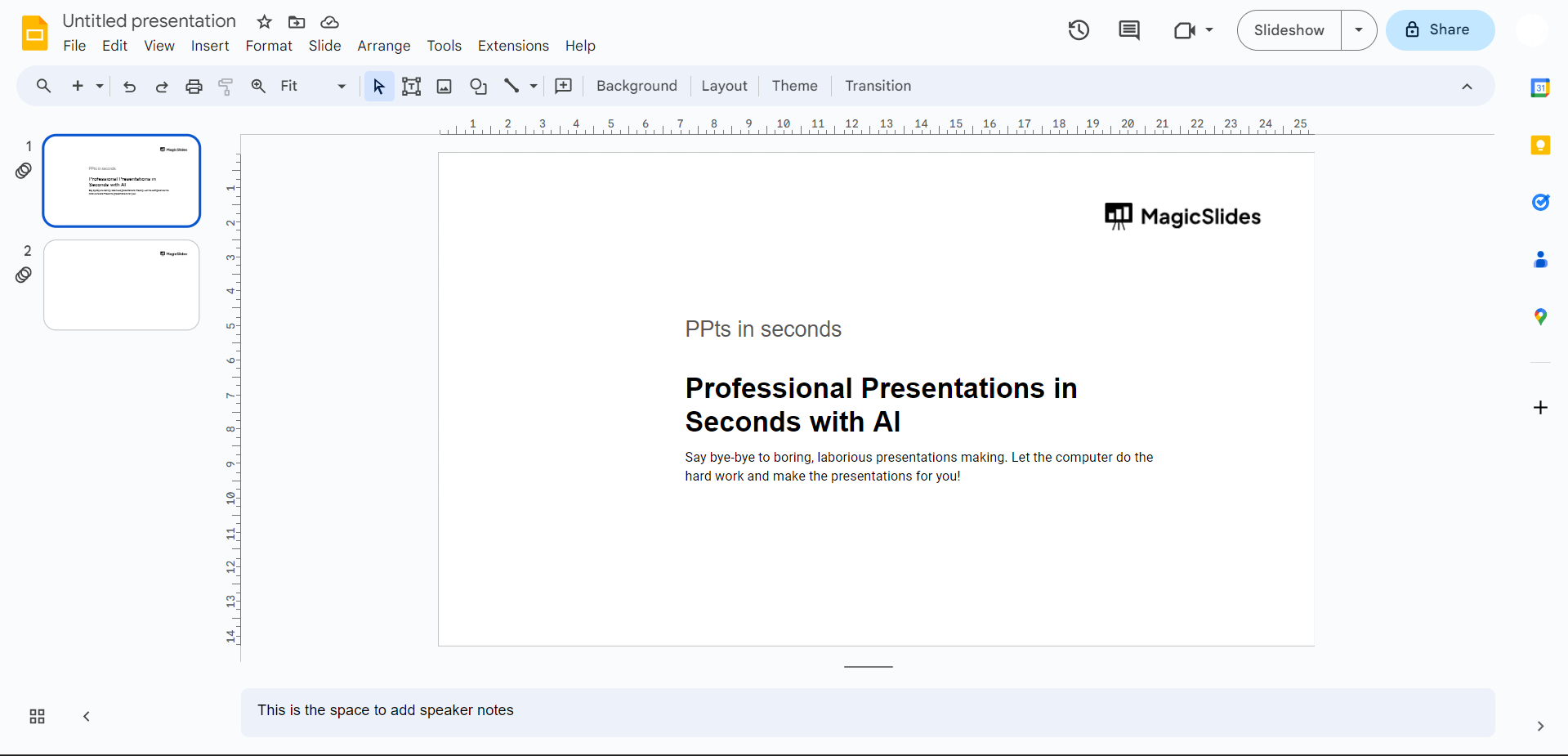
Step 1: Open Your Google Slides Presentation
Begin by opening the Google Slides presentation containing the image you wish to crop. Navigate to the specific slide housing the image.
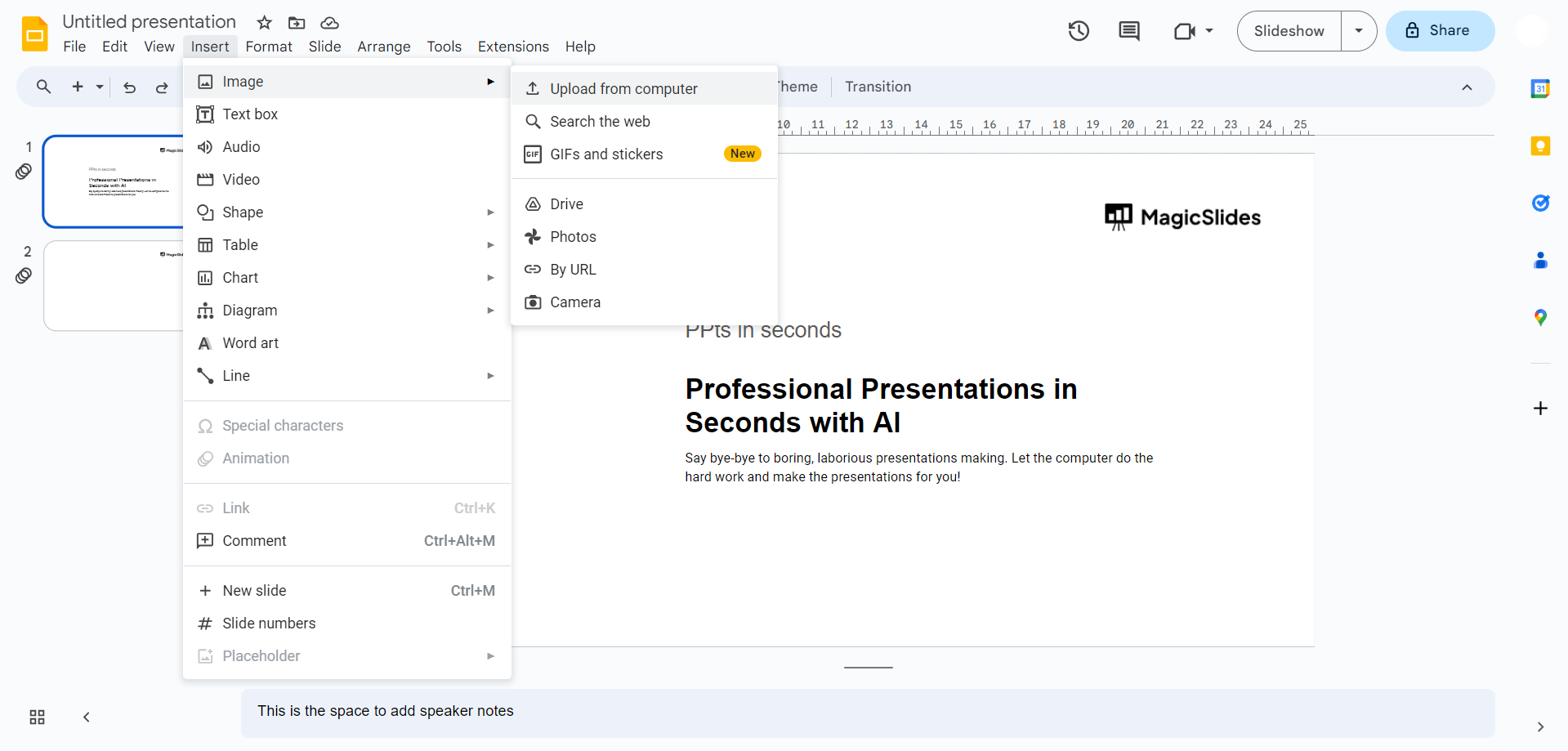
Step 2: Select the Image to Crop
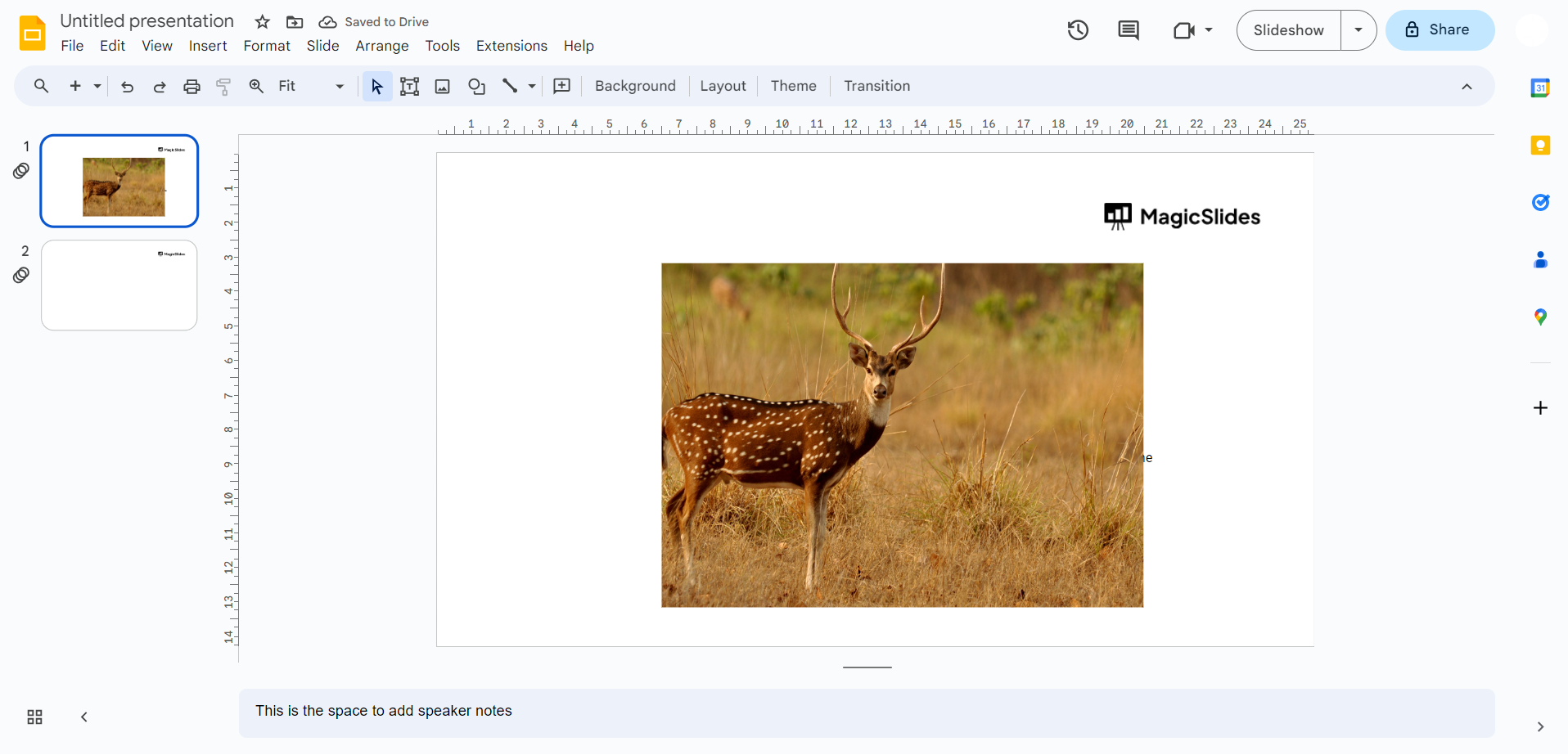
Click on the image you want to crop. This action activates the image, allowing you to perform various edits.
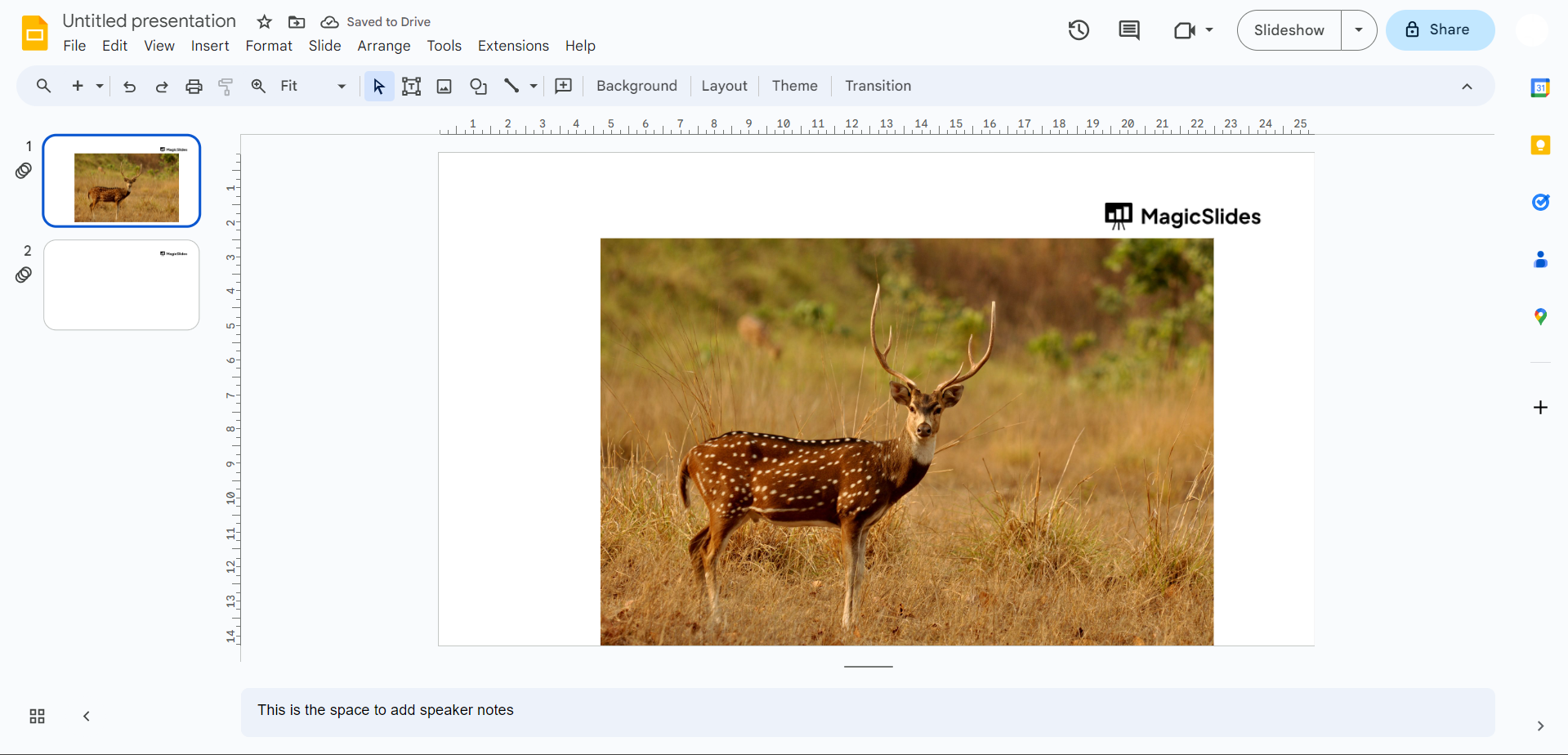
Step 3: Access the Crop Tool
In the top menu, find and click on the "Format" option. A dropdown menu will appear, and within it, select "Crop" to access the cropping tool.
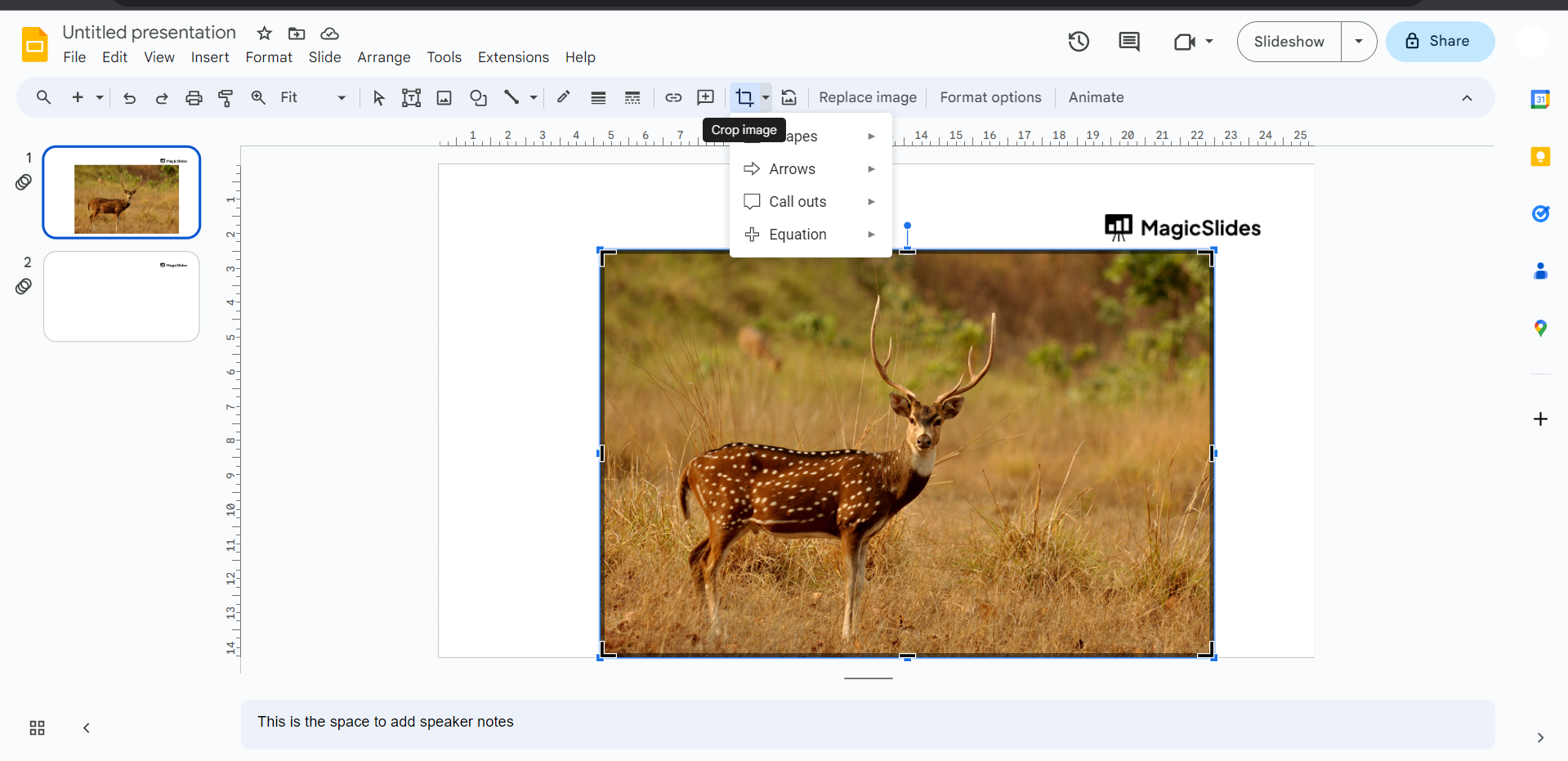
Step 4: Crop with Precision
Adjust the crop handles that appear on the image's border. Drag these handles to precisely frame the portion of the image you want to retain.
Step 5: Finalize Your Crop
Once satisfied with the cropping, click outside the image or press "Enter" to finalize the crop. Your image is now perfectly tailored to your specifications.
Why Mastering Image Cropping Matters:
- Enhanced Focus: Cropping allows you to direct your audience's focus to specific elements within an image, eliminating distractions.
- Visual Consistency: Crop images consistently for a polished and professional look, maintaining visual harmony throughout your presentation.
- Tailored Presentations: Crop images to align with your presentation's theme, ensuring a cohesive and tailored visual narrative.
Conclusion:
The ability to crop images in Google Slides is a valuable skill that can transform your presentations from good to exceptional. Precision cropping enables you to curate visuals that align with your message, engage your audience, and elevate the overall aesthetics of your slides. Embrace the art of image cropping, and watch as your presentations become more impactful and visually compelling.
Frequently Asked Questions:
Q1: Can I crop images in Google Slides without affecting the original files?
A: Absolutely! Google Slides' cropping feature is non-destructive, preserving your original images intact in Drive.
Q2: Are there predefined aspect ratios for cropping images in Google Slides?
A: Yes, Google Slides offers common aspect ratios or allows custom cropping for tailored dimensions.
Q3: Can I revert the cropped changes if I change my mind later?
A: Certainly! At any time, you can revisit the "Crop" option and readjust or remove cropping.
Q4: Is there a limit to the number of images I can crop in a single slide?
A: Google Slides doesn't impose a strict limit; however, consider presentation file size and performance.
Have a look @these info blogs:
- How To Mirror Images In Powerpoint: https://www.magicslides.app/blog/How-to-mirror-images-in-powerpoint
- How To Add Gif In Google Slides: https://www.magicslides.app/blog/How-to-add-gif-in-google-slides
- How To Turn A Powerpoint Into Google Slides: https://www.magicslides.app/blog/How-to-turn-a-powerpoint-into-google-slides
- How To Group Objects In Powerpoint: https://www.magicslides.app/blog/How-to-group-objects-in-powerpoint


