How to Delete all Text boxes in PowerPoint


Easily delete all text boxes in PowerPoint using selection tools, shortcuts, or VBA for bulk removal
Text boxes in PowerPoint help structure content, but sometimes you may need to remove multiple or all text boxes at once.
Instead of deleting them one by one, you can use shortcuts and selection tools to delete them quickly.
Follow this step-by-step guide to remove all text boxes from your PowerPoint slides efficiently.
How to Delete All Text Boxes in PowerPoint | Steps to Delete All Text Boxes in PowerPoint
Step 1: Open Your PowerPoint Presentation
Launch Microsoft PowerPoint and open the presentation you want to edit. Navigate to the slide or slides containing the text boxes you wish to delete.
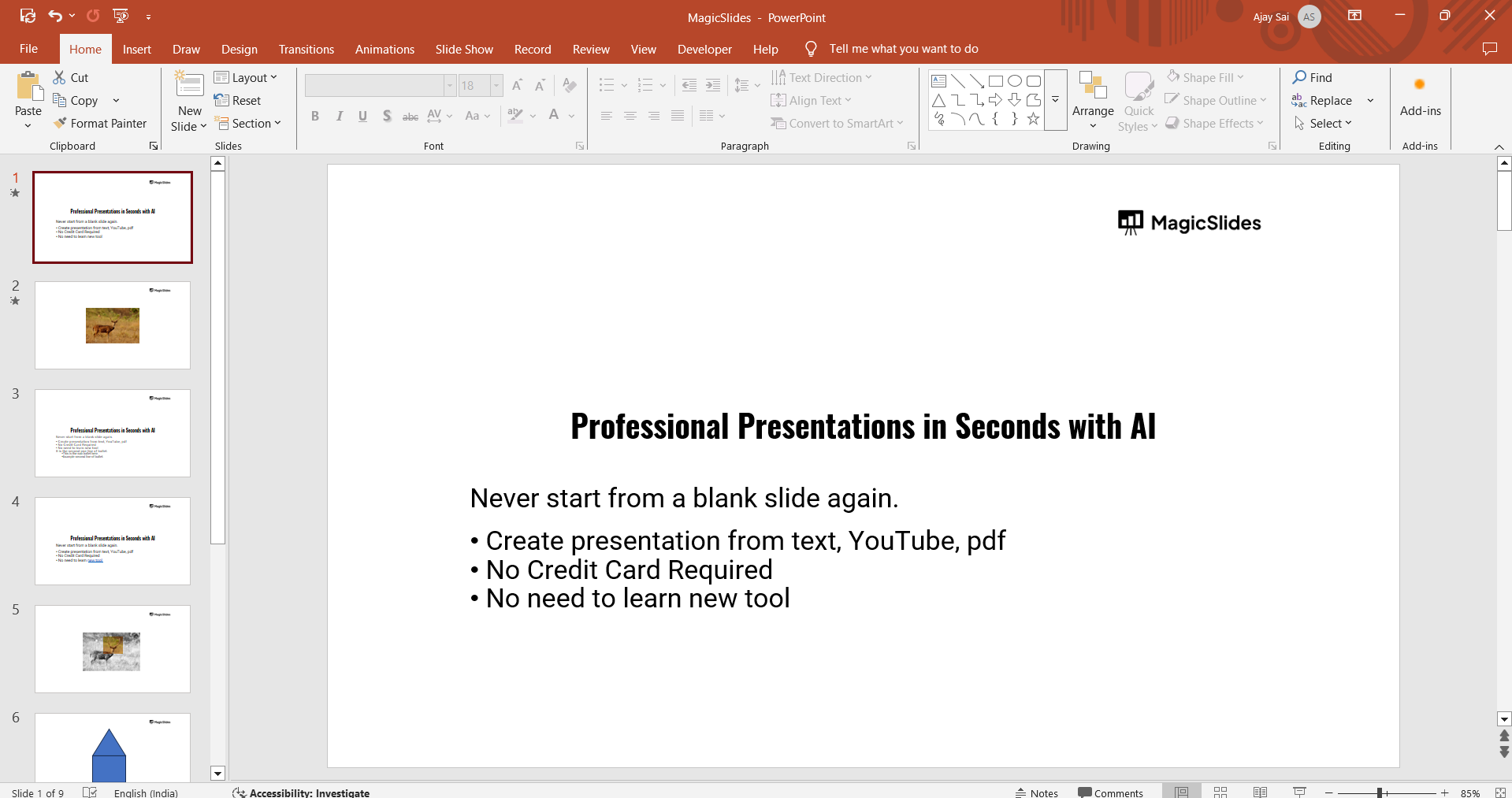
Step 2: Use the Selection Pane for Easy Removal
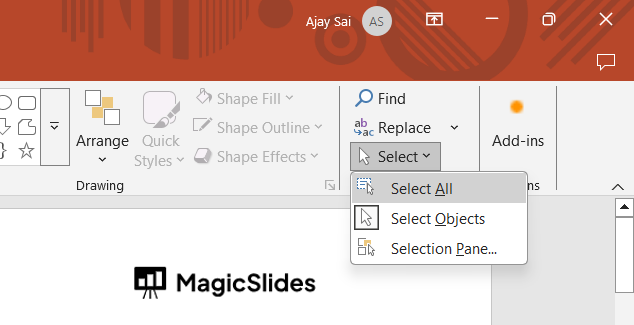
Go to the Home tab and click Select (found in the Editing group). Choose Selection Pane from the dropdown menu.

In the Selection Pane, you’ll see a list of all objects on the slide. Identify the text boxes (they usually appear as “TextBox X”).
Step 3: Select and Delete All Text Boxes Manually
Hold Ctrl and click each text box name in the Selection Pane. Once selected, press the Delete key to remove them all instantly.
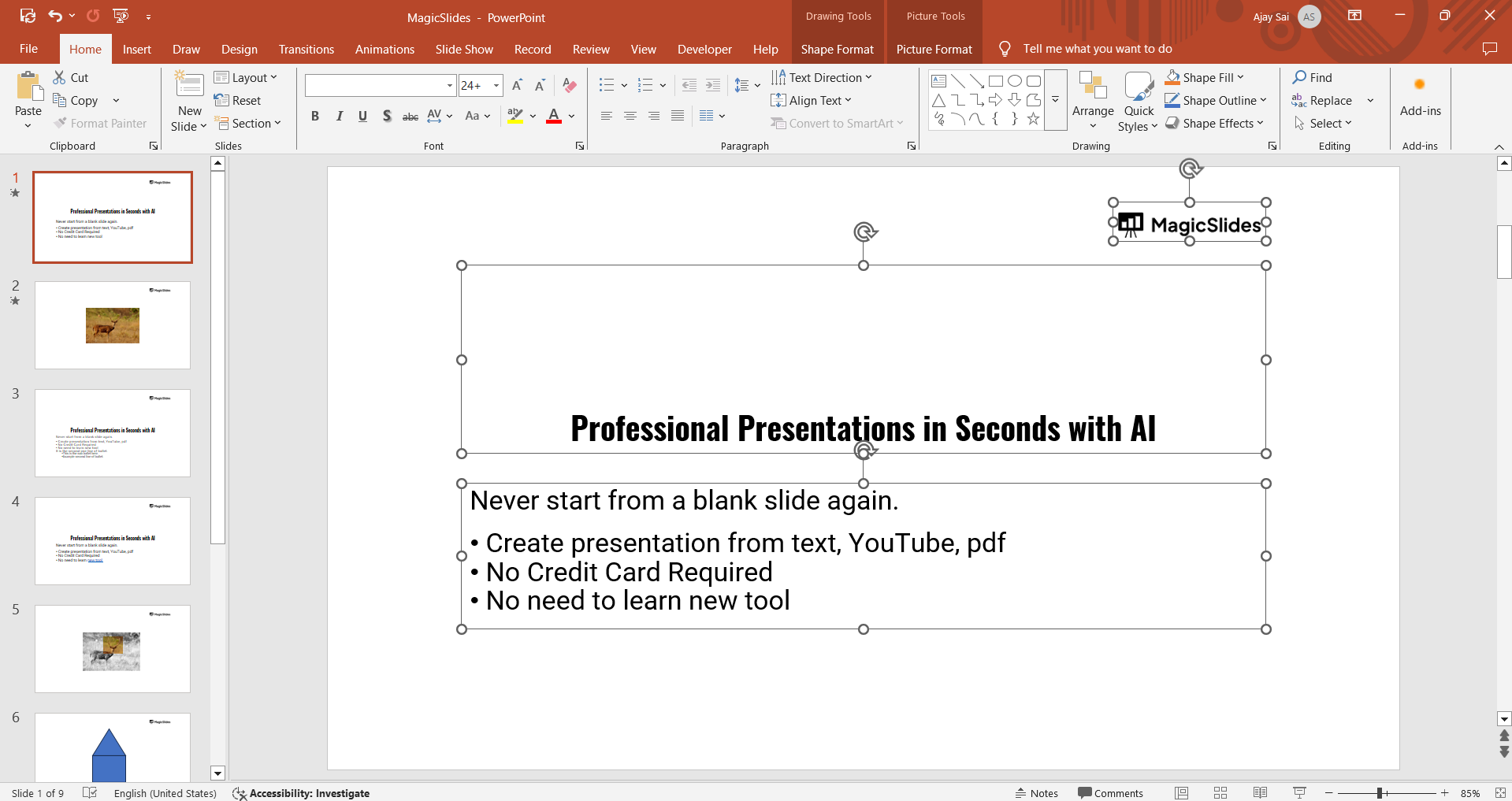
Step 4: Use Ctrl+A to Select and Delete All Text Boxes
Click anywhere on the slide and press Ctrl + A to select all objects. If unwanted objects are also selected, hold Shift and deselect them manually.
Press the Delete key to remove all selected text boxes.
Step 5: Use VBA Code for Bulk Deletion (Advanced Users)
If you have multiple slides and want to delete all text boxes at once, VBA (Visual Basic for Applications) can automate the process:
Press Alt + F11 to open the VBA Editor. Click Insert → Module and paste the following code:
Sub DeleteAllTextBoxes()
    Dim slide As slide
    Dim shape As shape
    For Each slide In ActivePresentation.Slides
        For Each shape In slide.Shapes
            If shape.Type = msoTextBox Then
                shape.Delete
            End If
        Next shape
    Next slide
End Sub
Click Run to execute the script and delete all text boxes.
Steps to Delete a Text Box in PowerPoint
Step 1. Press right-click on the text box that you want to delete.
Step 2. Now, choose the Cut option, and the text box is deleted.
Why can’t you delete Text Boxes in Microsoft PowerPoint, & How to fix it
If you are struggling to delete the text box from your PowerPoint slides, then it might be one of three hidden layout roadblocks.
- Layering Issues: A transparent background element can block the cursor from deleting the text. Then right-click the top shape and choose Send to Back to bring the text box forward.
- Grouped Elements: Shapes used in the slides can disappear when you try to delete text, because they are linked. Now, press right-click on the object and choose the Group > Ungroup to isolate it.
Once you’ve figured out how to delete all text boxes in PowerPoint, explore how to track changes in PowerPoint to keep an eye on modifications in your presentation.
Now that you know how to remove all text boxes in PowerPoint, take your presentation game to the next level with MagicSlides.app Create AI-powered presentations effortlessly just enter a topic, and let MagicSlides.app do the rest!
Conclusion
Deleting all text boxes in PowerPoint can be done using the Selection Pane, shortcuts like Ctrl + A, or even VBA for bulk deletion.
Choose the method that best fits your needs to clean up your slides efficiently.
FAQs on Deleting Text Boxes in PowerPoint
How can I delete text boxes from multiple slides at once?
Use the Selection Pane or press Ctrl + A on each slide. For bulk deletion, use VBA.
Can I undo deleted text boxes in PowerPoint?
Yes, immediately press Ctrl + Z to undo the deletion if needed.
Will deleting text boxes affect other objects on my slide?
If you use Ctrl + A, it may select all objects, so manually deselect important elements before deleting.
Now you can efficiently remove all text boxes and clean up your PowerPoint presentation!


