How to delete responses on Google Forms


Enhance data accuracy with this guide on effortlessly deleting responses in Google Forms for precision.
Google Forms simplifies the process of collecting data and feedback, but what if you need to rectify an error or remove irrelevant responses? Deleting responses in Google Forms is a straightforward task that ensures the accuracy of your data. In this guide, we'll walk you through the steps, giving you the power to maintain the integrity of your collected information effortlessly.
How to delete responses on Google Forms
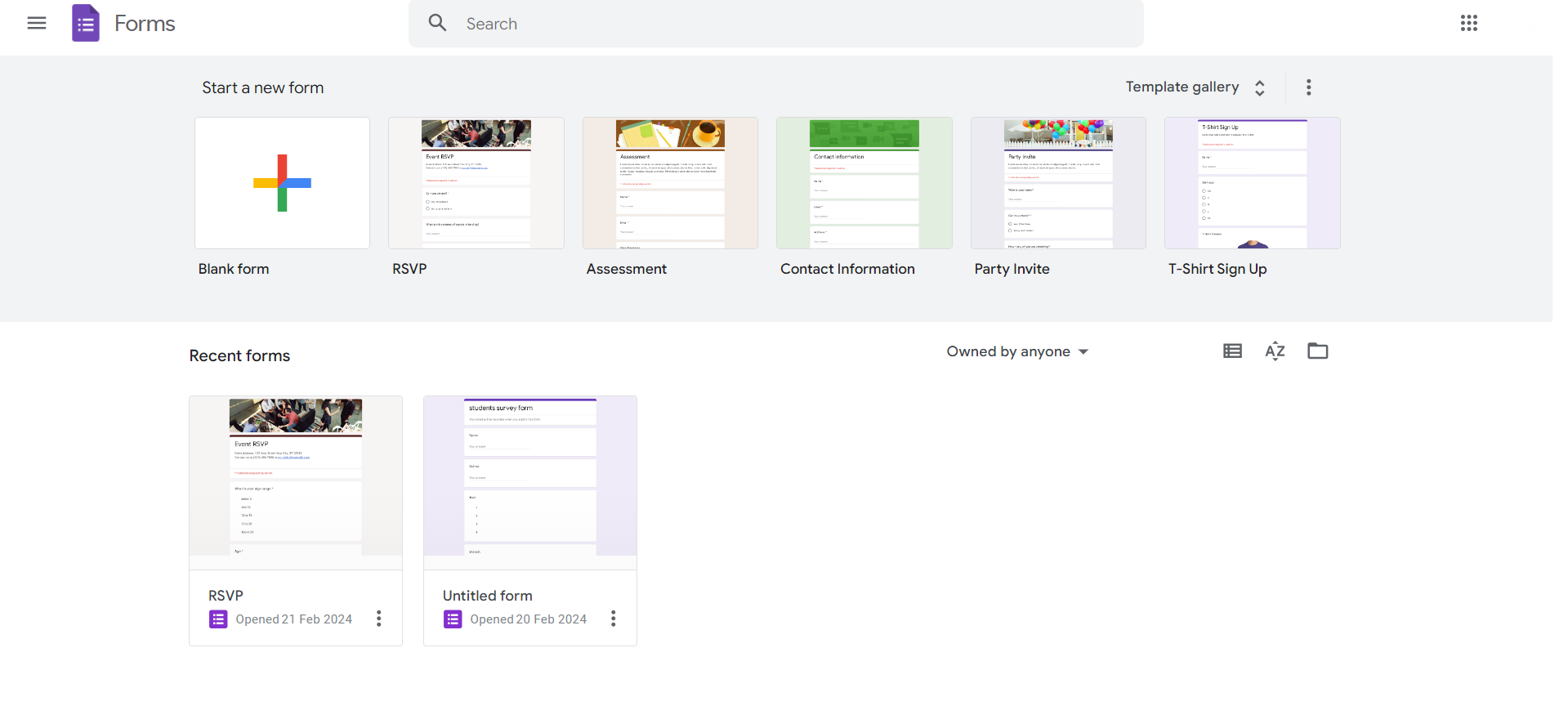
Step 1: Open Google Forms
Begin by accessing your Google Forms account and opening the specific form from which you want to delete responses.
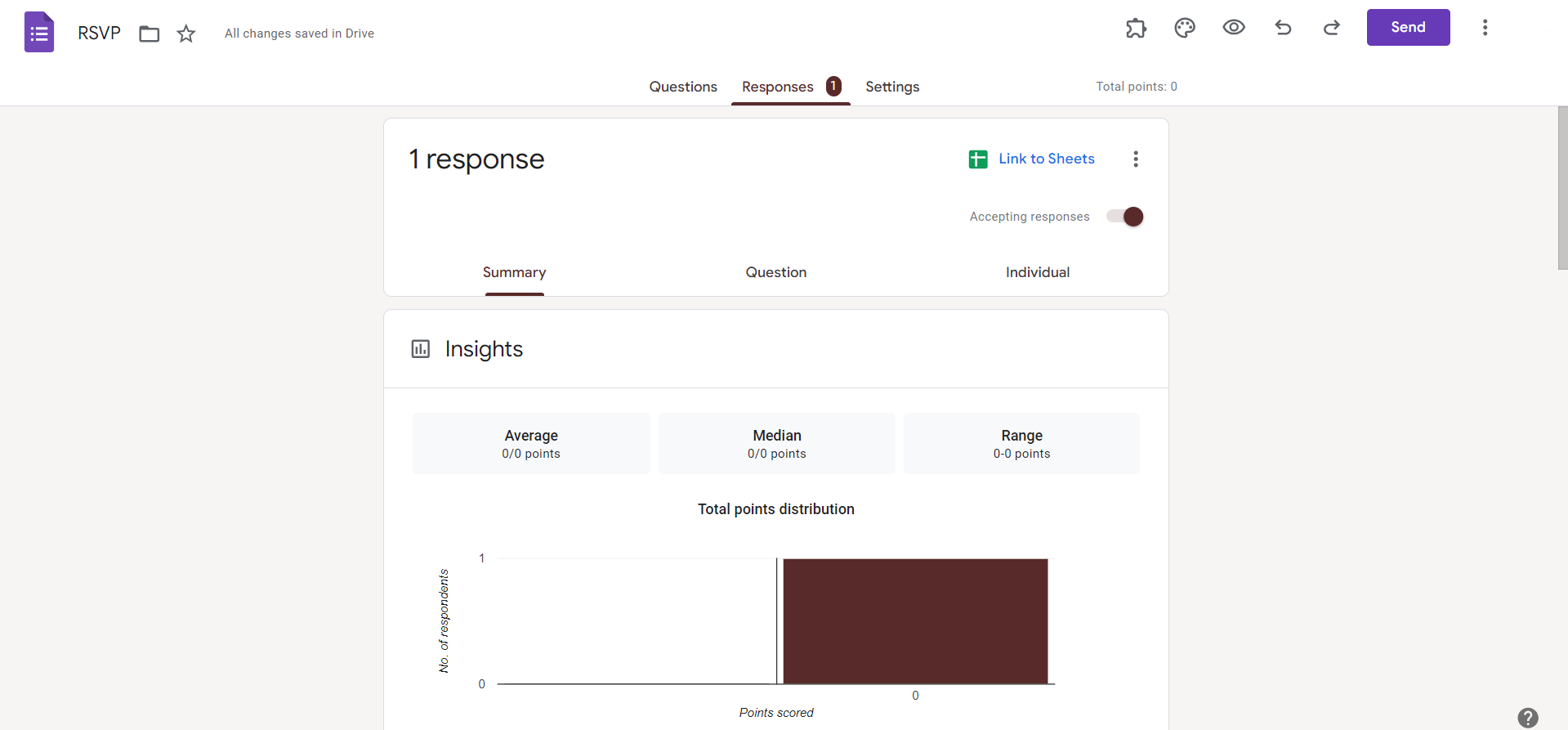
Step 2: Go to the Responses Tab
Navigate to the "Responses" tab at the top of the form. This tab displays a summary of all the responses received.

Step 3: Review Responses
Take a moment to review the responses and identify the ones you want to delete. Each response will have a timestamp and associated data.
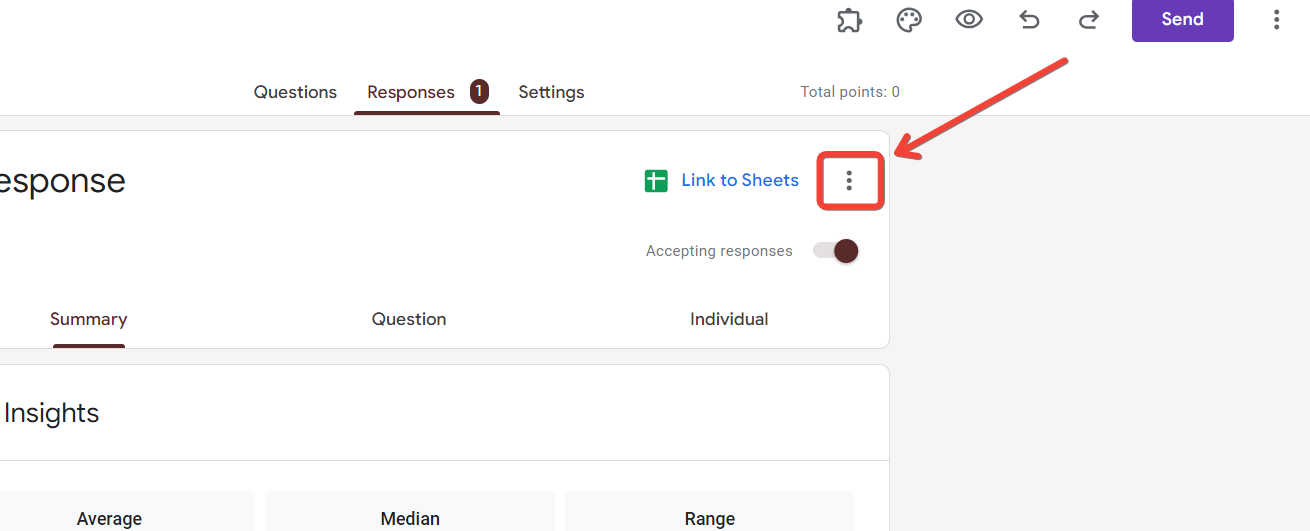
Step 4: Click on the Three Dots
Beside the summary of responses, you'll find three dots (more options). Click on these dots to reveal a dropdown menu.
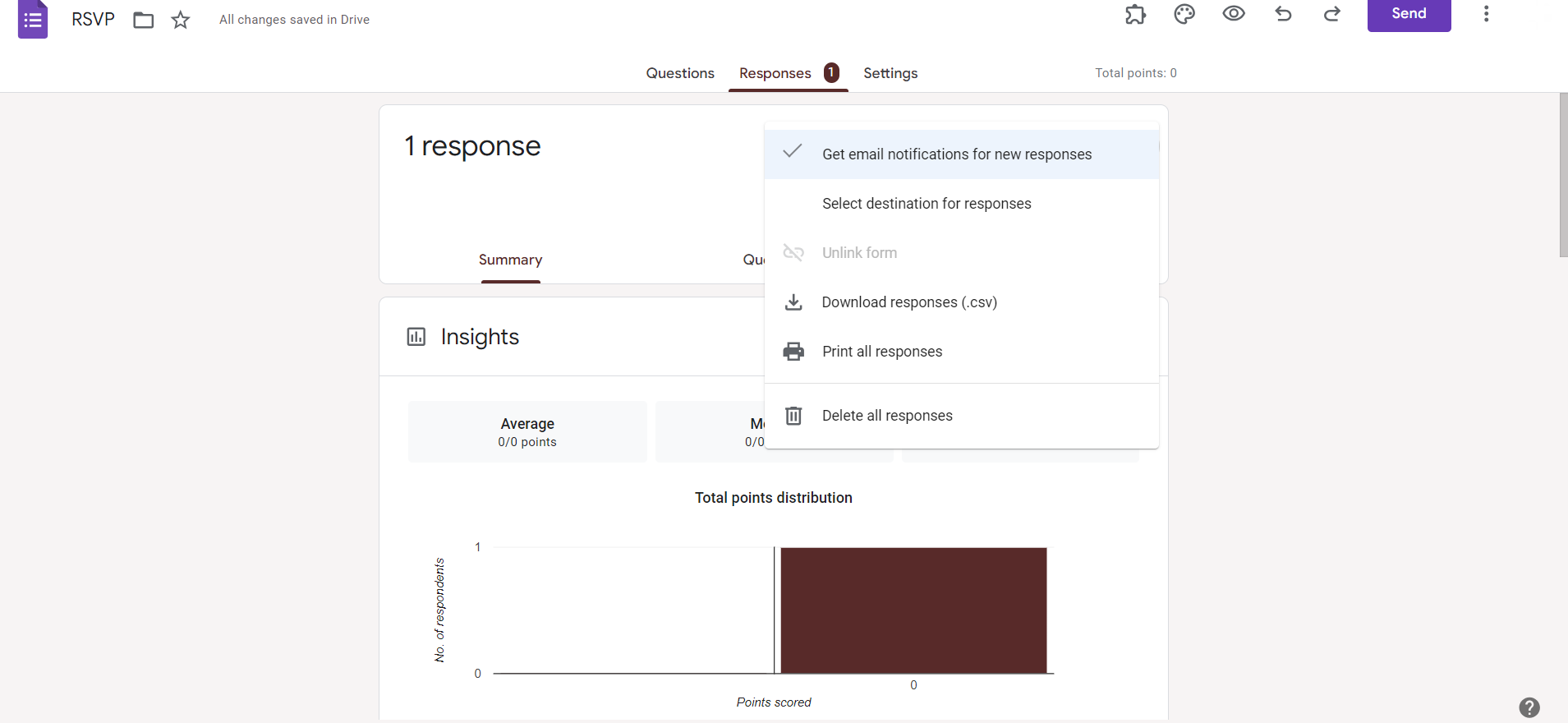
Step 5: Select "Delete All Responses" or "Individual Responses"
You have the option to delete all responses at once or choose "Individual Responses" to select specific entries for deletion.
Step 6: Confirm Deletion
If you selected "Individual Responses," check the responses you want to delete. For deleting all responses, confirm the action when prompted.
Step 7: Save and Exit
Click "Save" or exit the Responses tab. Google Forms will automatically update, reflecting the changes made to the response data.
Conclusion:
Maintaining accurate and relevant data is paramount when using Google Forms for surveys, assessments, or feedback. Knowing how to delete responses ensures that you have control over the information you collect. Follow these simple steps to seamlessly manage and refine your data, providing you with clean and reliable insights. Delete responses with confidence, and keep your Google Forms organized and reflective of the most accurate information.
Frequently Asked Questions:
Can I recover deleted responses in Google Forms once they are removed?
No, deleted responses cannot be recovered, so exercise caution before confirming deletion.
Can I delete responses selectively, or is it an all-or-nothing process?
You can delete responses selectively by choosing "Individual Responses" in the three-dot menu.
Will deleting responses affect the overall structure or questions in my form?
No, deleting responses only removes specific data and doesn't alter the form's structure or questions.
Can I set permissions to control who has the authority to delete responses?
Google Forms doesn't have built-in features for response deletion permissions; manage access through sharing settings.


