Addon google slides iconPPT with AISlide TemplatesPPT TemplatesPricingBlog
    PPT with AISlide TemplatesPPT TemplatesPricingBlog
    1. Home
    2. Blog
    3. How to do superscript in PowerPoint


    How to do superscript in PowerPoint

    magicslides app

    Published By

    magicslides app

    Approved By

    Admin

    Published On

    January 13th, 2025

    Reading Time

    2 min read

    Mastering superscript in PowerPoint elevates presentations, allowing seamless integration of footnotes and mathematical symbols

    In PowerPoint presentations, using superscript text can be crucial for indicating footnotes, mathematical exponents, or adding trademark symbols, among other uses. However, navigating PowerPoint's interface to apply superscript formatting may seem challenging at first. Fear not! In this comprehensive guide, we'll walk you through each step, making it easy for you to incorporate superscript text seamlessly into your PowerPoint slides.

    How to do superscript in PowerPoint

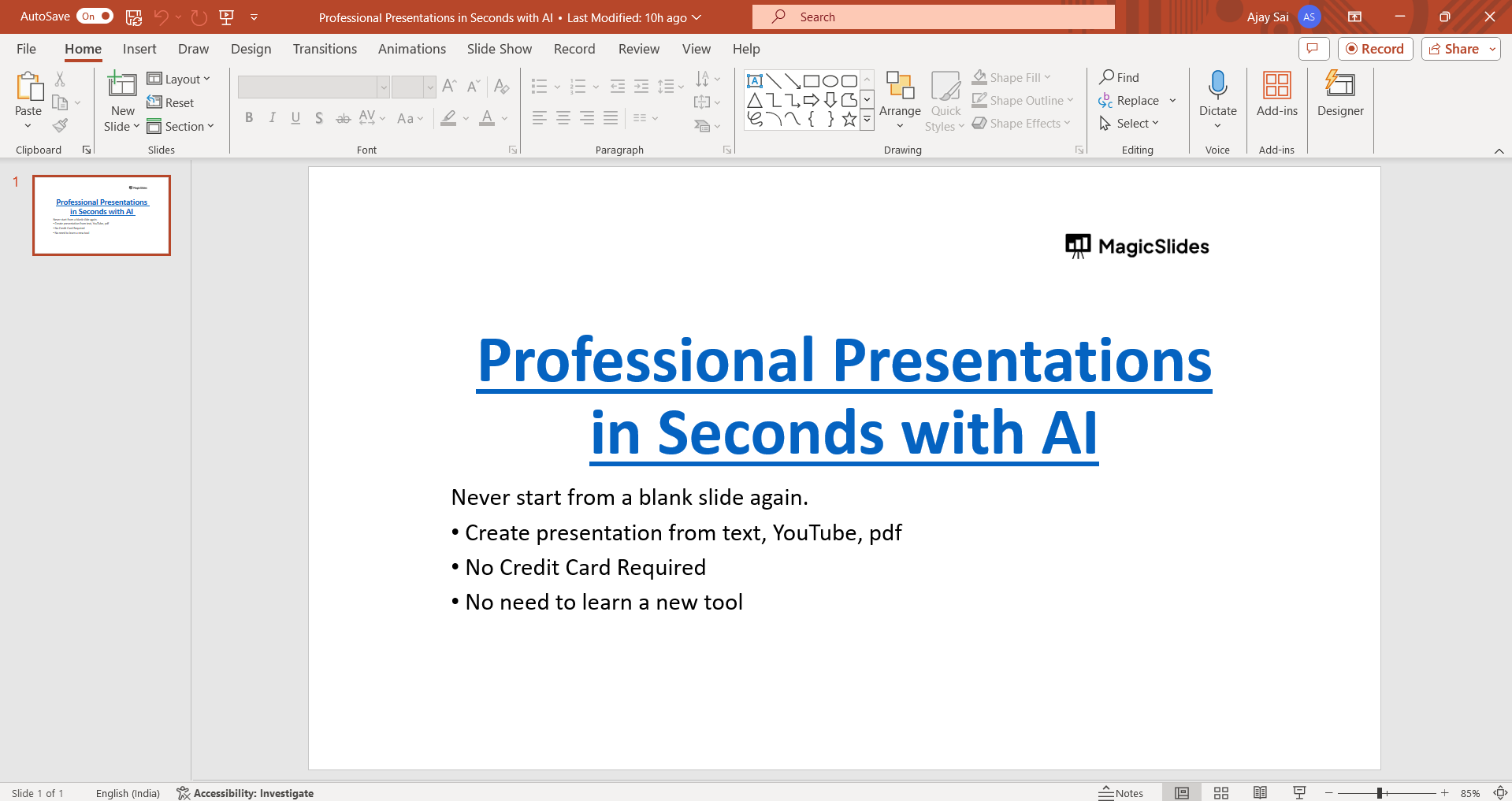
    Step 1: Open Your PowerPoint Presentation

    Launch PowerPoint and open the presentation where you want to include superscript text. Navigate to the slide where you intend to make the adjustments.
    notion image

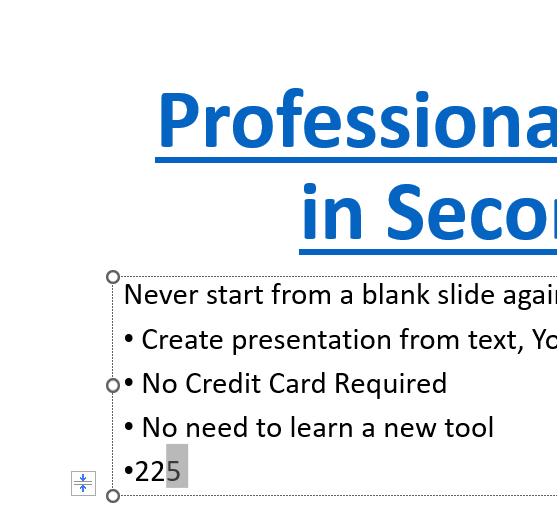
    Step 2: Select the Text for Formatting

    Click and drag to highlight the text that you wish to convert to superscript. It could be a single character, a word, or an entire phrase.
    notion image

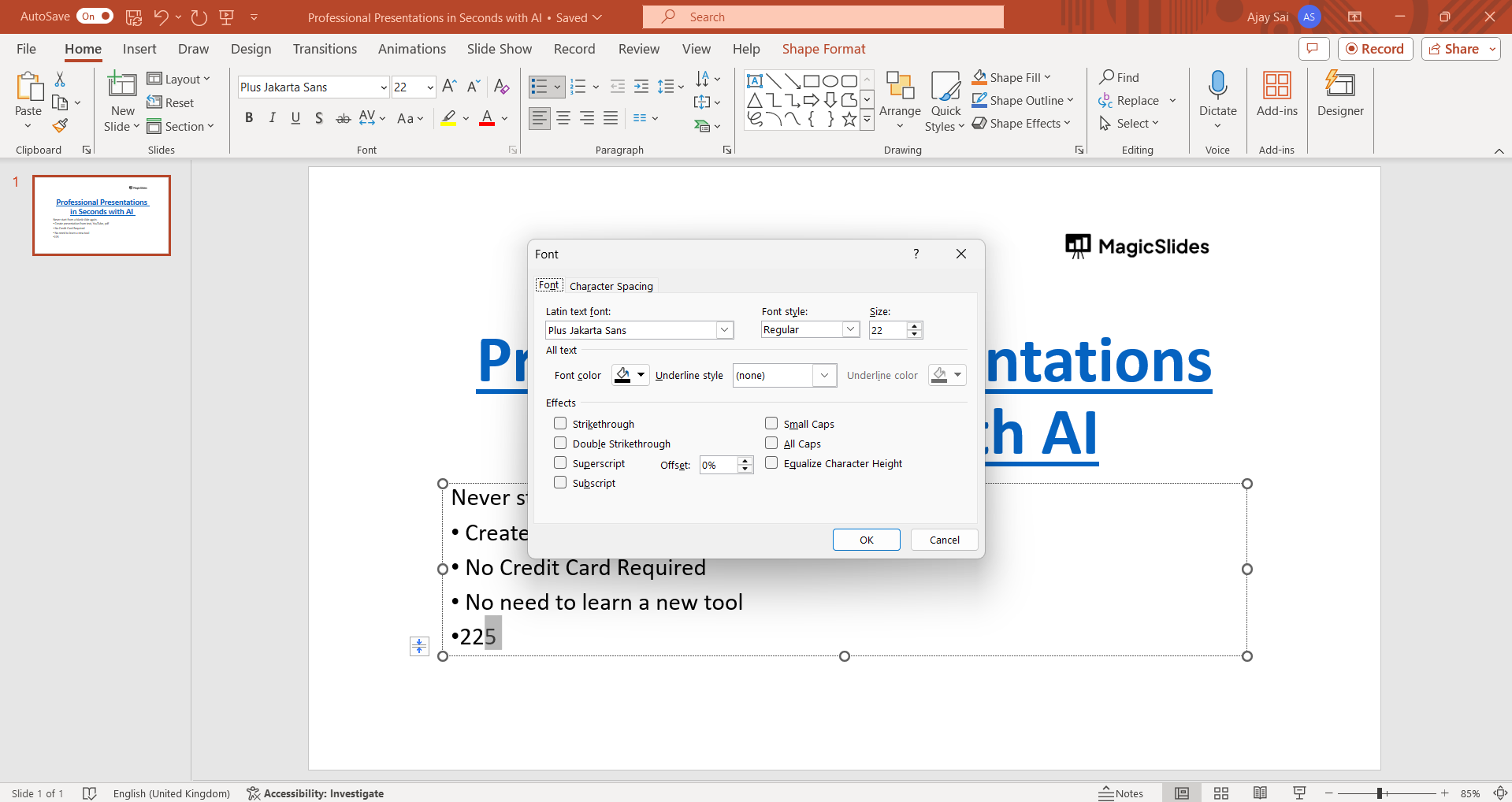
    Step 3: Access the Font Dialog Box

    Right-click on the selected text to reveal a contextual menu. From the options provided, choose "Font" to open the Font dialog box. Alternatively, you can press Ctrl + D on your keyboard to access the Font dialog box directly.
    notion image

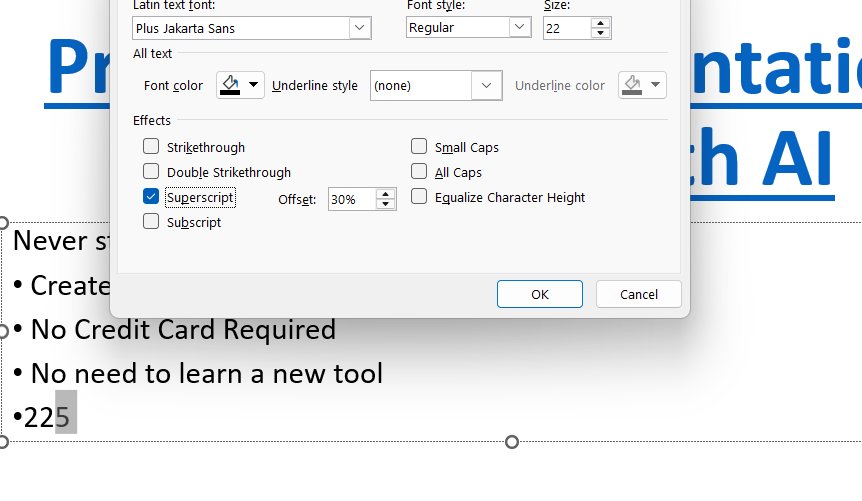
    Step 4: Apply Superscript Formatting

    Within the Font dialog box, locate the "Effects" section. Check the box labeled "Superscript" to apply the superscript formatting to the selected text. You'll be able to preview the changes in the preview box.
    notion image

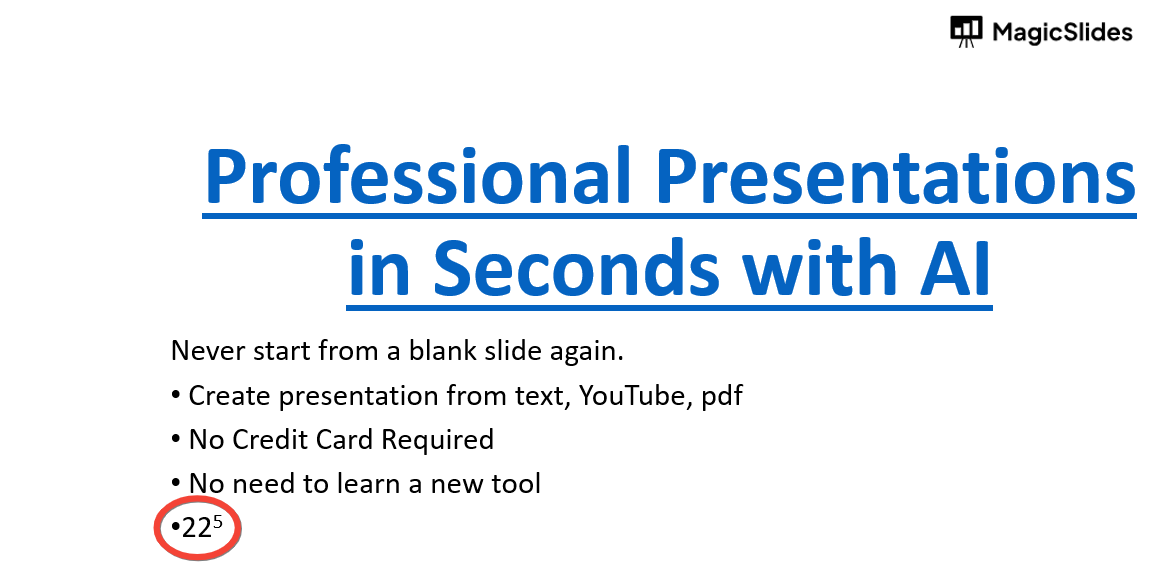
    Step 5: Confirm and Close

    Once satisfied with the formatting adjustments, click "OK" to apply the superscript formatting to the selected text. Instantly, you'll observe the changes reflected on your PowerPoint slide.
    notion image

    Conclusion:

    Incorporating superscript text into your PowerPoint presentations can significantly enhance their professionalism and clarity. Whether you're indicating mathematical exponents, including footnotes, or adding trademark symbols, following this step-by-step guide ensures a smooth and hassle-free process. By mastering these simple steps, you'll be able to effortlessly integrate superscript text into your PowerPoint slides, effectively conveying your message and engaging your audience. With these newfound skills, your presentations are sure to stand out and leave a lasting impression on your viewers.

    Frequently Asked Questions:

    Why use superscript in PowerPoint?

    Superscript is useful for indicating footnotes, mathematical exponents, or adding trademark symbols.

    Can I apply superscript to multiple words at once?

    Yes, you can select multiple words and apply superscript formatting to them simultaneously.

    Is there a keyboard shortcut for superscript in PowerPoint?

    While there isn't a default shortcut, you can create a custom one through PowerPoint's settings.

    Does superscript affect font size or spacing?

    Superscript formatting adjusts the position of the text vertically without altering its font size or spacing.

    Share on socials

    About the author

    Ayan Ahmad Fareedi profile photo
    Ayan Ahmad Fareedi— writer at MagicSlides

    Ayan Ahmad is our Senior Writer and brings over two years of experience from working with big companies like Amazon and Okaya. He loves writing stories that grab your attention and speak to a wide audience. When he's not working, you can find him watching movies or planning his next trip. Ayan's work is not just about words; it's about making every article special and interesting.

    More from Ayan

    More from the blog

      250+ Good Morning Messages for Her (Romantic, Deep, Cute & Sweet)

      30 January 2026

      200+ Heart Touching Birthday Wishes for Sister (Short, Funny and More)

      29 January 2026

      50+ History Presentation Topics For 2026

      28 January 2026

      How to Add Music to Your Canva Presentation: A Step-by-Step Guide

      27 January 2026

      15 Quick Tips To Use ChatGpt At Work

      22 January 2026

      11 Best AI Tools for Business in 2025

      22 January 2026

      How to Create an Infographic That Clearly Communicates Your Message

      20 January 2026

      How to Create a Sales Presentation Template in Google Sheets

      20 January 2026

      How to Make a Pie Chart on Google Slides in Simple Steps

      19 January 2026

    Table of Contents

    Create Presentations in Seconds

    Transform your ideas into professional presentations with AI. No design skills needed.

    Try MagicSlides Free

    Create Stunning Presentations with AI in Seconds ✨

    Transform any topic, text, YouTube video, PDF or URL into beautiful presentations instantly with MagicSlides AI.

    Try MagicSlides AI Presentation Maker
    MagicSlides AI Presentation

    Footer

    Solutions

    • MagicSlides App
    • Google Slides Add-on
    • MagicSlides in Chrome
    • MagicSlides in Figma
    • MagicSlides in ChatGPT
    • MagicSlides in Telegram
    • MagicSlides in Zapier
    • MagicSlides in Figma Slides

    Tools

    • AI PPT Tools
    • QR Code Generator
    • Design Tools
    • PPT Templates
    • Slide Templates
    • PDF Tools

    Examples

    • AI Presentations
    • PPT by MagicSlides
    • Quizzes
    • Charts
    • Coloring Pages

    Resources

    • Changelog
    • Documentation
    • API Docs

    Top Blogs

    • How to Create Presentation Using ChatGPT
    • 100+ Best Seminar Topics for Students in 2025

    Company

    • Help
    • MCP
    • Blog
    • Pricing
    • Affiliate Program
    • Manage Subscription
    • Privacy Policy
    • Contact Us
    • Terms & Conditions
    • Refund & Cancellation Policy

    We also built

    • SheetAI - GPT For Sheets
    • MagicForm - GPT For Google Forms
    • SecondBrain.fyi
    • BlogBee - Free Blogging Platform

    © 2026 IndianAppGuy Tech Pvt Ltd. All rights reserved.