How to do Transitions on Google Slides on Ipad


Easily add smooth transitions in Google Slides on iPad to create engaging and professional presentations
How to Do Transitions on Google Slides on iPad
Enhance your presentations by adding smooth transitions between slides in Google Slides on your iPad.
Transitions create a more engaging experience and help maintain audience interest. Follow this step-by-step guide to apply transitions seamlessly.
Steps to Add Transitions on Google Slides on iPad
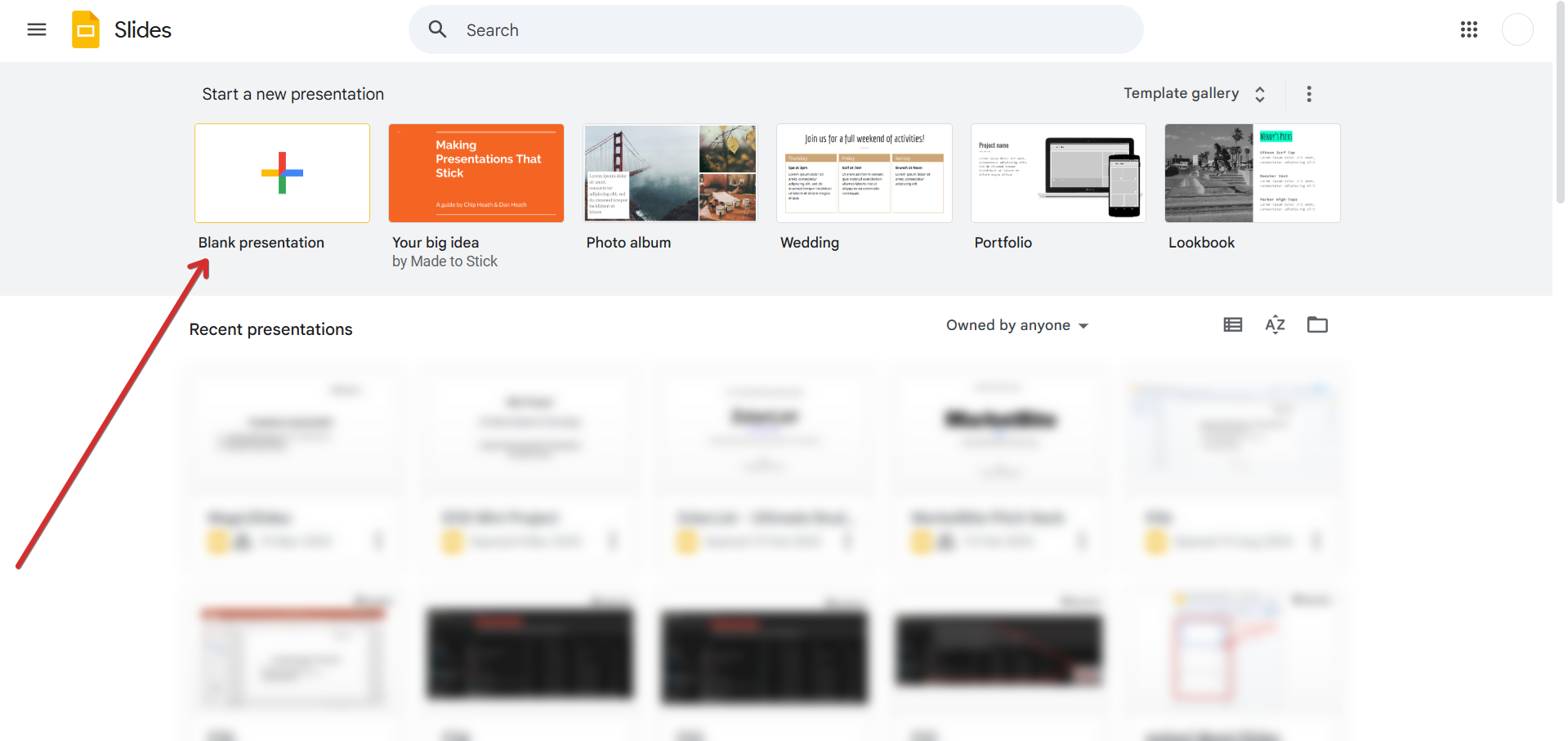
Step 1: Open Google Slides on Your iPad
Launch the Google Slides app on your iPad. Open an existing presentation or create a new one by tapping the "+" button.
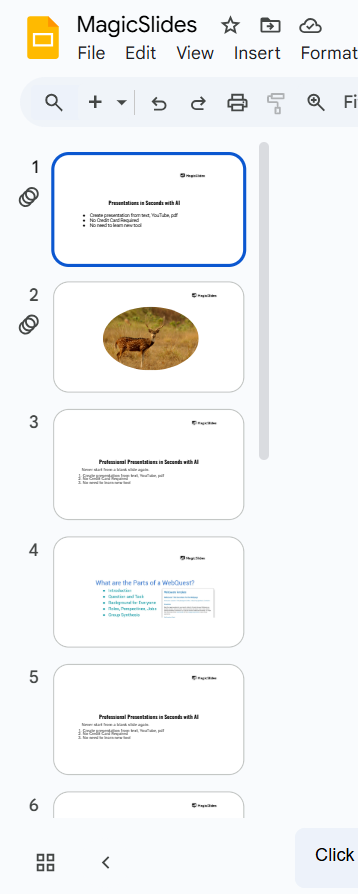
Step 2: Select the Slide for Transition
Tap on the slide thumbnail where you want to add a transition. Ensure that the slide is highlighted before proceeding.
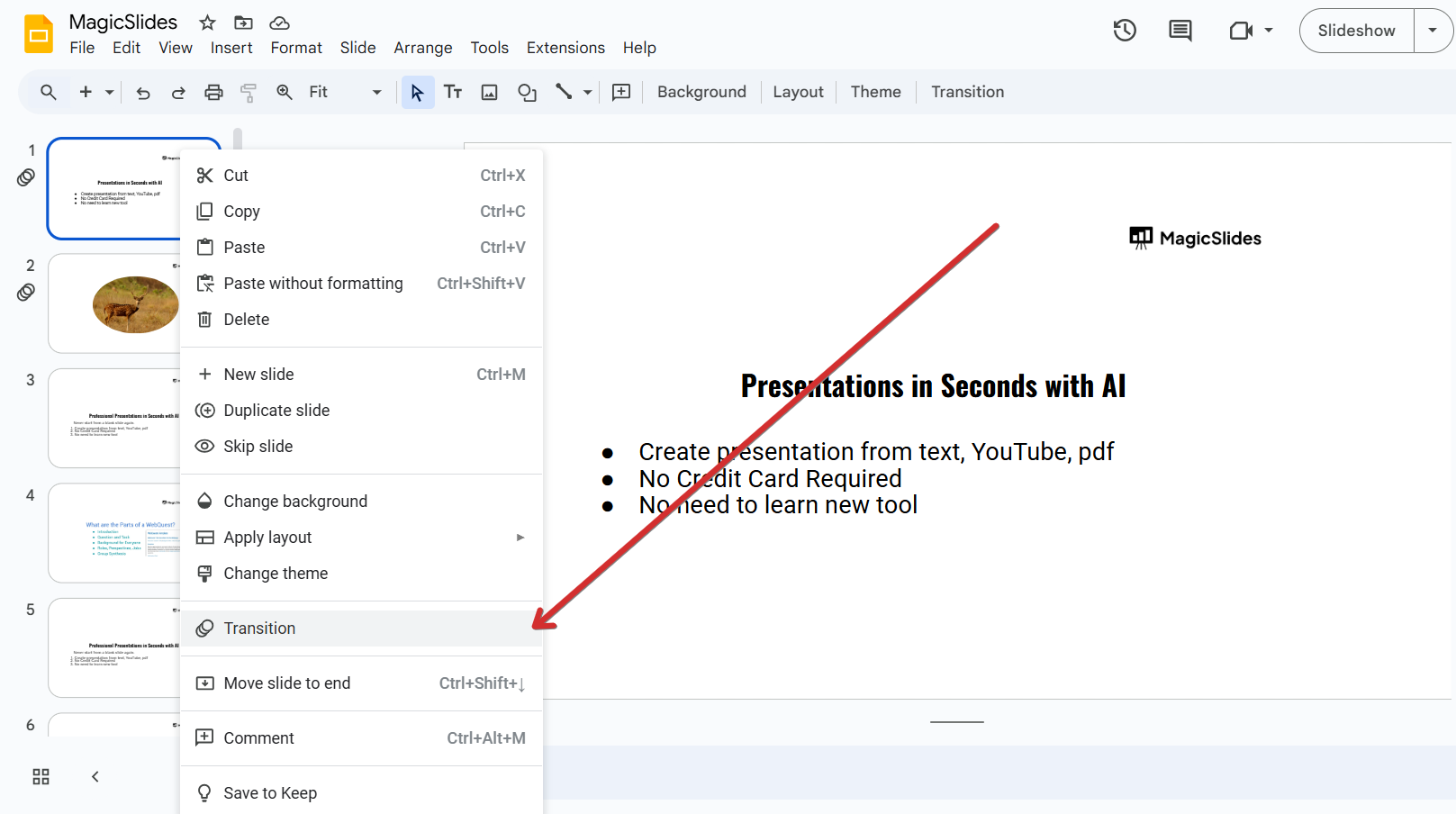
Step 3: Tap on the “Transition” Option
In the top-right corner, tap on the three-dot menu (More Options). From the dropdown list, select "Transition" to open the transition settings.
Step 4: Choose a Transition Effect
A list of transition effects will appear, including Fade, Slide, Dissolve, Flip,Cube, and more.
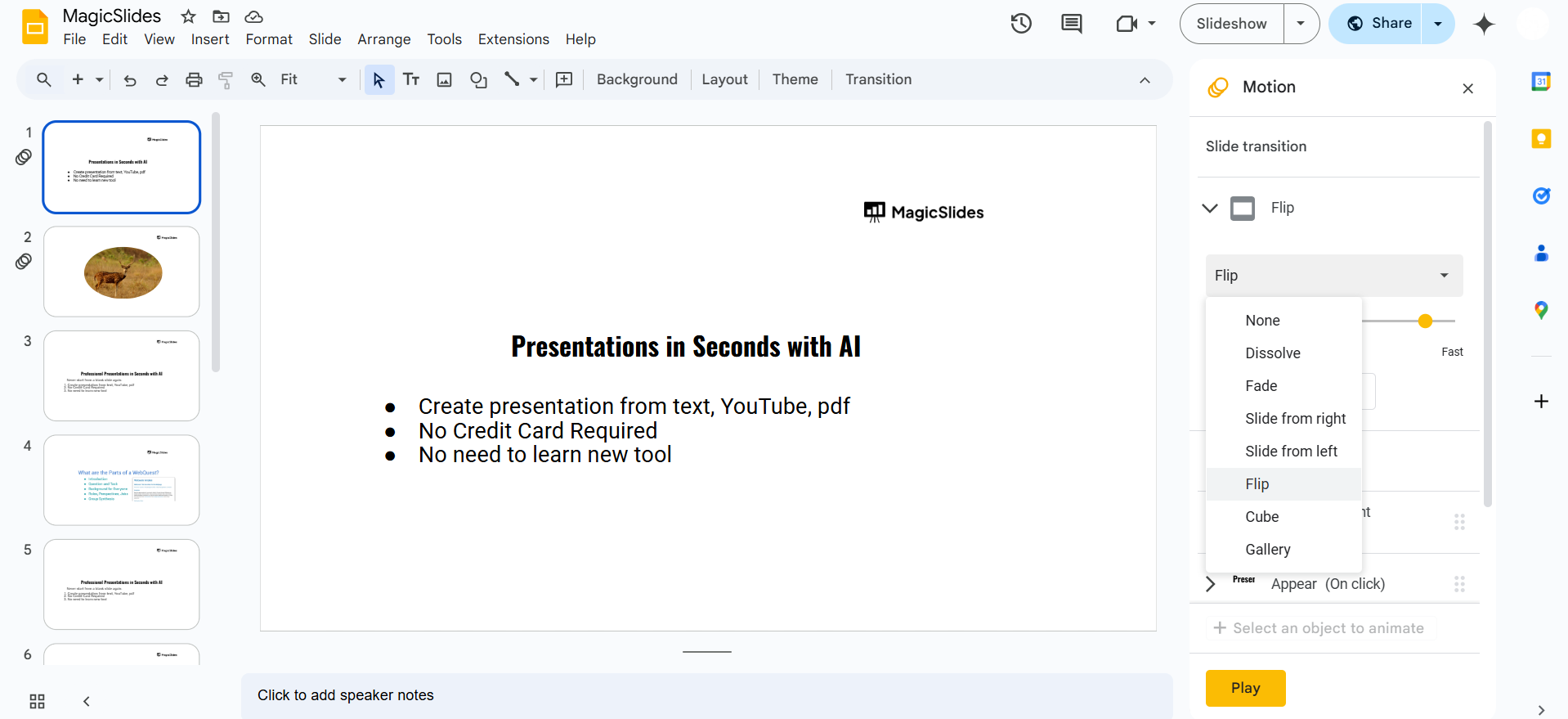
Tap on your preferred transition to preview how it looks.
Step 5: Adjust Transition Speed (Optional)
Some transition effects allow speed adjustment. You can modify the speed by selecting Slow, Medium, or Fast.
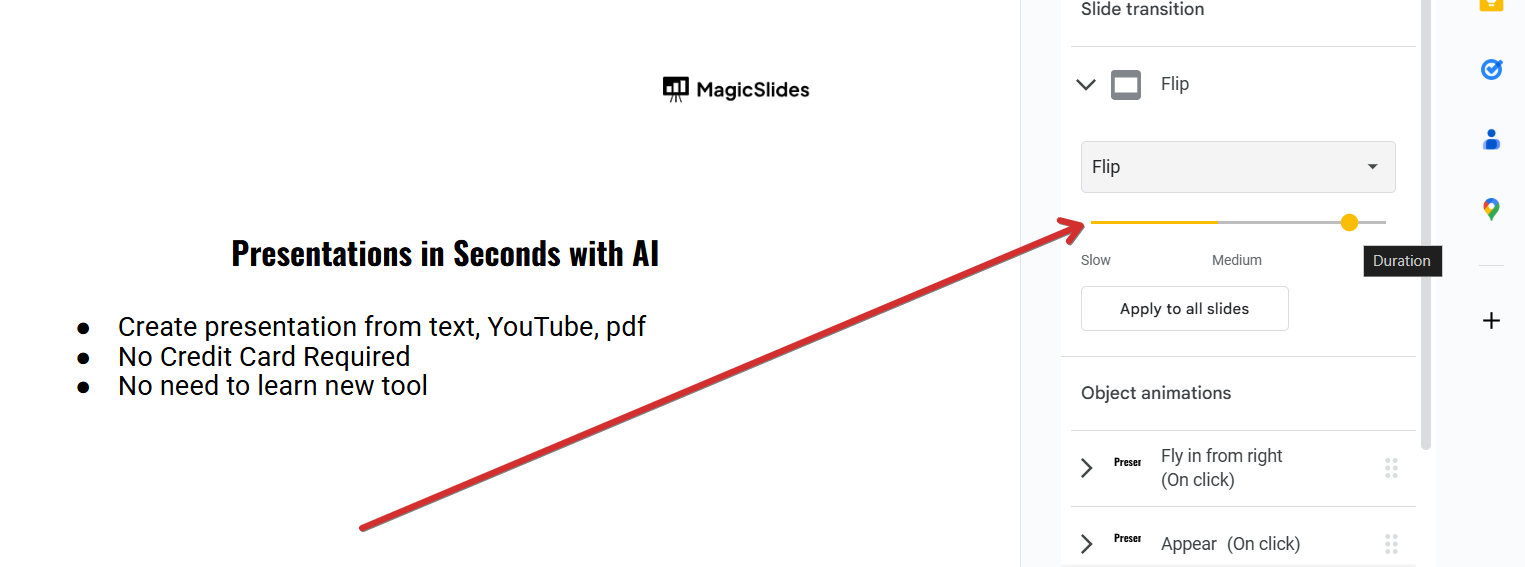
Step 6: Apply the Transition
Tap "Apply to Slide" to confirm your transition.
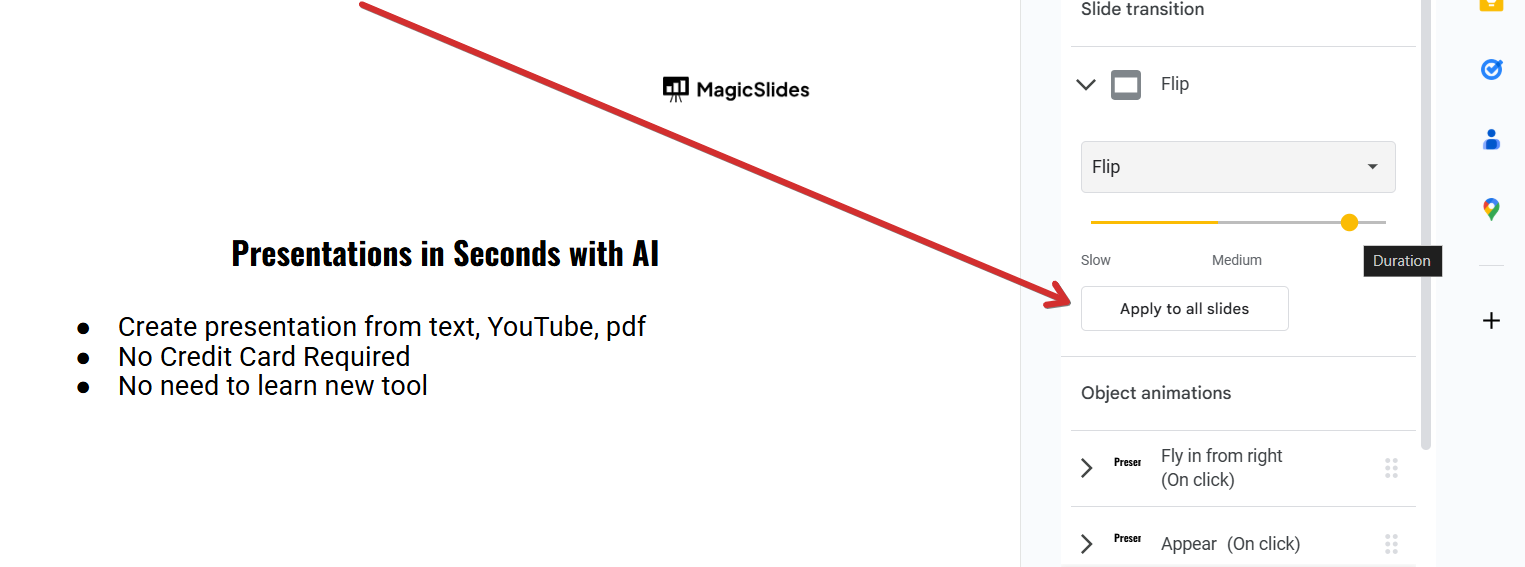
If you want the same transition for all slides, tap "Apply to all slides."
Step 7: Preview the Transition
To see how it looks, tap on "Present" (Play icon) and swipe through the slides.
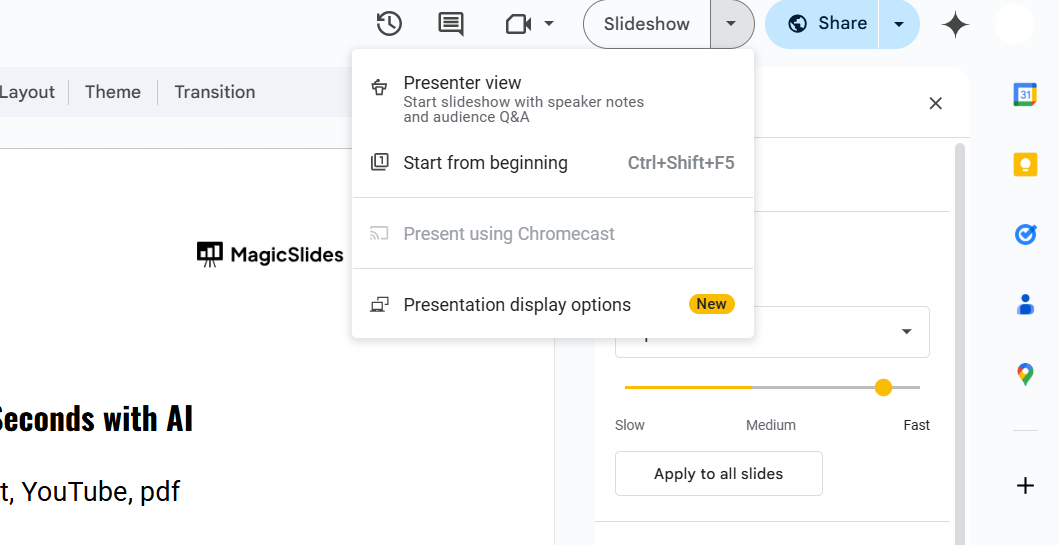
If necessary, go back and adjust the transitions for a smoother effect.
Adding transitions on Google Slides enhances your presentation flow, but if you want a faster way to create stunning slides, try MagicSlides.app AI powered presentations in seconds with smooth transitions and animations!
Conclusion
Adding transitions in Google Slides on an iPad is simple and enhances your presentation’s visual appeal.
Experiment with different effects to create a more professional and engaging slideshow.
FAQs can take you forward!
Can I add different transitions to each slide in Google Slides on iPad?
Yes, you can apply different transitions to individual slides by selecting them and choosing unique effects.
Why don’t I see the transition option on my iPad?
Ensure you are using the latest version of the Google Slides app, as older versions may lack this feature.
Can I remove a transition from a slide?
Yes, go to the Transition menu, select "None", and apply the change to remove the transition.


