How to download extensions on Google Slides


Unlock the full potential of Google Slides – follow this guide to seamlessly download and utilize extensions!
In the realm of presentation mastery, Google Slides is a powerhouse, but did you know you can supercharge its capabilities with extensions? This step-by-step tutorial will walk you through the process of downloading extensions to enhance your Google Slides experience.
How to download extensions on Google Slides
Step 1: Open Google Slides
Start by opening Google Slides and accessing your presentation or creating a new one. Ensure you're signed in to your Google account.
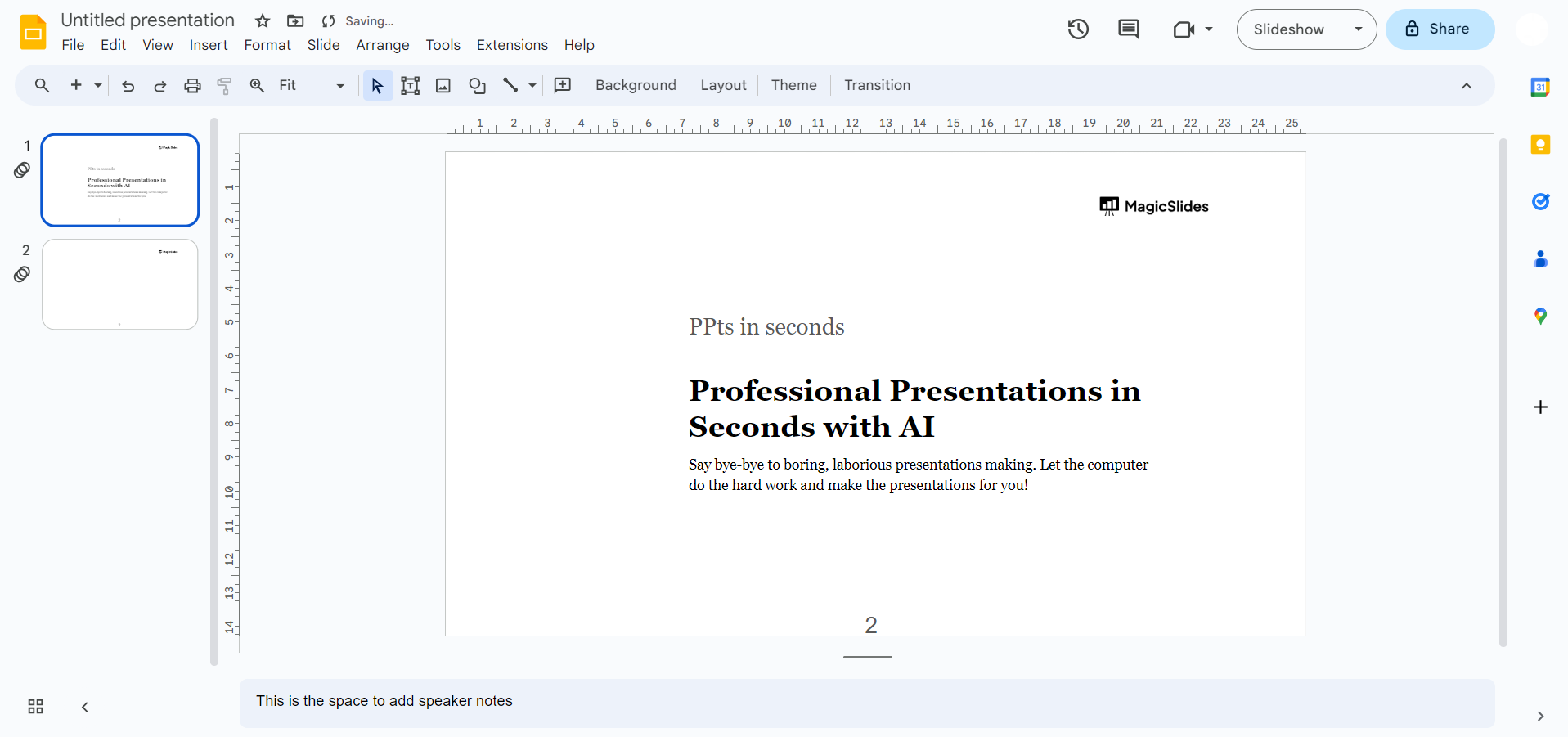
Step 2: Navigate to the Add-ons Menu
Once in Google Slides, navigate to the top menu and find the "Add-ons" option. Click on it to reveal a drop-down menu with the "Get add-ons" choice.
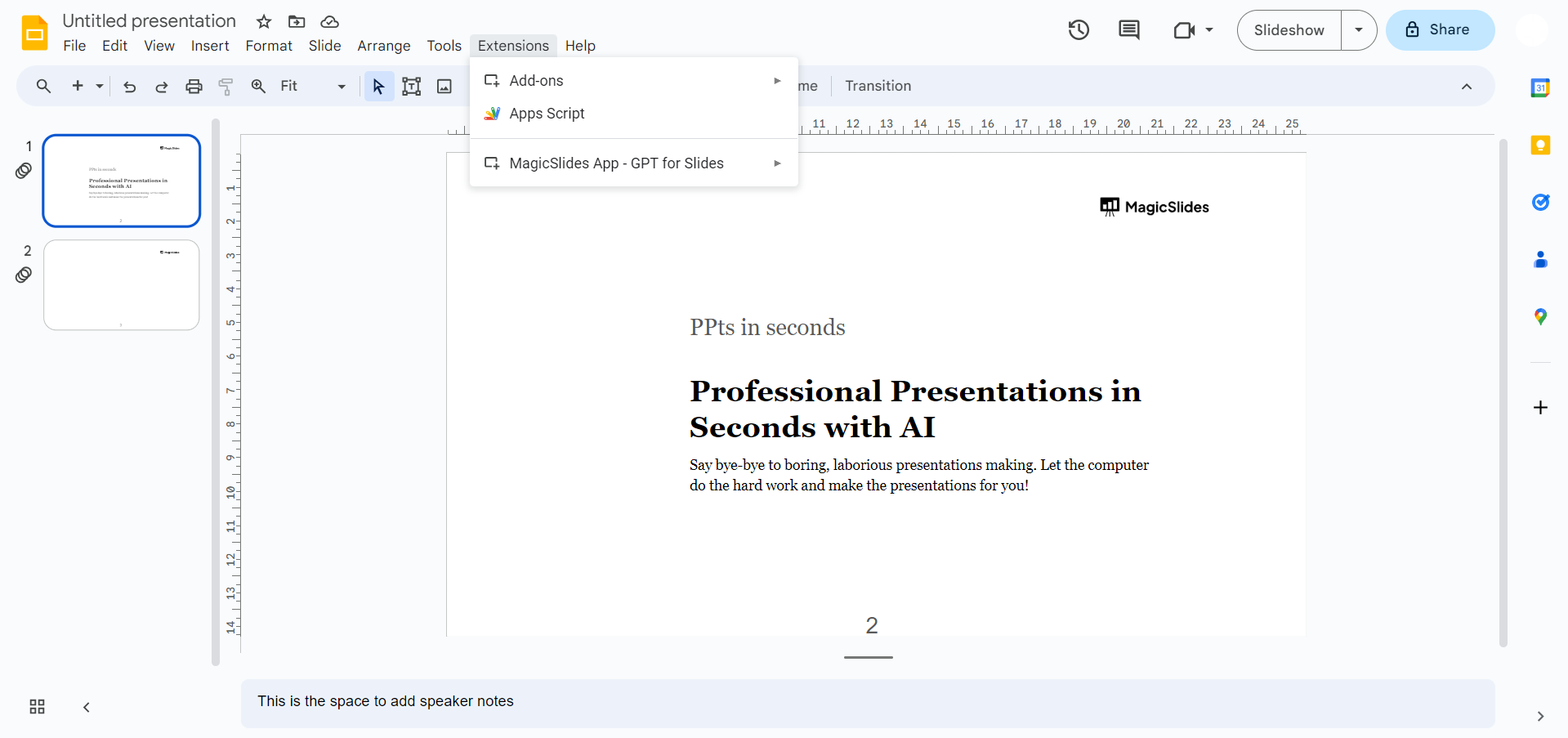
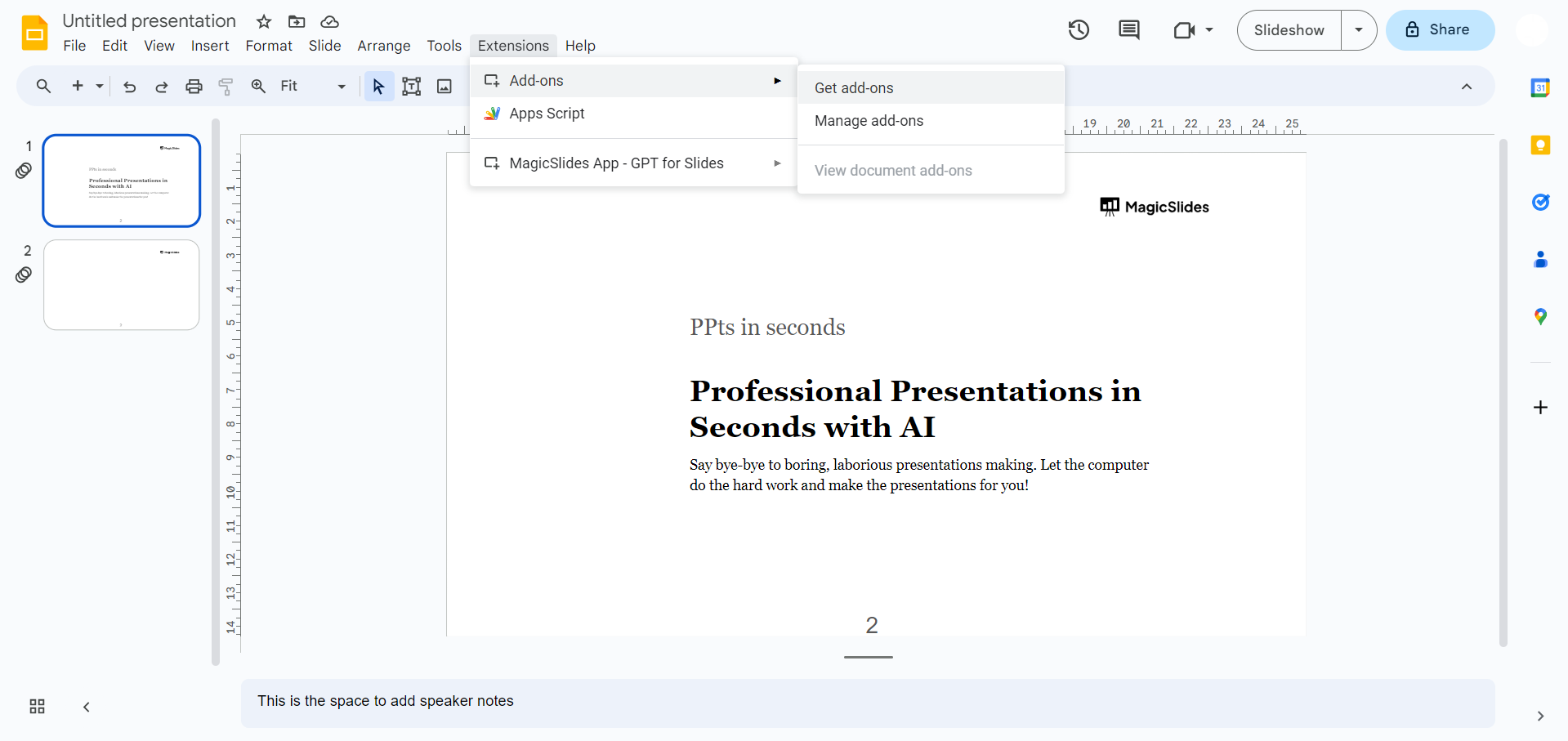
Step 3: Click on "Get add-ons"
Select "Get add-ons" to open the Google Workspace Marketplace, a hub for a variety of extensions designed to complement Google Slides.
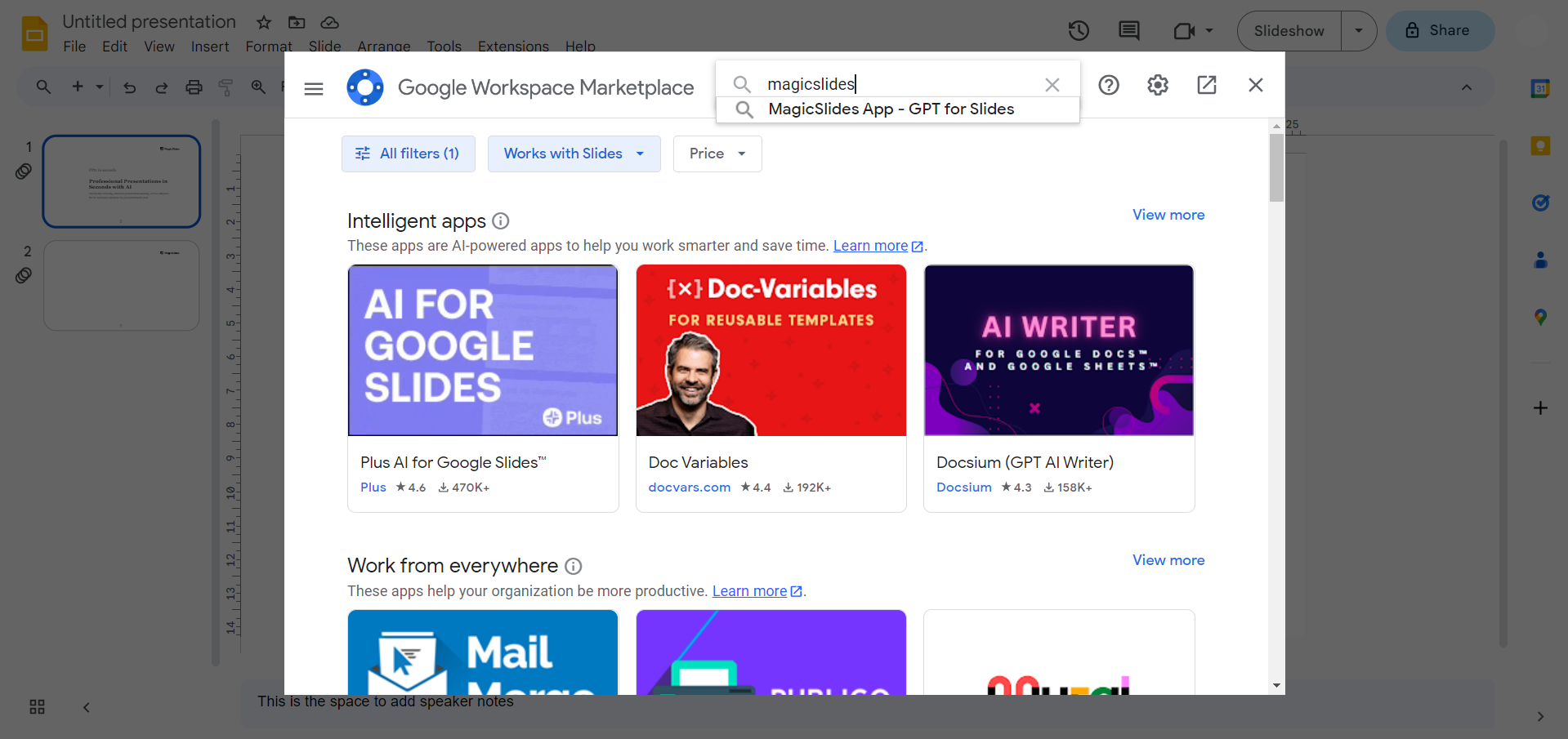
Step 4: Browse or Search for Extensions
In the Google Workspace Marketplace, you can explore different categories of add-ons or use the search bar to find a specific extension. From productivity tools to design enhancers, the options are vast.
Step 5: Click on "Install"
If you're convinced that the extension suits your needs, hit the "Install" button. Google Slides will ask for permission to access certain features, ensuring a secure integration.
Step 6: Grant Necessary Permissions
Review the permissions required by the extension and click on "Continue" to grant access. Rest assured, Google takes security seriously, and these permissions are essential for the extension to function seamlessly.
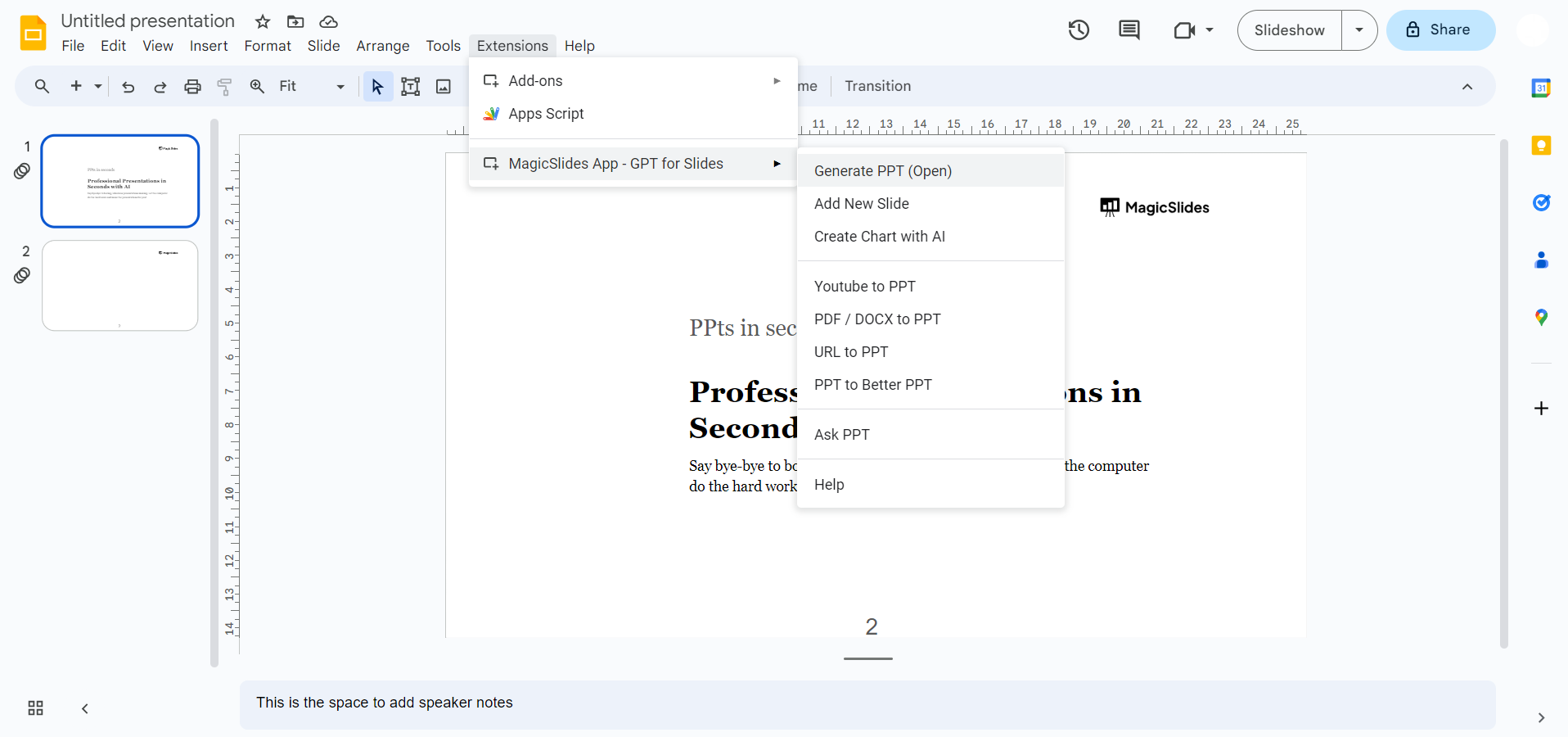
Step 7: Access the Extension
Once installed, you can find the newly added extension under the "Add-ons" menu within Google Slides. Some extensions may also have their own toolbar or settings accessible directly from your presentation.
Step 8: Check for Updates
Periodically check for updates to ensure you're using the latest version of your extensions. Developers often release updates to improve functionality and address any issues.
Conclusion:
You've successfully downloaded and integrated an extension into Google Slides. With a myriad of possibilities at your fingertips, explore the Google Workspace Marketplace to discover more extensions tailored to your presentation needs. Elevate your slides and captivate your audience with the power of extensions!
Frequently Asked Questions:
Why should I consider downloading extensions for Google Slides?
Ans: Extensions enhance functionality, offering features like design tools, productivity aids, and collaborative elements for dynamic and engaging presentations.
Are extensions secure? How can I trust the permissions they request?
Ans: Yes, extensions are secure. Permissions ensure seamless integration, granting necessary access for features without compromising your data. Google maintains strict security standards.
Can I use multiple extensions simultaneously in Google Slides?
Ans: Yes, you can use multiple extensions. However, ensure they complement each other, and periodically check for updates to ensure compatibility and optimal performance.


