How to Duplicate the Same Side of Google Slides


Learn how to duplicate slides in Google Slides for consistent layouts and efficient presentation creation
Duplicating a slide in Google Slides is a simple process that helps you save time when you want to reuse a slide design, layout, or content in the same presentation.
It’s especially useful for creating consistency or making minor edits to existing slides.
This guide explains how to duplicate a slide in a few easy steps.
Steps to Duplicate the Same Slide in Google Slides
Step 1: Open Your Google Slides Presentation
Log in to your Google account and open the presentation that contains the slide you want to duplicate.
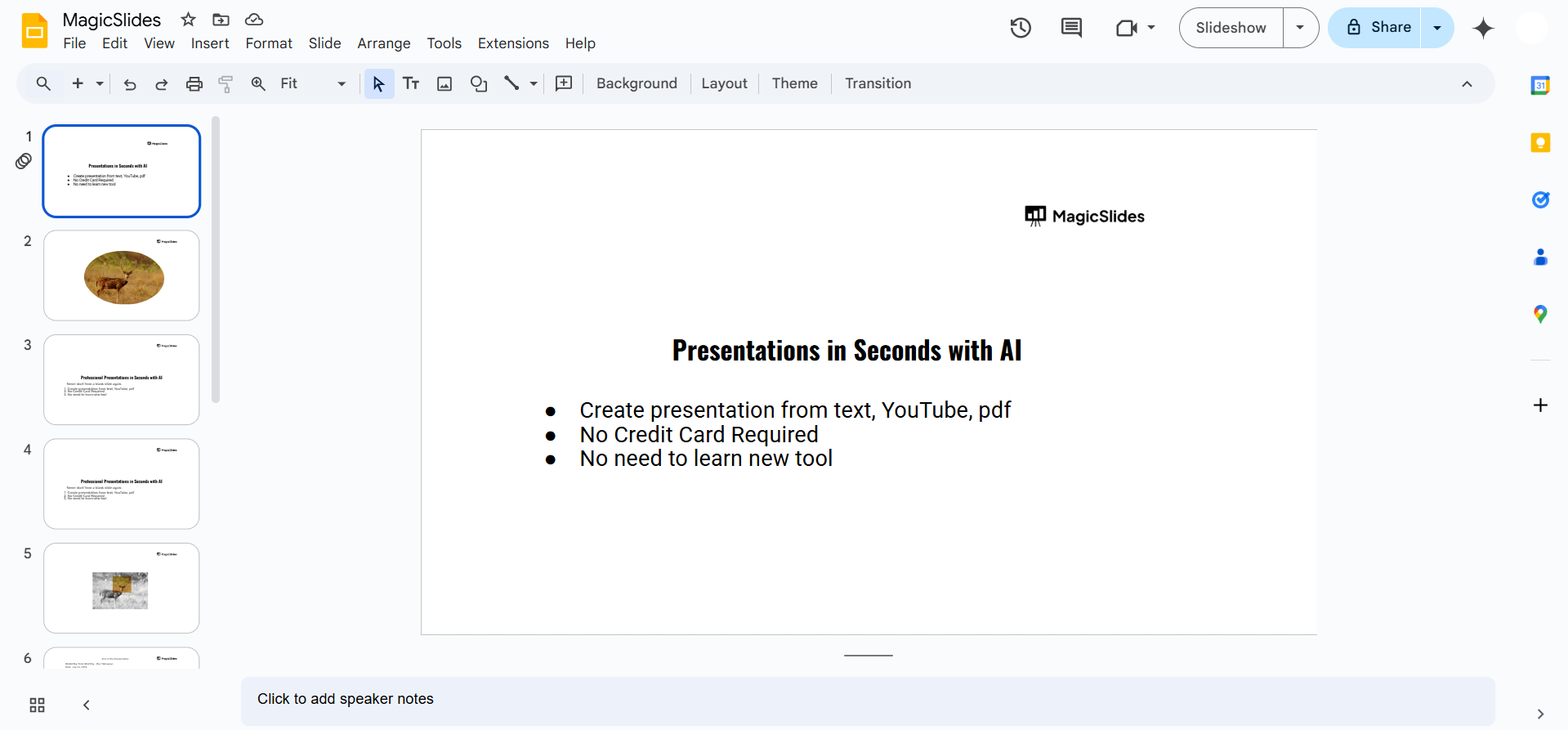
Navigate to the slide you want to replicate in the left-hand slide navigation pane.
Step 2: Select the Slide to Duplicate
Click on the slide thumbnail in the navigation pane to highlight it.
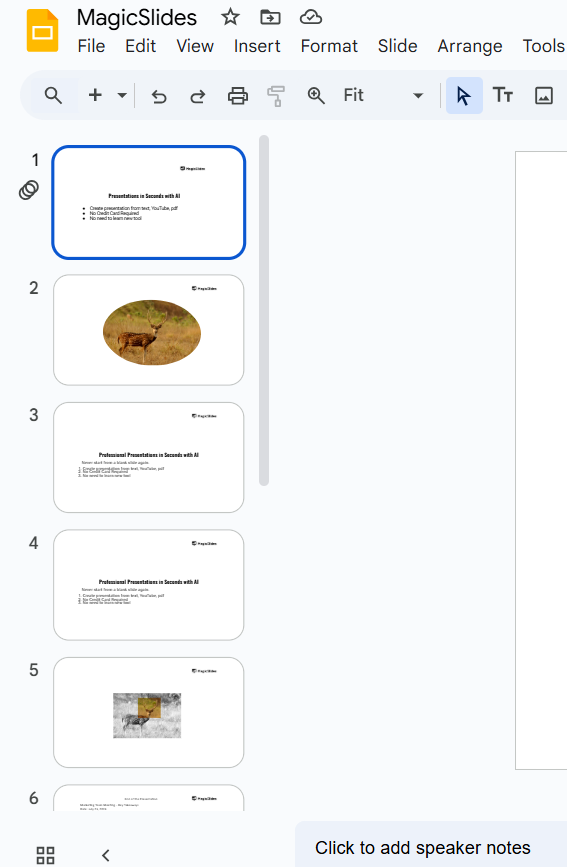
Ensure the correct slide is selected, especially when working with multiple slides.
Step 3: Duplicate the Slide
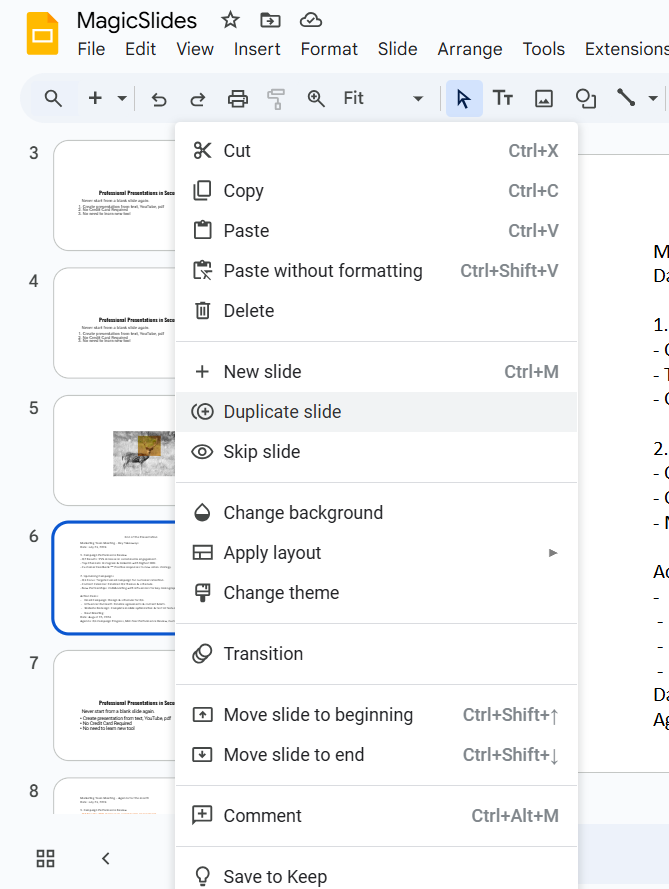
Right-click Method:
- Right-click on the selected slide and choose “Duplicate Slide” from the context menu.
Keyboard Shortcut:
- Use the shortcut Ctrl + D (Windows) or Cmd + D (Mac) for an instant duplicate.
Menu Option:
- Go to Slide > Duplicate Slide in the top menu bar.
Step 4: Rearrange the Duplicated Slide
The duplicated slide will appear directly below the original slide in the slide navigation pane.
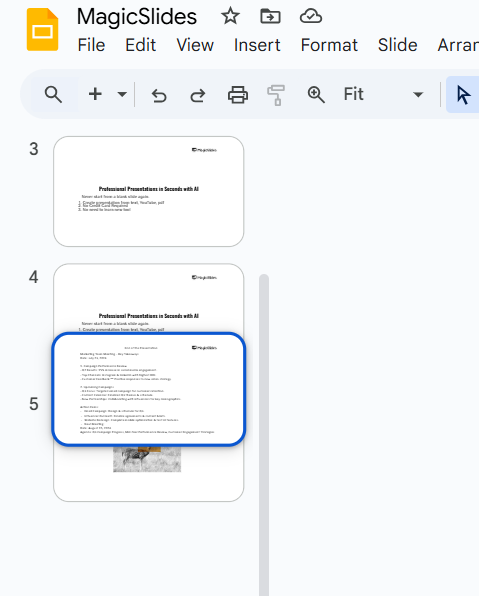
If needed, drag and drop the duplicated slide to your desired position in the presentation.
Step 5: Edit the Duplicated Slide (Optional)
Modify the duplicated slide’s content, such as text, images, or design elements, to suit your needs.
This is useful for maintaining consistency while creating variations of a slide.
Conclusion
Duplicating a slide in Google Slides is a quick and efficient way to replicate designs and layouts.
It streamlines the process of creating presentations by reducing repetitive tasks and ensuring uniformity.
By following these steps, you can duplicate and customize slides with ease, enhancing your productivity and presentation quality.
FAQs on Duplicating Slides in Google Slides
Can I duplicate multiple slides at once?
Yes! Select multiple slides by holding down Shift (for consecutive slides) or Ctrl/Cmd (for non-consecutive slides), then duplicate them.
Does duplicating a slide affect the original slide?
No. The duplicated slide is independent, so any changes you make will not impact the original slide.
Can I duplicate slides across different presentations?
No direct duplication exists between presentations. However, you can copy a slide from one presentation and paste it into another to achieve the same result.
By mastering the duplication process, you can efficiently manage your slides and focus on creating impactful presentations.


