How to find Archived channels in Slack Application


Dive into Slack's organizational prowess by uncovering archived channels effortlessly reclaiming order in your communication hub.
In the dynamic realm of team collaboration, Slack serves as a cornerstone for communication. As channels flourish with discussions, the need to declutter and organize becomes paramount.
Archiving channels in Slack is a powerful way to maintain order without losing valuable conversations.
Before we begin, if you are looking to send Google form submissions directly to Slack, check SlackNotify.app. It will include all info submitted and sent directly to the Slack channel of your choice
In this guide, we'll unravel the steps to find those archived channels, ensuring you can effortlessly navigate through your Slack workspace.
How to find Archived channels in Slack Application
Step 1: Open Slack and Navigate to the Channel Section
Begin by launching the Slack application and navigating to the left sidebar.
Look for the "Channels" section, where all your active channels are displayed.
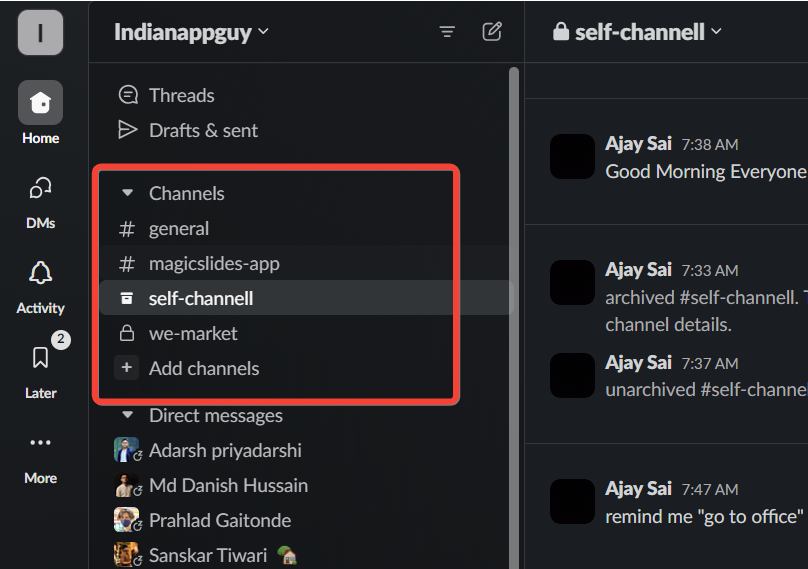
Step 2: Click on "More Channels" at the Bottom
At the bottom of your channel list, you'll find an option labeled "More Channels." Click on this to reveal additional channel management options.
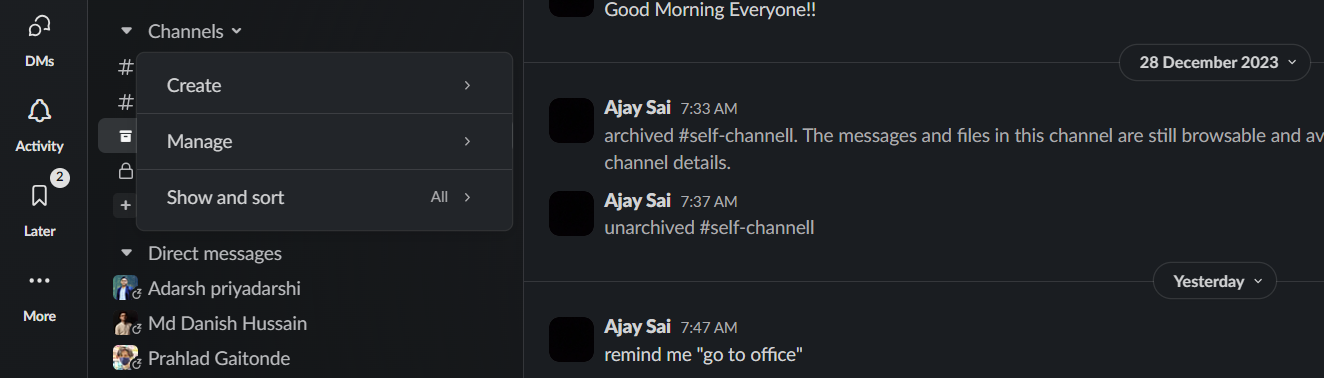
Step 3: Select "Show All Channels"
Within the "More Channels" menu, you'll encounter the option to "Show All Channels."
Click on this to access a comprehensive list of all channels, including those that have been archived.

Step 4: Identify Archived Channels
In the expanded channel list, archived channels are typically denoted by a subtle "Archived" label.
Scroll through the list to identify and locate the specific archived channel you are looking for.

Step 5: Access Archived Channel
Click on the archived channel to view its content and history. While the channel is archived, you can still access and review the messages within.

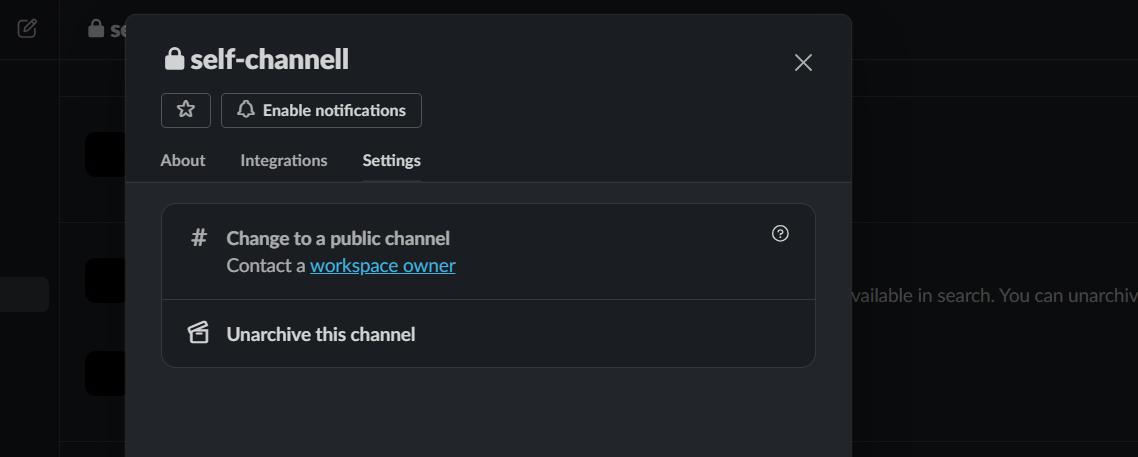
Step 6: Unarchive or Manage as Needed
If you wish to reactivate the channel, click on the gear icon or the three dots (depending on your Slack version) and select the "Unarchive" option.
Alternatively, you can manage the channel settings based on your preferences.
While reviewing archived channels, Google Form notifications can help ensure that new submissions are sent to your active Slack channels, keeping important updates flowing seamlessly.
Conclusion:
Finding archived channels in Slack is a valuable skill to maintain a clutter-free workspace without sacrificing historical context.
By following these step-by-step instructions, you can effortlessly locate and manage your archived channels, ensuring a seamless and organized communication experience in the ever-evolving landscape of team collaboration.
Take control of your Slack environment and rediscover the hidden gems in your archived channels today.
Frequently Asked Questions:
Can I still access messages in an archived Slack channel?
Yes, archived channels preserve their message history, allowing you to review and retrieve information.
How do I unarchive a channel in Slack?
Navigate to the archived channel, click on the gear icon, and select "Unarchive" to reactivate.
Are archived channels visible to all team members?
No, archived channels are hidden by default. Only those who had access before can view.
Can I permanently delete an archived channel in Slack?
Slack doesn't offer a direct option for permanent deletion. Unarchiving and deleting messages is recommended.


