How to Fit Text Boxes to Text Google Slides


Easily resize text boxes in Google Slides to fit text perfectly for a clean, professional presentation
How to Fit Text Boxes to Text in Google Slides
When working with text boxes in Google Slides, you may notice extra space around the text.
Adjusting the text box to fit the text perfectly improves the design and alignment of your slides.
This guide will show you how to resize text boxes automatically or manually to fit your text properly.
Steps to Fit Text Boxes to Text in Google Slides
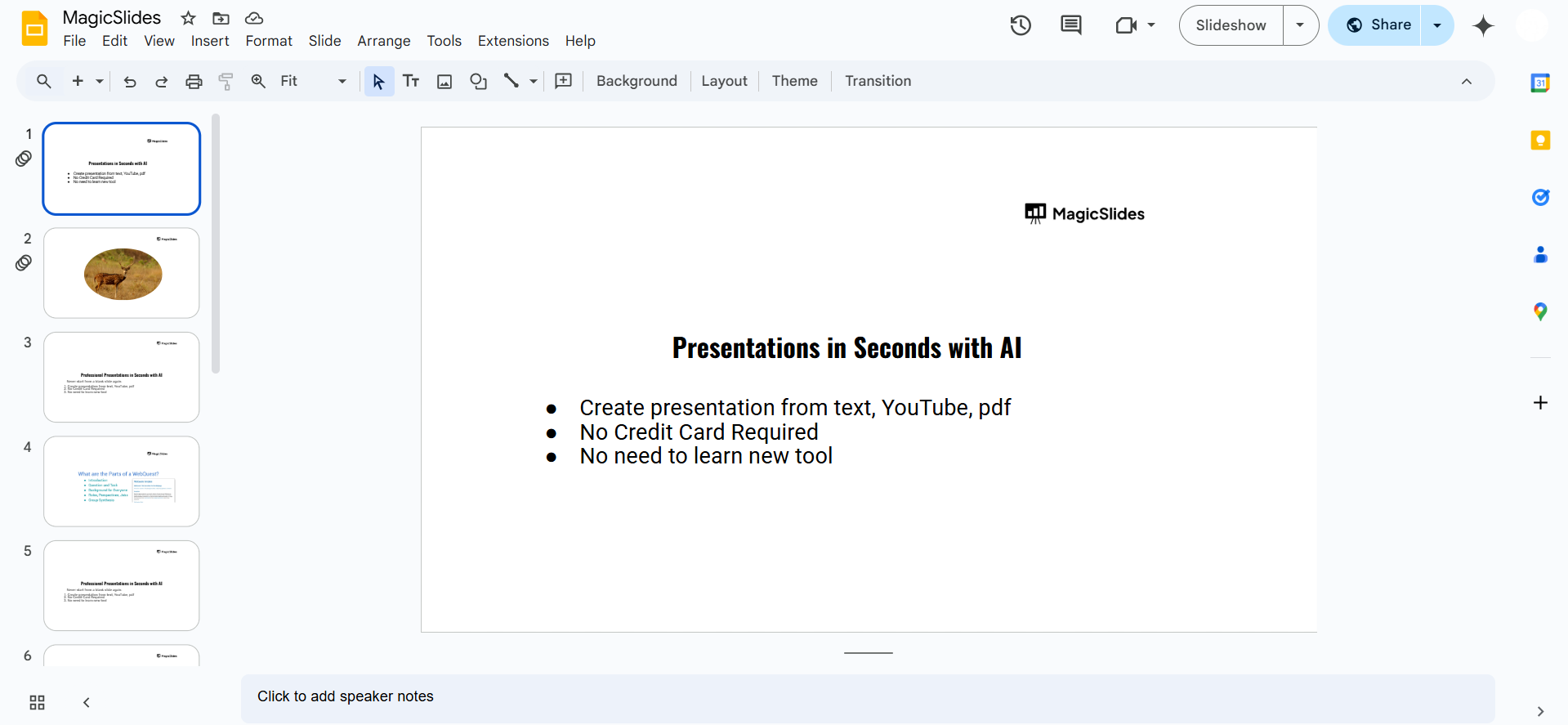
Step 1: Open Google Slides
Visit Google Slides. Open an existing presentation or create a new one by typing slide.new in your browser.
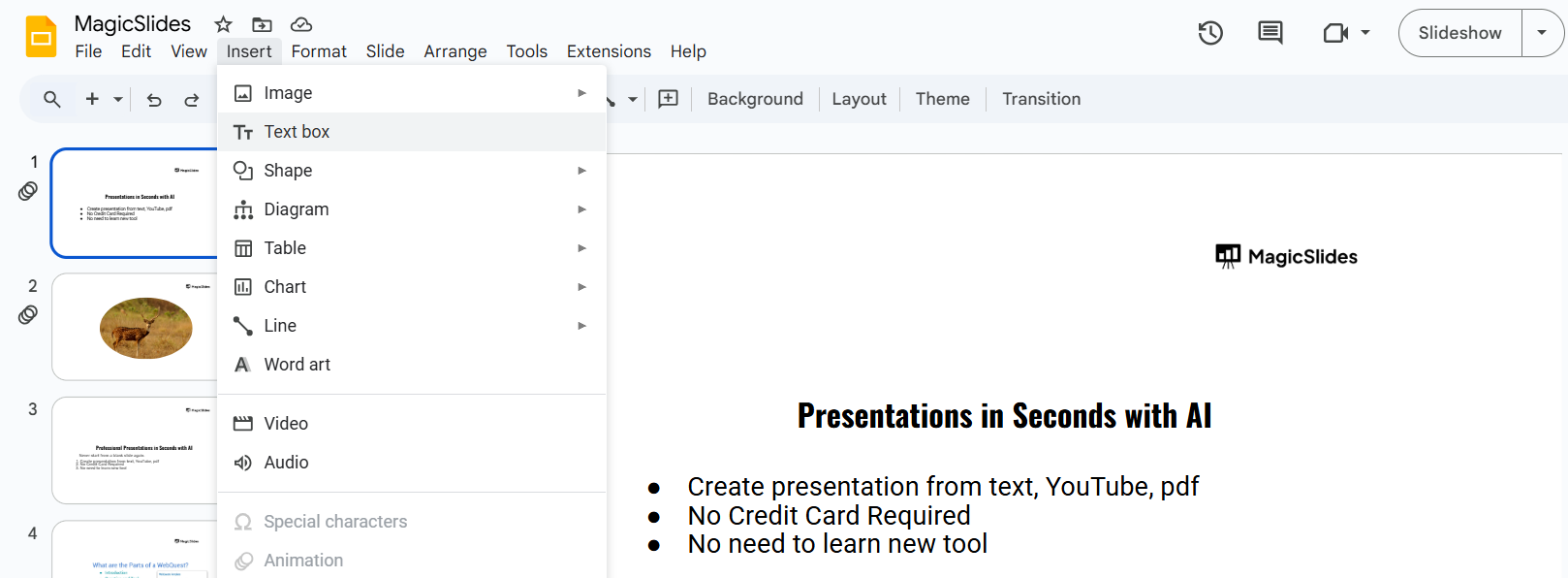
Step 2: Insert a Text Box
Click on Insert > Text Box from the menu bar. Click anywhere on the slide and type your text.
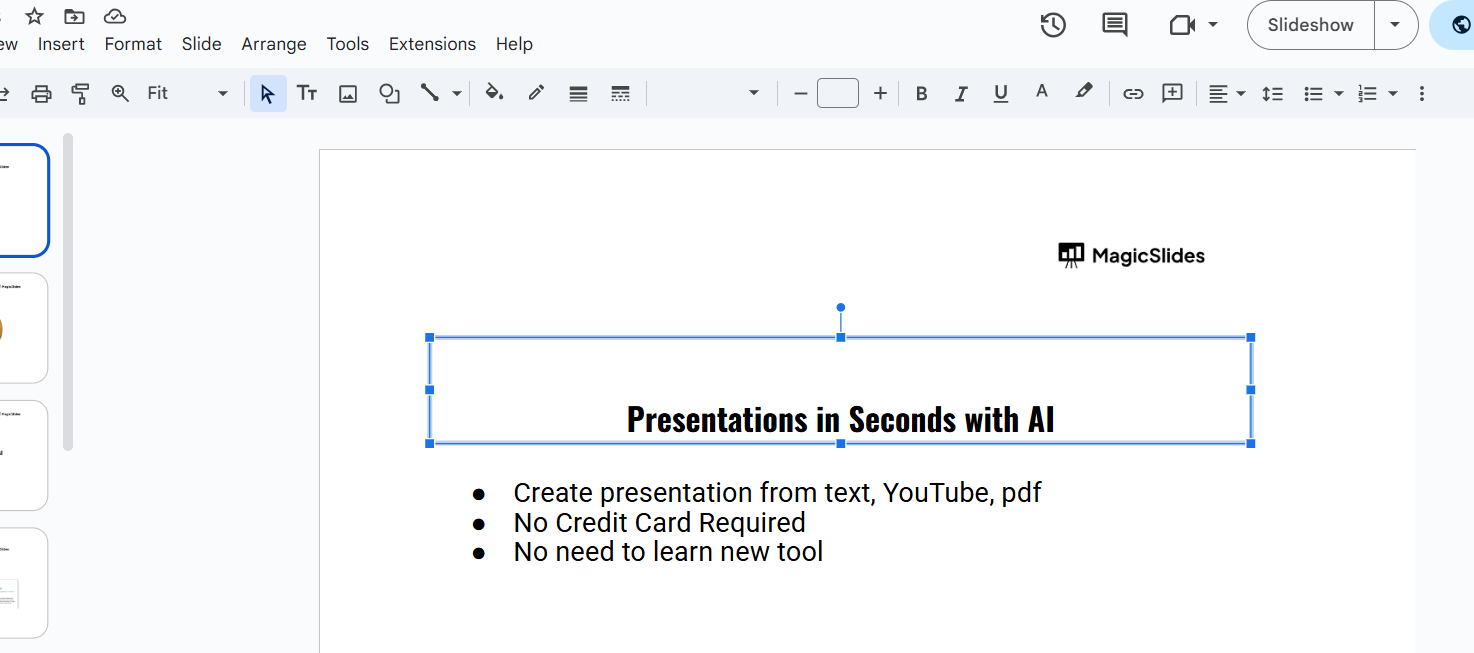
Step 3: Select the Text Box
Click on the text box to select it. A blue border will appear around it, showing that it's selected.
Step 4: Resize the Text Box Automatically
Option 1: Double-click the Resize Handle
- Hover over one of the text box's edges until the resize cursor appears.
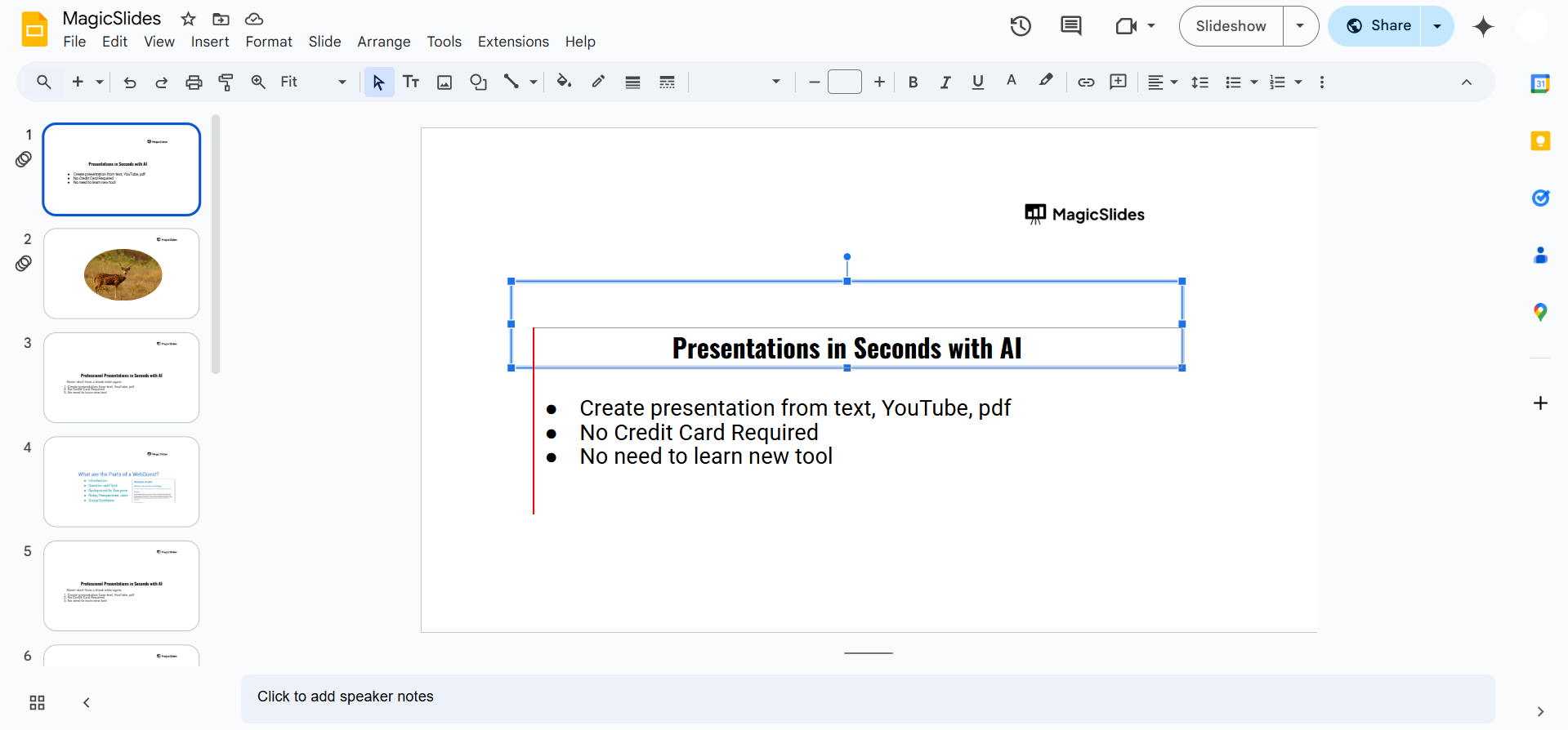
- Double-click it, and the text box will automatically adjust to fit the text.
Option 2: Use the "Shrink Text on Overflow" Feature
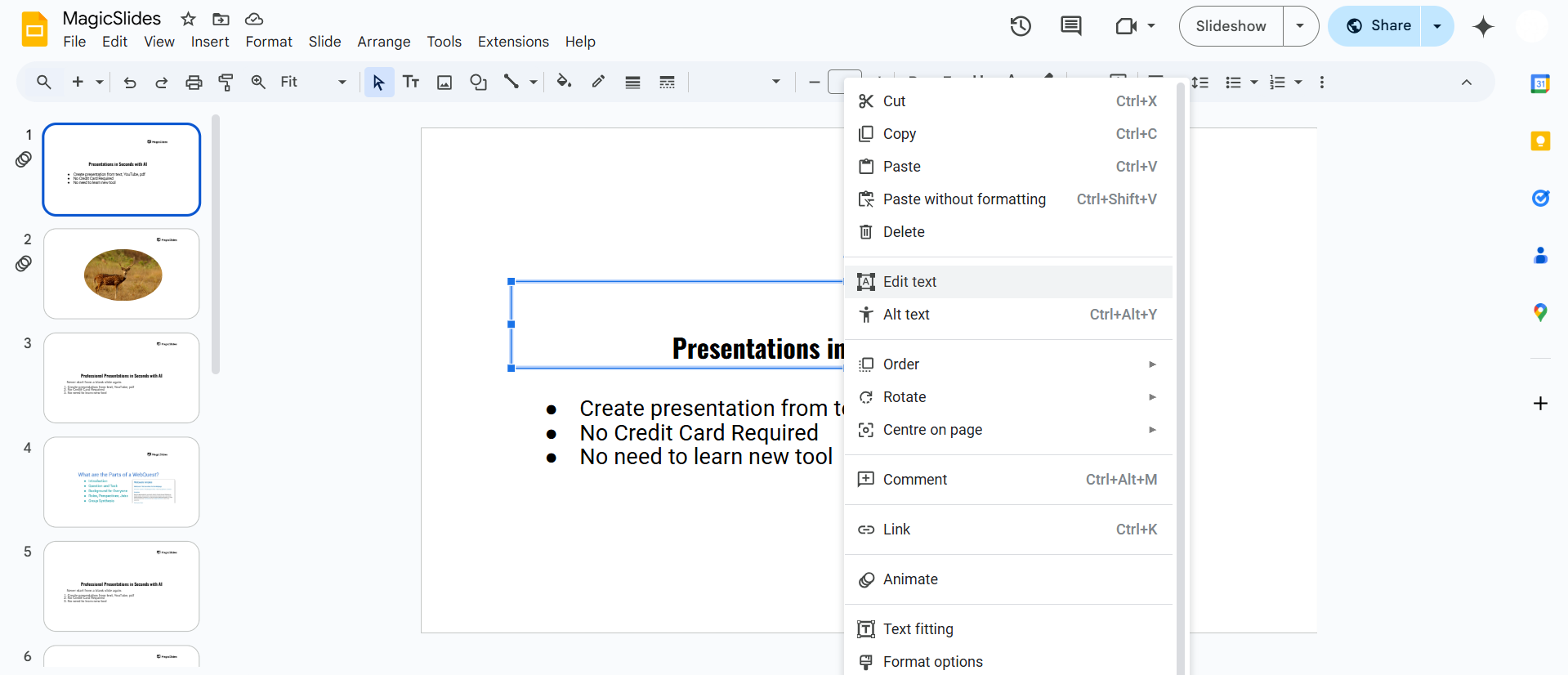
- Click on Format > Format Options from the top menu.
- Expand the Text Fitting section.
- Select Shrink text on overflow to make the text fit within the box without expanding it.
Step 5: Manually Resize the Text Box
Drag the corners of the text box inward until it fits the text. Ensure there is no extra space around the text for a clean fit.
Step 6: Align the Text Box Properly
Click on Align (found under the toolbar). Choose left, center, or right alignment based on your preference.
Manually resizing text boxes can be time-consuming. If you want to streamline your presentation workflow, check out MagicSlides.app it generates perfectly formatted slides in seconds, saving you time and effort!
Conclusion
Resizing text boxes in Google Slides ensures a clean and professional presentation layout.
Whether using automatic adjustments or manual resizing, fitting text properly makes your slides look more polished and visually appealing.
FAQs are here to help!
Why is my text box not resizing automatically?
Ensure you are double-clicking the resize handle or using the "Shrink text on overflow" feature in Format Options.
Can I set text boxes to adjust automatically in all slides?
No, Google Slides does not have an auto-fit feature for all text boxes. Each one must be adjusted manually.
How do I make my text stay inside the text box without overflowing?
Enable the "Shrink text on overflow" option in the Text Fitting settings under Format Options.


