How to Flip a Shape in Canva


Learn how to flip shapes in Canva to create dynamic and visually balanced designs effortlessly
Flipping shapes in Canva is a simple yet impactful design technique that can enhance creativity and symmetry in your projects.
Whether you want to mirror an object or adjust its orientation, Canva offers easy-to-use tools for flipping shapes.
Follow this guide for a step-by-step process to flip shapes effortlessly in Canva.
How to Flip a Shape in Canva
Step 1: Open Your Design in Canva
Log in to your Canva account and open an existing design or create a new one.
Ensure the canvas has the shape you want to flip or add a shape by selecting “Elements” in the toolbar.
Step 2: Select the Shape
Click on the shape you want to flip.
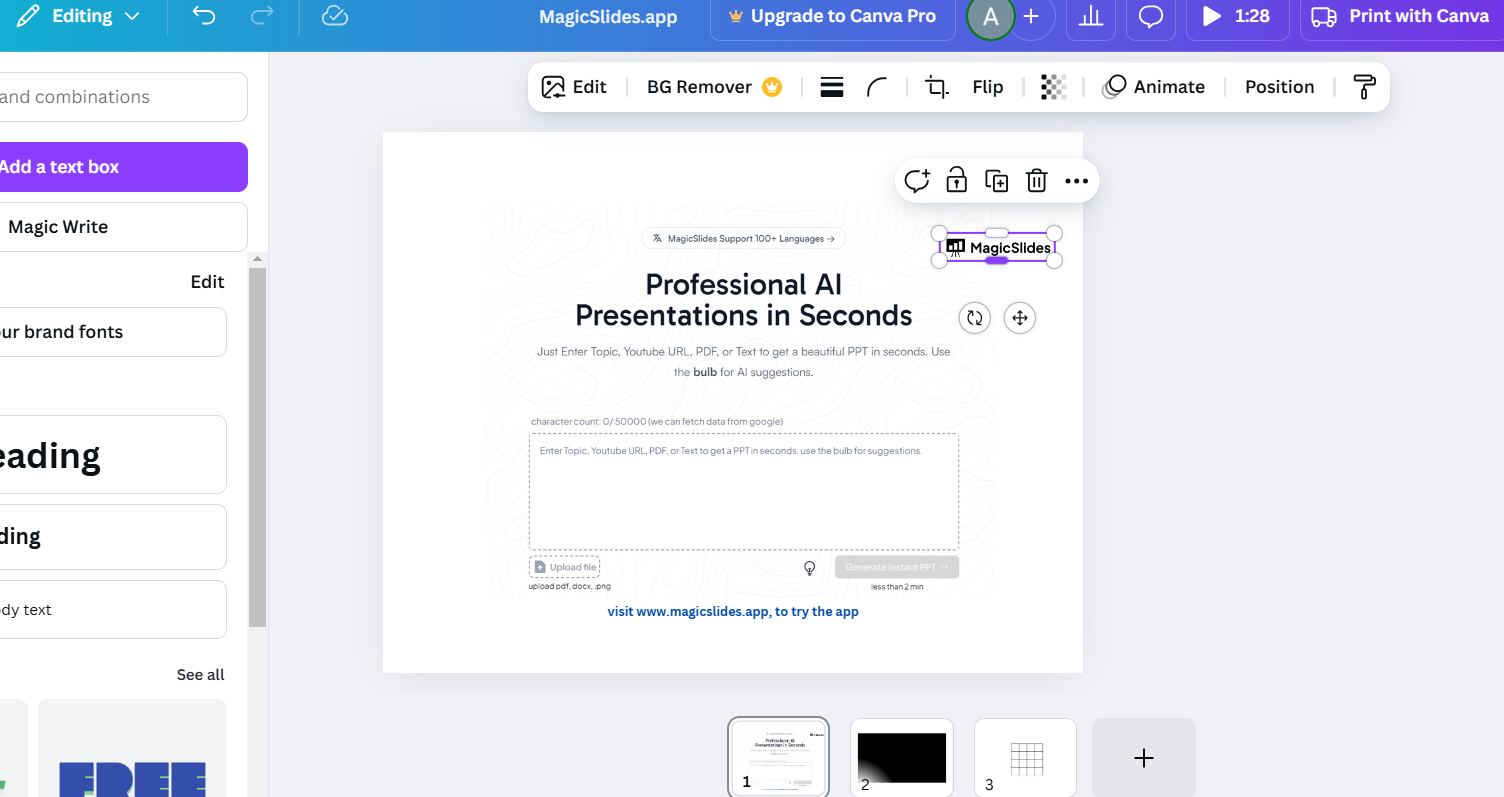
Ensure the shape is highlighted with a bounding box to access editing options.
Step 3: Access the Flip Tool
Look for the toolbar at the top of the Canva interface.
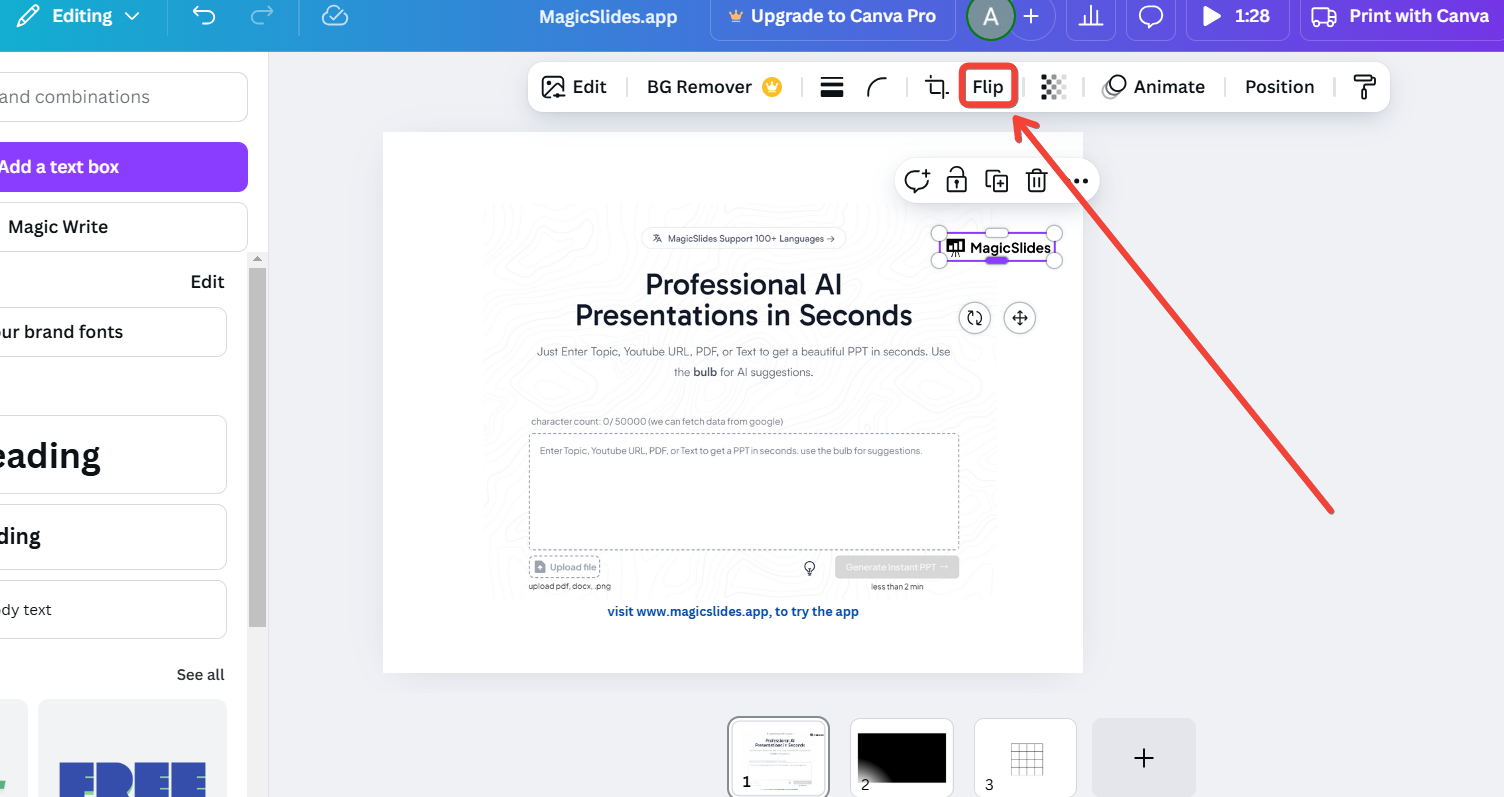
Click on the “Flip” button in the toolbar.
Step 4: Choose the Flip Direction
Select the direction in which you want to flip the shape:
Flip Horizontal: Mirrors the shape along the vertical axis, reversing it from left to right.
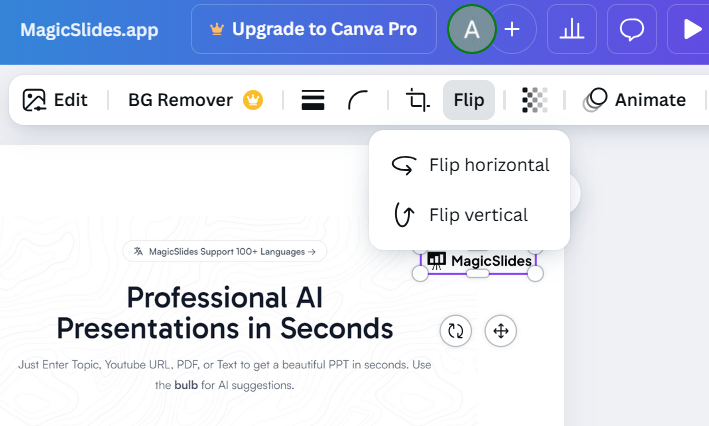
Flip Vertical: Mirrors the shape along the horizontal axis, turning it upside down.
The shape will instantly flip according to your selection.
Step 5: Fine-Tune and Position the Shape
After flipping, drag and position the shape as needed on your canvas.
Resize or rotate the shape if additional adjustments are required.
Conclusion
Flipping shapes in Canva is a quick way to add creativity and balance to your designs.
Whether you’re working on social media posts, presentations, or marketing materials, this feature allows you to experiment with layouts and symmetry.
With a few clicks, you can achieve the perfect orientation for any shape in your project.
FAQs on Flipping Shapes in Canva
Can I flip text in Canva the same way as shapes?
Yes, you can flip text boxes using the same Flip tool for horizontal or vertical flipping.
Can I flip multiple shapes at once in Canva?
Yes, select multiple shapes by holding Shift while clicking each one, then use the Flip tool.
Does flipping a shape affect its color or other properties?
No, flipping only changes the orientation of the shape. Colors, sizes, and other properties remain intact.
Start flipping shapes in Canva today to add dynamic elements and elevate your designs!


