how to flip an image in power point


Elevate your PowerPoint skills by learning how to flip images and add fonts for captivating presentations.
Visual elements play a pivotal role in PowerPoint presentations, and sometimes, flipping an image can be the key to achieving the desired effect. Whether you want to create a mirrored reflection, align objects, or add a creative twist to your slides, knowing how to flip an image in PowerPoint is a valuable skill.
In this guide, we will walk you through the simple process of flipping images within your presentations. Whether you're a student, educator, or professional, this technique will help you enhance your visuals and captivate your audience. Let's explore the steps to add this visual flair to your slides.
Steps to Flip an Image in PowerPoint:
Open PowerPoint: Begin by opening your PowerPoint presentation or creating a new one.
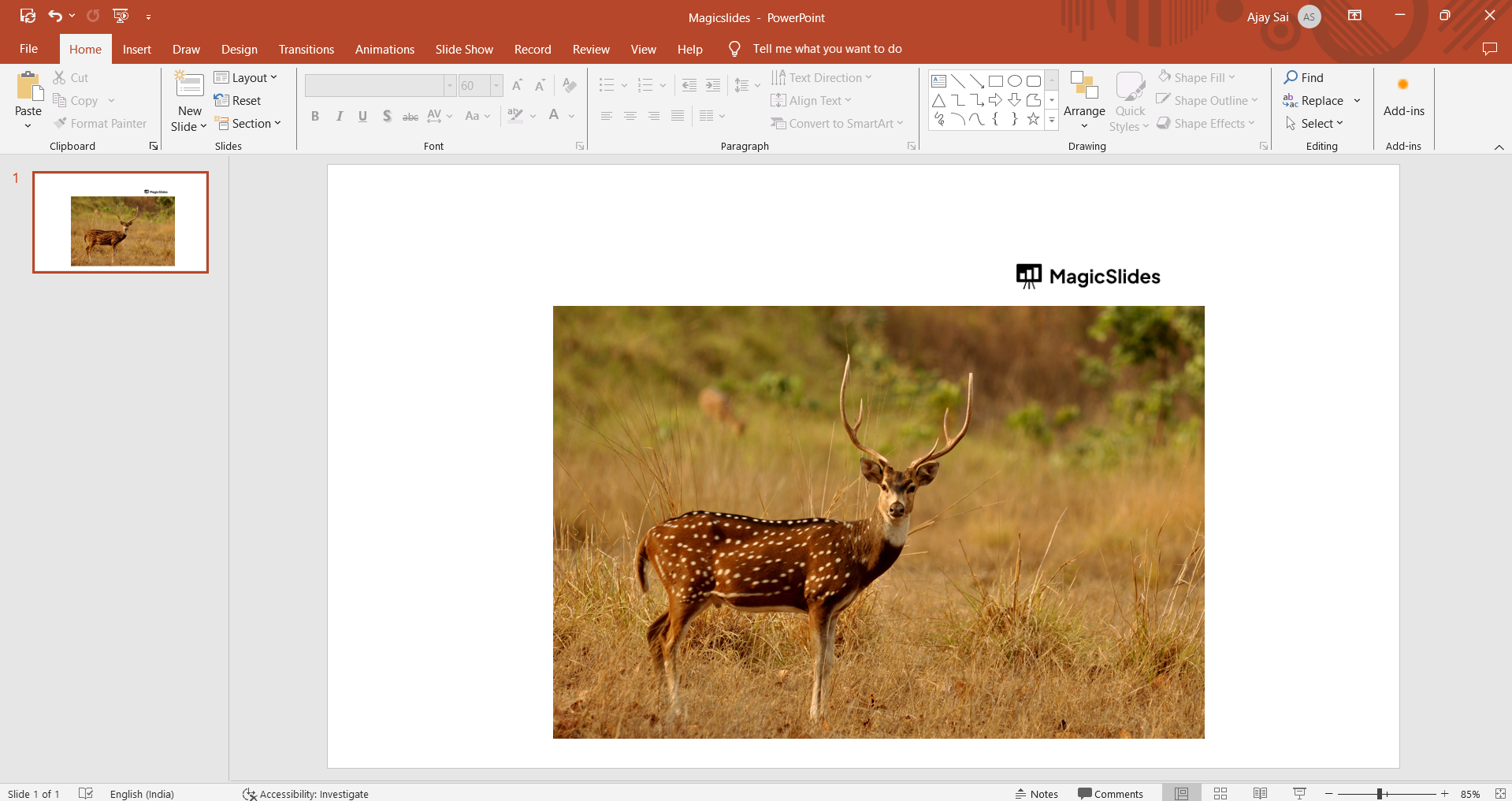
Select the Image: Click on the image you want to flip to select it.
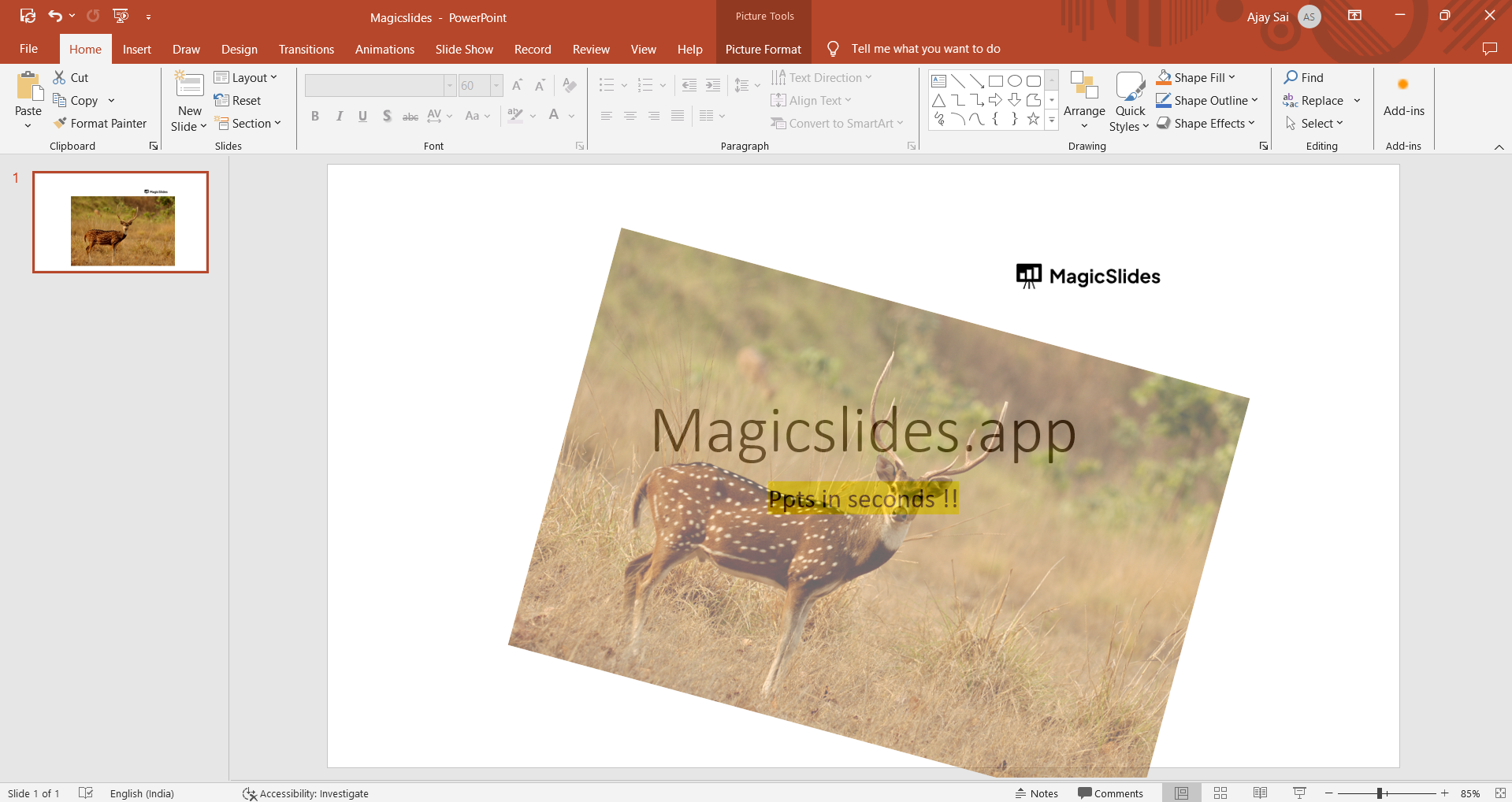
Access the Rotate Options: In the top menu, navigate to the "Format" tab. Here, you'll find the "Rotate" option.
Flip Horizontal or Vertical: In the "Rotate" dropdown menu, choose either "Flip Horizontal" to create a mirrored effect or "Flip Vertical" to flip the image vertically.
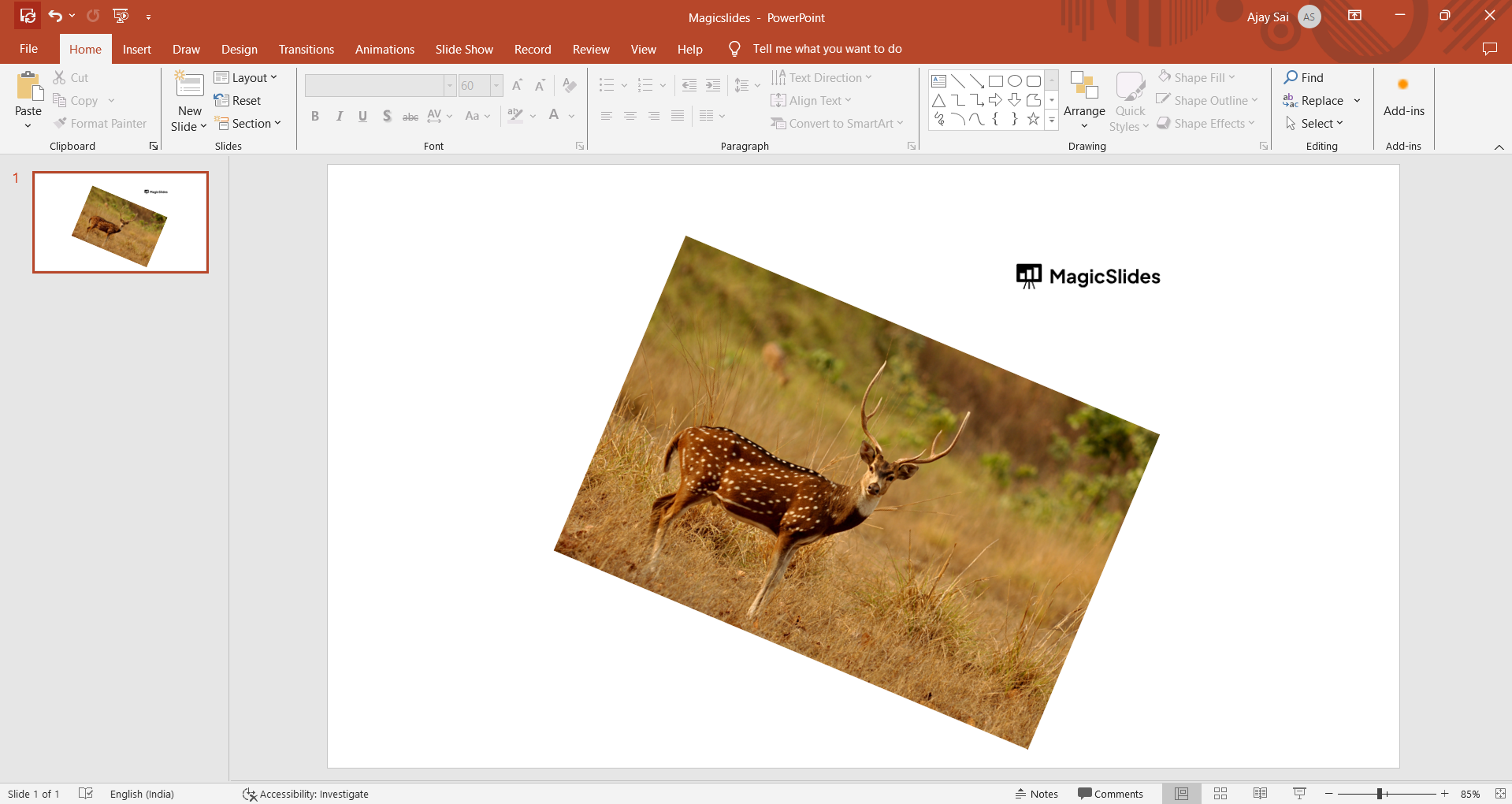
Adjust as Needed: If further adjustments are required, you can use the "Rotate Right 90 degrees" or "Rotate Left 90 degrees" options.
Save Your Presentation: Don't forget to save your presentation to preserve the changes.
Conclusion:
Flipping an image in PowerPoint is a simple yet effective way to enhance your slides and make your message stand out. Whether you're creating a professional business presentation or a captivating educational slideshow, this technique can be a valuable addition to your skillset. It allows you to create visual interest, symmetry, and creative effects with ease.
By following the steps outlined in this guide, you can quickly and confidently flip images within your PowerPoint presentations. Use this skill to add a unique visual dimension to your slides, emphasize key points, or simply enhance the overall design.
Remember, presentations are not just about the content you deliver but also about how you engage your audience visually. So, the next time you're crafting a PowerPoint presentation, consider the impact of flipping images to make your slides more compelling and memorable.
Frequently Asked Questions:
Why would I want to flip an image in PowerPoint?
Answer: Flipping an image can be used to create mirrored reflections, improve slide aesthetics, or align objects effectively.
Can I flip an image in both horizontal and vertical directions?
Answer: Yes, PowerPoint allows you to flip images both horizontally and vertically, offering flexibility in your design.
Will flipping an image affect its quality or resolution?
Answer: No, flipping an image in PowerPoint does not impact its quality or resolution. It's a non-destructive transformation.
Can I undo the image flip if I change my mind?
Answer: Yes, you can easily undo an image flip by reselecting the image and choosing the original orientation.
What creative uses can flipping images have in PowerPoint?
Answer: Flipped images can add visual interest, create artistic effects, or help maintain design consistency in presentations.


