How to get answers on Google Forms


Unlock the power of Google Forms by mastering the art of effortlessly retrieving valuable respondent answers.
Google Forms has revolutionized the way we collect information and feedback, but what about accessing those valuable responses? In this comprehensive guide, we'll walk you through the steps of retrieving answers on Google Forms, ensuring you make the most of this powerful tool for data collection.
How to get answers on Google Forms
Step 1: Access Your Google Forms Dashboard
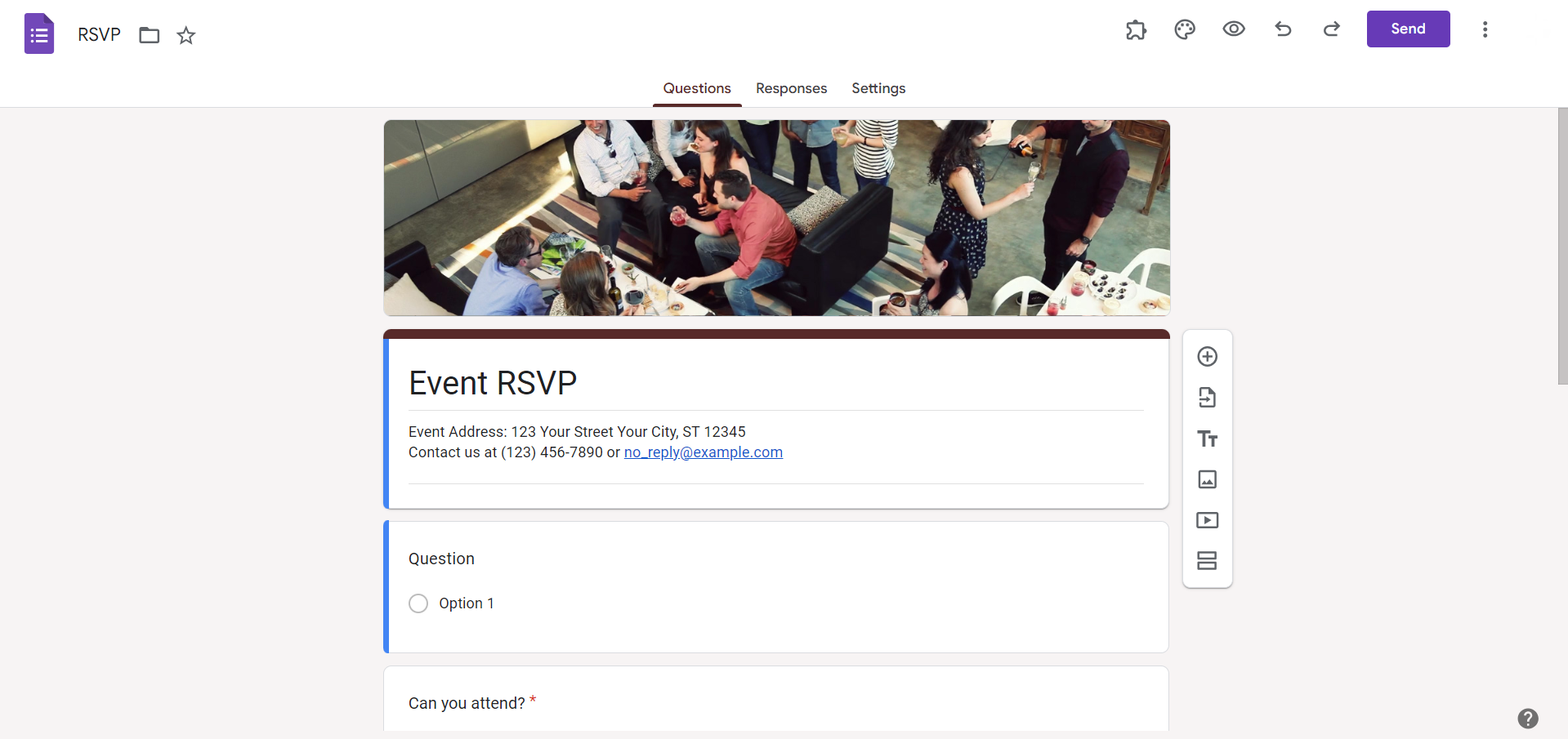
Start by logging into your Google account and navigating to Google Drive. Locate and open the Google Form for which you want to retrieve answers. This will take you to the Google Forms dashboard.
Step 2: Click on the "Responses" Tab
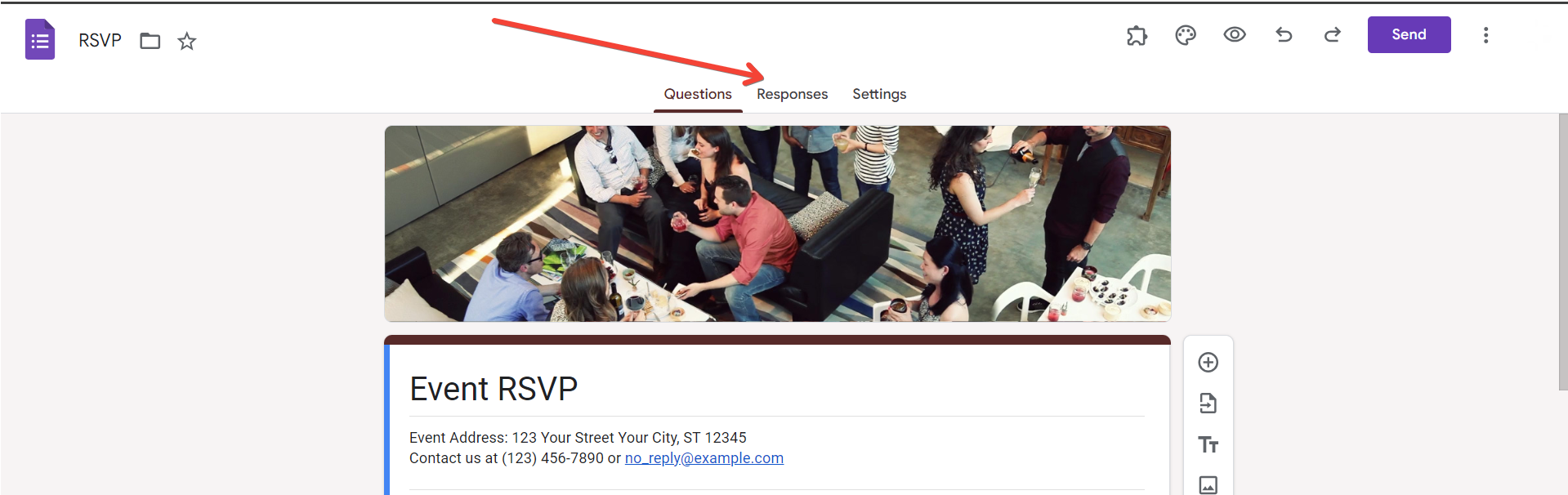
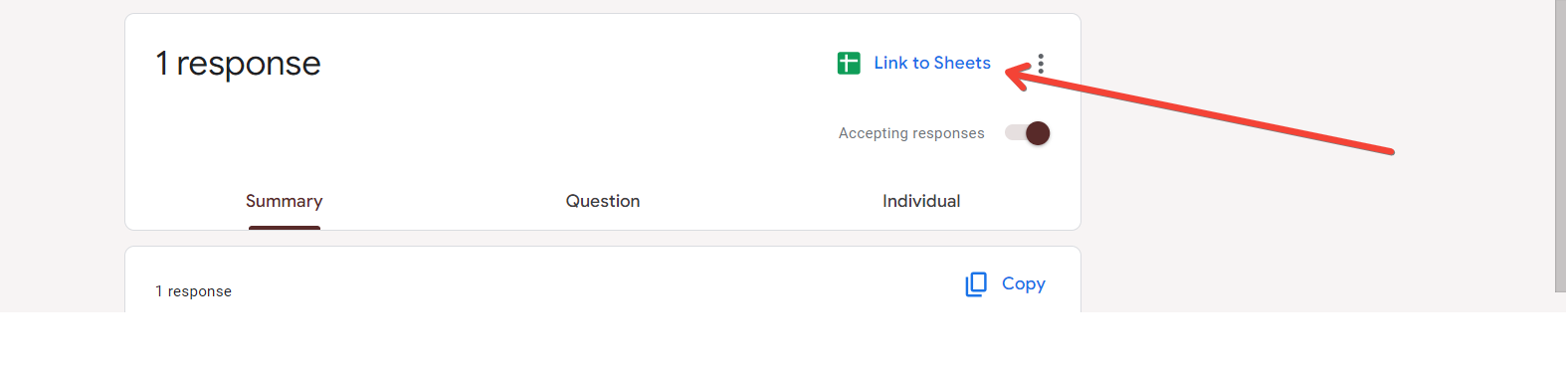
Within the Google Form editor, click on the "Responses" tab. Here, you'll find a summary of responses, including the number of responses received and options for viewing answers.
Step 3: View Summary Responses
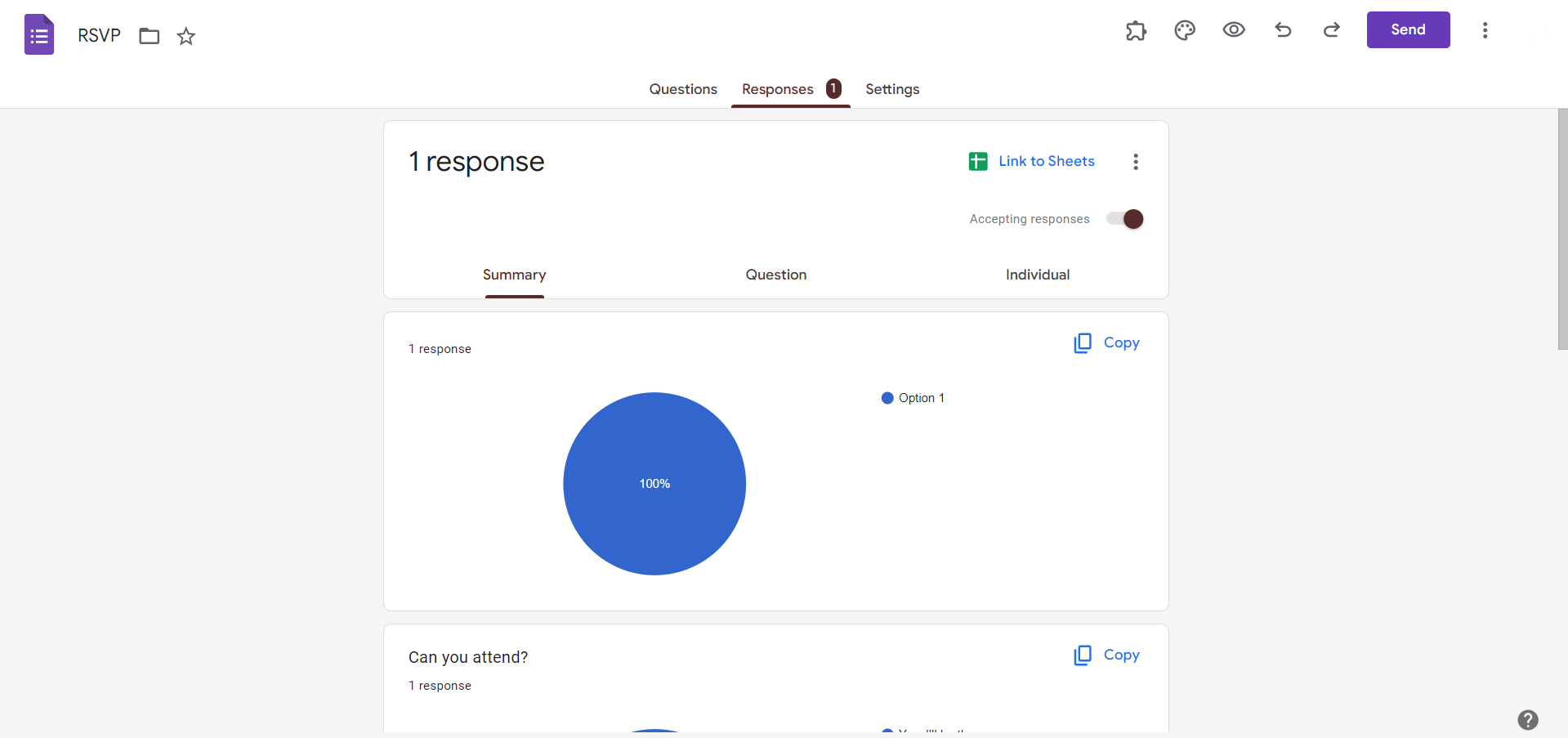
Click on "Summary" to access a visual representation of your data, including charts and graphs. This provides an overview of responses, making it easy to identify trends and patterns.
Step 4: Analyze Individual Responses
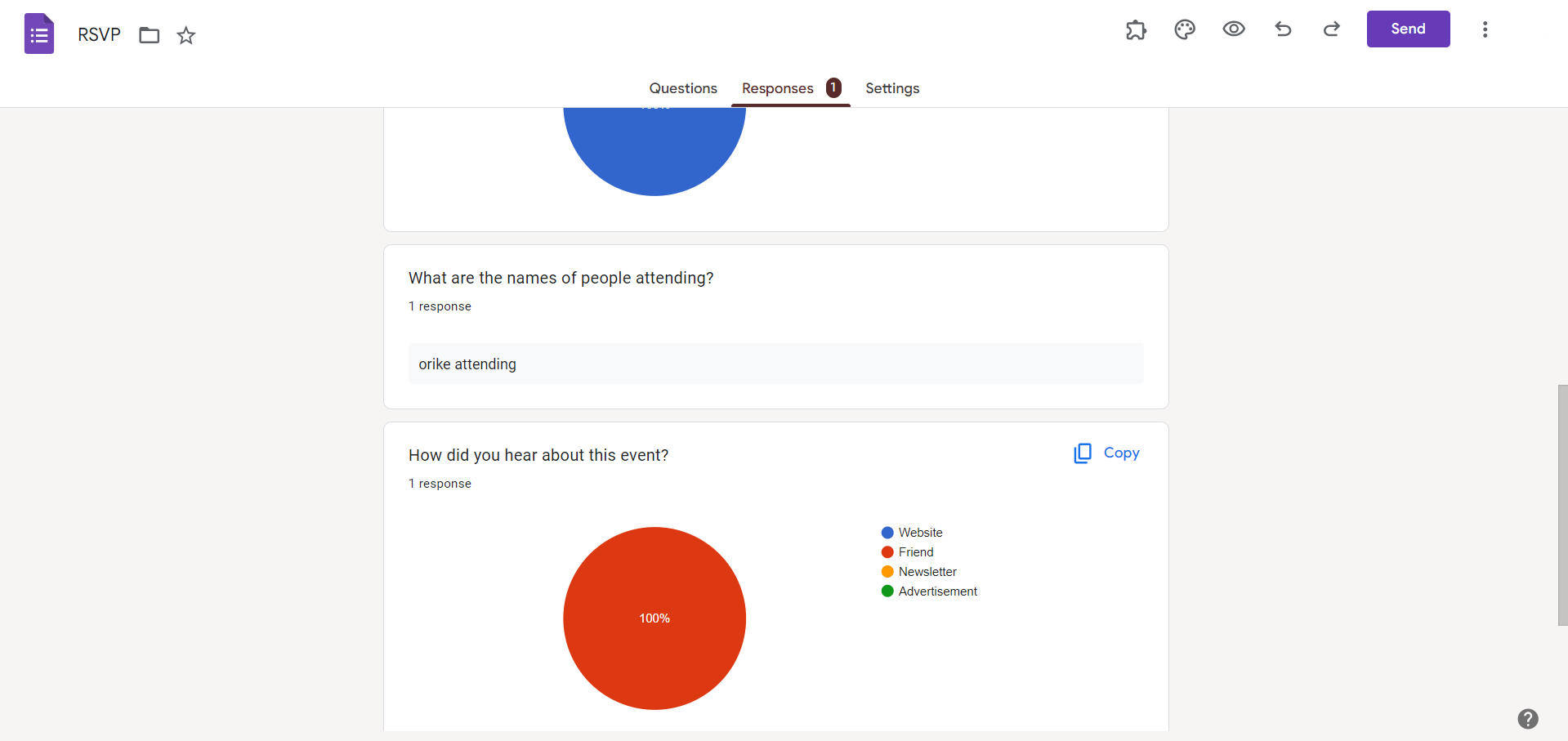
To delve deeper, click on the "Individual" tab. Here, you can view each respondent's answers in detail. Scroll through individual responses to gain a comprehensive understanding of the feedback received.
Step 5: Export Responses to Google Sheets
For more extensive analysis or data manipulation, click on the green Sheets icon within the "Responses" tab. This action exports your responses to a Google Sheets document, allowing for further customization and organization.
Conclusion:
Whether you're conducting surveys, quizzes, or feedback forms, these steps empower you to access, analyze, and utilize responses efficiently. As you navigate the world of Google Forms, remember that the ability to retrieve and analyze answers is as important as creating the form itself. By following these steps, you can unlock the full potential of Google Forms, turning responses into actionable insights for informed decision-making. Embrace the power of data with these simple yet effective techniques for accessing answers on Google Forms.
Frequently Asked Questions:
Can I receive notifications when new responses are submitted on Google Forms?
Yes, enable response notifications in the Google Form settings to stay informed of new submissions.
Is there a limit to the number of responses I can collect on Google Forms?
Google Forms allows a generous number of responses. If needed, explore Google's paid options.
Can I restrict access to view responses only to specific individuals on Google Forms?
Yes, customize sharing settings to limit access to response data based on your preferences.
Can I analyze responses collectively for specific questions in Google Forms?
Absolutely, utilize the "Summary" view to analyze responses collectively and identify trends or patterns.


