How to GPT maker on Google Slides


Create stunning presentations effortlessly with MagicSlides GPT Maker on Google Slides using AI-powered automation
How to Use GPT Maker on Google Slides
Creating presentations manually can be time-consuming, but AI-powered tools like MagicSlides.app make the process effortless.
With the MagicSlides.app GPT Maker add-on for Google Slides, you can generate complete presentations in seconds. Whether you need slides for business, education, or personal projects, this AI-powered tool ensures high-quality content and professional designs. In this guide, we’ll walk you through the step-by-step process of using the MagicSlide.apps add-on to create presentations efficiently.
Step 1: Install MagicSlides.app Add-on on Google Slides
To begin, open Google Slides and follow these steps to install MagicSlides.app:
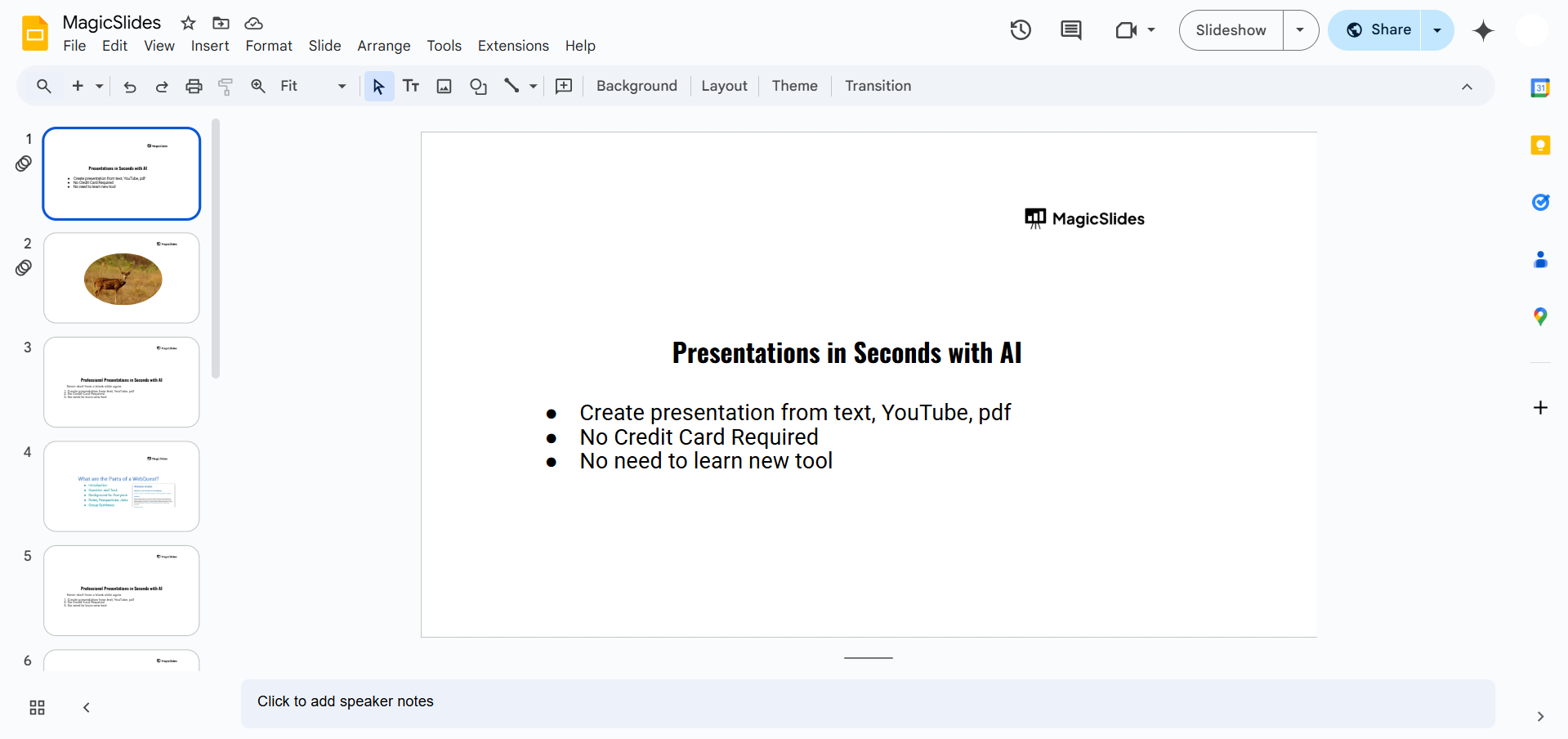
- Click on Extensions in the top menu.
- Select Add-ons > Get add-ons to open the Google Workspace Marketplace.
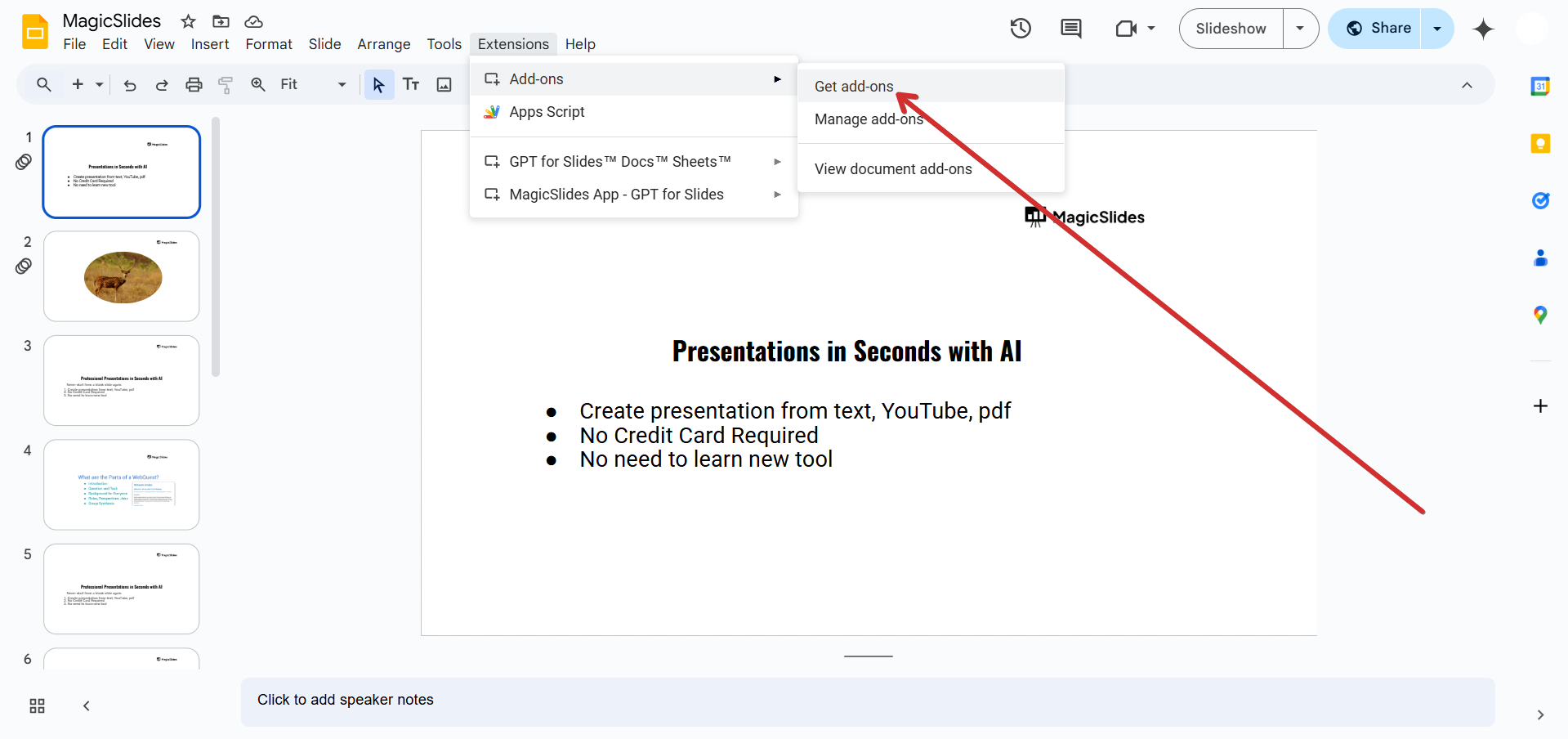
- Search for MagicSlides.app and click Install.
- Grant the necessary permissions to integrate MagicSlides.app with Google Slides.
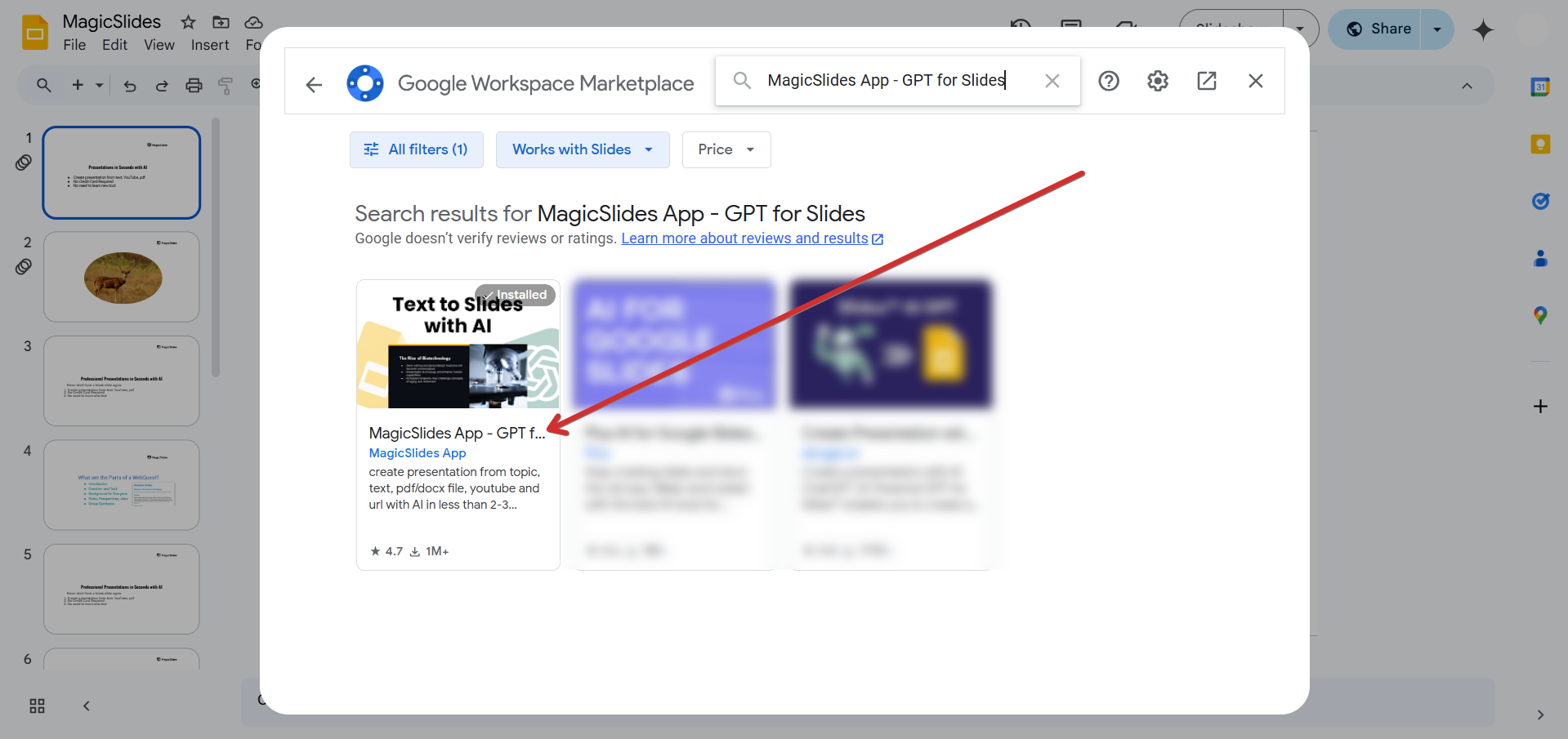
Once installed, MagicSlides.app will appear under the Extensions menu, ready to generate AI-powered presentations.
Step 2: Access MagicSlides.app and Choose "Generate PPT"
After successfully adding MagicSlides.app, follow these steps to start creating your presentation:
- Click on Extensions in Google Slides.
- Navigate to MagicSlides.app from the dropdown list.
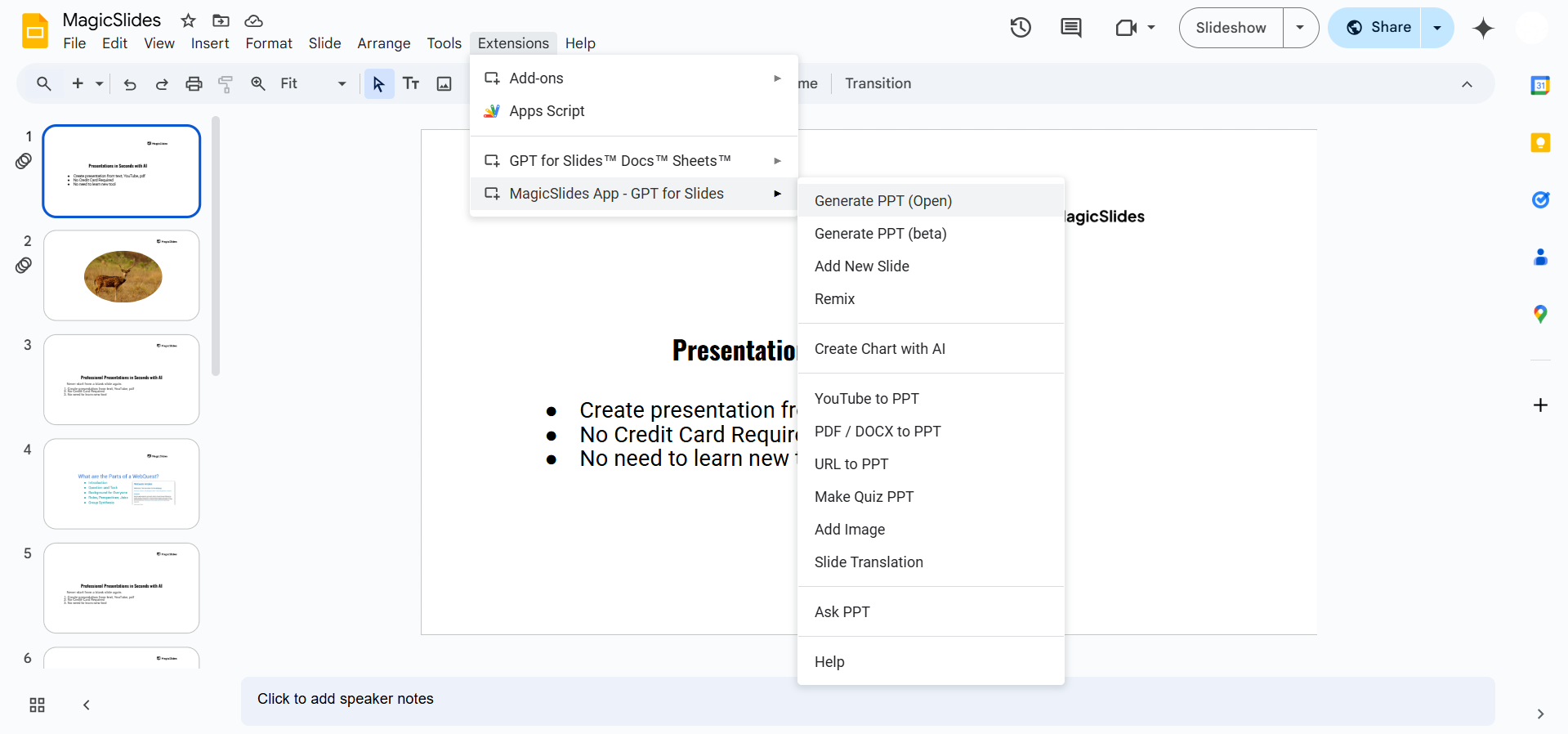
- Select Generate PPT to open the AI-powered presentation creator.
This will activate the MagicSlides.app interface, allowing you to input your desired topic and generate slides instantly.
Step 3: Enter the Topic and Generate Your Presentation
Now, it’s time to create your AI-generated presentation:
- Enter the topic of your presentation in the MagicSlides.app input field.
- Click Generate PPT, and the AI will process your request.
- MagicSlides.app will automatically create a structured slide deck with relevant content, images, and formatting.
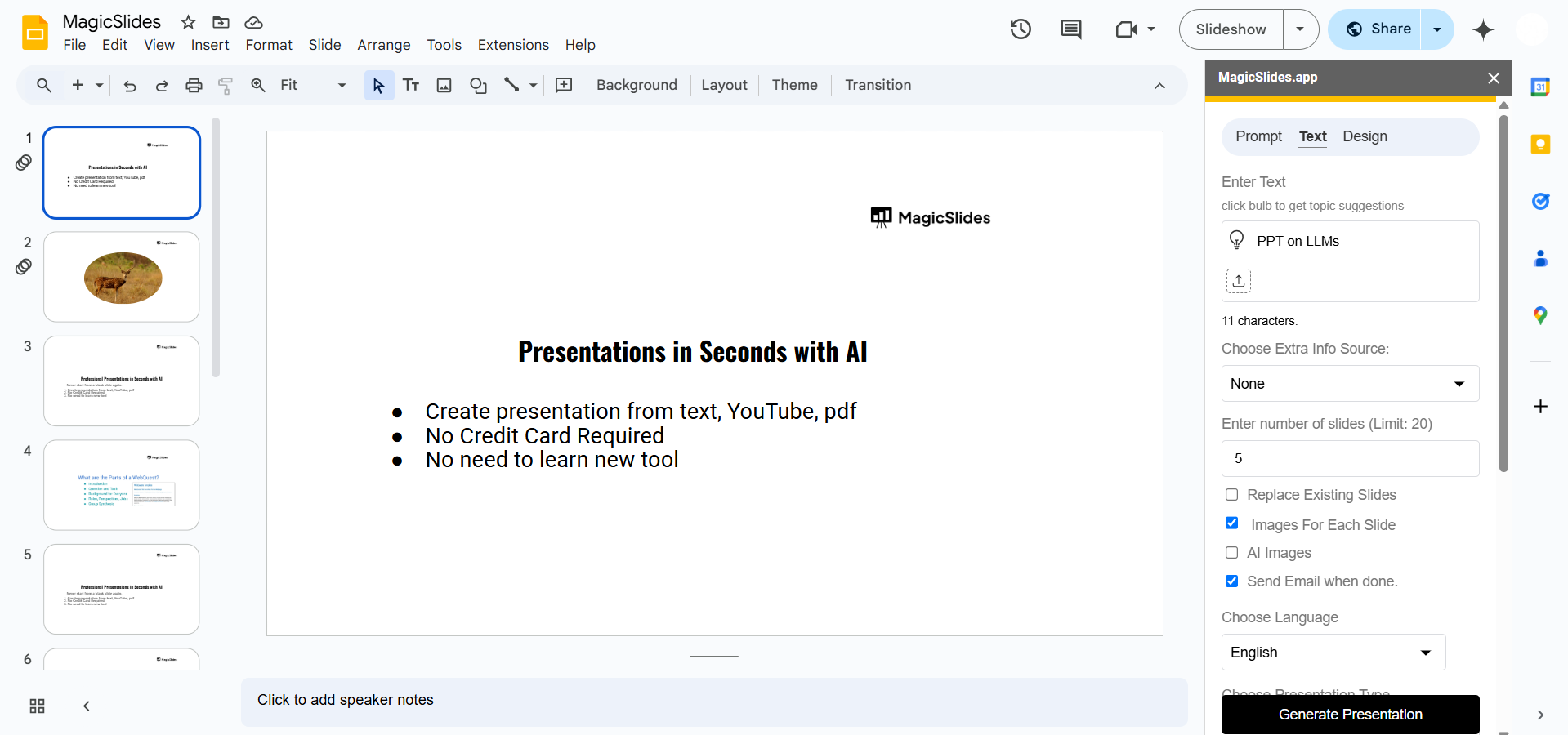
This step ensures that your slides are well-organized and aligned with your topic.
Step 4: Review and Customize Your Presentation
Once MagicSlides.app generates your presentation, you should review the slides to ensure accuracy and relevance:
- Go through each slide and make necessary edits.
- Adjust text, images, or design elements if needed.
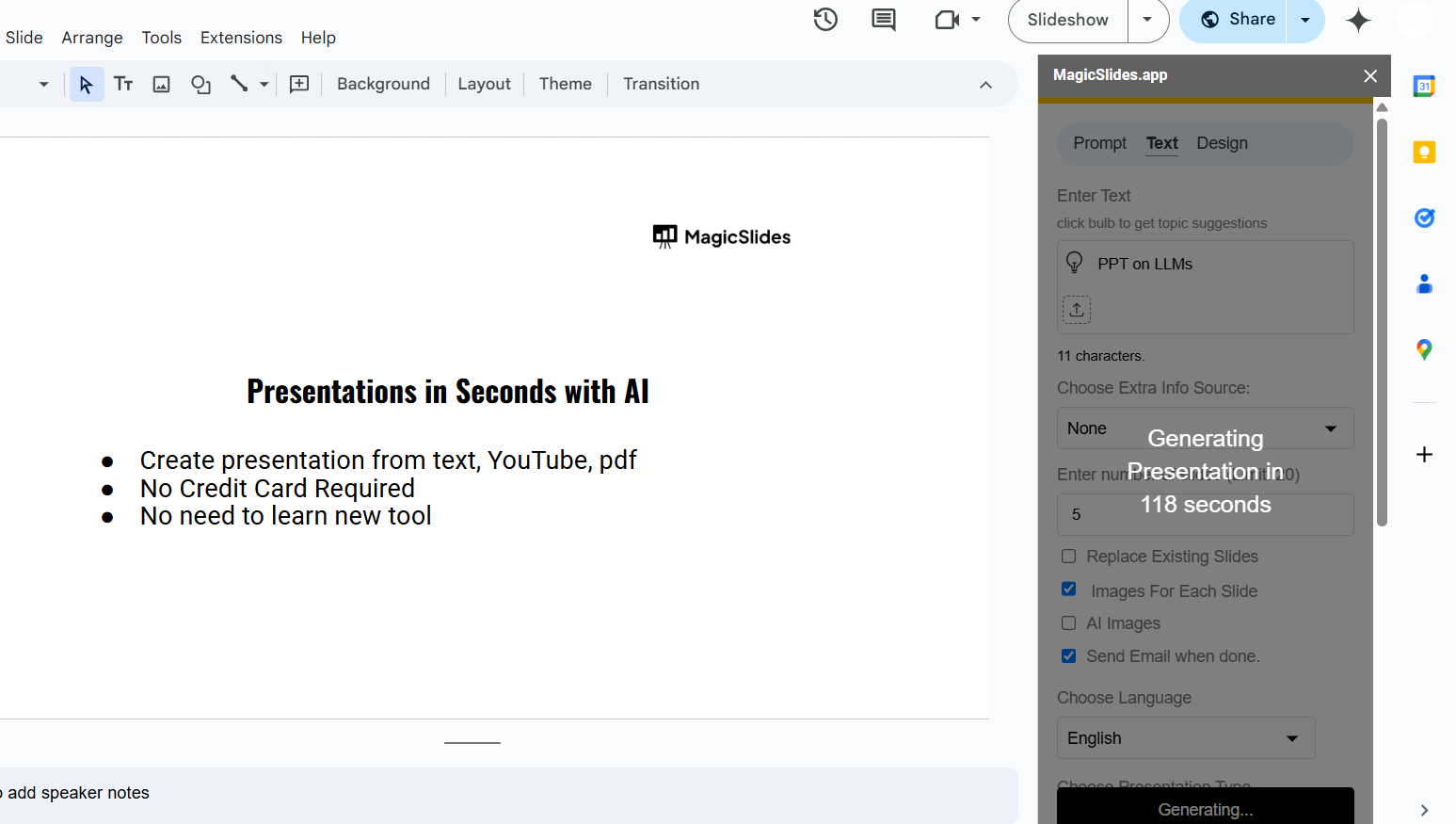
- If required, ask MagicSlides.app to refine or regenerate specific slides to meet your expectations.
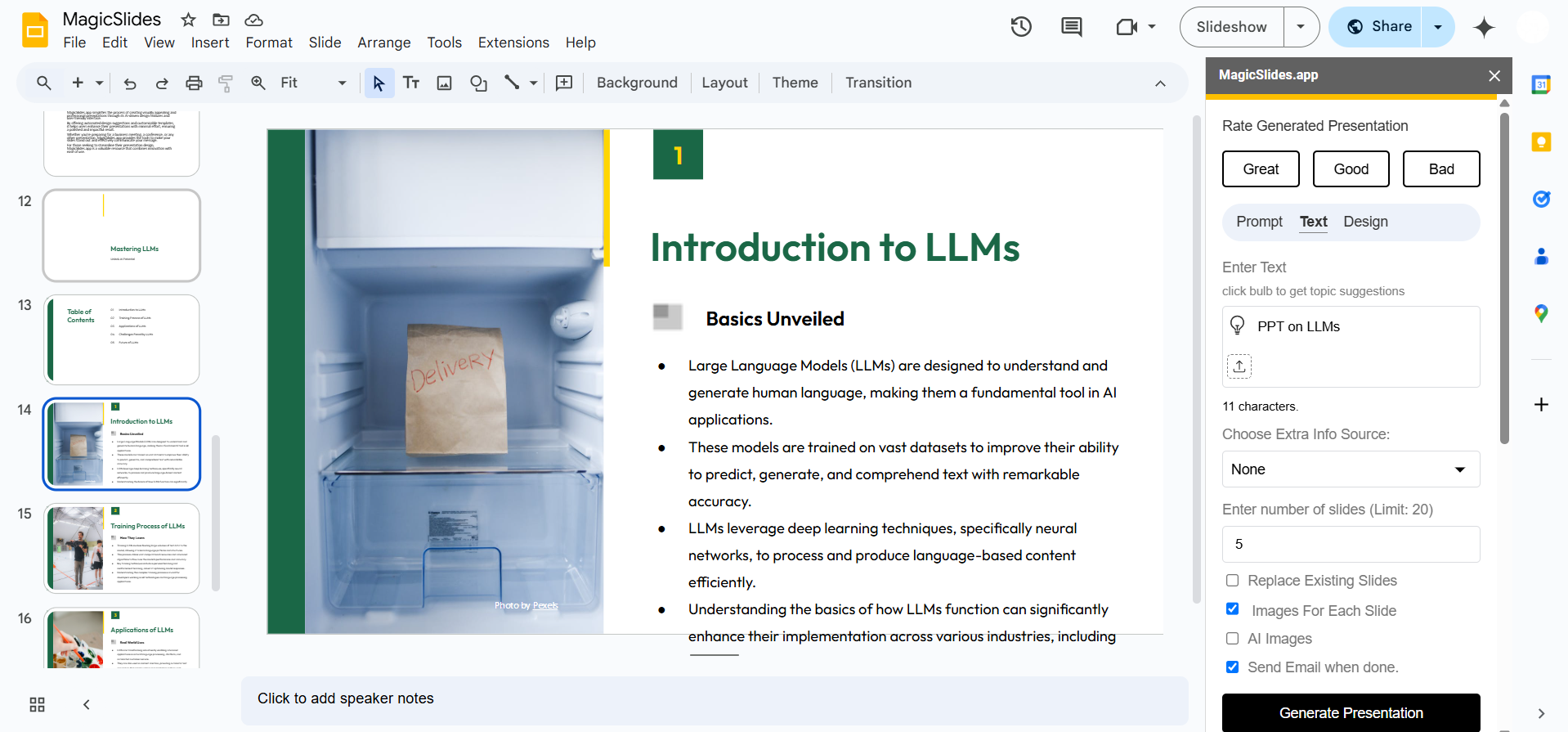
With customization, you can enhance the presentation to better suit your needs.
Step 5: Upgrade to MagicSlides.app Pro/Premium for Advanced Features
MagicSlides.app offers additional powerful features in its Pro and Premium plans. Upgrading unlocks features such as:
- URL to PPT – Convert web pages into structured presentations.
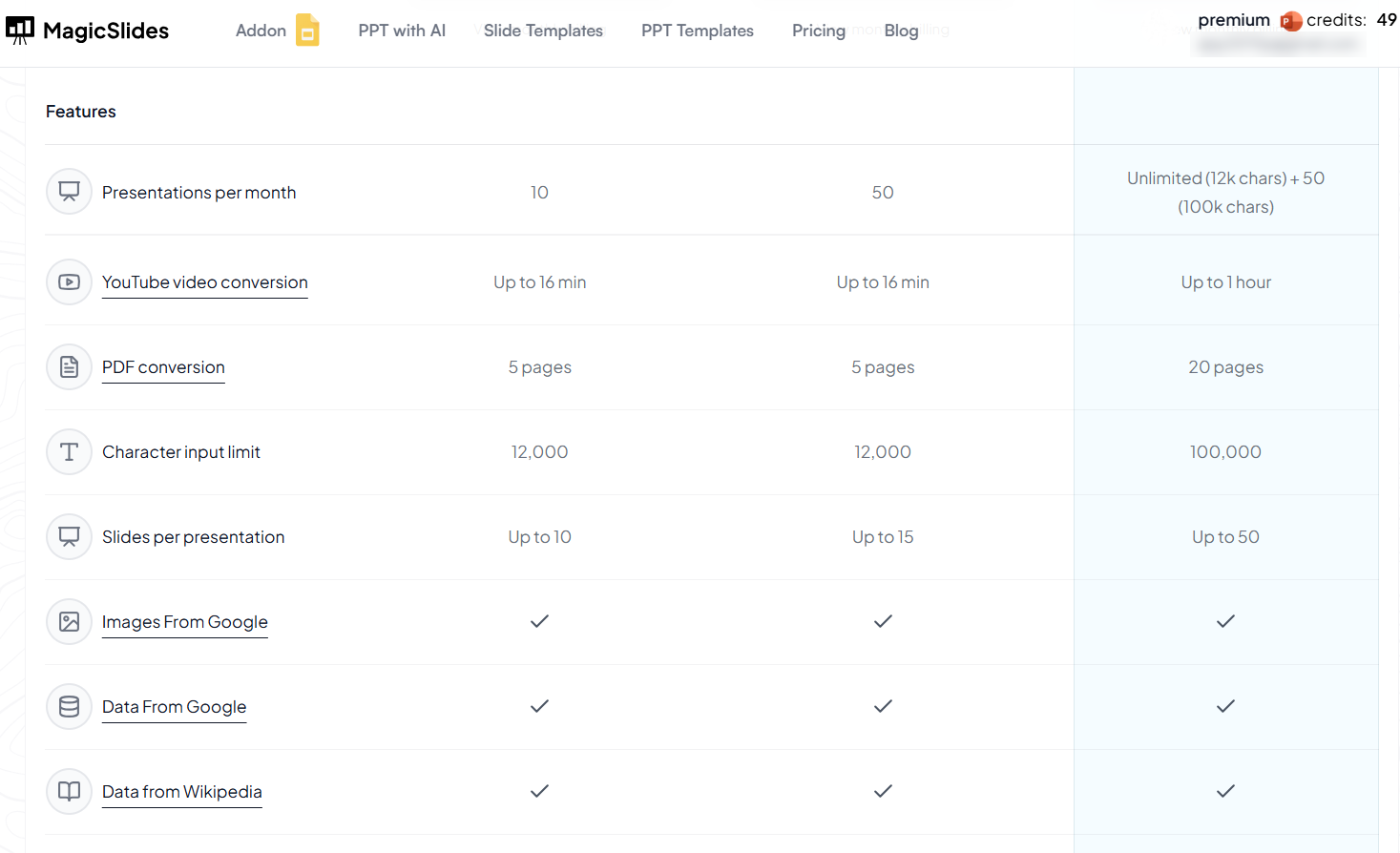
- YouTube Video to PPT – Generate slides based on video content.
- Advanced AI Editing – Customize and fine-tune slides effortlessly.
To explore all premium features, visit MagicSlides Pricing.
Conclusion
The MagicSlides GPT Maker for Google Slides is a game-changer for anyone looking to create high-quality presentations effortlessly.
By following these steps, you can harness the power of AI to generate, refine, and customize presentations within seconds.
Upgrade to the premium version to unlock even more powerful features that make slide creation easier than ever.
Frequently Asked Questions (FAQs)
Is the MagicSlides.app add-on free to use?
MagicSlides.app offers a free version with basic AI-powered slide generation. For additional features, you can opt for the Pro or Premium plans.
Can I edit the slides after generating them?
Yes! You can manually edit text, images, and layouts to personalize your presentation further.
What makes MagicSlides.app different from other AI presentation tools?
MagicSlides.app offers unique features like URL to PPT and YouTube Video to PPT, making it one of the most versatile AI-powered slide generators available.


