How to Add Caption in MS PowerPoint Image


Easily add captions to images in PowerPoint to enhance clarity, accessibility, and presentation effectiveness
How to Add a Caption to an Image in MS PowerPoint
Adding captions to images in Microsoft PowerPoint helps provide context, improve accessibility, and enhance presentations.
Whether labeling a photo, describing an illustration, or adding a brief explanation, PowerPoint makes it easy to insert and customize captions.
Follow these simple steps to add a caption to any image in PowerPoint.
Steps to Add a Caption to an Image in MS PowerPoint
Step 1: Insert an Image into PowerPoint
Open Microsoft PowerPoint and navigate to the slide where you want to add an image. Click on Insert in the top menu bar.
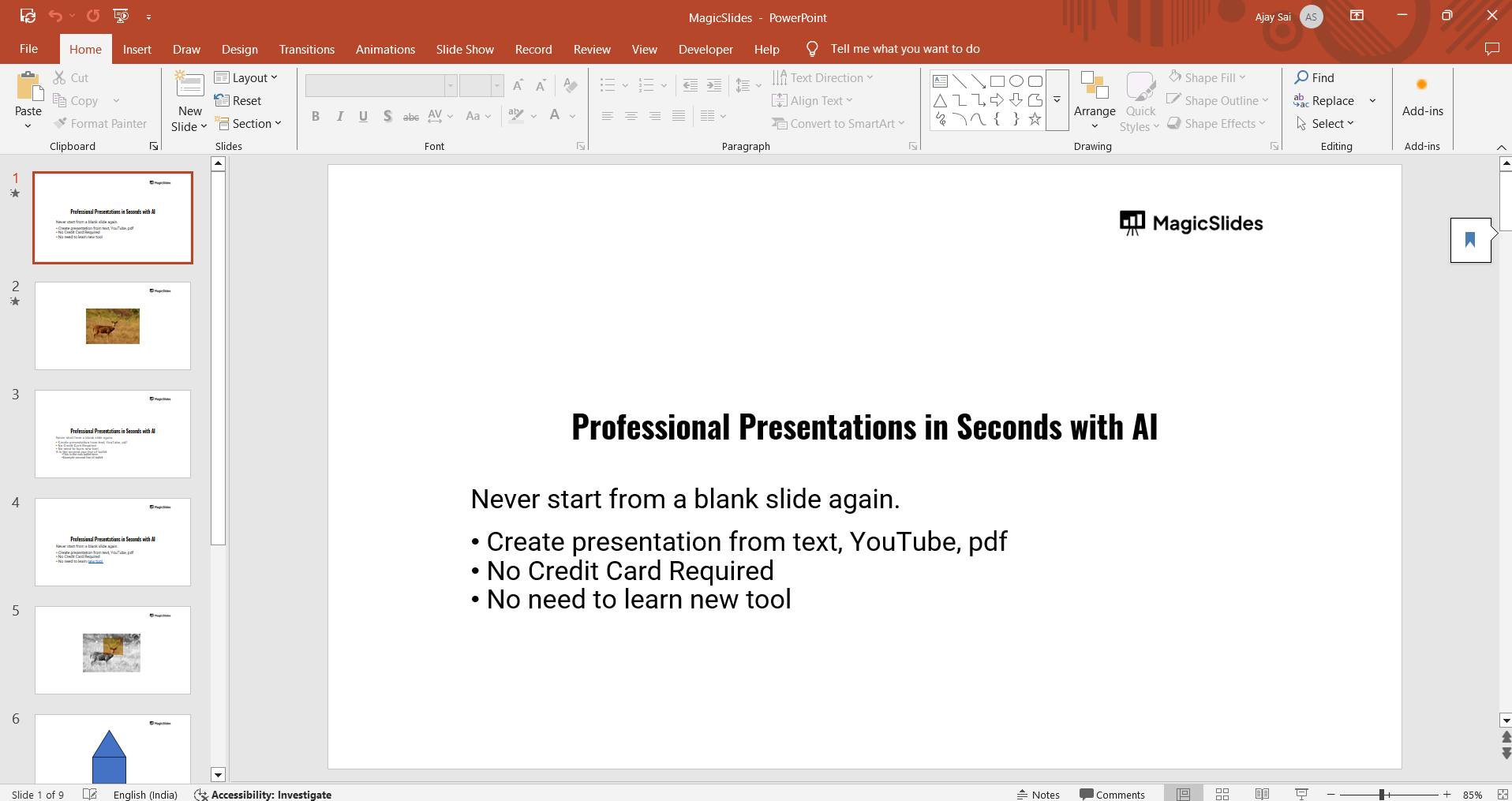
Select Pictures and choose This Device to upload an image from your computer. Alternatively, select Online Pictures to search and insert an image from the web.
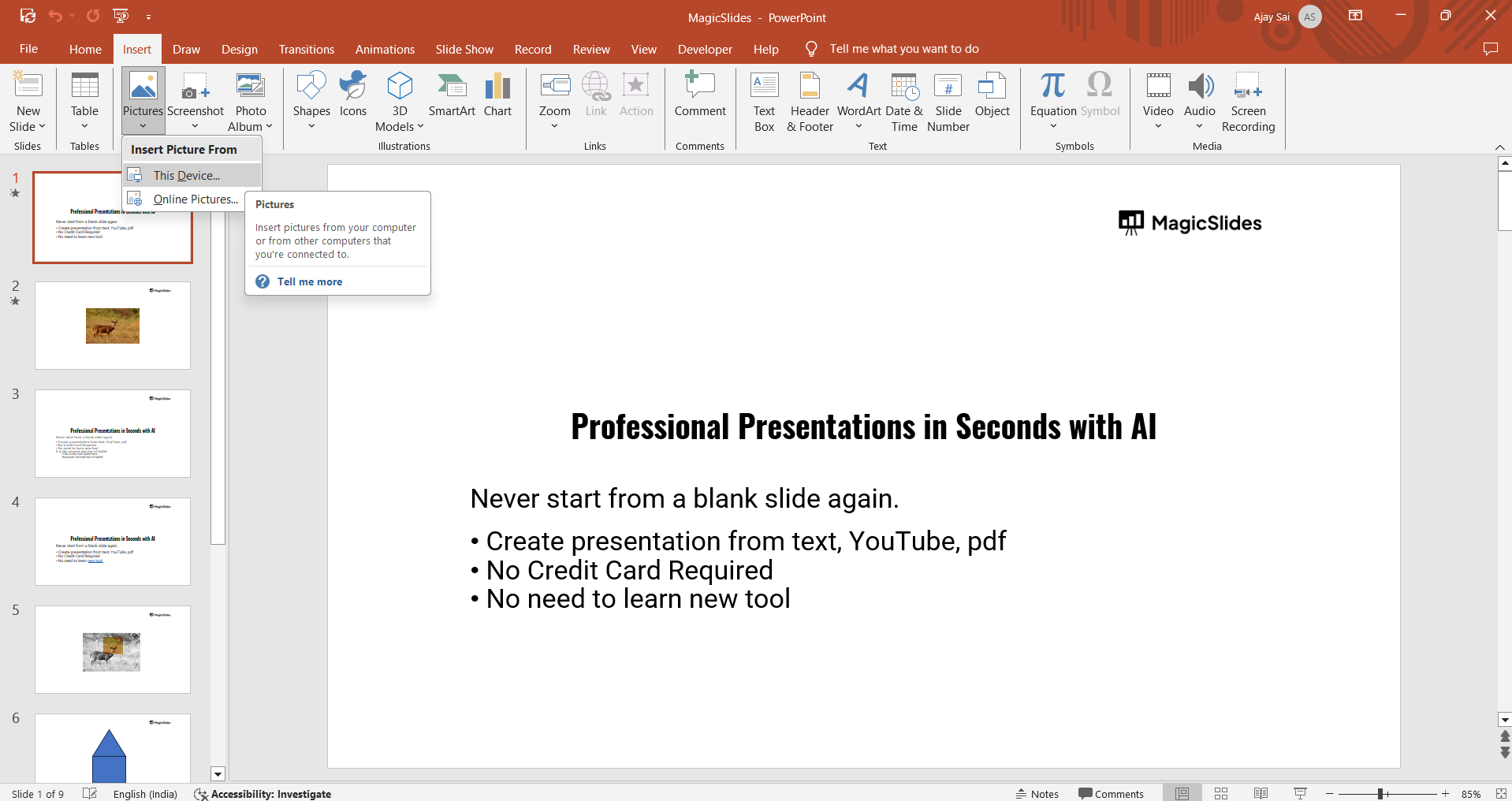
Once inserted, adjust the size and position of the image as needed.
Step 2: Insert a Text Box for the Caption
Click on Insert in the menu bar. Select Text Box from the dropdown menu.
Click anywhere below or beside the image where you want the caption to appear.
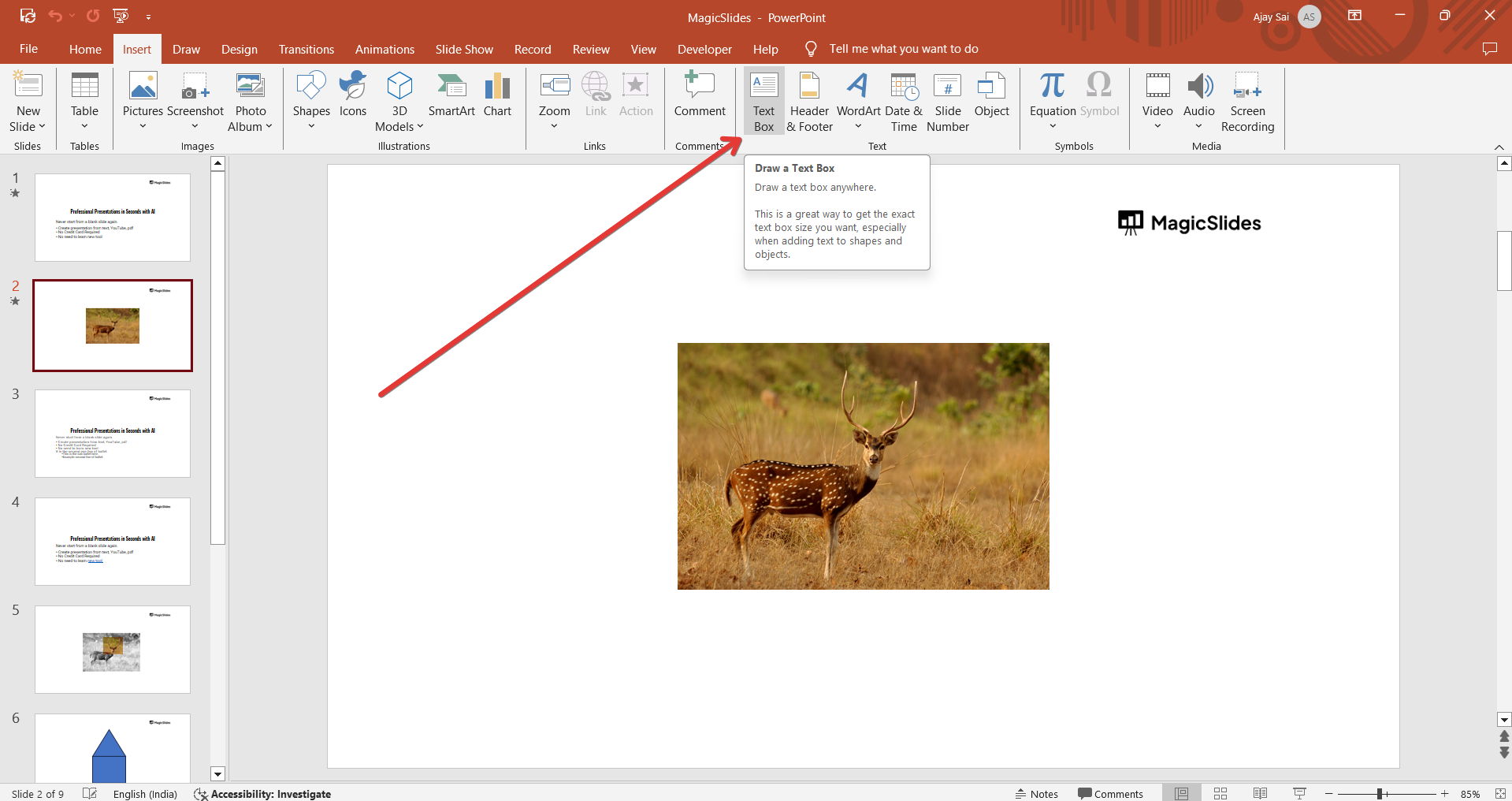
A text box will appear type your desired caption inside it.
Step 3: Format the Caption Text
Highlight the text inside the text box. Use the Home tab to adjust font style, size, and color for better readability.
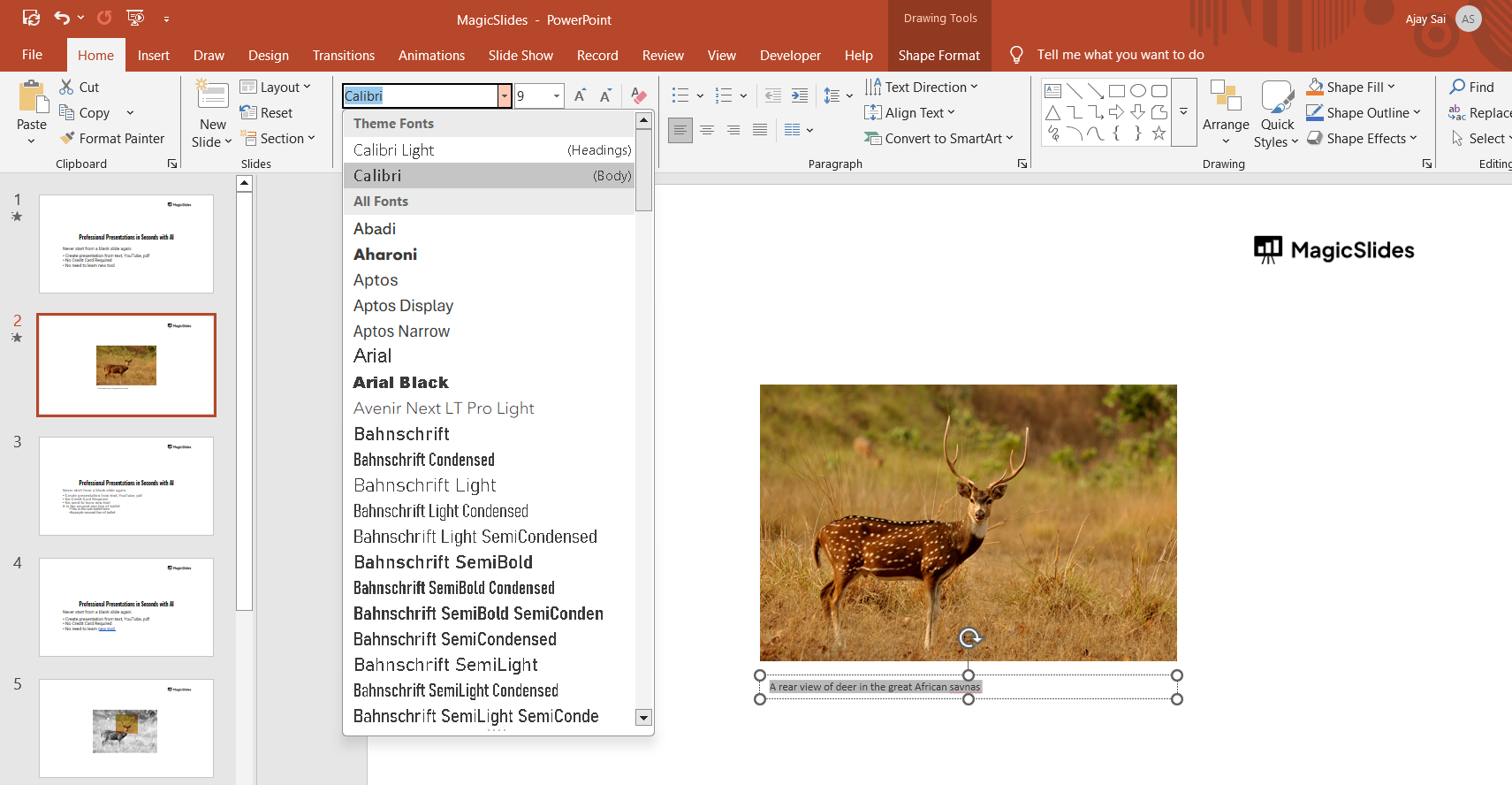
Center-align the text by selecting the Center alignment option in the toolbar. Adjust spacing and bold formatting if necessary.
Step 4: Group the Caption and Image Together (Optional)
Click on the image to select it. Hold down Ctrl (Windows) or Cmd (Mac) and click on the text box to select both objects.

Right-click and choose Group > Group to lock the image and caption together. This ensures they move together when repositioning on the slide.
Step 5: Save and Review
Click anywhere outside the text box to finalize the caption. Review the slide to ensure the caption is clear and properly placed.
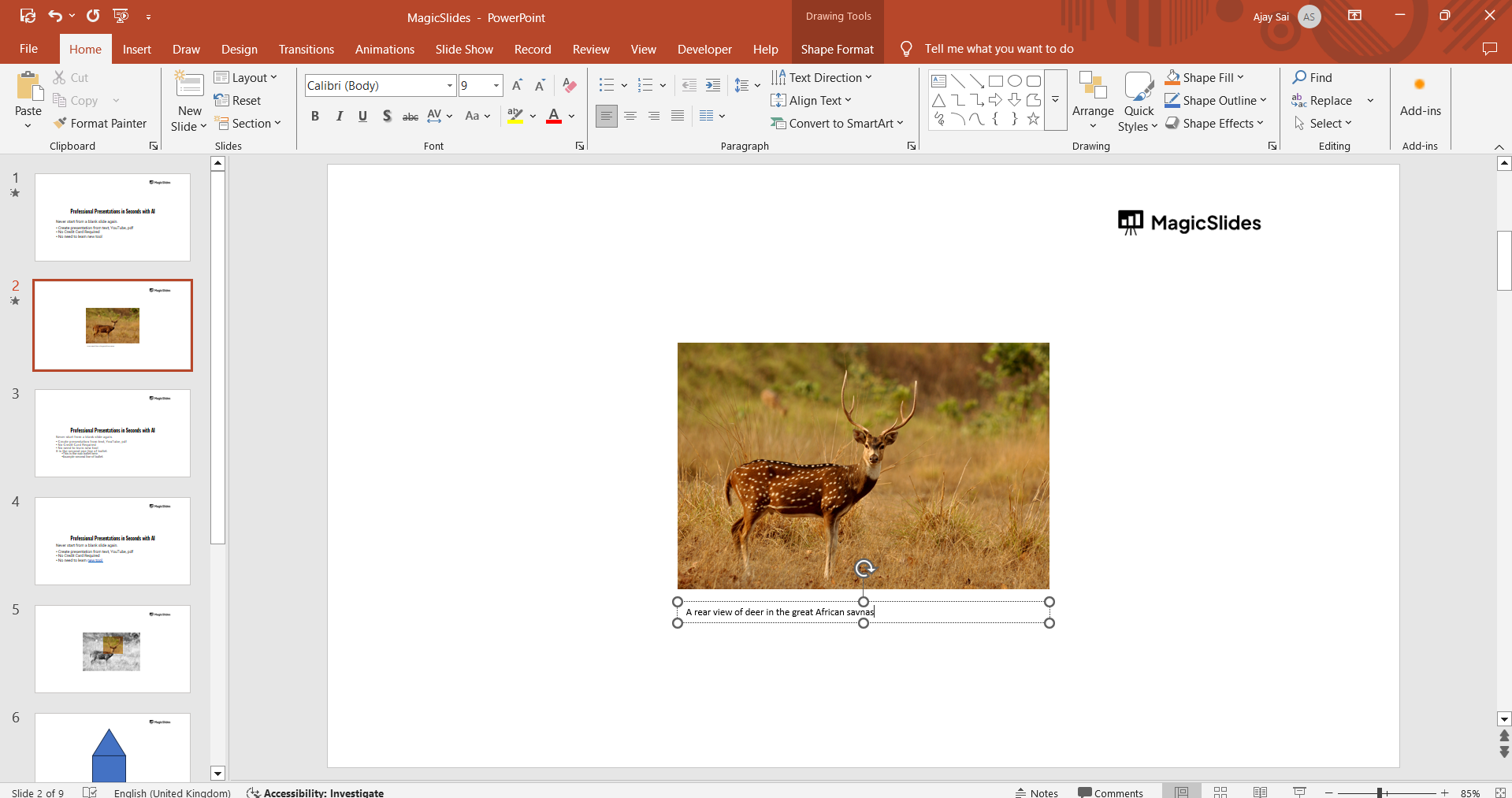
Save the PowerPoint presentation to keep your changes.
Conclusion
Adding captions to images in PowerPoint is a simple yet effective way to enhance presentations.
Whether for clarity, accessibility, or additional information, captions help convey messages more effectively.
Follow these steps to create well-formatted captions and improve the impact of your slides.
FAQs on Adding Captions in PowerPoint
Can I add a caption automatically in PowerPoint?
No, PowerPoint does not have an automatic captioning feature, but you can manually add a text box.
How do I make the caption text more visible?
You can increase font size, use bold text, or add a background shape behind the text for better visibility.
Can I animate the caption text in PowerPoint?
Yes, go to Animations > Add Animation, then choose an effect like Fade or Appear for the caption text.
Now you’re ready to enhance your PowerPoint slides with effective image captions! 🚀


