Addon google slides iconPPT with AISlide TemplatesPPT TemplatesPricingBlog
PPT with AISlide TemplatesPPT TemplatesPricingBlog
  1. Home
  2. Blog
  3. How to insert infographics in a PowerPoint


How to insert infographics in a PowerPoint

magicslides app

Published By

magicslides app
Mohit Kumar Jha

Approved By

Mohit Kumar Jha

Published On

February 24th, 2026

Reading Time

2 min read

Elevate your PowerPoint game with our quick guide on seamlessly inserting infographics for impact

Enhance the visual appeal of your PowerPoint presentations by incorporating engaging infographics. In this blog post, we'll guide you through five easy steps to seamlessly insert infographics and elevate your presentation game.

How to insert infographics in a PowerPoint

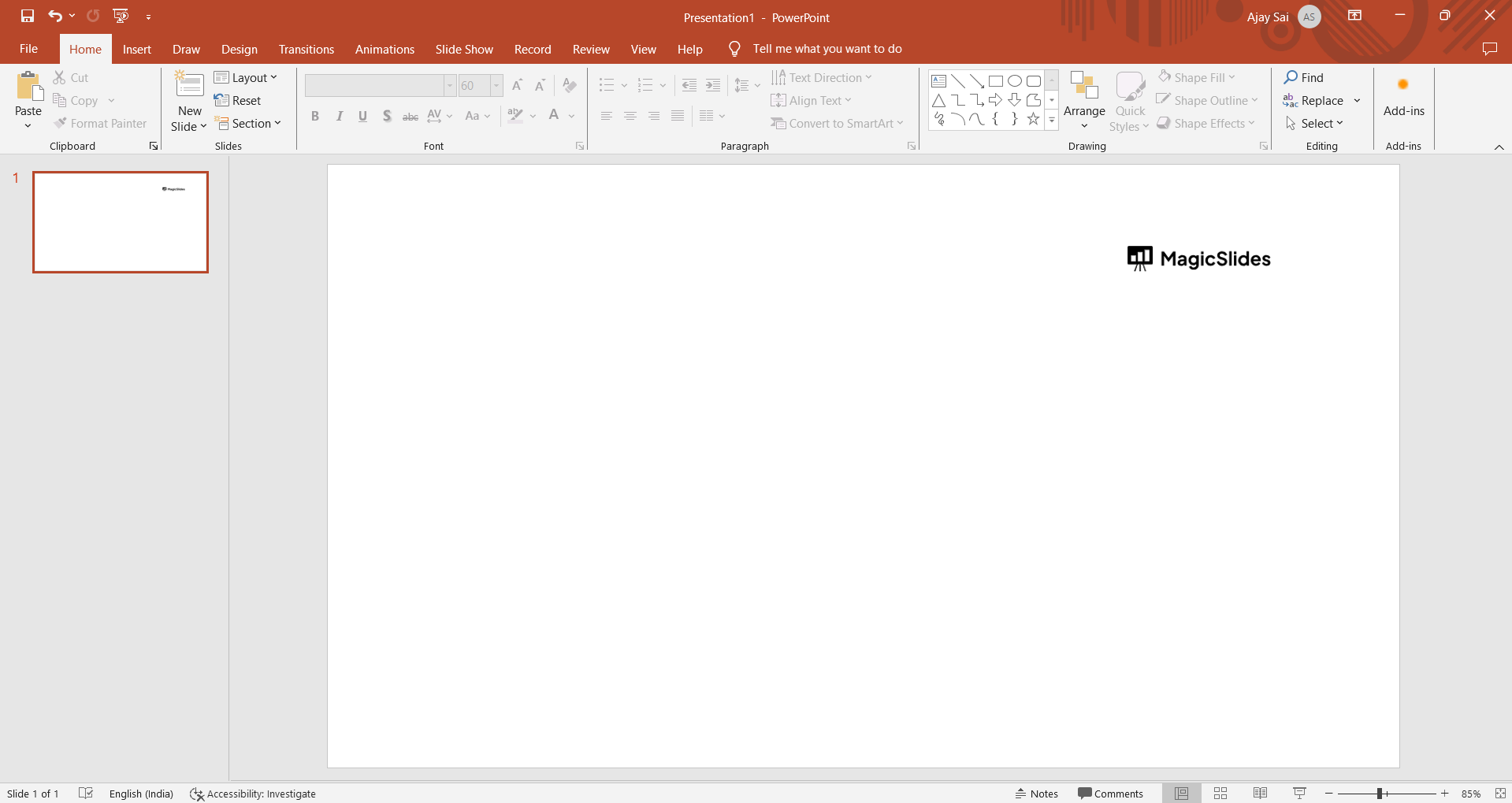
Step 1: Open Your PowerPoint Presentation:

Launch PowerPoint and open the presentation where you want to include the infographic. Ensure your slides are ready for the dynamic addition of visual elements.
notion image

Step 2: Access the Insert Tab:

Navigate to the "Insert" tab in the PowerPoint toolbar. This tab is your gateway to a variety of multimedia elements that can enhance your presentation.

notion image

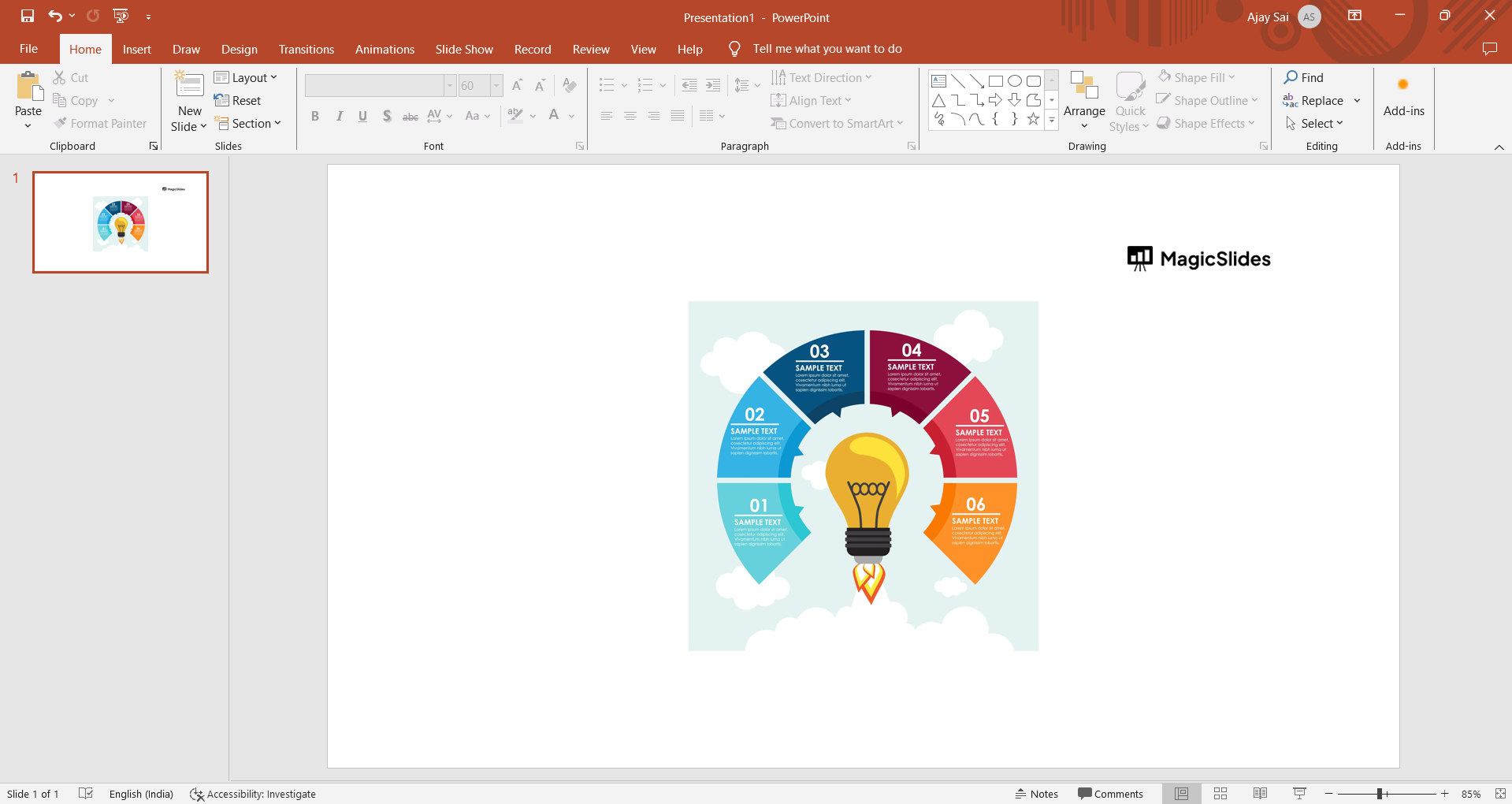
Step 3: Choose 'Pictures' to Insert Your Infographic:

Click on the "Pictures" option within the "Insert" tab. Select the infographic file from your computer or external storage. PowerPoint supports various image formats such as .png, .jpg, and .gif.
notion image

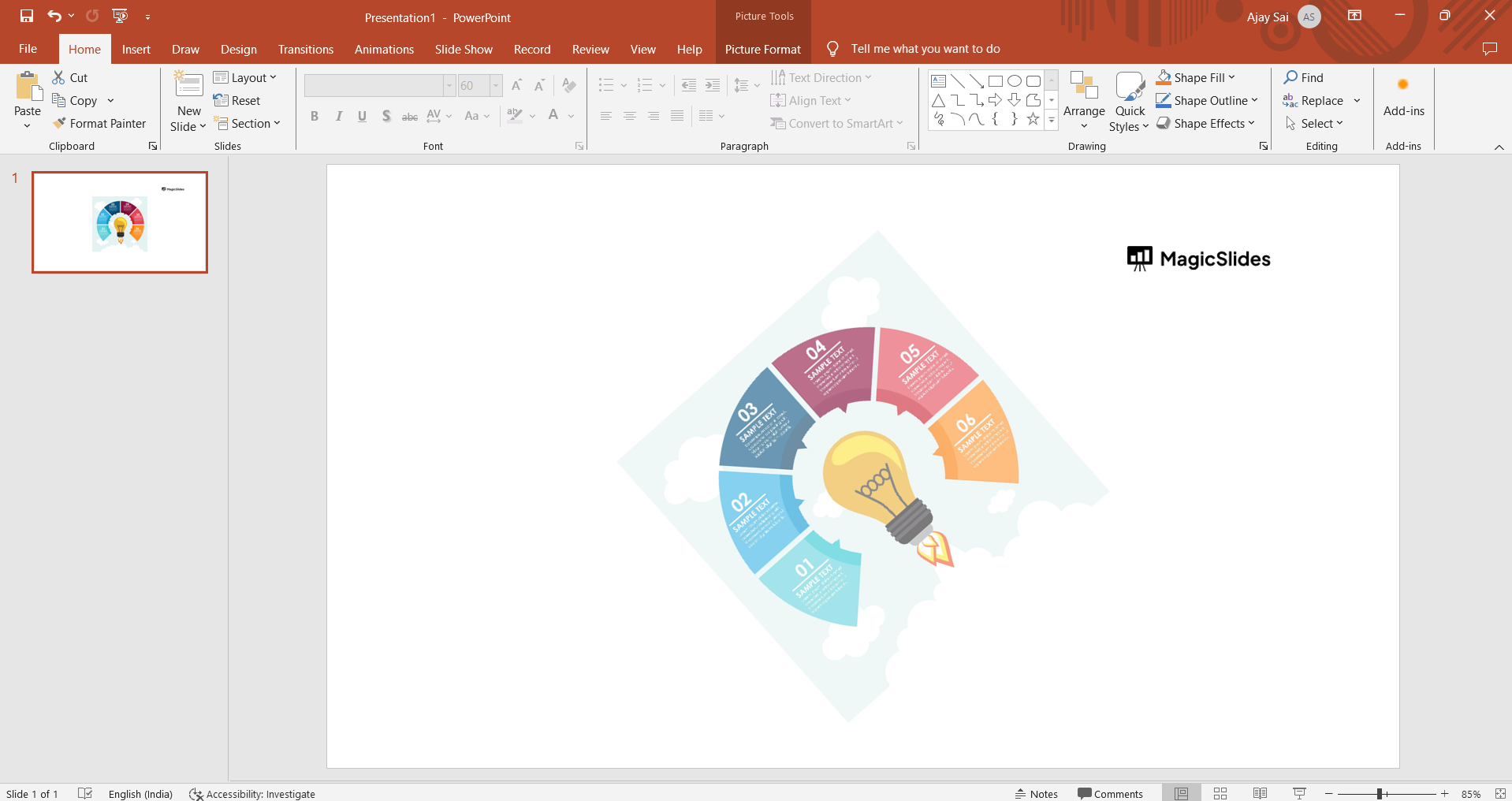
Step 4: Adjust and Resize as Needed:

Once the infographic is inserted onto your slide, you can adjust its size and placement. Click and drag the corners to resize, and move it around to find the optimal position within your slide layout.
notion image

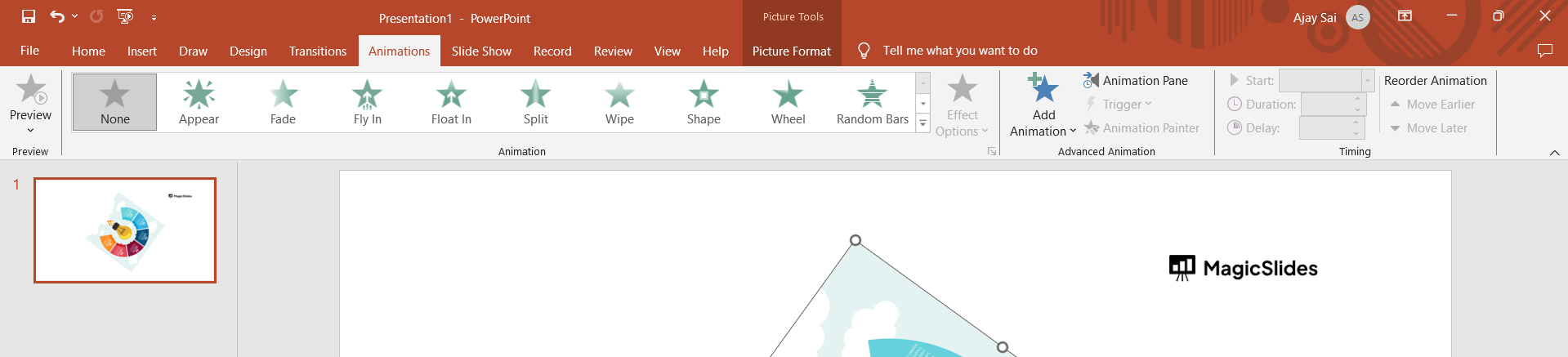
Step 5: Incorporate Animation and Transitions (Optional):

For a dynamic presentation, consider adding entrance animations or transitions to your infographic. Access the "Transitions" tab to select a suitable transition style, and customize the animation effects using the "Animation" pane if desired.
notion image

Conclusion:

In just five simple steps, you've successfully integrated an infographic into your PowerPoint presentation. By strategically placing visual aids, you enhance audience engagement and convey information more effectively. Elevate your presentations with this easy-to-follow guide and make your content visually compelling.

Frequently Asked Questions:

Q)Can I use any file format for infographics in PowerPoint?
Ans: Yes, PowerPoint supports various image formats such as .png, .jpg, and .gif for infographics.
Q)Are animations essential for infographics, or can they be static?
Ans: Animations are optional. While they can add dynamism, static infographics are effective for straightforward presentations.

Share on socials

About the author

Sanskar Tiwari profile photo
Sanskar Tiwari— Founder at MagicSlides

Sanskar is Founder at IAG Tech, For the past 3 years sanskar have build more than 24+ products, taught 100k students how to code.

More from Sanskar

More from the blog

    How to add a hanging indent in google slides

    24 February 2026

    How to make images transparent on google slides

    24 February 2026

    How to add slide numbers in google slides

    24 February 2026

    How to send gifs in slack application

    24 February 2026

    How to make picture background transparent in powerpoint

    24 February 2026

    How to put text over an image in google slides

    24 February 2026

    How to Crop an Image in PowerPoint

    24 February 2026

    How to make a PowerPoint presentation into a video

    24 February 2026

    How to time google slides for 20 seconds

    24 February 2026

Table of Contents

Create Presentations in Seconds

Transform your ideas into professional presentations with AI. No design skills needed.

Try MagicSlides Free

Create Stunning Presentations with AI in Seconds ✨

Transform any topic, text, YouTube video, PDF or URL into beautiful presentations instantly with MagicSlides AI.

Try MagicSlides AI Presentation Maker
MagicSlides AI Presentation

Footer

Solutions

  • MagicSlides App
  • Google Slides Add-on
  • MagicSlides in Chrome
  • MagicSlides in Figma
  • MagicSlides in ChatGPT
  • MagicSlides in Telegram
  • MagicSlides in Zapier
  • MagicSlides in Figma Slides

Tools

  • AI PPT Tools
  • QR Code Generator
  • Design Tools
  • PPT Templates
  • Slide Templates
  • PDF Tools

Examples

  • AI Presentations
  • PPT by MagicSlides
  • Quizzes
  • Charts
  • Coloring Pages

Resources

  • Changelog
  • Documentation
  • API Docs

Top Blogs

  • How to Create Presentation Using ChatGPT
  • 100+ Best Seminar Topics for Students in 2025

Company

  • Help
  • MCP
  • Blog
  • Pricing
  • Affiliate Program
  • Manage Subscription
  • Privacy Policy
  • Contact Us
  • Terms & Conditions
  • Refund & Cancellation Policy

We also built

  • SheetAI - GPT For Sheets
  • MagicForm - GPT For Google Forms
  • SecondBrain.fyi
  • BlogBee - Free Blogging Platform

© 2026 IndianAppGuy Tech Pvt Ltd. All rights reserved.