How to invite someone to slack channel


Fuel collaboration: Learn the simple steps to invite members seamlessly to your Slack channels for efficiency.
Effective communication is at the heart of successful collaboration, and Slack, with its versatile features, makes team interaction seamless.
One essential aspect is inviting members to specific channels, ensuring everyone is on the same page.
Before we begin, if you are looking to send Google form submissions directly to Slack, check SlackNotify.app. It will include all info submitted and sent directly to the Slack channel of your choice
This guide will provide a step-by-step walkthrough on how to invite someone to a Slack channel, allowing you to strengthen connections and streamline team communication effortlessly.
How to Invite Someone to a Slack Channel:
Open the Desired Channel in Slack:
Begin by opening the Slack workspace and navigating to the specific channel to which you want to invite a member.

Click on the Channel Name:
Locate the channel name in the left-hand sidebar and click on it to access the channel.
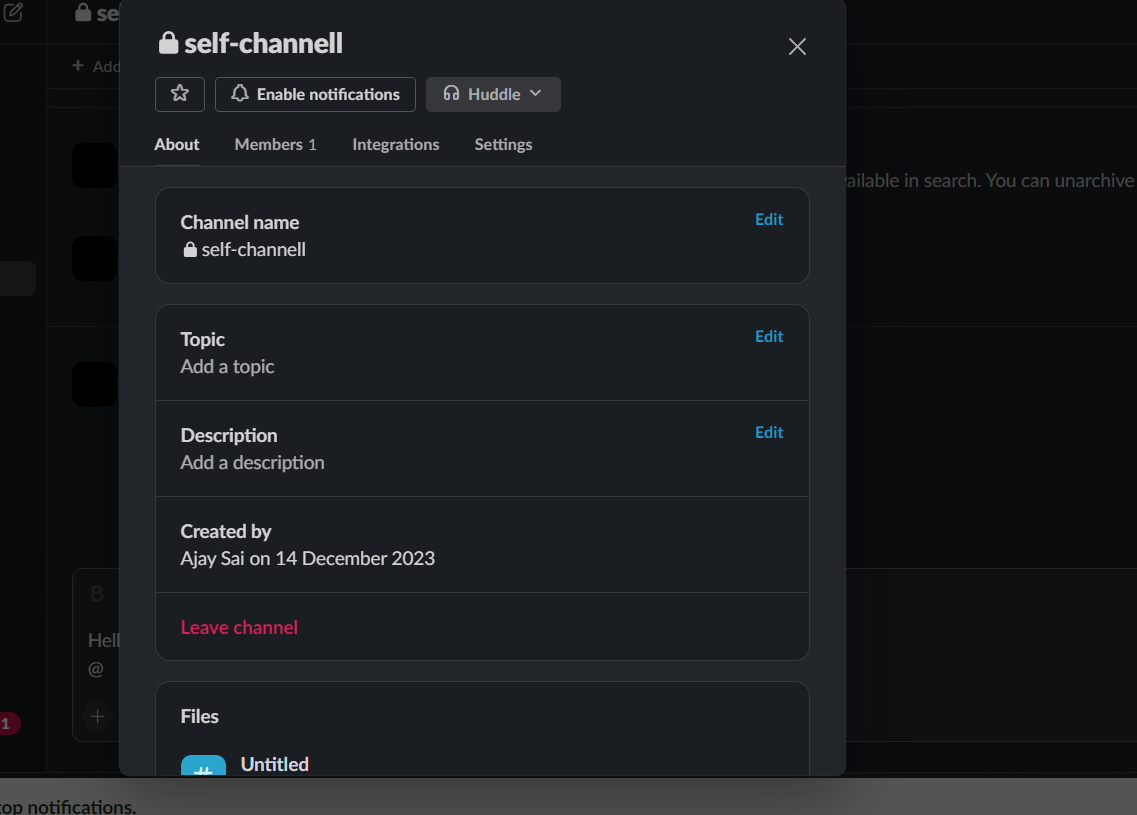
Access the Channel Settings:
In the top-right corner of the channel, click on the gear icon to access the channel settings and additional options.

Select "Invite to Channel":
From the dropdown menu, select "Invite to Channel." A pop-up window will appear with a list of team members.
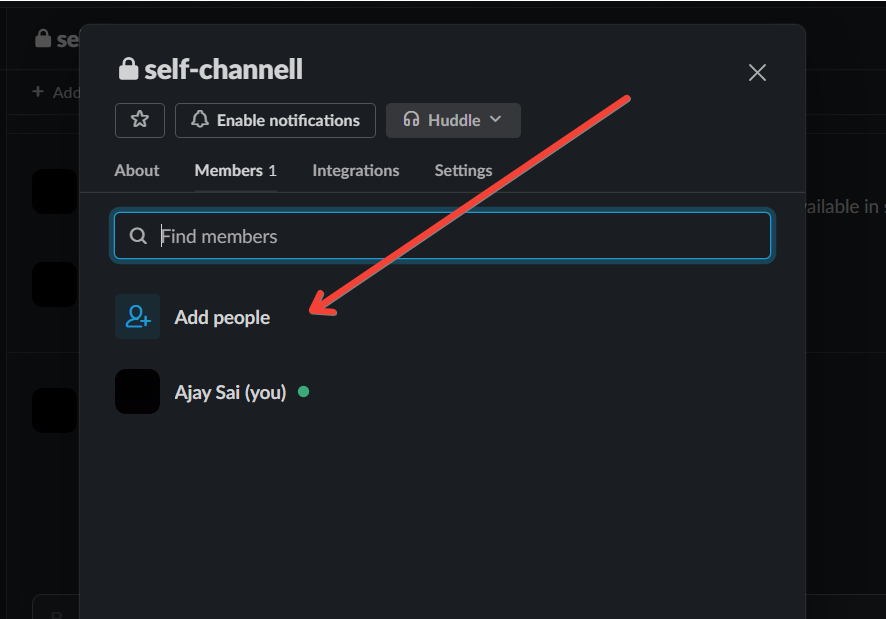
Click "Send Invitations":
Once you've made your selections, click on the "Send Invitations" button to invite the chosen member to the channel.
Confirm Invitation Sent:
Confirm that the invitation has been sent successfully. The invited member will receive a notification and can join the channel.
While you're inviting new members to your Slack channels, consider setting up a Google Form to Slack notification system. This ensures that Google Form submissions trigger real-time alerts in your Slack workspace, streamlining team communication
Conclusion:
Efficient team collaboration relies on the ability to connect and share information seamlessly. Inviting members to Slack channels is a pivotal step in fostering transparent communication.
By following these steps, you empower your team members to stay informed, engage in discussions, and contribute to the collective progress. Strengthening these collaborative bonds enhances productivity and ensures that every team member has access to relevant information.
Elevate your team dynamics by mastering the art of inviting members to Slack channels, and witness the positive impact on your overall workflow.
Frequently Asked Questions:
Can I invite someone who is not part of my Slack workspace to a channel?
No, channel invites are limited to members within the same Slack workspace for security and privacy reasons.
Can I invite multiple members to a channel simultaneously?
Yes, you can invite multiple members to a Slack channel at once, streamlining the collaboration process.
Do invited members need to accept the invitation to join the channel?
Yes, invited members must accept the invitation to join the channel and participate in the discussions.
Can I customize the notification settings for members I invite to a channel?
Yes, you have the option to customize notification settings when inviting members to a Slack channel.


