How to Lock something in Google Slides


Locking elements in Google Slides prevents accidental edits, ensuring a clean and organized presentation layout
How to Lock Something in Google Slides
Locking objects in Google Slides prevents accidental edits, ensuring a more polished and professional presentation.
While Google Slides doesn't have a direct "lock" feature, you can use workarounds to keep elements fixed in place. Follow the steps below to lock objects in Google Slides.
Step-by-Step Guide to Lock Objects in Google Slides
Method 1: Lock Objects by Setting Them as Background
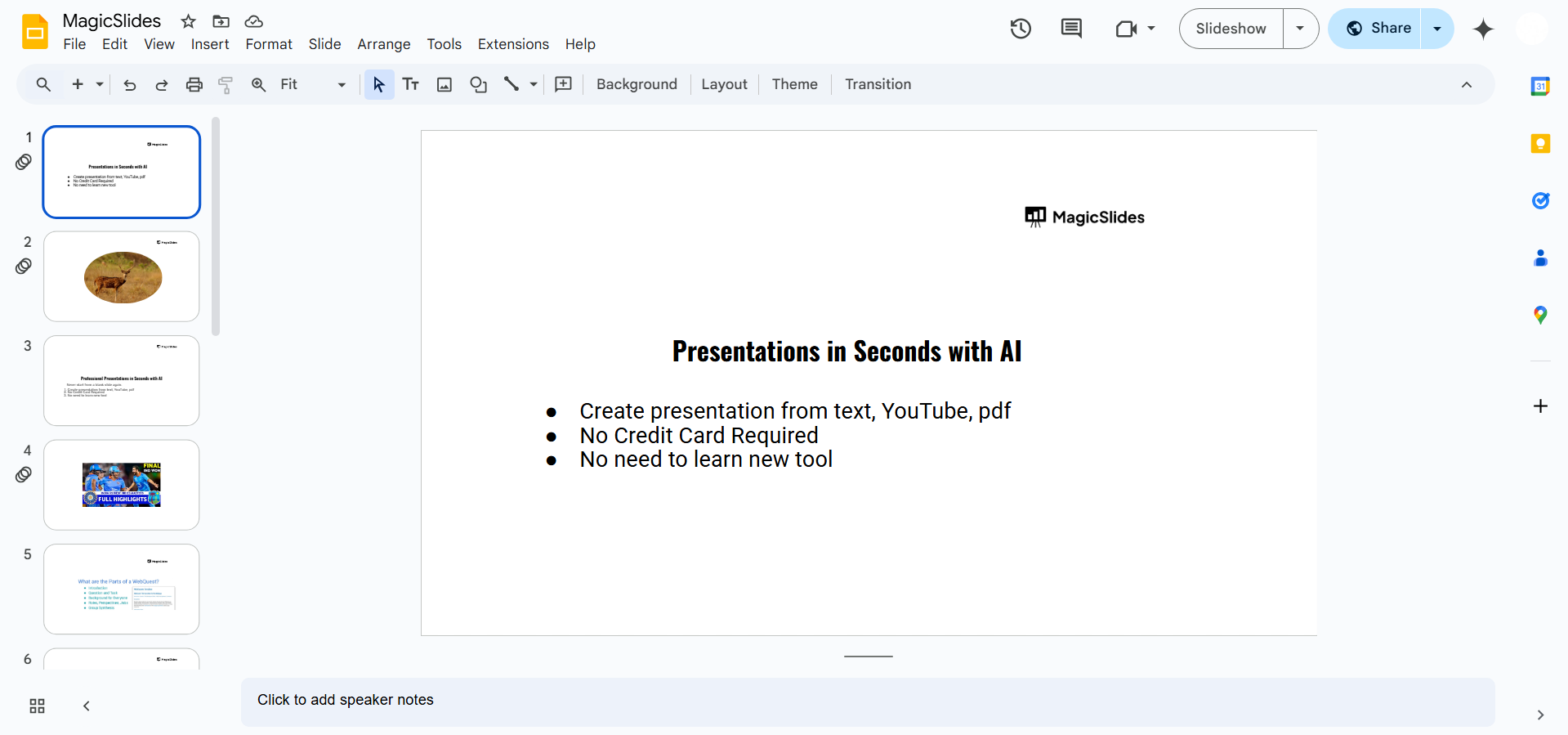
Open Google Slides
- Visit Google Slides and open your existing presentation or create a new one.
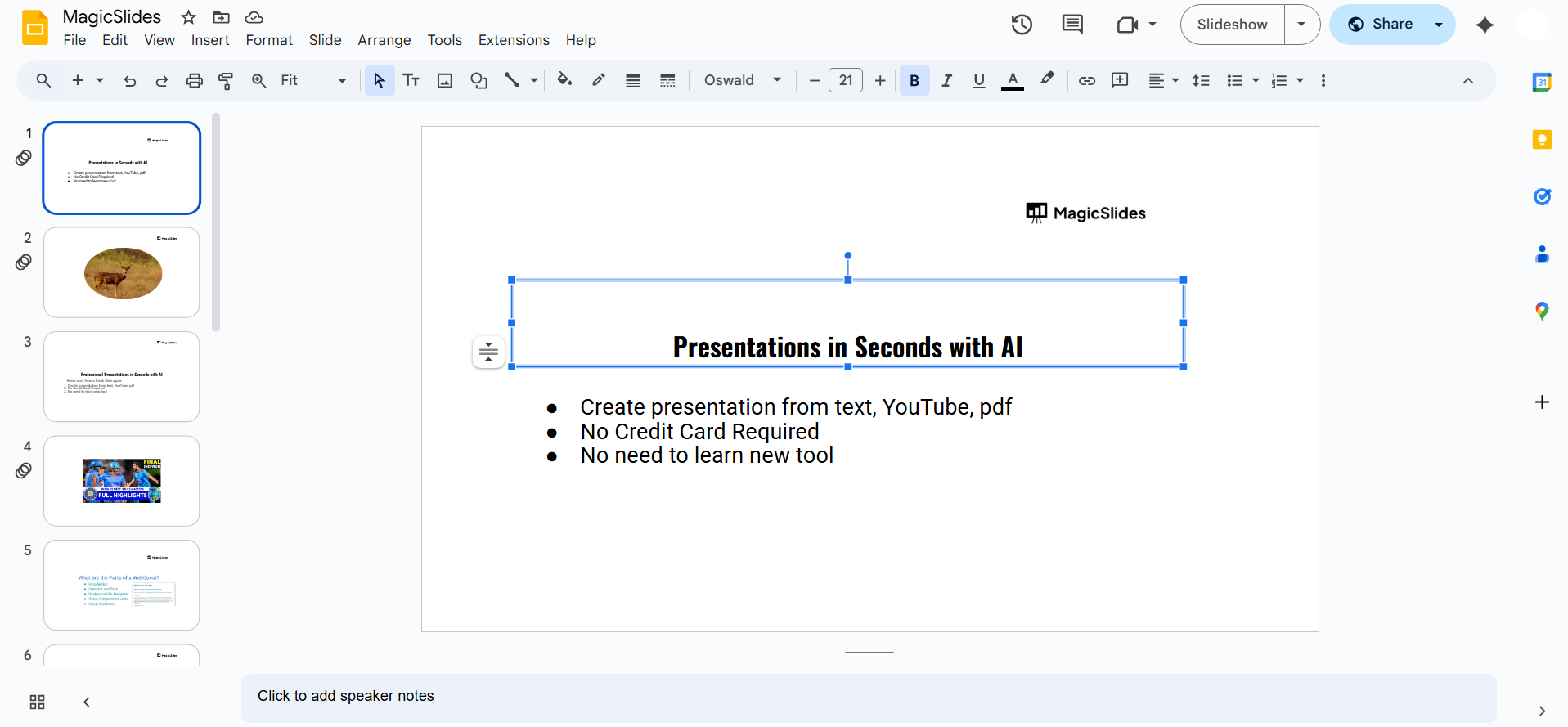
Select the Object You Want to Lock
- Click on the text box, image, shape, or element you want to lock in place.
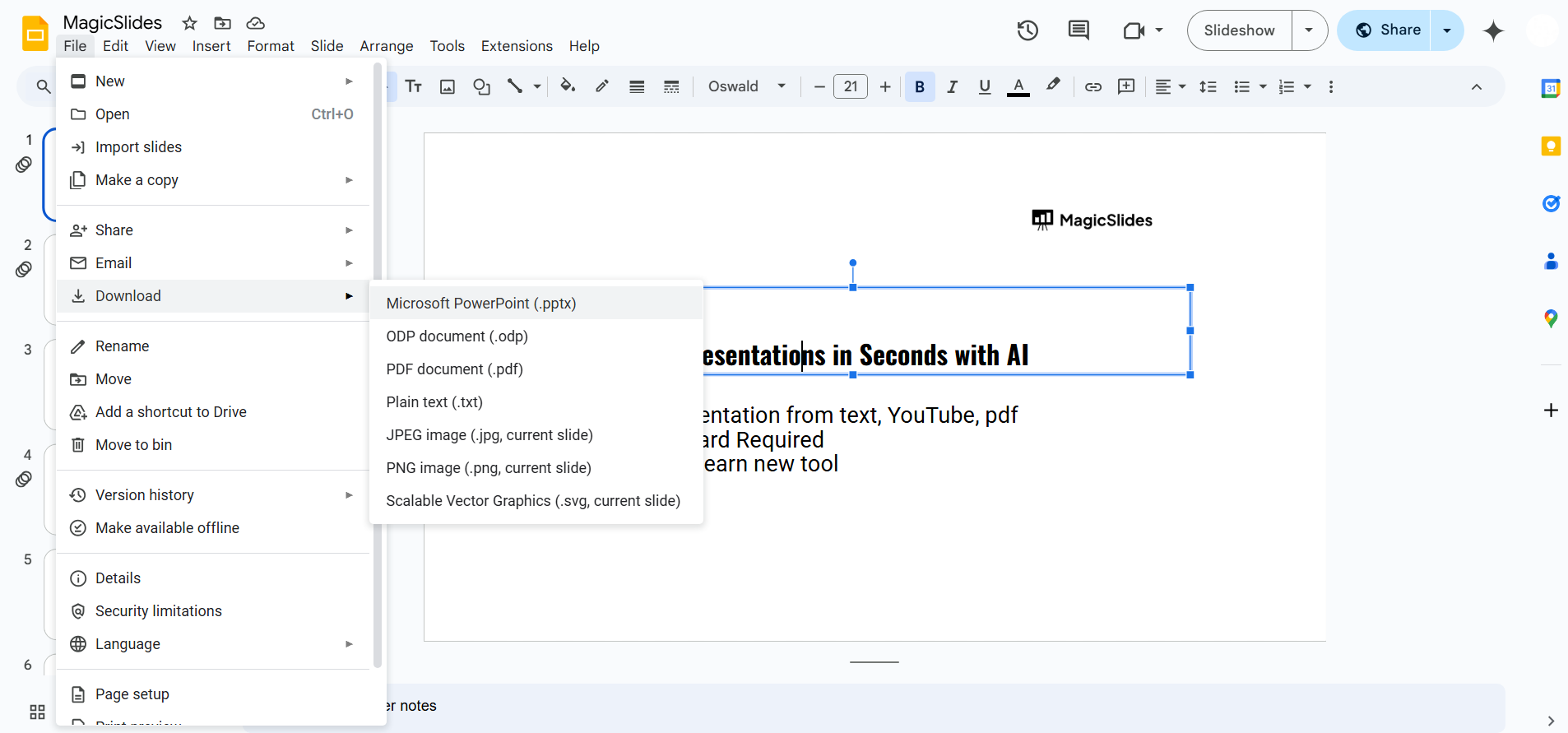
Download the Slide as an Image
- Go to File > Download > PNG image (.png) or JPEG image (.jpg) to save the slide as an image.
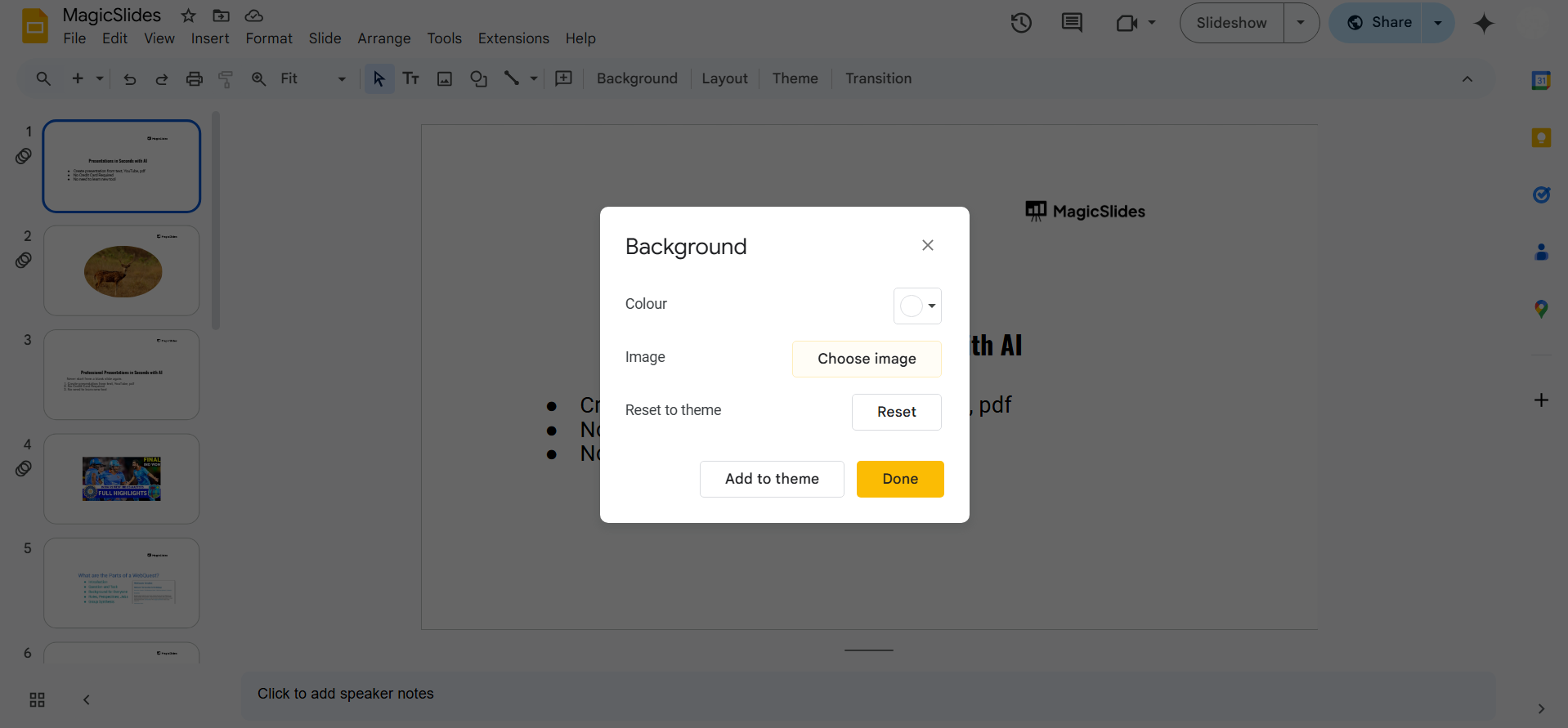
Insert the Image as Background
- In Google Slides, open a new slide.
- Click on Background > Choose Image > Upload the downloaded image to set it as the slide background.
Object is Now Locked
- Since it's part of the background, it cannot be moved or edited.
Method 2: Group Objects to Prevent Accidental Edits
Select Multiple Objects
- Click and drag over the elements you want to lock or hold Shift while selecting each object.
Group the Elements
- Right-click on the selected elements and choose Group, or use Ctrl + Alt + G (Windows) / Cmd + Option + G (Mac).
Objects Stay Together
- The grouped items move as one unit, preventing accidental changes.
Locking elements in Google Slides helps maintain design consistency, but if you want an AI-powered tool to create well-structured slides effortlessly, try MagicSlides.app generate stunning presentations in seconds!
Conclusion
Locking elements in Google Slides can be done using background images or grouping objects.
While Google Slides lacks a built-in lock feature, these workarounds help maintain the structure and design of your presentation.
Frequently Asked Questions (FAQs)
Can I unlock a background image in Google Slides?
No, once an image is set as the background, you cannot directly edit or move it. You’ll need to remove the background and reinsert a new editable version.
Can I lock a text box in Google Slides?
Google Slides does not have a direct lock feature, but you can turn the text box into an image and set it as a background to prevent edits.
Can I lock an object using Google Slides Add-ons?
Currently, there are no built-in Add-ons to lock objects, but you can explore third-party extensions that provide similar functionality.


