Addon google slides iconPPT with AISlide TemplatesPPT TemplatesPricingBlog
    PPT with AISlide TemplatesPPT TemplatesPricingBlog
    1. Home
    2. Blog
    3. How to logout of Slack desktop application


    How to logout of Slack desktop application

    magicslides app

    Published By

    magicslides app
    Mohit Kumar Jha

    Approved By

    Mohit Kumar Jha

    Published On

    January 17th, 2025

    Reading Time

    3 min read

    Unlock the essence of secure collaboration master the art of logging out in Slack effortlessly today.

    In the dynamic landscape of modern communication and collaboration, Slack has emerged as a cornerstone for seamless team interaction.
    Navigating through its myriad features, it's essential to master the art of efficiently logging in and out, ensuring a secure and productive workspace experience.
    This blog explores the simple yet crucial process of logging out of Slack, whether on the desktop, web, or mobile app, empowering users to manage their workspace accessibility with ease.
    Before we begin, if you are looking to send Google form submissions directly to Slack, check SlackNotify.app

    How to log out of Slack desktop application

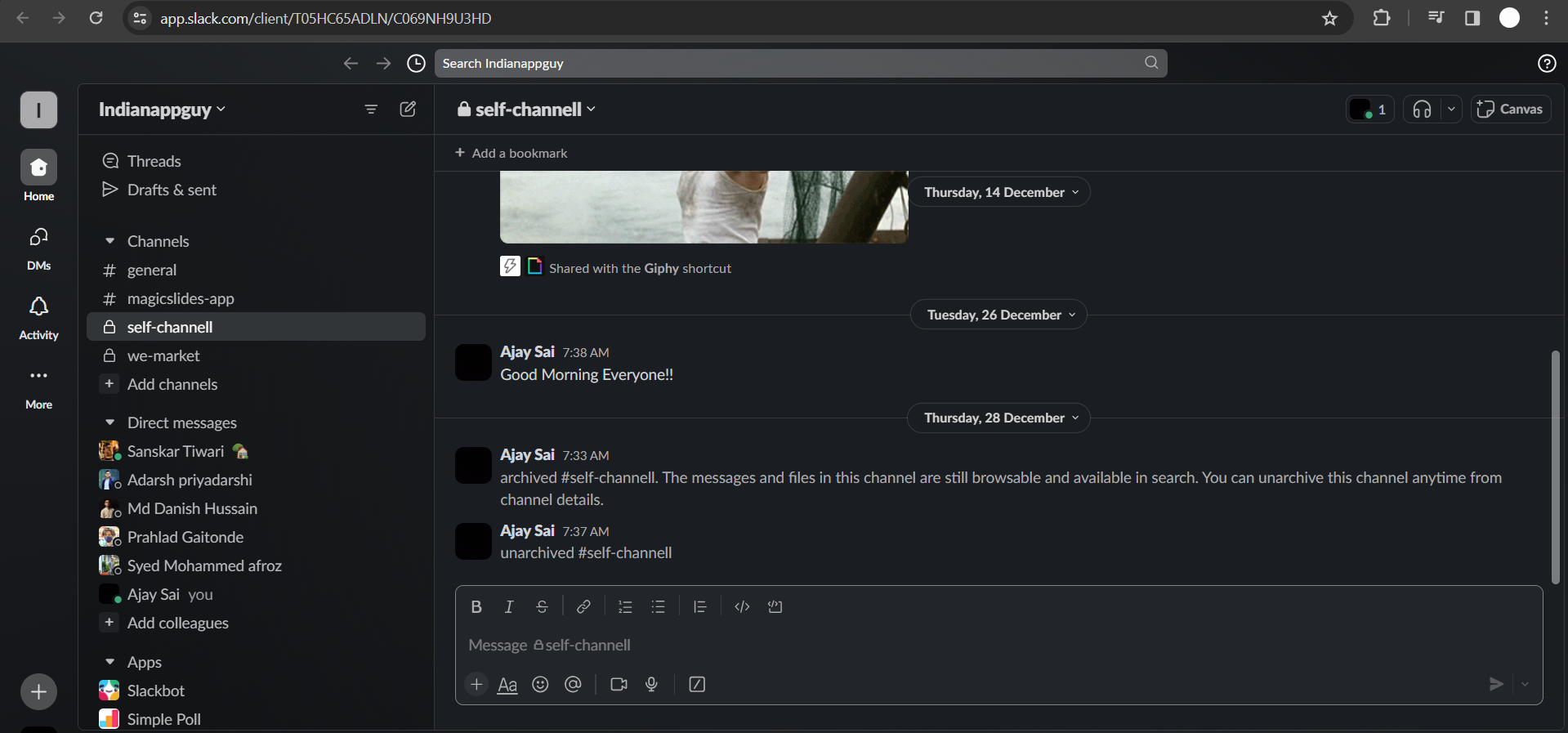
    Open Slack Desktop App:

    Launch the Slack application on your desktop. You can find it in your applications folder or taskbar, depending on your operating system.
    notion image

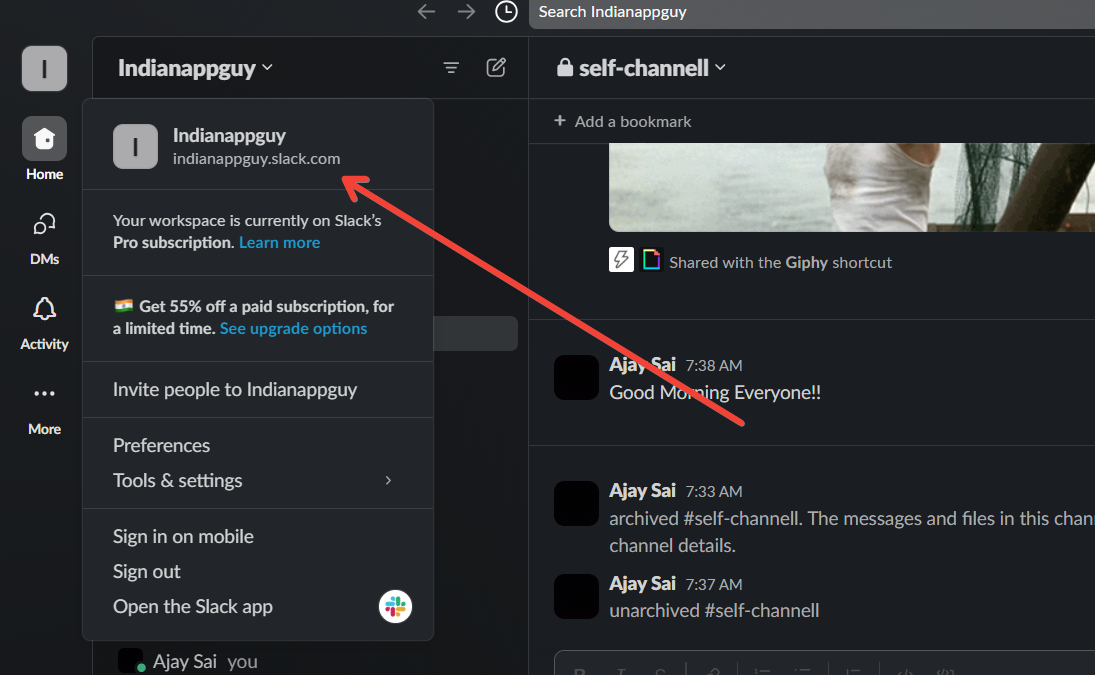
    Click on Workspace Name:

    Within the Slack interface, look for the name of your workspace. It's typically located in the top-left corner of the application window. Click on it to reveal a drop down menu.
    notion image

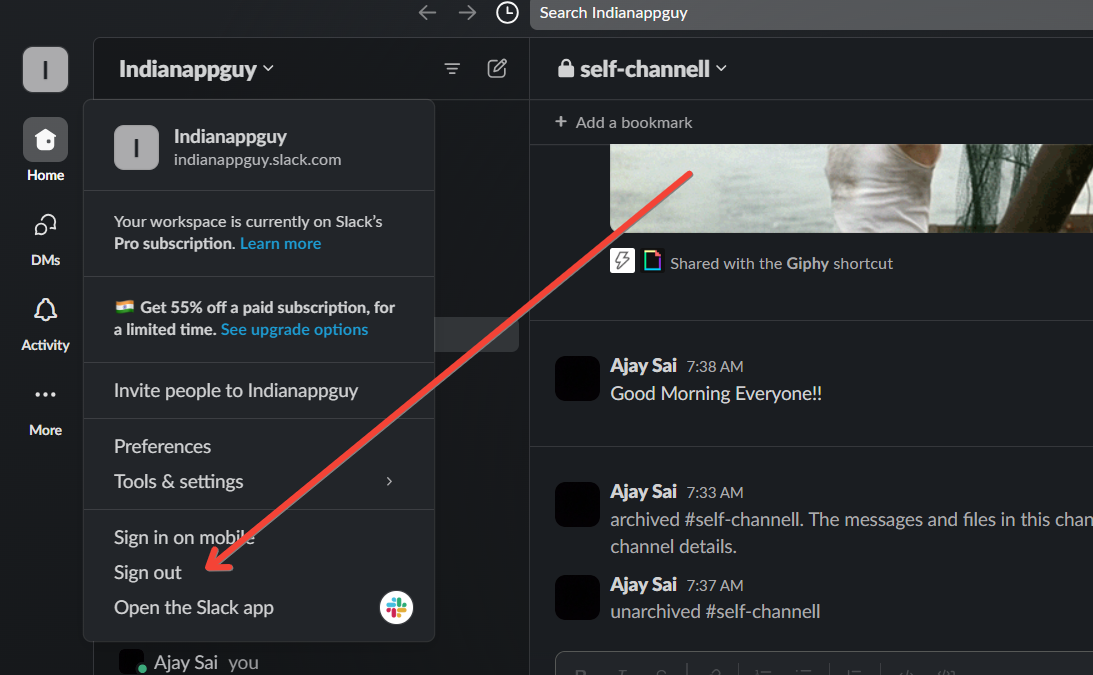
    Choose "Sign Out" from Dropdown:

    In the dropdown menu that appears after clicking your workspace name, locate and select "Sign out."
    This action signals Slack to log you out of the current session.
    notion image

    Confirm if Prompted:

    Slack may prompt you to confirm the log-out action for security reasons. If prompted, confirm your decision to proceed with signing out.

    You're Now Logged Out:

    After completing the steps above, you have successfully logged out of Slack on the desktop application.
    Your account is now disconnected from the current session, and you'll need to log in again to access your workspace.
    While logging out of Slack on your desktop, don't miss out on Google Form submission updates. Set up a Google Form Slack integration to get customized notifications sent to your Slack channels, keeping your team informed even when you're logged out

    Conclusion:

    Logging out of Slack may seem like a straightforward task, but it holds the key to maintaining the security and privacy of your workspace.
    Whether you're stepping away from your desktop, closing your browser, or switching devices, the ability to effortlessly log out ensures a controlled and protected collaboration environment.
    As we conclude, remember that mastering these fundamental actions contributes to a smoother and more secure Slack experience, enhancing your efficiency in the ever-evolving world of team collaboration.

    Frequently Asked Questions:

    How do I logout of Slack on the desktop?

    Click on your workspace name, then choose "Sign out" from the dropdown menu.

    Is logging out necessary for security?

    Yes, logging out secures your Slack account, especially when using shared or public devices.

    Can I log out of Slack on the mobile app?

    Yes, open the app, tap the menu, go to "Settings," and select "Sign out."

    Share on socials

    About the author

    Sanskar Tiwari profile photo
    Sanskar Tiwari— Founder at MagicSlides

    Sanskar is Founder at IAG Tech, For the past 3 years sanskar have build more than 24+ products, taught 100k students how to code.

    More from Sanskar

    More from the blog

      250+ Good Morning Messages for Her (Romantic, Deep, Cute & Sweet)

      30 January 2026

      200+ Heart Touching Birthday Wishes for Sister (Short, Funny and More)

      29 January 2026

      50+ History Presentation Topics For 2026

      28 January 2026

      How to Add Music to Your Canva Presentation: A Step-by-Step Guide

      27 January 2026

      15 Quick Tips To Use ChatGpt At Work

      22 January 2026

      11 Best AI Tools for Business in 2025

      22 January 2026

      How to Create an Infographic That Clearly Communicates Your Message

      20 January 2026

      How to Create a Sales Presentation Template in Google Sheets

      20 January 2026

      How to Make a Pie Chart on Google Slides in Simple Steps

      19 January 2026

    Table of Contents

    Create Presentations in Seconds

    Transform your ideas into professional presentations with AI. No design skills needed.

    Try MagicSlides Free

    Create Stunning Presentations with AI in Seconds ✨

    Transform any topic, text, YouTube video, PDF or URL into beautiful presentations instantly with MagicSlides AI.

    Try MagicSlides AI Presentation Maker
    MagicSlides AI Presentation

    Footer

    Solutions

    • MagicSlides App
    • Google Slides Add-on
    • MagicSlides in Chrome
    • MagicSlides in Figma
    • MagicSlides in ChatGPT
    • MagicSlides in Telegram
    • MagicSlides in Zapier
    • MagicSlides in Figma Slides

    Tools

    • AI PPT Tools
    • QR Code Generator
    • Design Tools
    • PPT Templates
    • Slide Templates
    • PDF Tools

    Examples

    • AI Presentations
    • PPT by MagicSlides
    • Quizzes
    • Charts
    • Coloring Pages

    Resources

    • Changelog
    • Documentation
    • API Docs

    Top Blogs

    • How to Create Presentation Using ChatGPT
    • 100+ Best Seminar Topics for Students in 2025

    Company

    • Help
    • MCP
    • Blog
    • Pricing
    • Affiliate Program
    • Manage Subscription
    • Privacy Policy
    • Contact Us
    • Terms & Conditions
    • Refund & Cancellation Policy

    We also built

    • SheetAI - GPT For Sheets
    • MagicForm - GPT For Google Forms
    • SecondBrain.fyi
    • BlogBee - Free Blogging Platform

    © 2026 IndianAppGuy Tech Pvt Ltd. All rights reserved.