How to Loop Google Slide Animations


Loop animations in Google Slides to create engaging, continuous motion effects for dynamic presentations effortlessly
How to Loop Google Slide Animations
Looping animations in Google Slides can make your presentations more dynamic and engaging.
Whether you want continuous movement for emphasis or a seamless looping effect, Google Slides offers simple ways to achieve this using slide transitions and auto-play settings.
Follow this step-by-step guide to loop animations in Google Slides.
Steps to Loop Animations in Google Slides
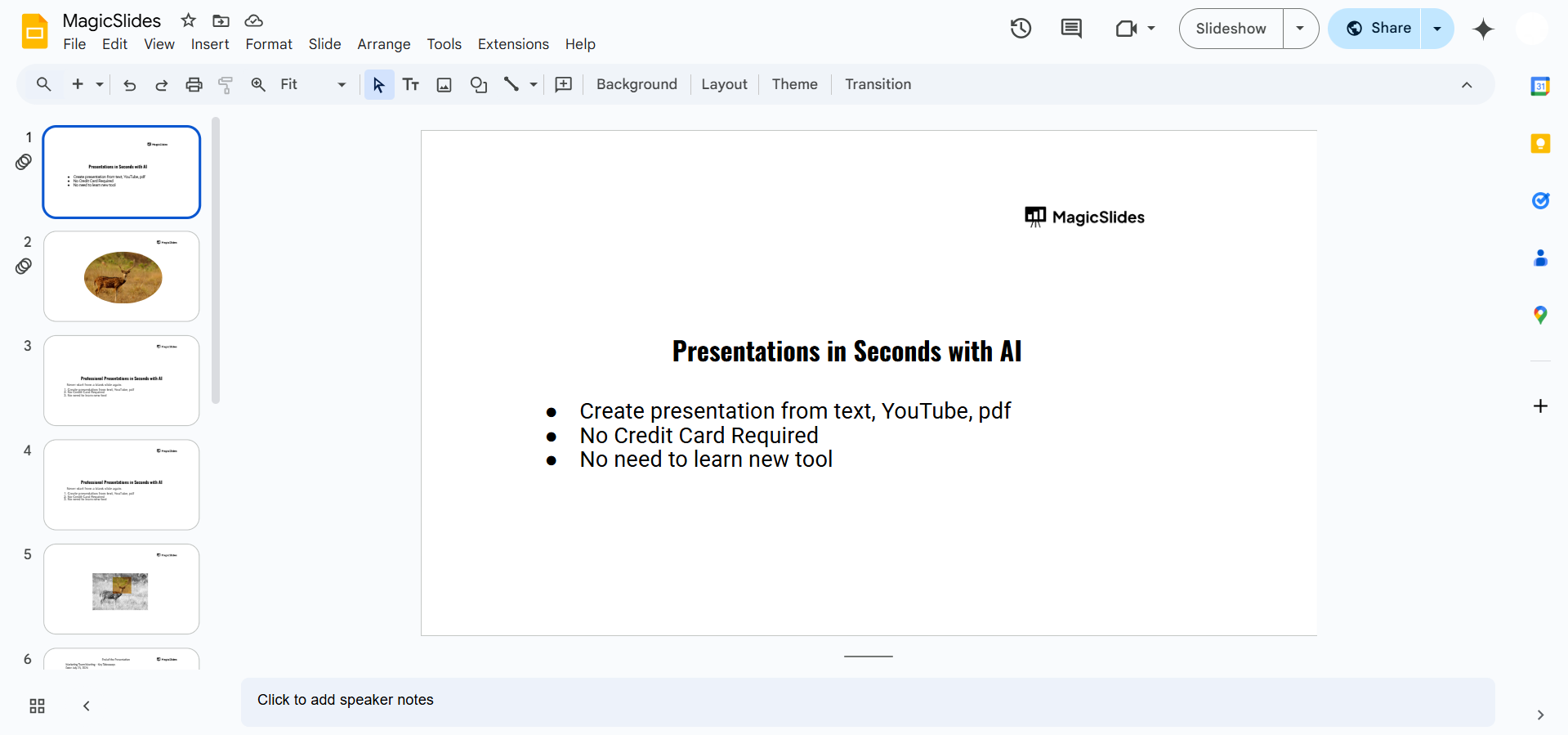
Step 1: Open Your Google Slides Presentation
Go to Google Slides and log in. Open an existing presentation or create a new one where you want to loop animations.
Step 2: Add Animations to Your Slide
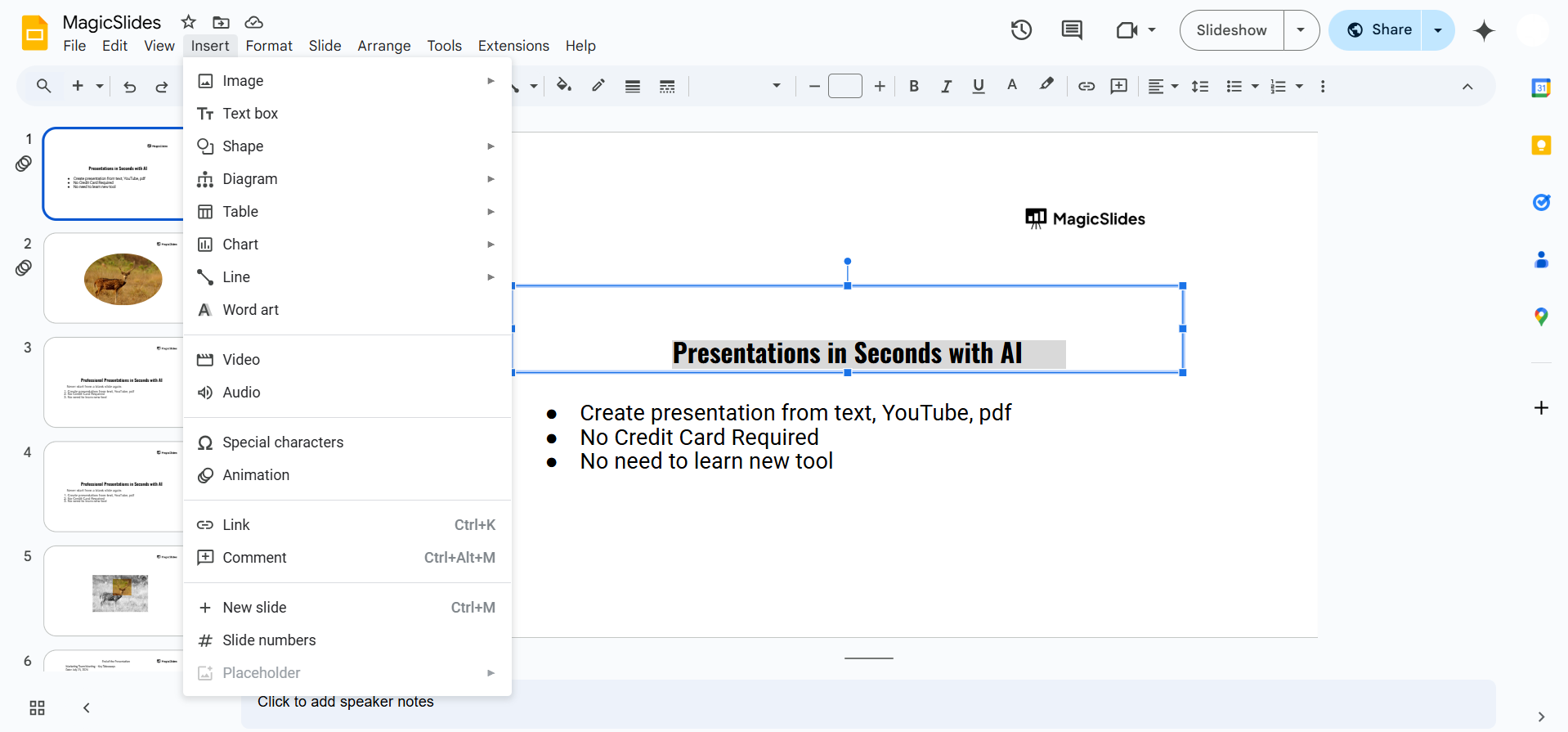
Click on the object (text, image, or shape) you want to animate. Go to "Insert" > "Animation" (or click "View" > "Motion" in newer versions).
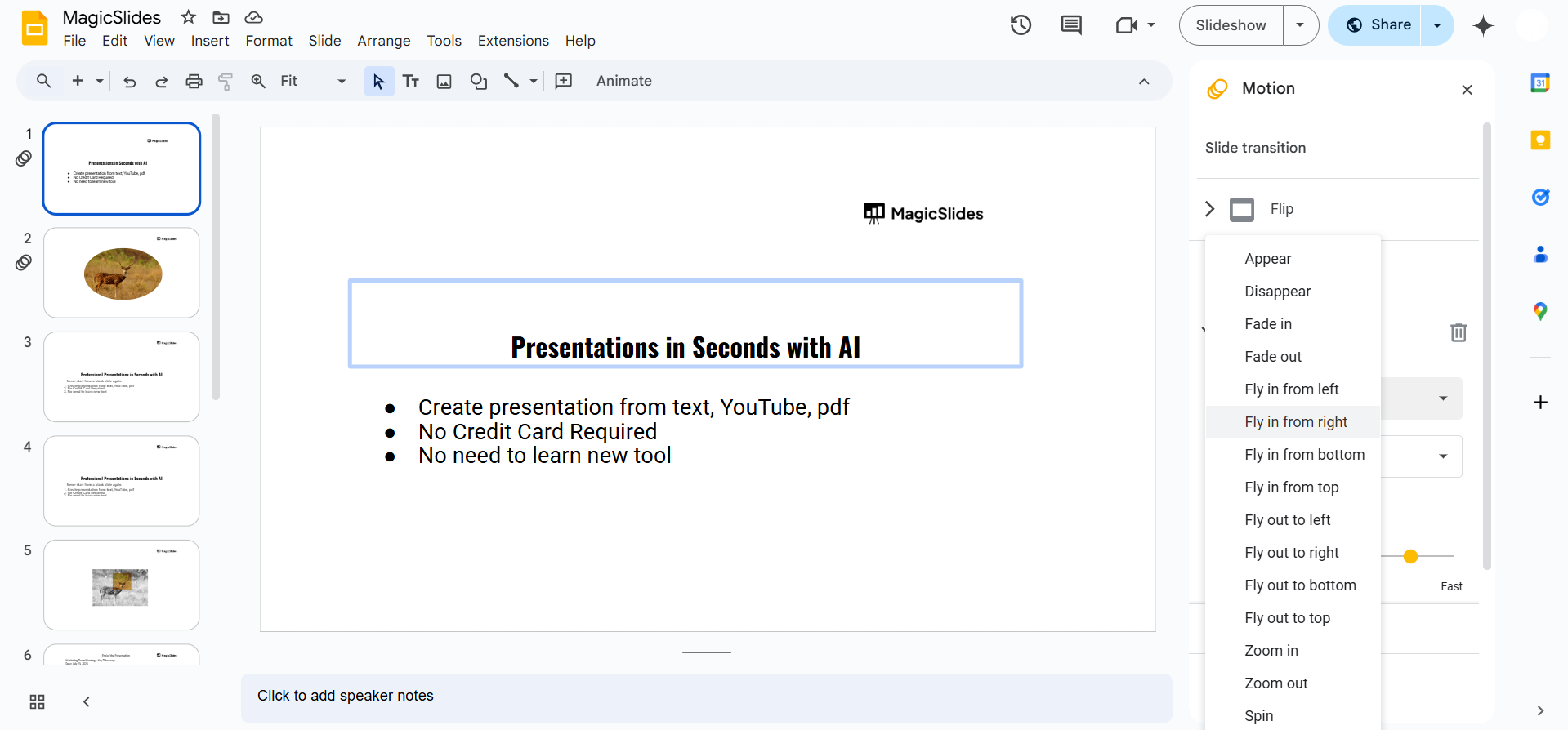
Choose an animation effect (e.g., fade in, zoom, spin) from the "Animation pane."
Set the animation to play automatically by selecting "After previous" in the timing settings.
Step 3: Enable Auto-Advance for Continuous Playback
Click on "File" > "Publish to the web." In the pop-up window, check "Start slideshow as soon as the player loads."
Select "Restart the slideshow after the last slide." Click "Publish" and copy the generated link.
Step 4: Use Duplicate Slides for a Seamless Loop (Optional)
If Google Slides does not allow looping of a single animation, duplicate the slide.
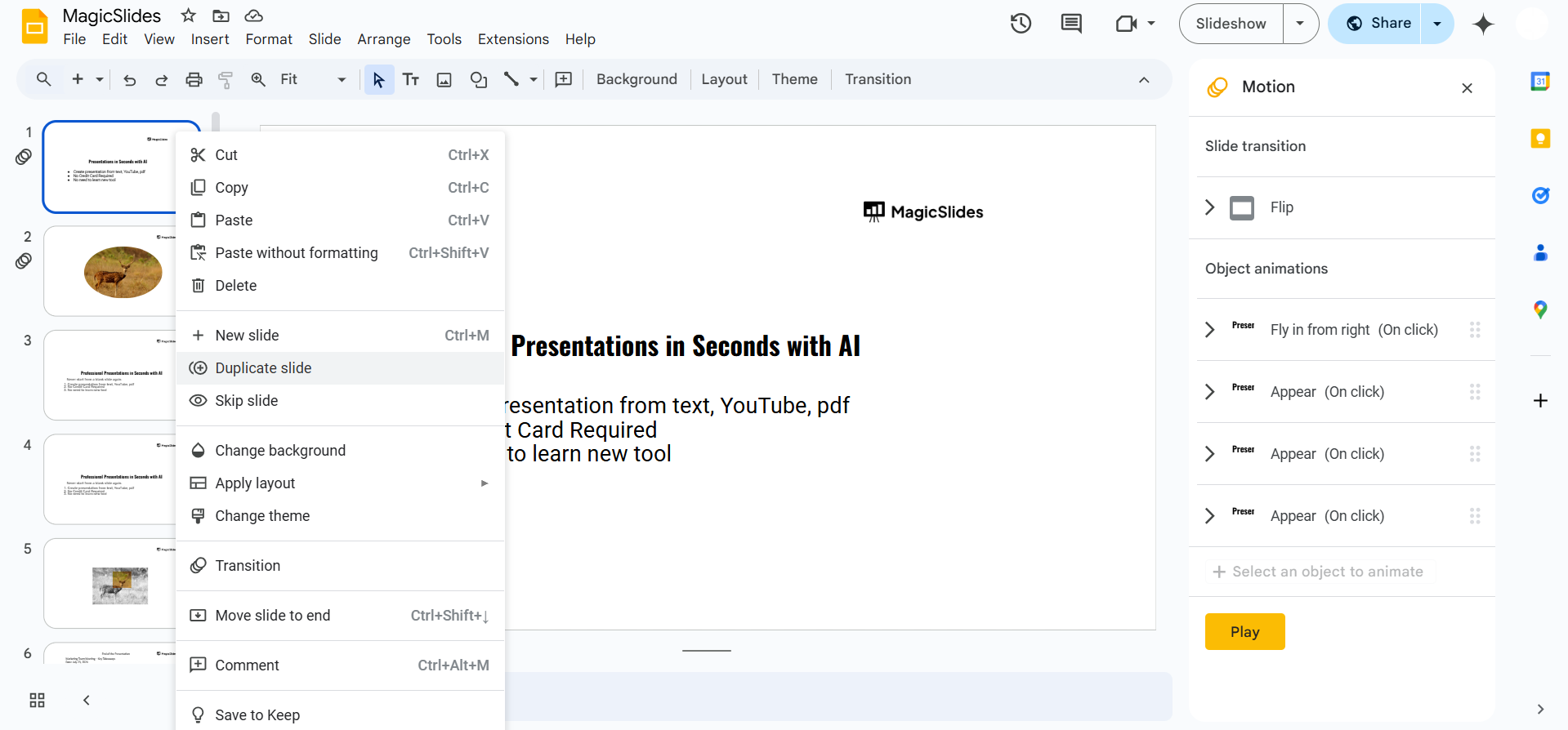
Adjust the animations so that when the slide advances, the animation effect continues smoothly. Set auto-advance timing (e.g., 1-2 seconds) for seamless looping.
Step 5: Play and Test Your Looping Animation
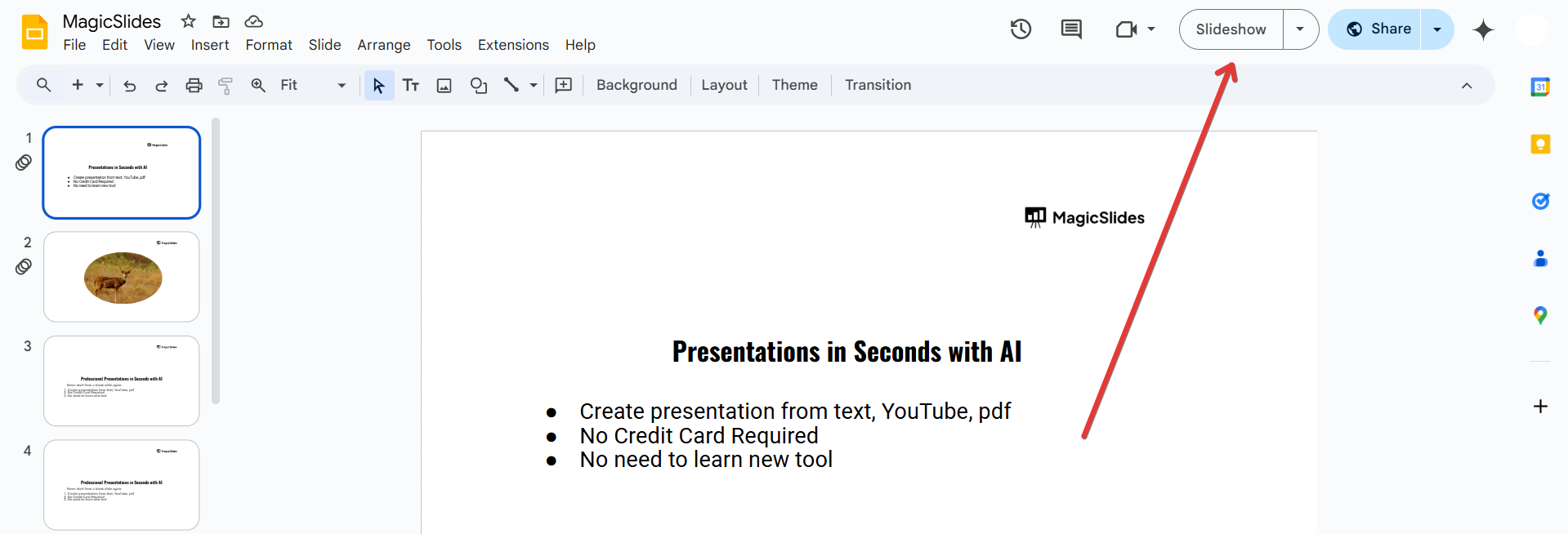
Click "Present" to preview how your looping animations work. If needed, tweak the timing and transitions for a smoother experience.
Conclusion
Looping animations in Google Slides can make your presentations more interactive and visually appealing.
Whether for business, education, or creative purposes, using auto-advance and animation settings allows you to create an engaging looping effect effortlessly.
FAQs on Looping Google Slide Animations
Can I loop a single animation without switching slides?
No, Google Slides does not support infinite animation loops on a single slide. However, you can duplicate the slide for a continuous effect.
How do I stop a looped slideshow?
Press the Esc key or click anywhere on the screen to exit the looped presentation.
Will looping animations work when I download the slides as a video?
No, looping animations only work in presentation mode. When exporting as a video, animations will play only once.
Now you know how to loop animations in Google Slides for an engaging and dynamic presentation! 🚀


