How to Make a Photo a Circle in Google Slides


Easily crop images into a perfect circle in Google Slides to enhance your presentations professionally
How to Make a Photo a Circle in Google Slides
Want to create a sleek, professional look by cropping an image into a circle in Google Slides?
Whether you're designing a presentation or enhancing a visual, this step-by-step guide will help you easily transform any image into a perfect circle.
https://guidejar.com/guides/2064235b-ec7d-4a90-bde5-24e3020476f9
Steps to Make a Photo a Circle in Google Slides
Step 1: Open Google Slides and Insert an Image
Open Google Slides by visiting slides.new. Click on "Insert" in the top menu.
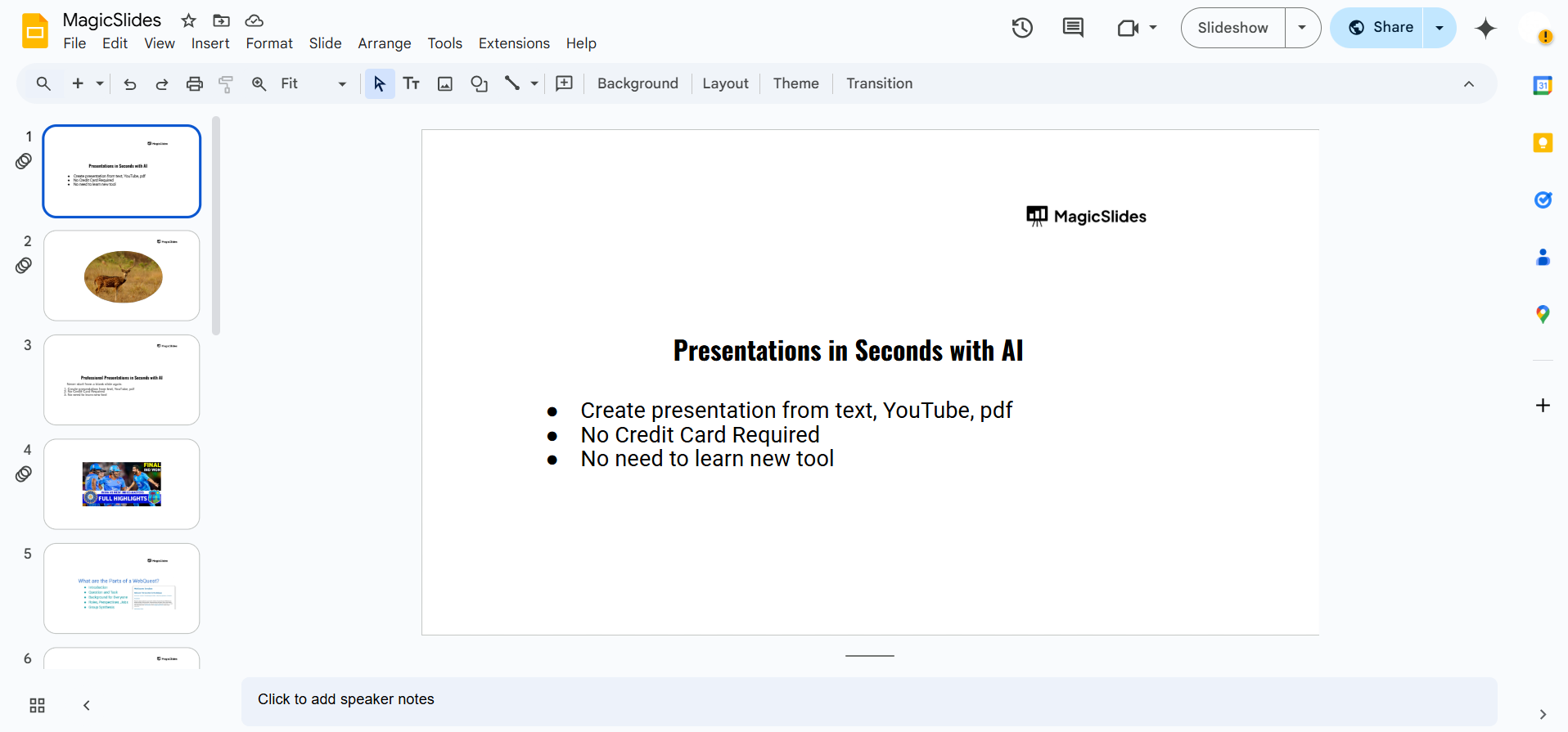
Select "Image" > "Upload from computer" (or choose another source). Choose the image you want to crop into a circle.
Step 2: Select the Image and Open the Crop Tool
Click on the inserted image to select it. Locate the "Crop" icon in the toolbar (it looks like a square with diagonal lines).
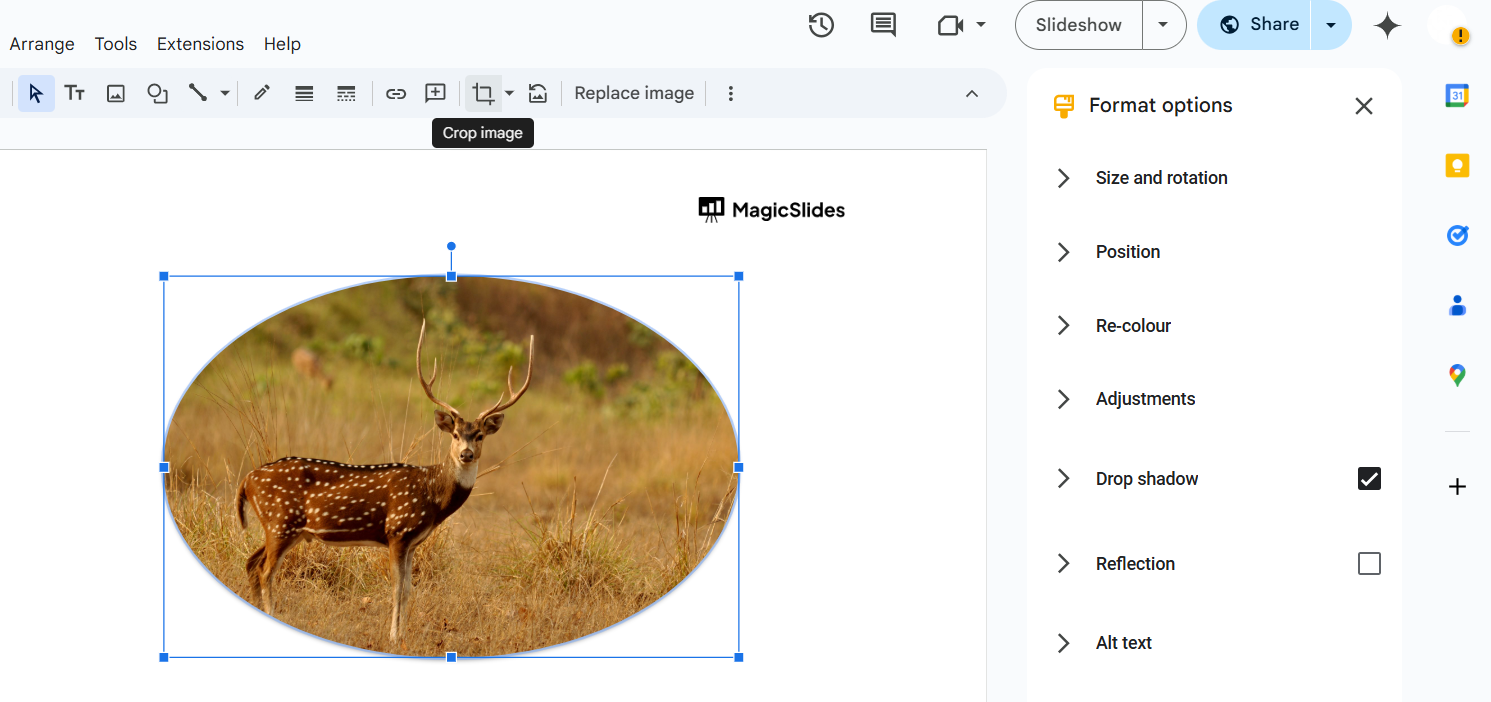
Click the small drop-down arrow next to the Crop icon.
Step 3: Choose the Circle Shape
From the drop-down menu, hover over "Shape" to open different options. Select "Oval", which creates an ellipse.
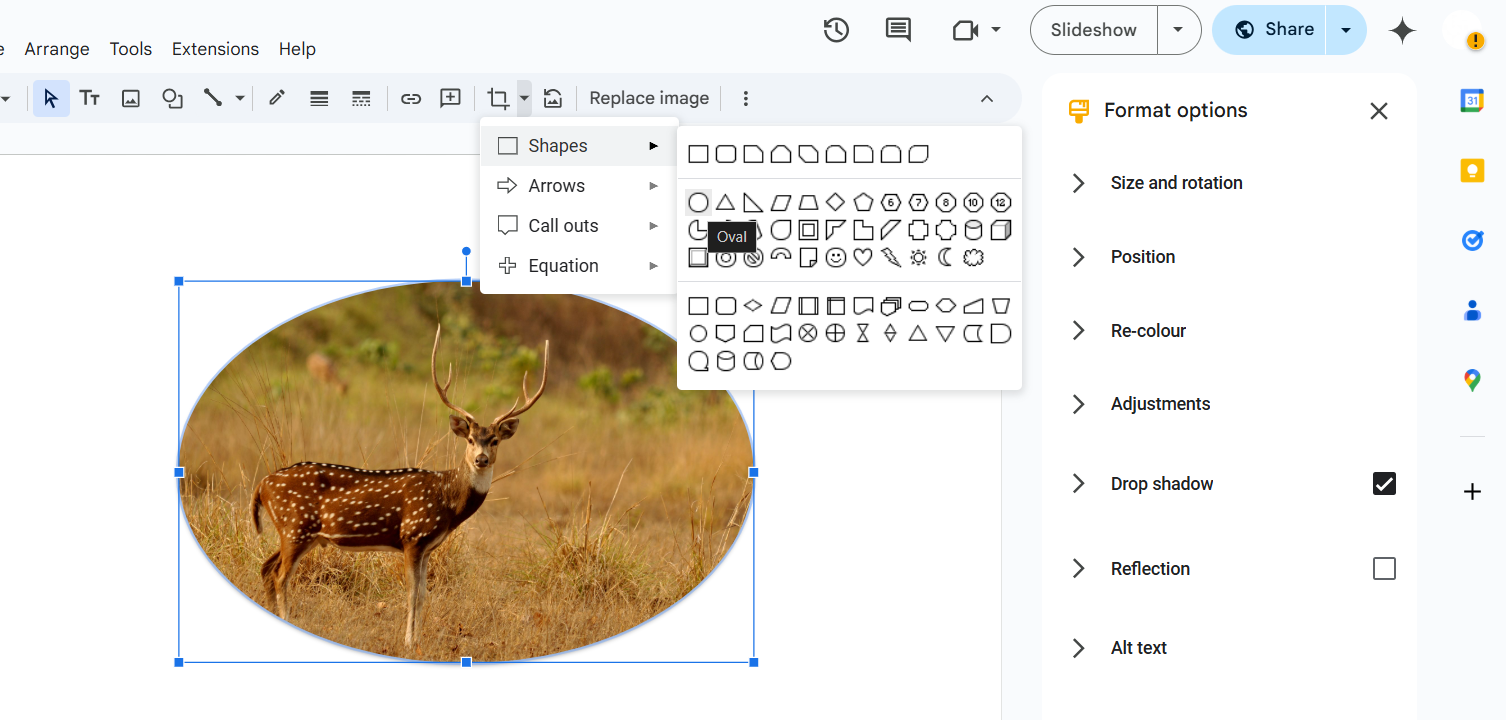
If the image is not perfectly round, adjust it manually.
Step 4: Adjust the Circle Crop
Click and drag the blue handles around the image to refine the circle shape. Hold the Shift key while resizing to maintain a perfect circle.
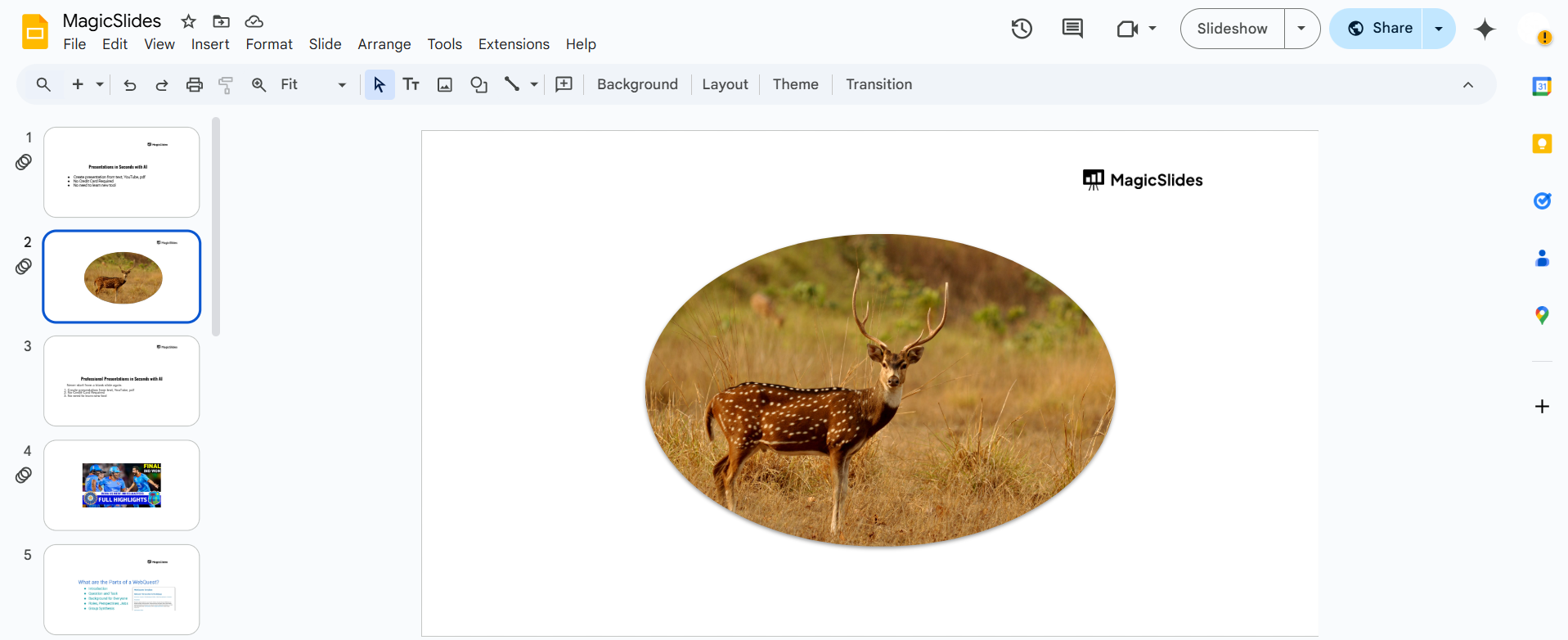
Adjust the position by clicking and dragging inside the cropped area.
Step 5: Apply and Save Your Circular Image
Press Enter or click outside the image to finalize the crop. Your image is now in a circular shape.
Resize or reposition it as needed in your slide.
Conclusion
Cropping an image into a circle in Google Slides is simple and effective.
By using the crop tool with the oval shape, you can create professional-looking presentations with circular images in just a few clicks.
FAQs are here to guide!
Can I make the image a perfect circle?
Yes! Hold the Shift key while resizing to keep the aspect ratio equal.
What if I want a border around my circular image?
Select the image, click "Border color", and choose a color and thickness.
Can I undo the crop if I make a mistake?
Yes! Click on the image, then press Ctrl + Z (Windows) or Cmd + Z (Mac).


