How to make a PPT file Smaller?


Discover the secrets to reducing your PowerPoint file size for faster sharing and smoother presentations.
Large PowerPoint files can be a pain to work with, whether you're sharing presentations with colleagues or uploading them online. If you're tired of dealing with unwieldy PPT files, this blog post is your solution.
We'll walk you through the steps to make your PowerPoint files smaller, making them easier to manage, share, and deliver.
Whether you're a professional or a student, optimizing your PowerPoint files is a skill that will simplify your life.
Steps to Reduce the Size of Your PowerPoint Files:
Step 1: Compress Images
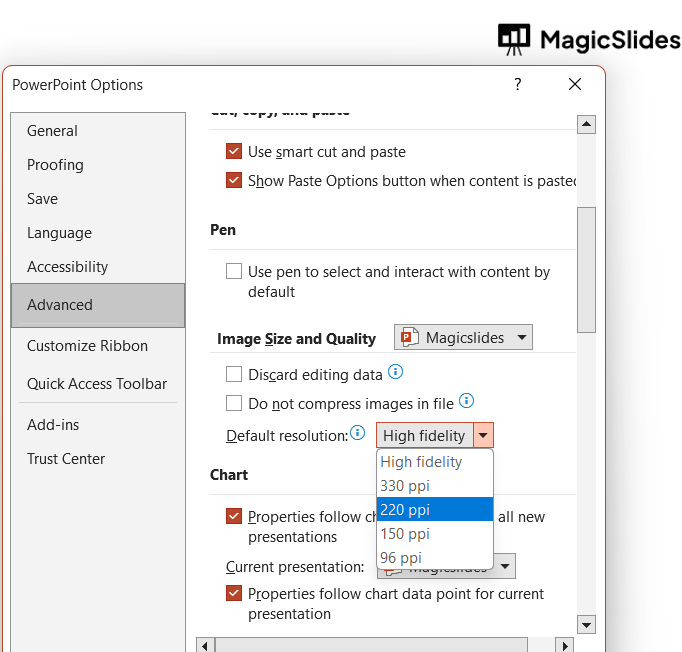
Before anything else, optimize your images. In PowerPoint, go to the "File" tab, select "Options," and under the "Advanced" tab, enable "Compress pictures."
Choose the resolution that suits your needs and apply this to all images.
Step 2: Delete Unnecessary Slides and Content
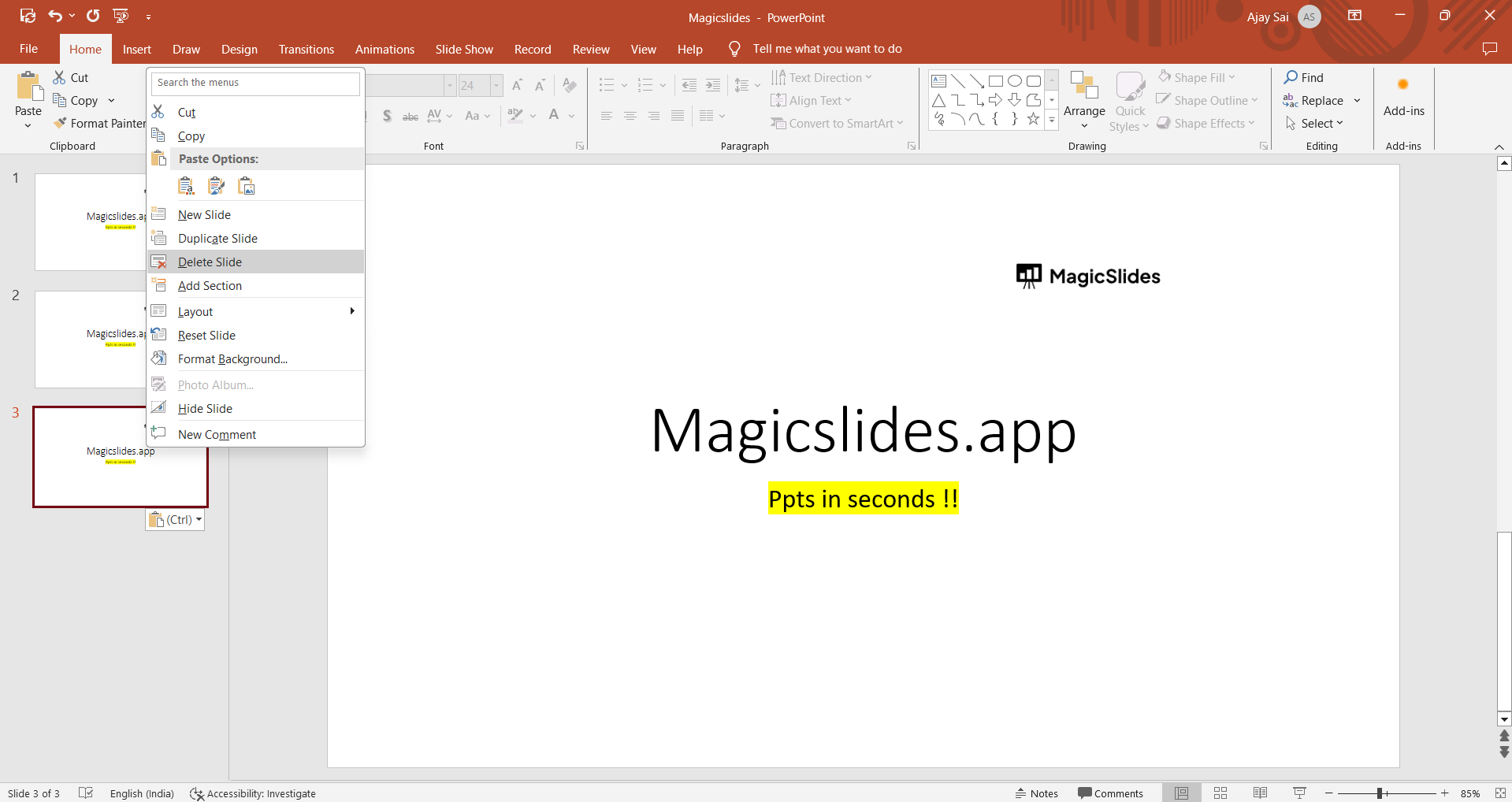
Remove any slides or content that don't add value to your presentation. Fewer slides mean a smaller file size.
Step 3: Minimize Multimedia Files
If your presentation contains videos or audio files, consider compressing or converting them to smaller formats. Alternatively, host them online and link to them.
Step 4: Use PowerPoint's Built-In Compression Tool
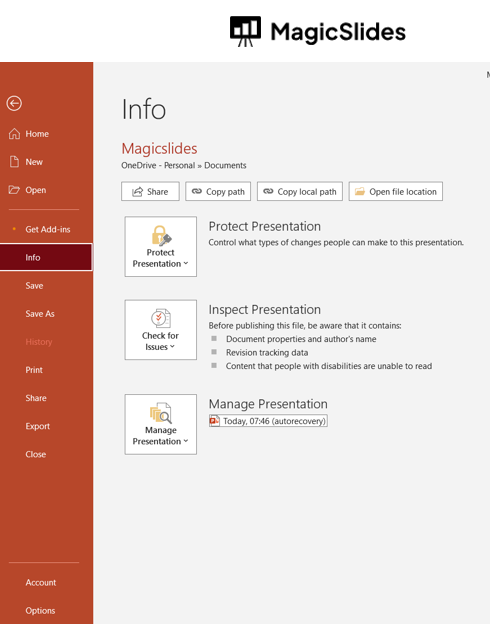
In recent versions of PowerPoint, you can compress your PowerPoint files directly. Click "File," then "Info," and select "Compress Media." Choose your compression settings and let PowerPoint do the work.
Step 5: Reduce the Number of Fonts
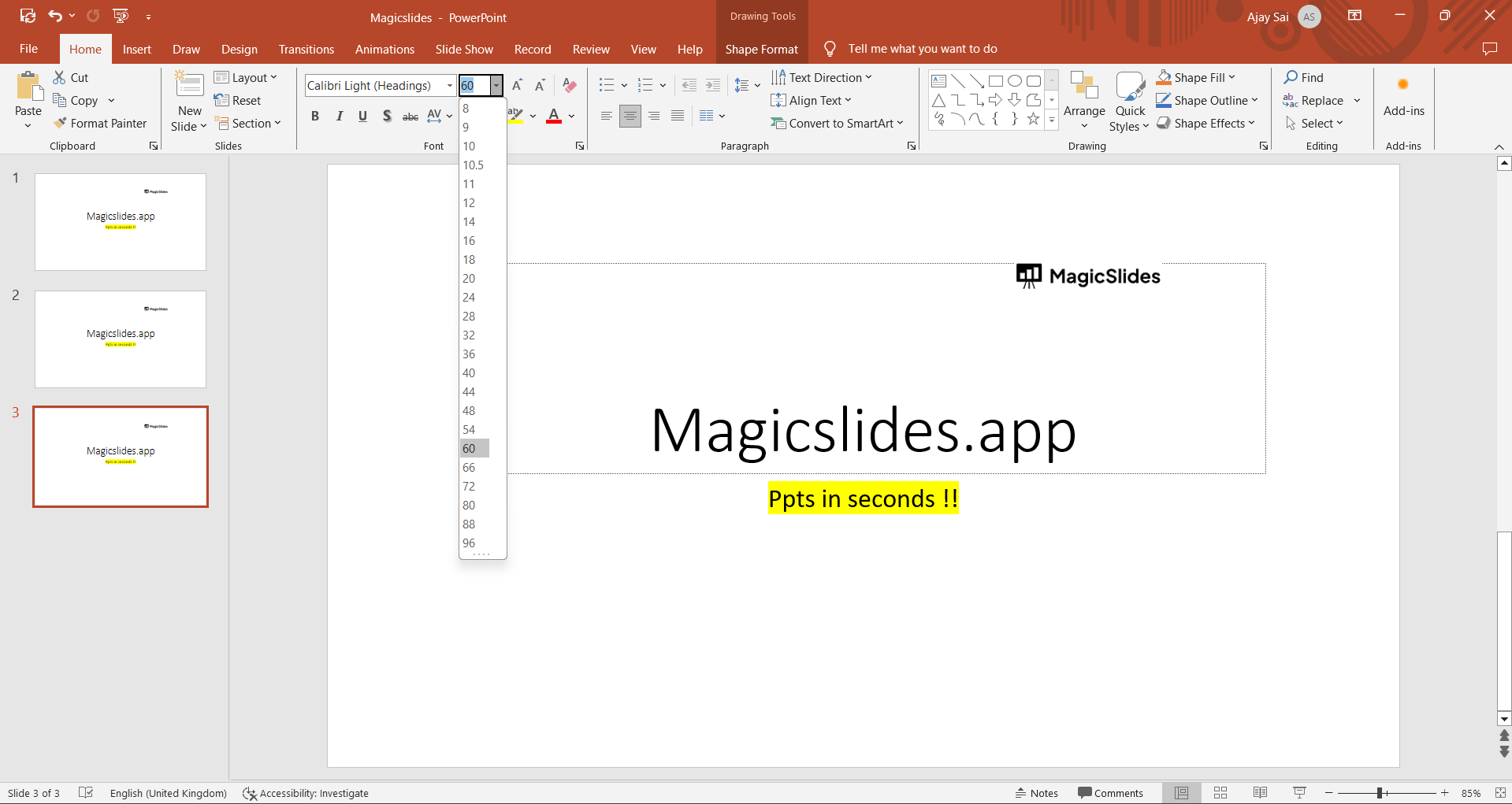
Limit your presentation to just a few fonts to minimize the font data within the file. Stick to common system fonts for better compatibility.
Step 6: Save as PDF
If you're not planning to edit the presentation further, save it as a PDF. PDFs tend to be smaller in size and retain the formatting of your slides.
Adding more images to slides may significantly increase the size which may cause difficulties in sharing it online, know how to reduce the size of PPT from here
Conclusion:
Optimizing the size of your PowerPoint files can improve your workflow, making it easier to share and collaborate on presentations.
By following the steps outlined in this guide, you'll be able to reduce the file size without sacrificing the quality of your content. So, take control of your PowerPoint files, and enjoy the benefits of streamlined, manageable presentations.
Tired of maing presentations? what if we tell you you can make presentation with just a prompt, convert YouTube videos to PPTs, convert website content to PPTs? Yes! checkout magicslides.app that does all and enjoy the free credits to make presentations in seconds.
frequently asked questions
Why are my PowerPoint files so large in the first place?
Large PowerPoint files are often the result of high-resolution images, uncompressed media, embedded fonts, and excessive content.
These elements contribute to file size but can be optimized.
Will reducing the file size affect the quality of my PowerPoint presentation?
Reducing file size may involve compressing images and media, which can slightly reduce quality.
However, with careful optimization, the impact on presentation quality is usually minimal and not noticeable to viewers.
Can I still edit my PowerPoint presentation after I've made it smaller?
Yes, you can continue editing your presentation after optimizing its file size. Compressing images, for example, doesn't affect your ability to edit the content.
However, save a backup of the original file in case you need to make substantial changes later.


