How to make a slideshow on powerpoint


Craft captivating presentations effortlessly! Follow our simple guide to create stunning slideshows with Microsoft PowerPoint.
Embarking on the journey of creating a PowerPoint slideshow is an exciting endeavor, and with the right guidance, you can transform your ideas into a visually compelling presentation. In this step-by-step guide, we'll navigate the intricacies of Microsoft PowerPoint, exploring each phase of the process to ensure your slideshow captivates your audience from start to finish. Let's dive into the world of design, transitions, and animations to craft a presentation that leaves a lasting impression.
How to make a slideshow on powerpoint
Open PowerPoint:
Fire up Microsoft PowerPoint on your computer. Locate the application in your software or app menu and click to open.
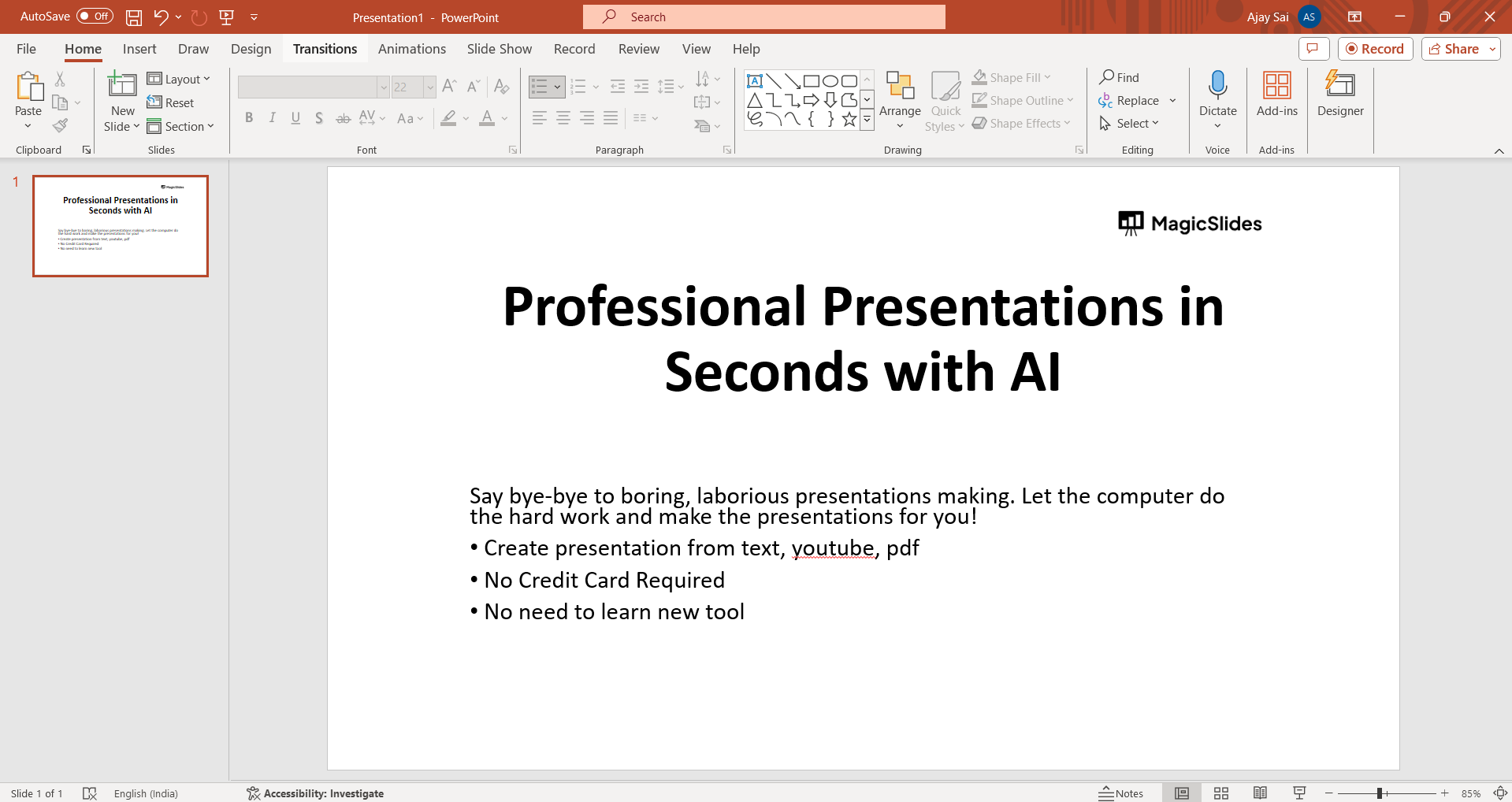
Choose a Design:
Decide whether to start from scratch with a blank presentation or leverage the convenience of pre-designed templates. Templates offer a variety of layouts, making your initial design choices quicker and easier.
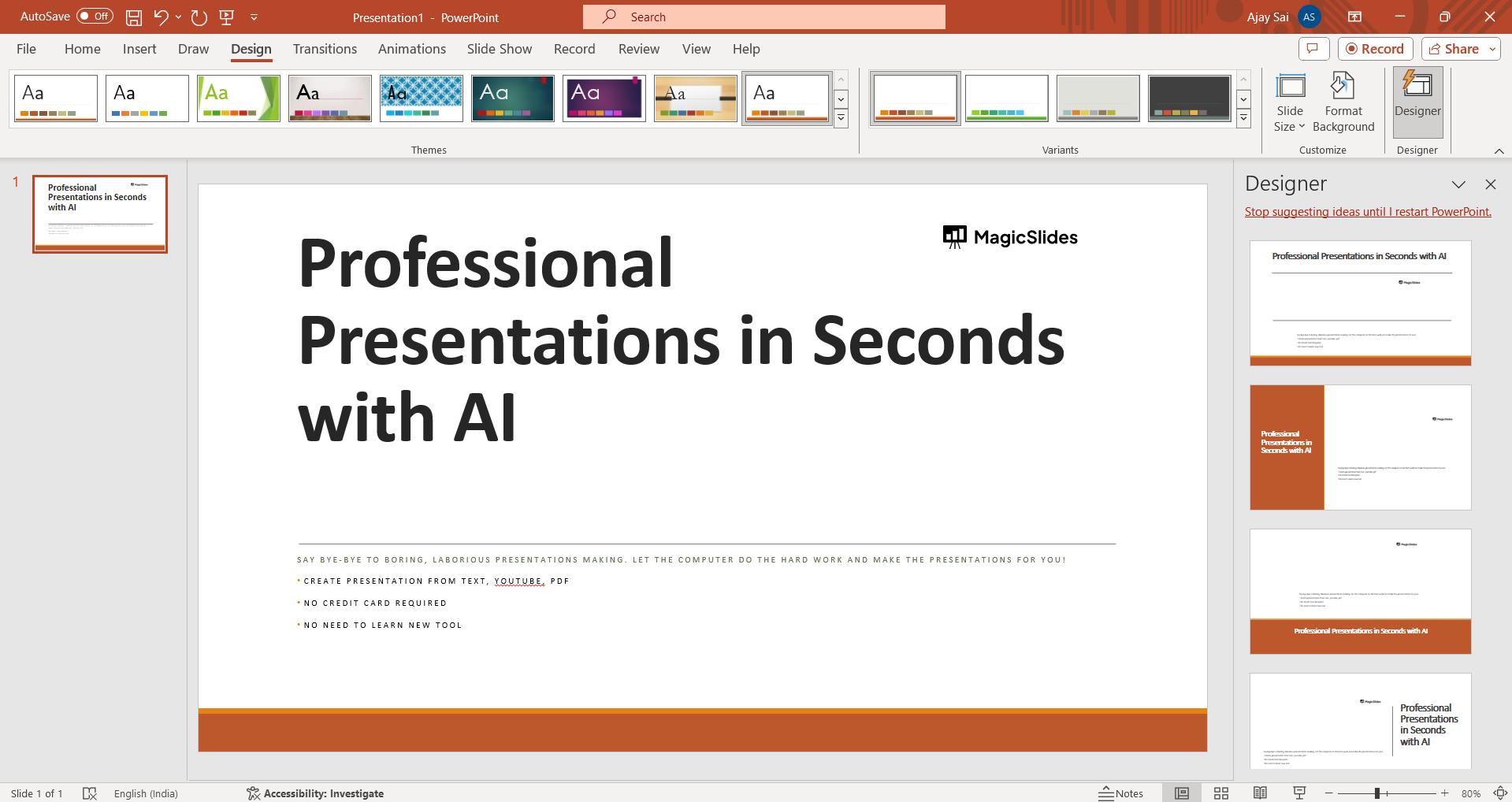
Add Slides and Content:
Navigate to the "Home" tab and select "New Slide" to add slides to your presentation. Choose from diverse layouts for titles, text, images, and more. Click within text boxes to input your titles and bullet points. Use the "Insert" tab to add images, charts, or other multimedia elements, tailoring each slide to your content.
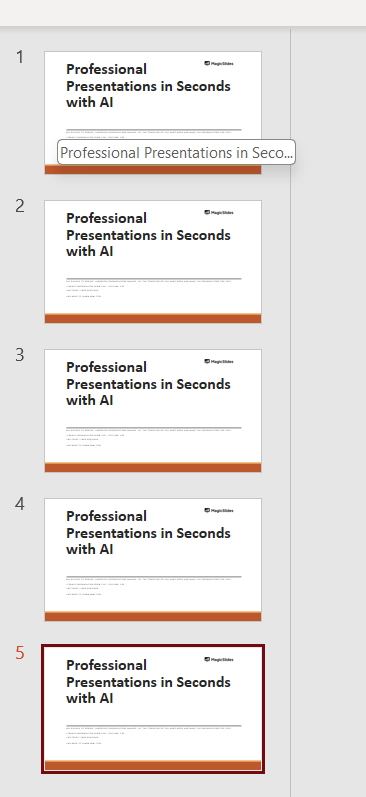
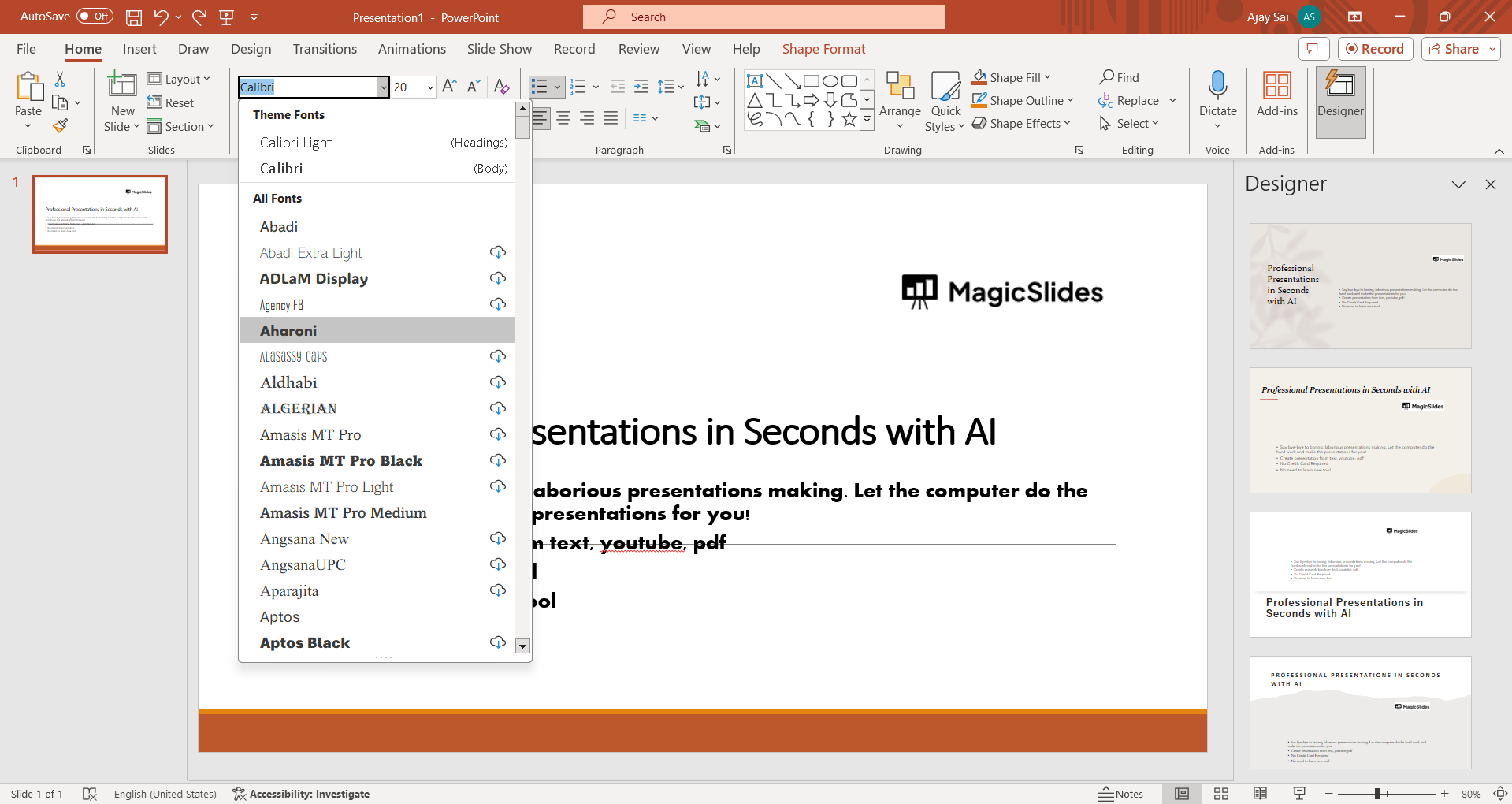
Format and Customize:
Enhance the visual appeal of your slides by formatting elements. Click on the text boxes to modify font styles, colors, and sizes. Right-click on various elements for additional formatting options. You can also experiment with backgrounds and overall slide layouts to achieve a cohesive and professional look.
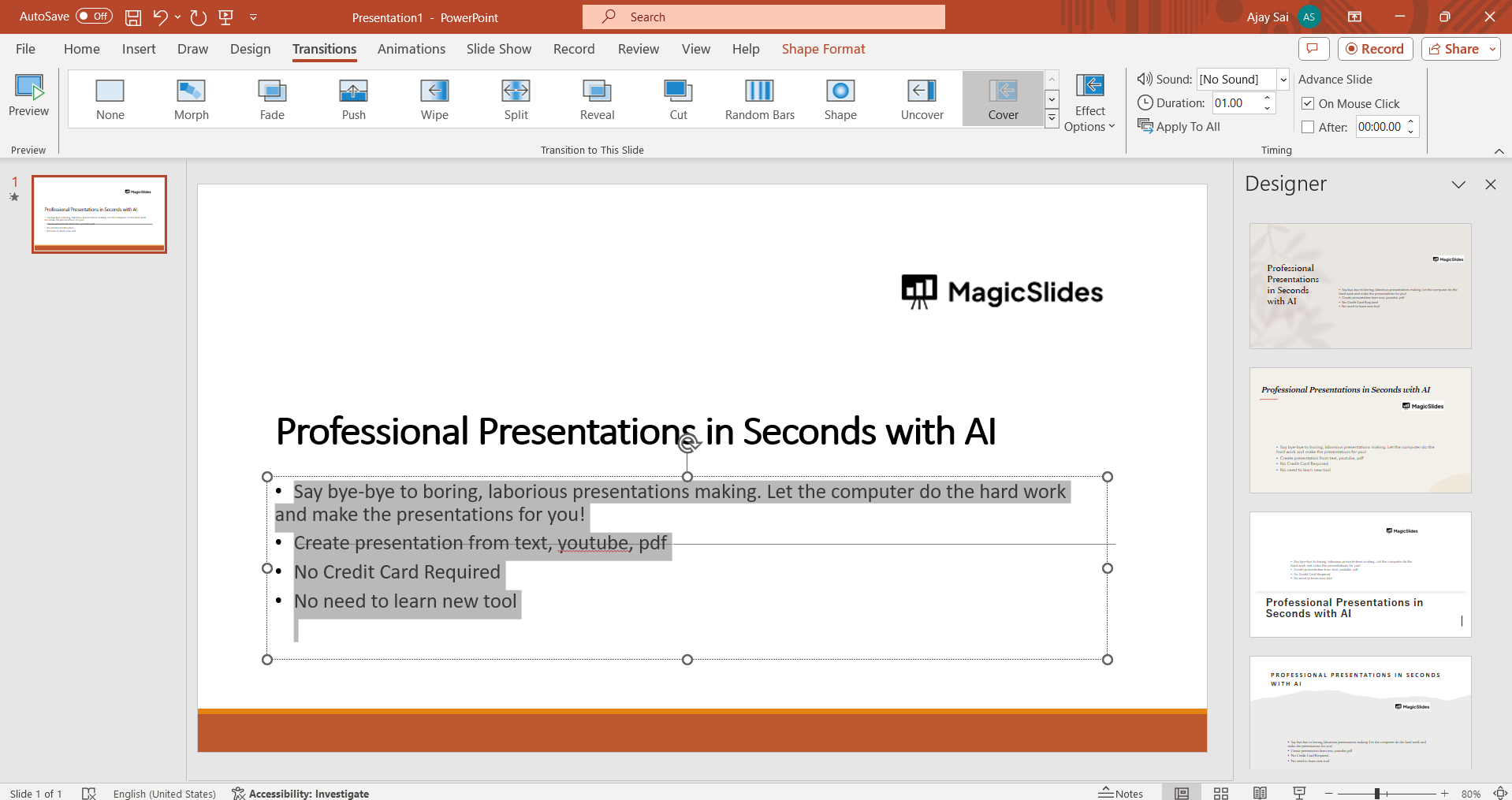
Apply Transitions and Animations:
Navigate to the "Transitions" tab to add transition effects between slides. Choose from a range of options such as fade, slide, or zoom for a polished and engaging presentation. Additionally, for a dynamic touch, use the "Animations" tab to apply entrance or exit animations to individual elements on your slides.
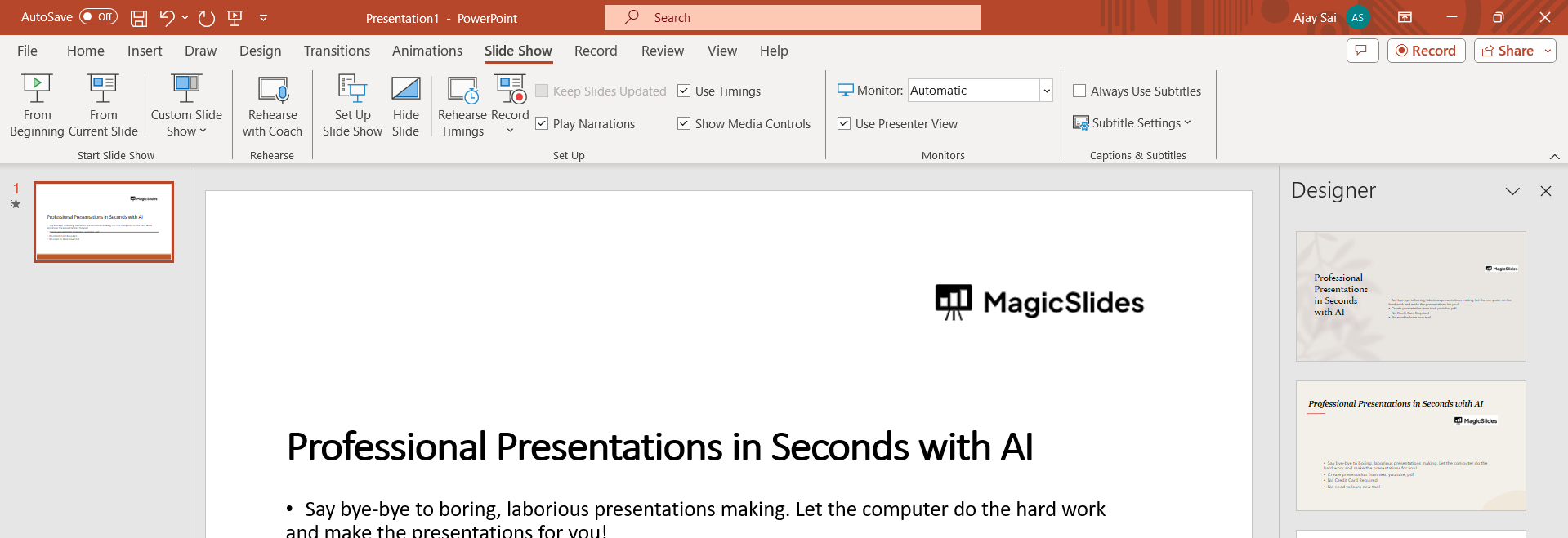
Preview, Save, and Start SlideShow:
Before finalizing, click the "Slide Show" tab and choose "From Beginning" to preview your entire presentation. This allows you to experience your slideshow as your audience will. Once satisfied, save your work by clicking on the "File" tab and selecting "Save" or "Save As." For sharing, consider export options such as PDF or video formats, or use the "Share" option for collaborative online editing. Go ti the SlideShow tab and choose the presentation settings to start the slides show.
Pro Tip 💡:
To add a professional touch to your PowerPoint presentation, maintain consistency in design elements. Choose a cohesive color scheme, use matching fonts, and align your elements for a polished look. Consistency not only enhances visual appeal but also ensures a seamless and harmonious viewing experience for your audience.
Conclusion 💁♂️:
By following these detailed steps, you'll be well on your way to creating a captivating PowerPoint slideshow with a polished and professional touch. From choosing your design to adding dynamic transitions and animations, each step contributes to the creation of a polished and engaging presentation. Remember to preview your work, save it for future reference, and explore various sharing options. Armed with these insights, you're well-equipped to deliver impactful presentations that seamlessly blend creativity and professionalism. Happy presenting!
Frequently Asked Questions 🤔:
Q: Can I change the design after starting my PowerPoint presentation?
Absolutely! You can modify your design at any point. Just go to the "Design" tab and choose a new theme or tweak existing elements to refresh your presentation's look.
Q: Is there a quick way to duplicate a slide if I want to reuse content?
Certainly! Right-click on the slide thumbnail in the left sidebar, and select "Duplicate Slide." This creates an identical copy, saving you time while maintaining consistency.
Q: Can I undo mistakes while working on my slides?
Yes, you can! Simply press "Ctrl + Z" (Windows) or "Command + Z" (Mac) to undo your last action. Use this keyboard shortcut to rectify any accidental changes without disrupting your flow.
Q: How can I make sure my audience doesn't see my speaker notes during the presentation?
Easy! Before starting your slideshow, go to the "Slide Show" tab, click "Set Up Slide Show," and choose the option to display on the "Primary Monitor." This ensures your speaker notes remain confidential during the presentation.
Have a look @these tutorial blogs by us:
- How To Flip An Image In Powerpoint In 2024: https://www.magicslides.app/blog/How-to-mirror-an-image-in-powerpoint
- How To Add A Background In Powerpoint: https://www.magicslides.app/blog/How-to-add-a-background-in-powerpoint
- How To Add Mp4 Audio To Google Slides: https://www.magicslides.app/blog/How-to-add-mp4-audio-to-google-slides
- How To Automatically Play Your Google Slides: https://www.magicslides.app/blog/How-to-automatically-play-google-slides


