How to make a theme in Google Slides


Create a custom theme in Google Slides to maintain a consistent design across all your presentations
How to Make a Theme in Google Slides and Create Presentations Using MagicSlides
Creating a custom theme in Google Slides and using AI tools for presentations has never been easier.
If you want to craft visually appealing presentations efficiently, MagicSlides.app offers a great solution.
Here’s how you can make your own theme and create stunning presentations using Google Slides and MagicSlides:
Create a Theme in Google Slides
To make your presentation stand out, designing a custom theme in Google Slides is a good place to start. Here’s how:
Open Google Slides: Launch Google Slides and create a new presentation.
Select 'Theme' Option: On the toolbar, click on Slide > Change theme. You'll see a variety of built-in themes you can choose from.
Customize Your Theme: To create your own theme, click on Background to set colors or images. You can also use Slide Master (under View > Master) to edit fonts, layouts, and colors across all slides.
Save and Apply: Once you've customized your theme, save your changes, and your theme will be applied to all slides in the presentation.
Enhance Your Presentations with MagicSlides.app
While Google Slides allows you to design themes, MagicSlides.app helps you generate an entire presentation with ease. MagicSlides.app uses AI to create presentations based on your input and offers a wide range of features to make your slides stand out.
Here’s how to create an impressive PowerPoint or Google Slides presentation using MagicSlides.app:
Visit MagicSlides.app: Go to MagicSlides.app and sign up or log in.
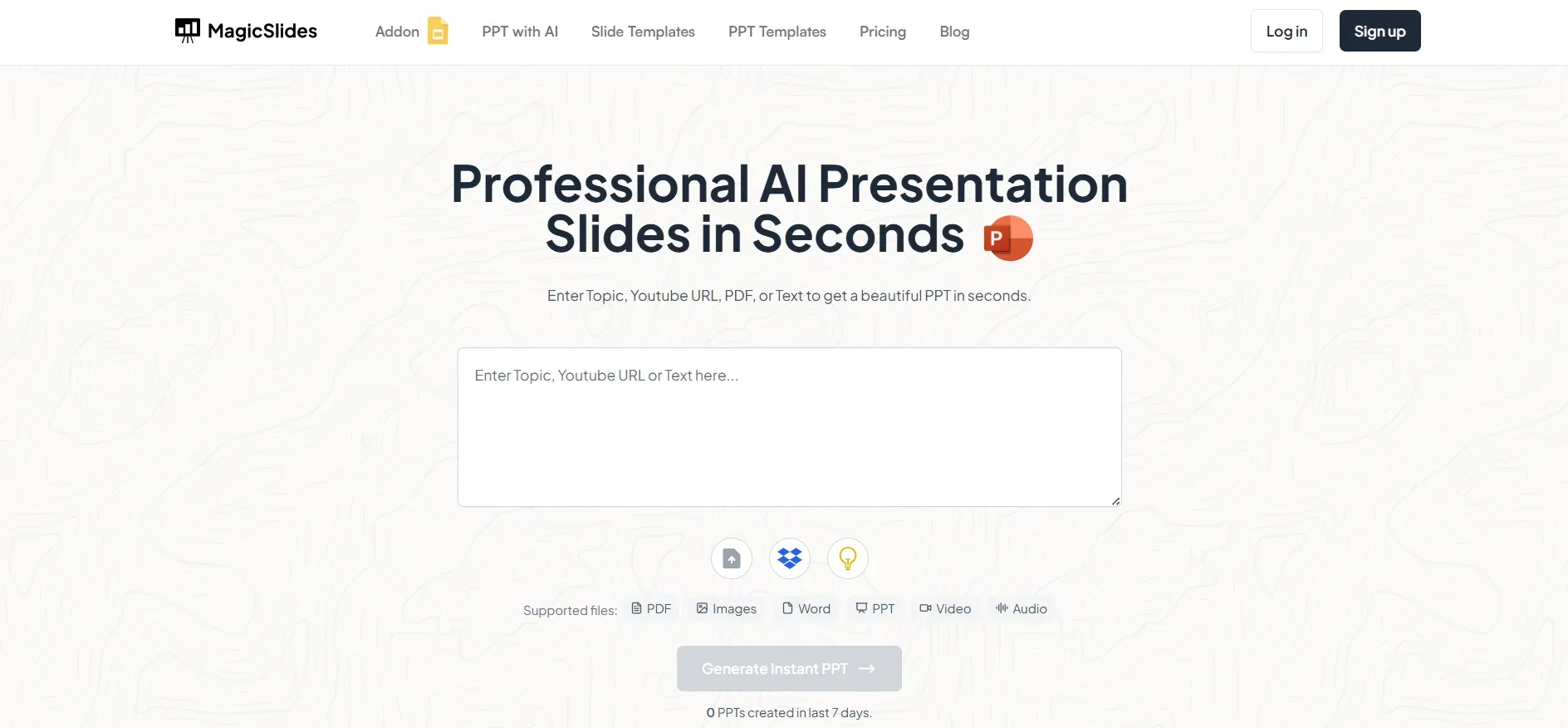
Enter Your Topic: Once logged in, type the topic of your presentation into the MagicSlides.app input bar. Whether it’s a business presentation, educational topic, or creative pitch, MagicSlides.app will generate content that fits your needs.
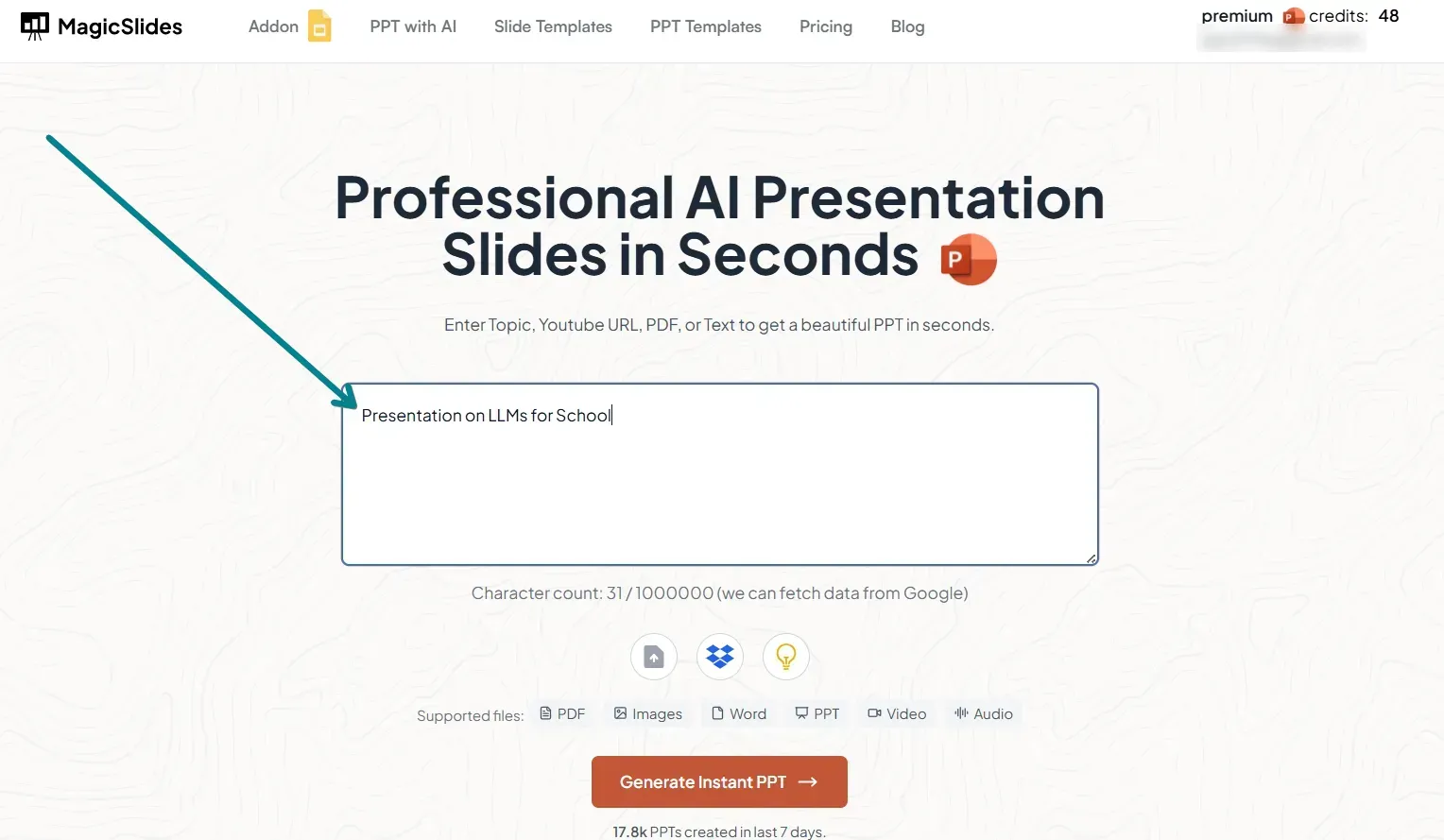
Generate the Presentation: Click on Generate and let MagicSlides.app create a well-structured presentation complete with relevant text and images. The tool also allows you to customize the content if needed.
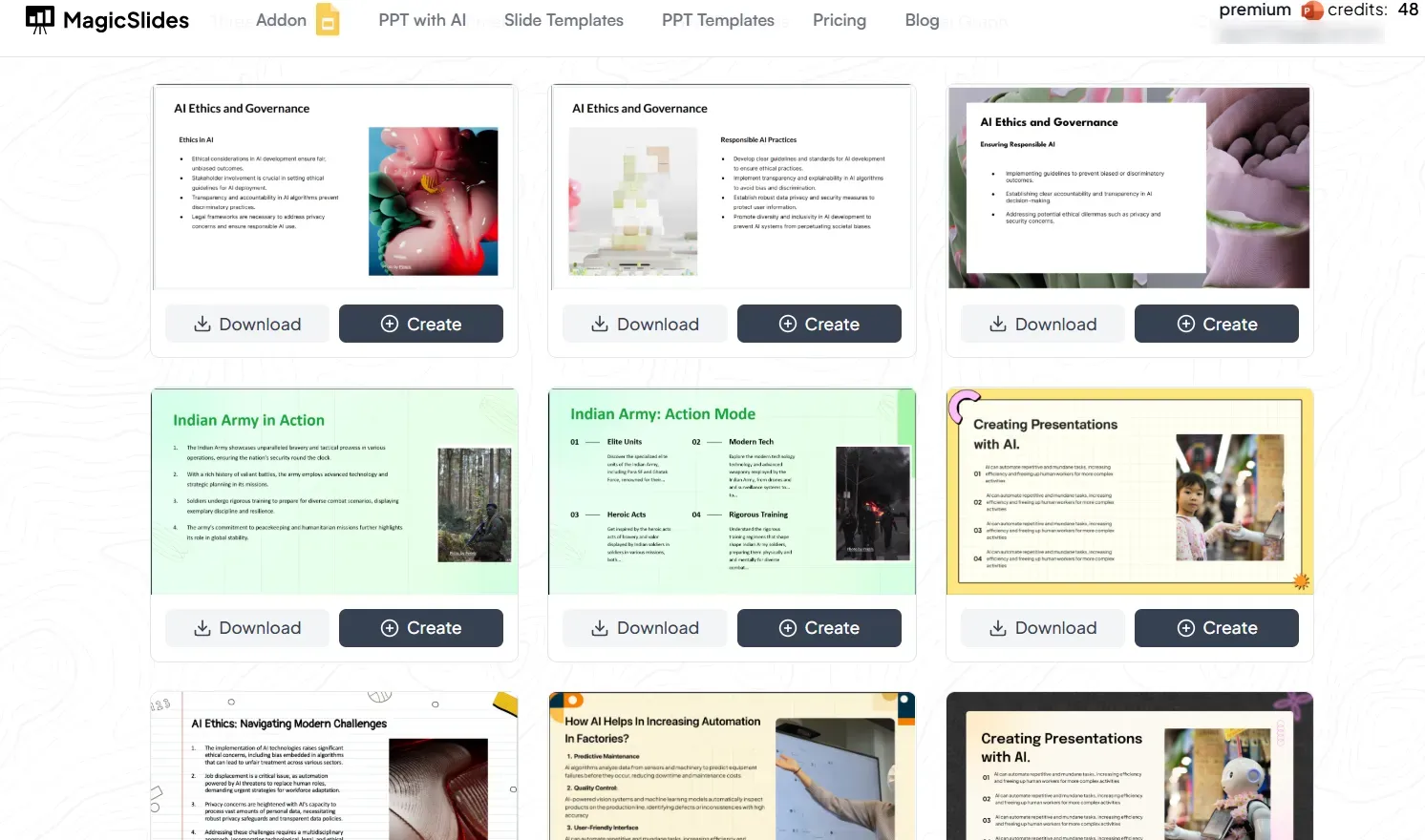
Review and Download: After MagicSlides.app generates your presentation, review the slides. You can adjust the layout, fonts, or content if required. Once satisfied, download the presentation as a PowerPoint (.pptx) file, or use it in Google Slides.
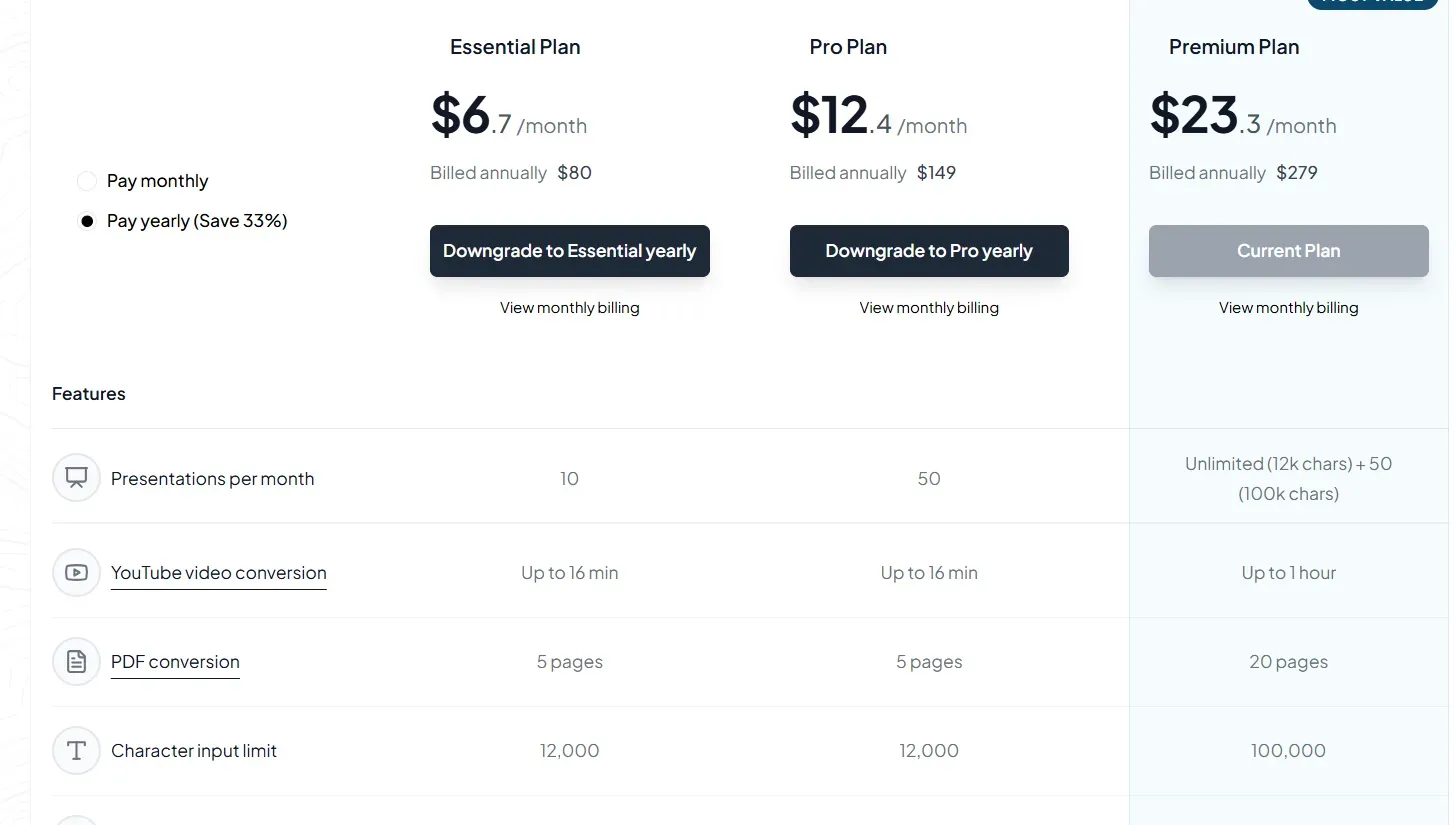
Upgrade for More Features: MagicSlides.app also offers premium plans with advanced features such as exporting YouTube videos to slides or transforming URLs into presentations. Check out MagicSlides Pricing for more details.
Conclusion
Creating a custom theme in Google Slides allows you to maintain a cohesive design across your presentation, while MagicSlides.app makes the process of building a presentation faster, more creative, and easier with AI.
Whether you're designing from scratch or leveraging AI tools, both Google Slides and MagicSlides.app are essential tools for creating professional presentations with minimal effort.


