How to make background Transparent in Canva


Creating transparent backgrounds in Canva enhances the flexibility of your designs for various uses.
Creating a transparent background in Canva is an essential skill, especially when you're designing logos, icons, or any graphics that need to be placed over other images or backgrounds seamlessly.
Transparent backgrounds ensure that your design looks clean and professional no matter where you use it.
In this blog post, we'll guide you step-by-step through the process of making the background of your design transparent in Canva. Whether you're a beginner or a seasoned designer, these instructions will help you create graphics with ease and precision.
How to make background Transparent in Canva: Step-by-Step Guide
Step 1: Open Canva
To begin, open Canva by navigating to www.canva.com in your browser. If you're not already logged in, sign in using your credentials, or create a free account if you're new to Canva.
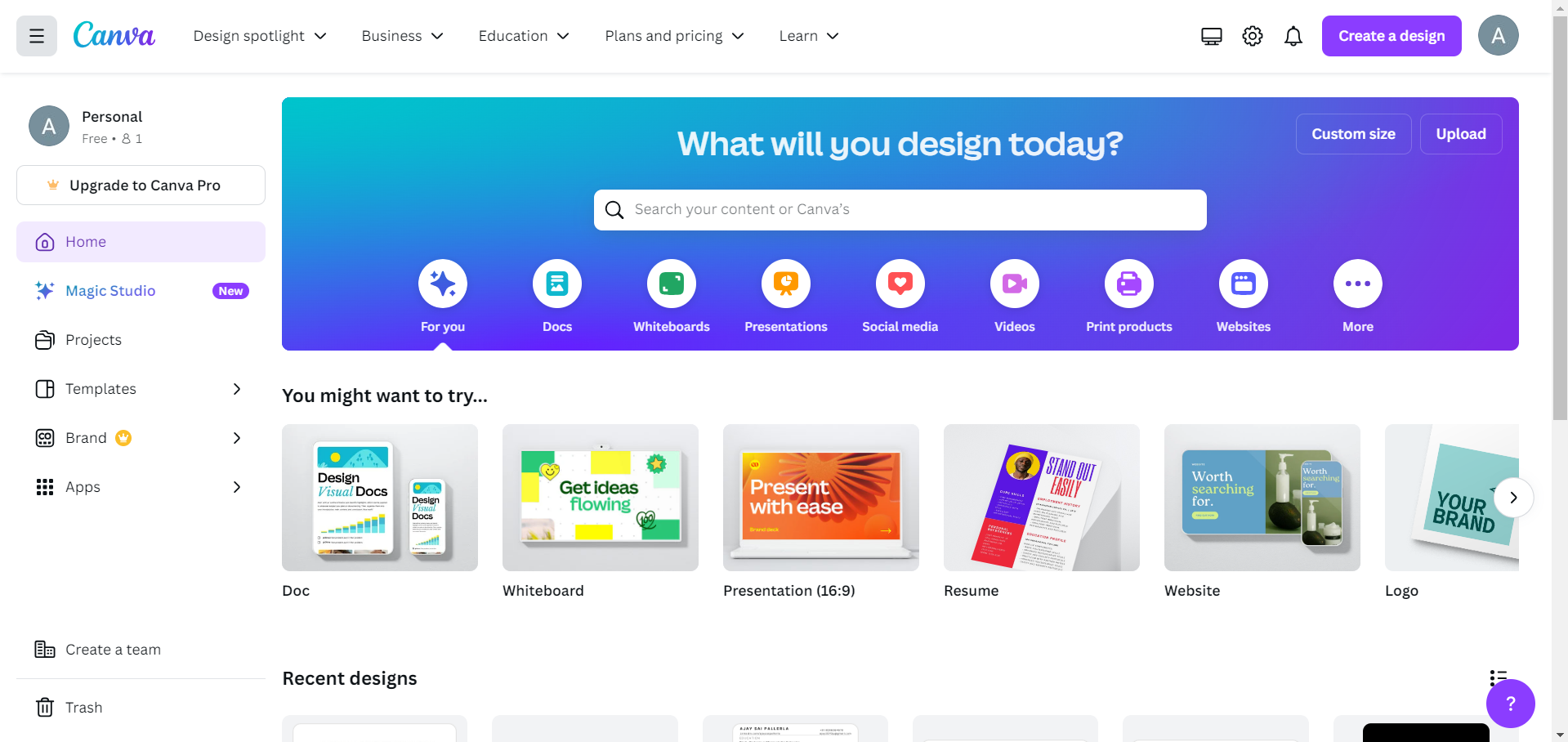
Step 2: Create a Design
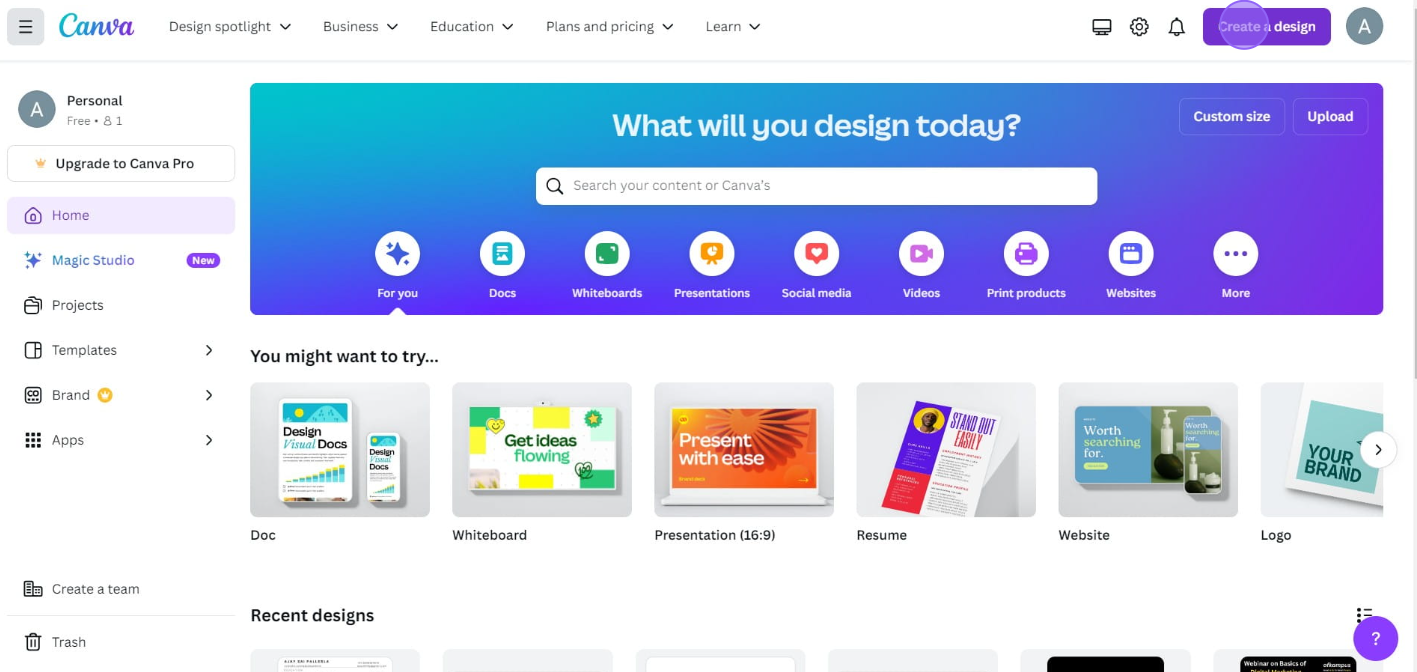
Once you're logged in, click on the "Create a design" button in the top right corner of the screen.
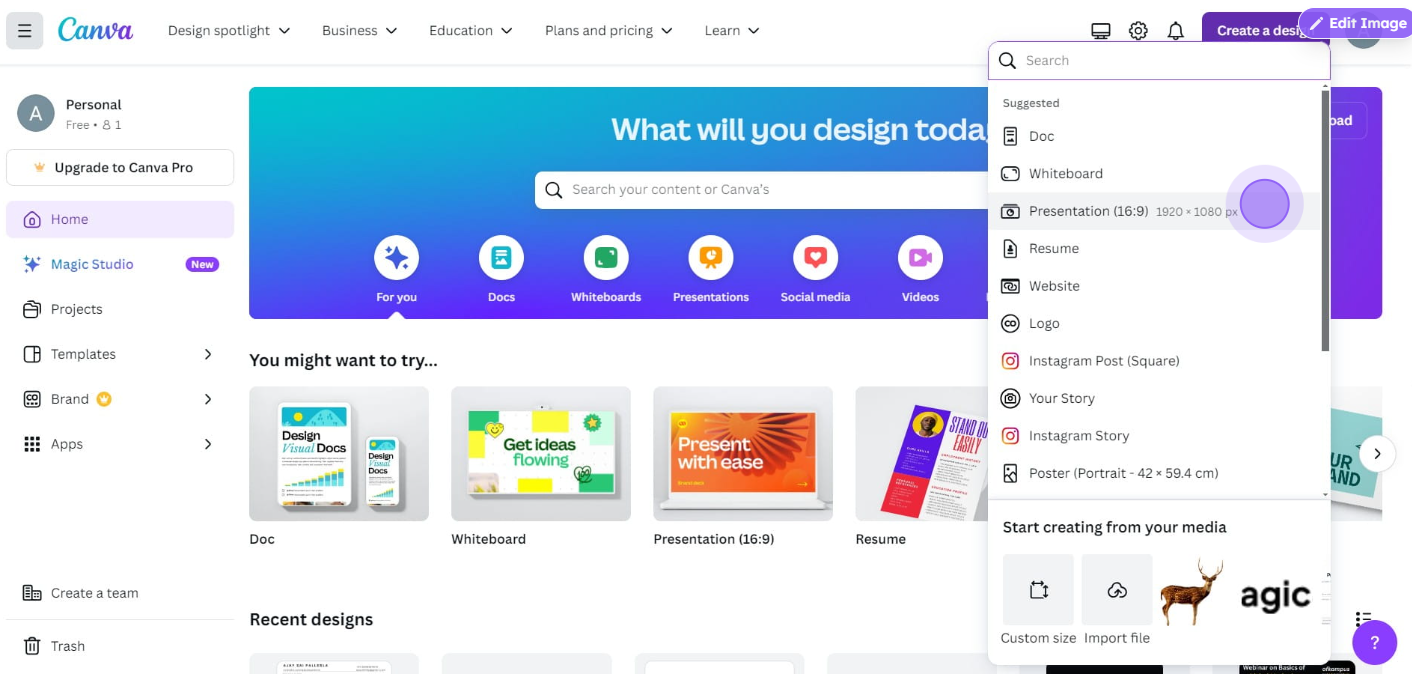
You can either select a pre-sized template (e.g., logo, presentation, social media post) or customize your dimensions by clicking "Custom Size."
For best results when working with transparent backgrounds, a white background is usually recommended while designing, as it provides better contrast during the design process.
Step 3: Design Your Graphic
Now that you've created your design, it's time to get creative. Add text, images, icons, shapes, or other elements to your design.
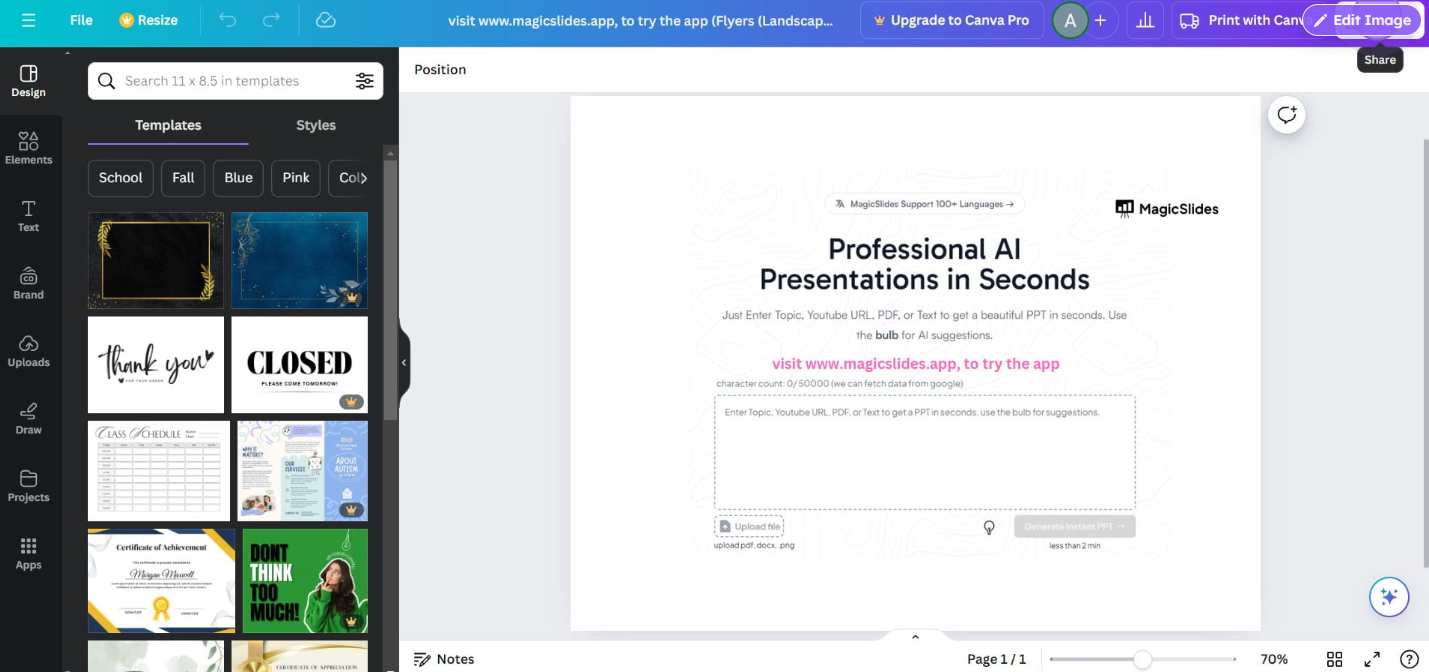
Canva offers a wide range of design tools and elements to help you build the perfect graphic.
Remember, everything except the background will remain visible after you apply the transparent background setting.
Step 4: Download Your Design
Once you’re happy with your design, it’s time to download it with a transparent background.
Click on the “Share” button in the top right corner of the Canva interface, then select “Download” from the dropdown menu.
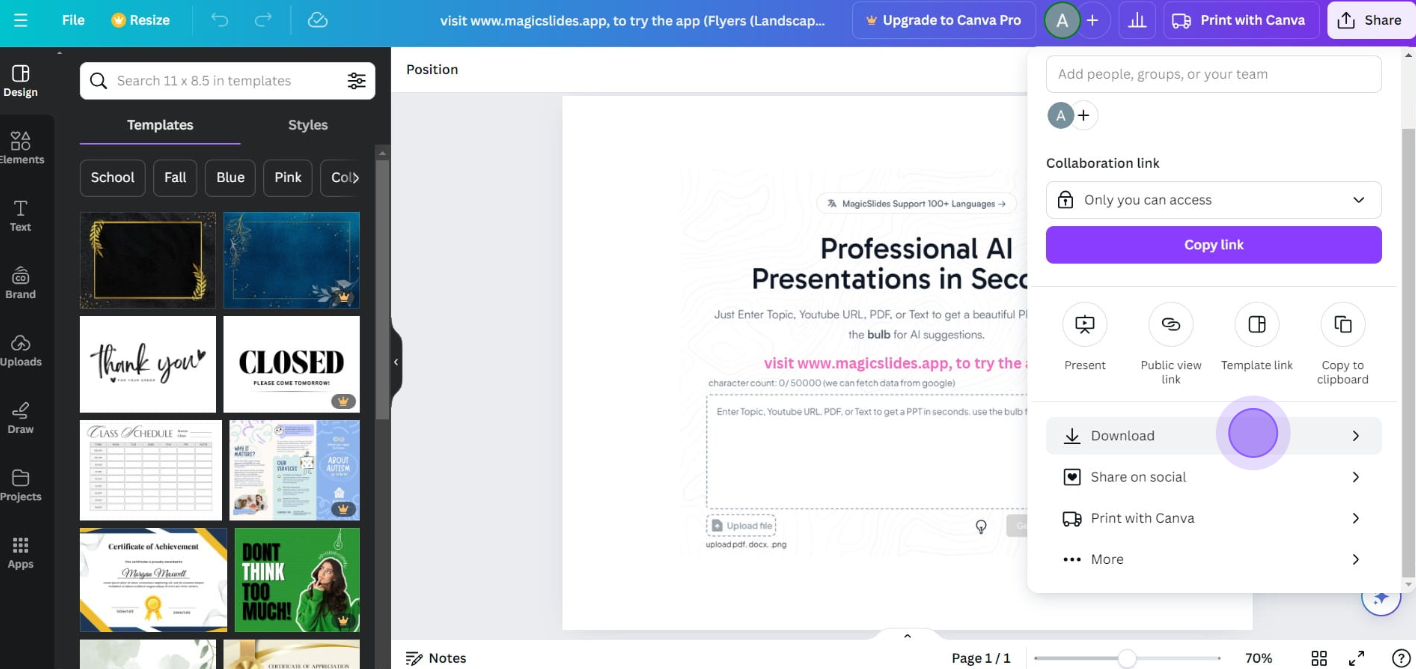
Step 5: Choose PNG Format
In the download options, you'll see different file formats such as PNG, JPG, PDF, and more.
To ensure the background becomes transparent, select the “PNG” format. PNG is the only format that supports transparency, making it the best choice for this task.
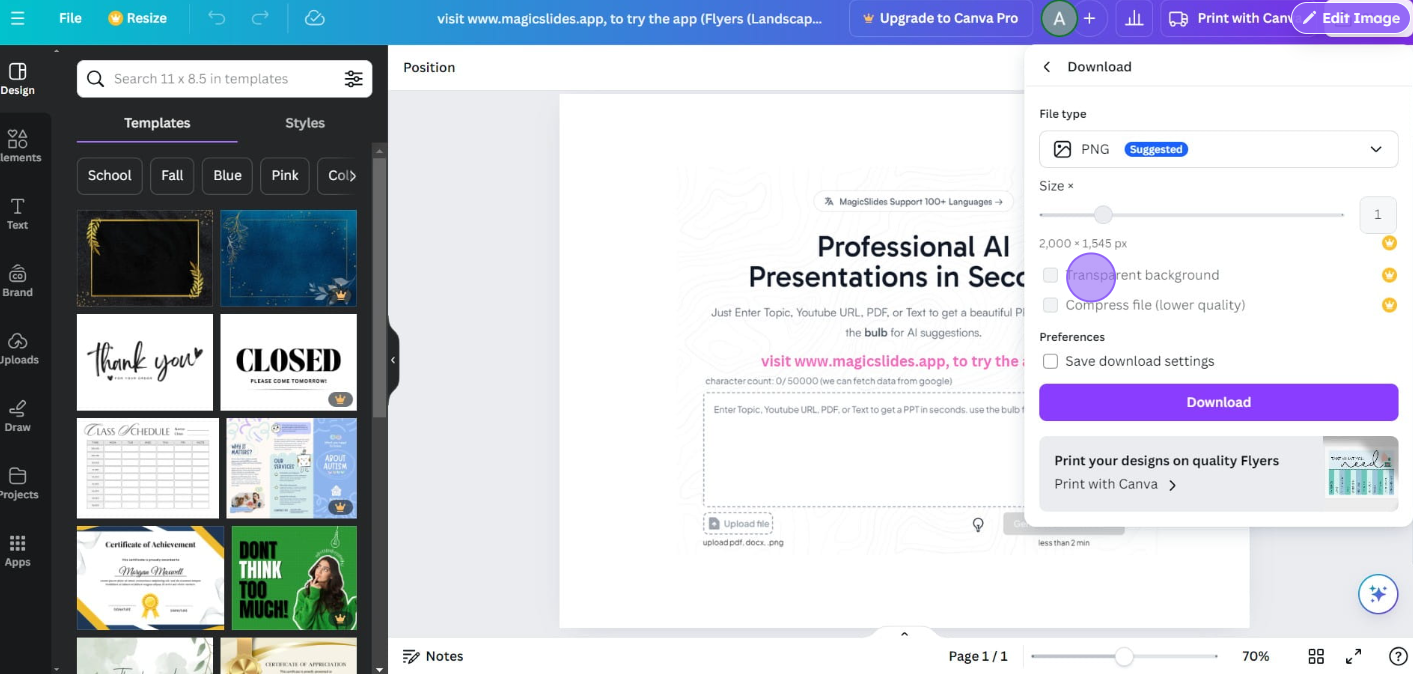
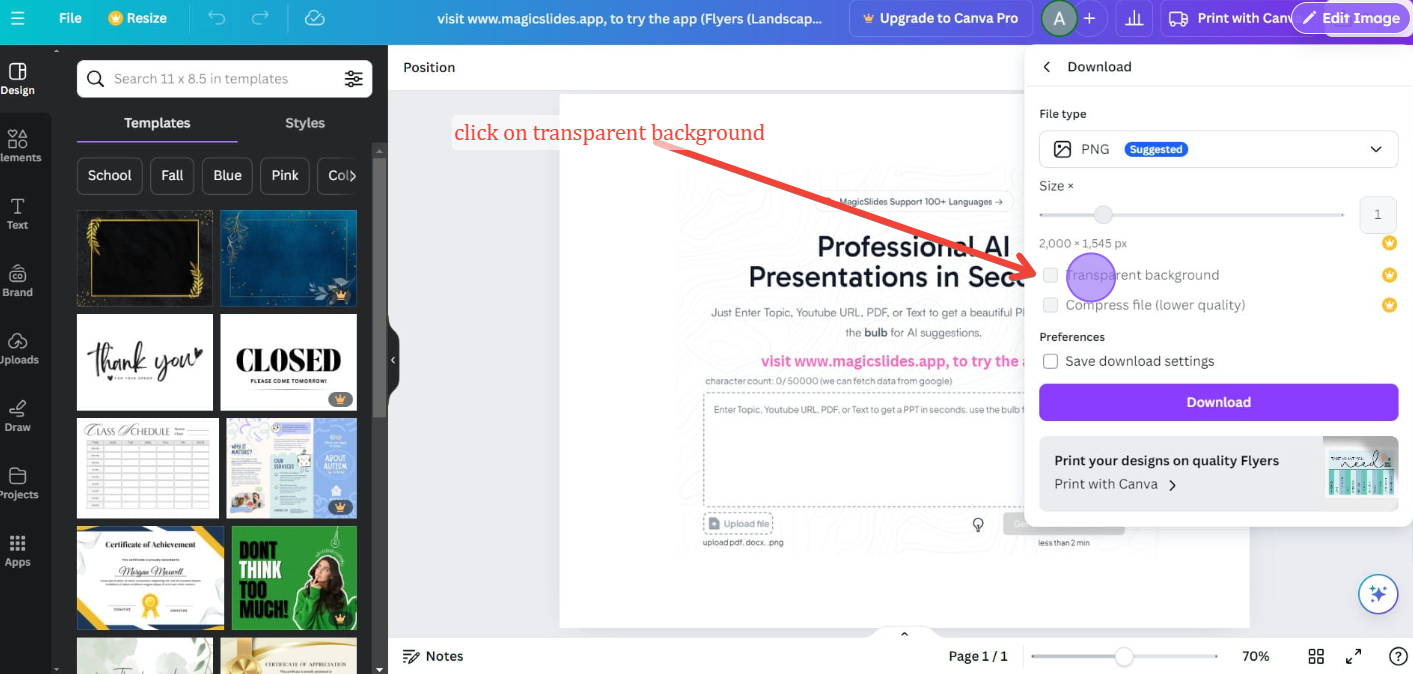
Step 6: Select Transparent Background
After selecting the PNG format, you’ll see a checkbox labeled “Transparent background.”
Check this box to make the background of your design transparent. Make sure you double-check that this option is selected before proceeding.
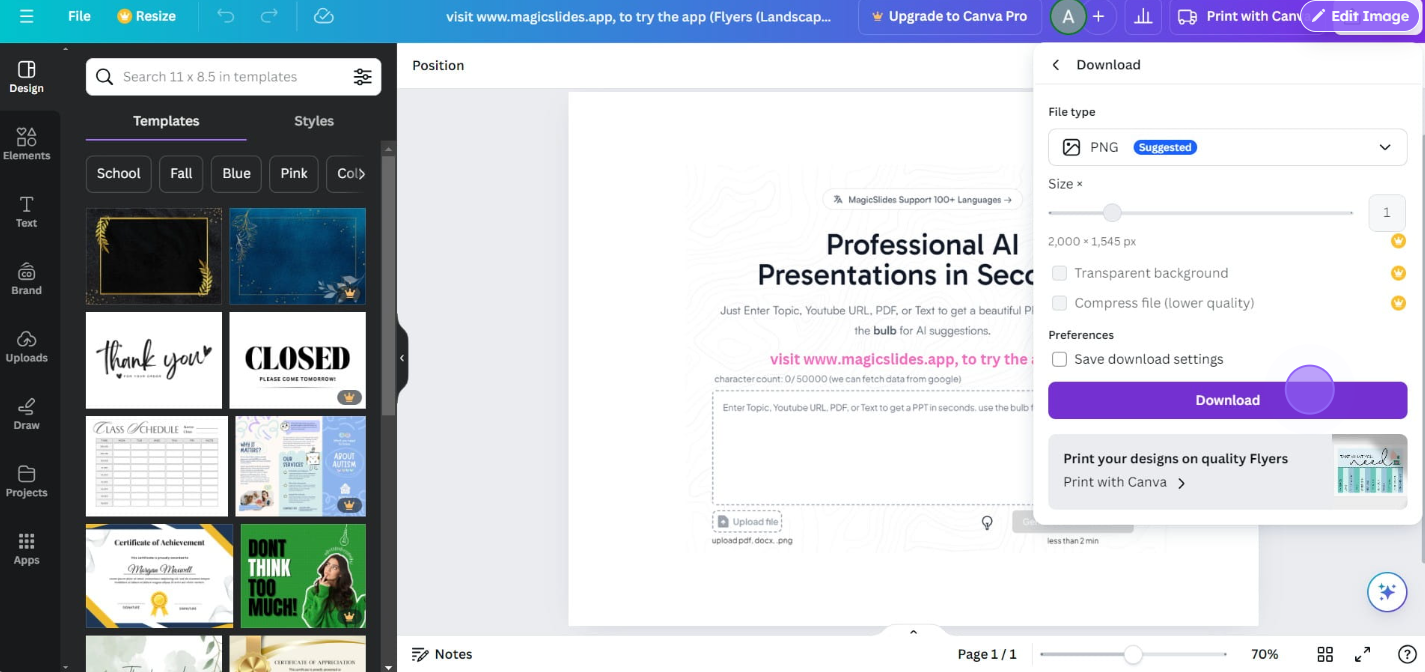
Step 7: Download Your Design
With the “Transparent background” box checked, click the "Download" button to save your design.
Canva will process your request, and your design will be downloaded with a transparent background.
Step 8: Use Your Design
Now that your design has been downloaded, you can use it in other projects.
The transparent background allows you to place the design over different backgrounds, images, or colors without any awkward white or colored borders.
Conclusion
Creating designs with a transparent background in Canva is a simple but powerful feature that enhances the versatility of your work.
By following these easy steps, you can download graphics with transparent backgrounds, making them perfect for logos, presentations, websites, and other projects.
Transparent backgrounds give you the flexibility to integrate your designs seamlessly into any medium, so start experimenting with this feature today and elevate your designs to the next level!
FAQs are here to answer!
Can I create a transparent background in Canva for free?
No, the transparent background feature is only available to Canva Pro users.
Why should I choose PNG format for transparent backgrounds?
PNG is the only format that supports transparency, ensuring a clean, border-free design.
Can I edit my design after downloading it with a transparent background?
Yes, you can reopen the design in Canva and make edits before downloading it again.


