How to make Google Slides Automatically Transition


Revitalize your presentations! Discover how to effortlessly add automatic transitions to your Google Slides for impact.
Captivating presentations require seamless transitions that keep your audience engaged. Google Slides offers a feature that allows you to automate transitions between slides, enhancing the flow and visual appeal of your content. In this guide, we'll take you through the steps to enable automatic transitions in Google Slides, turning your presentations into dynamic and polished showcases.
How to make Google Slides automatically transition
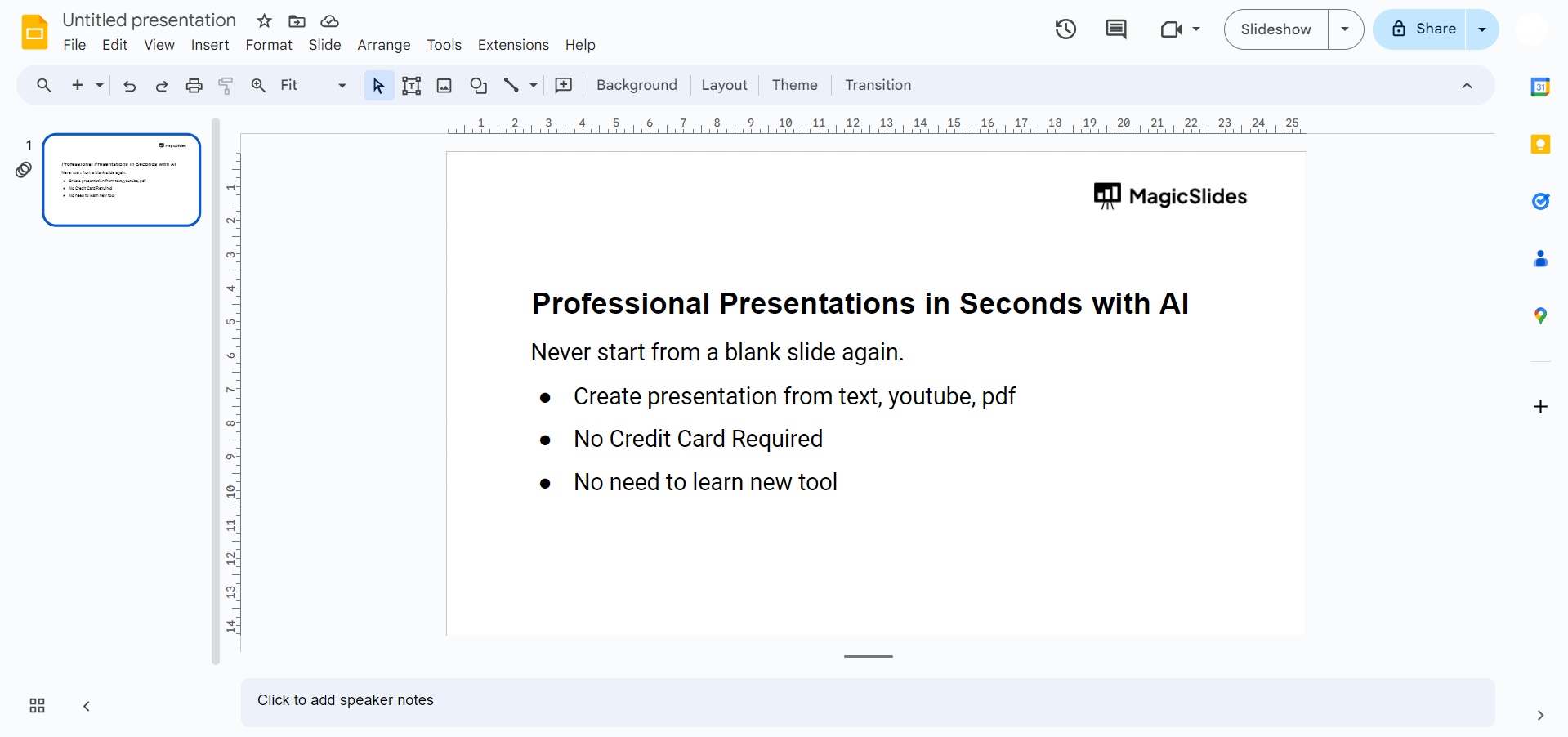
Step 1: Open Your Google Slides Presentation
Log in to your Google account, access Google Drive, and open the presentation you want to enhance with automatic transitions.
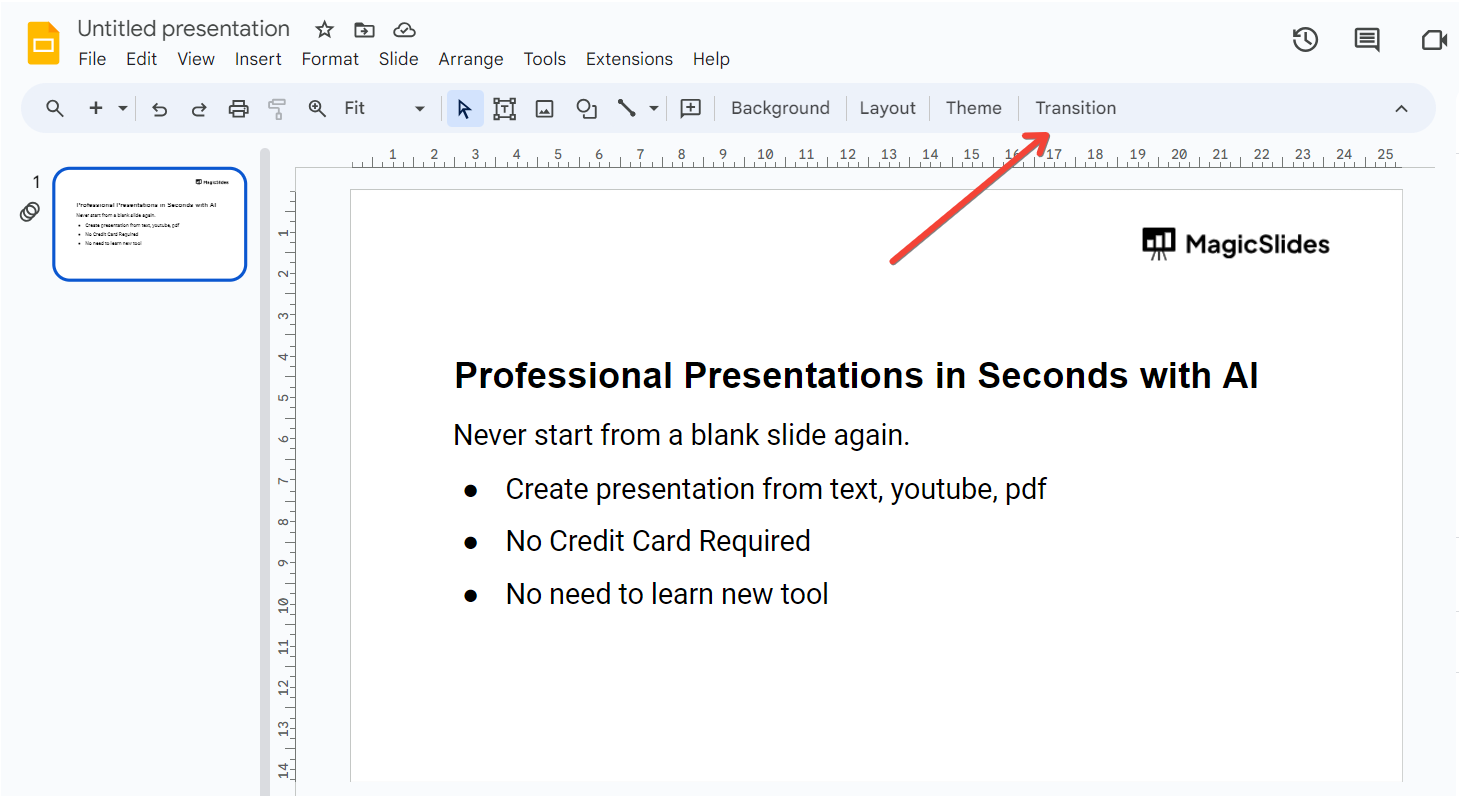
Step 2: Click on "Transition" in the Toolbar
In the top menu, click on the "Transition" option. This will open the transition panel on the right side of the screen.
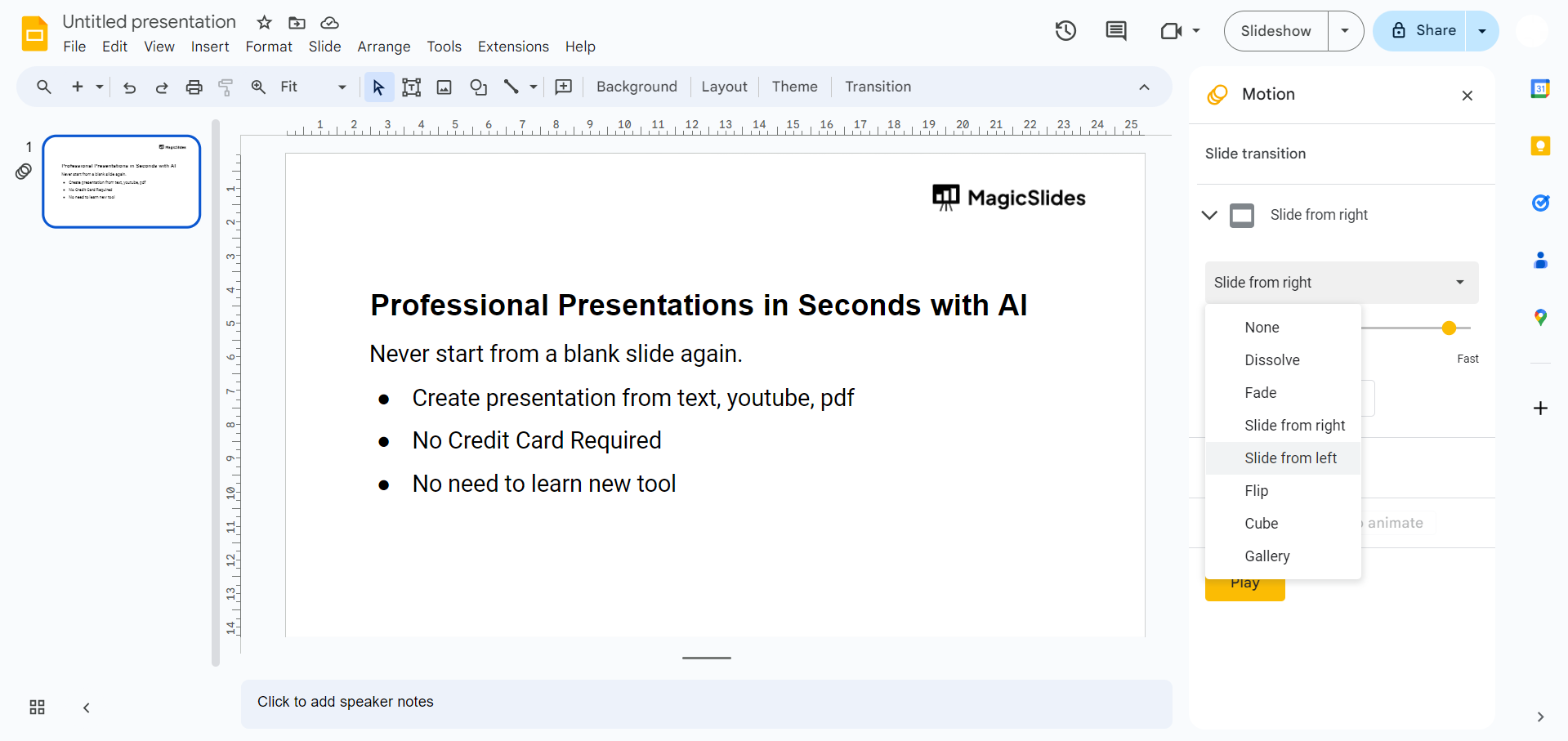
Step 3: Choose a Transition Effect
Scroll through the available transition effects and select the one that suits your presentation style. Preview the effect by clicking on the slide number in the left-hand panel.
Step 4: Set Transition Duration
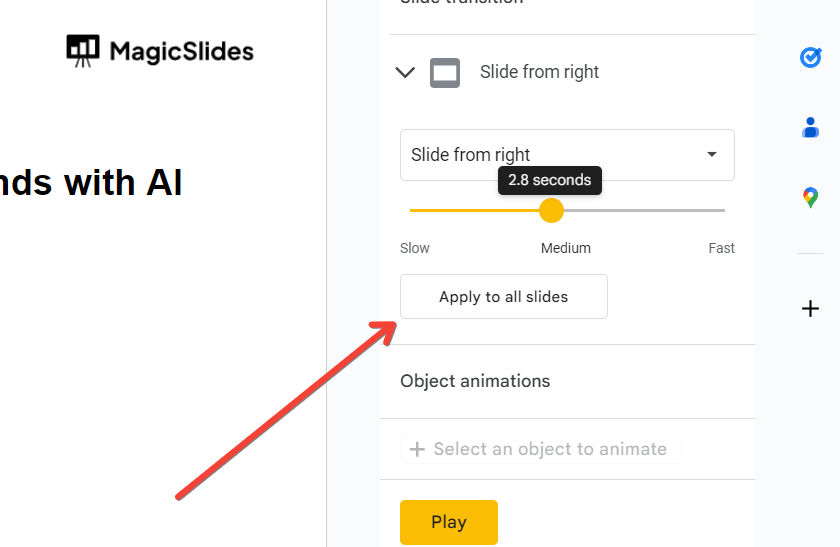
Adjust the transition duration using the "Duration" dropdown menu. Choose a timing that complements the content and maintains audience engagement.
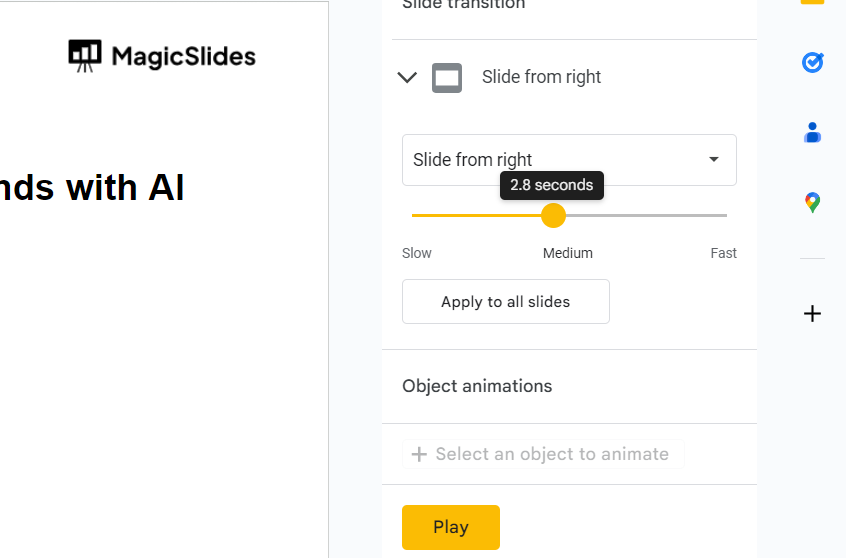
Step 5: Apply Transition to All Slides (Optional)
To apply the same transition to all slides, click on the "Apply to all slides" button. This ensures consistency throughout your presentation.
Conclusion:
By incorporating these simple steps into your workflow, you can transform your static slides into a dynamic visual narrative. Elevate your presentations by utilizing automatic transitions in Google Slides. Whether you're delivering a business pitch, educational lecture, or a creative project, the fluid movement between slides enhances comprehension and captures your audience's attention. Embrace the power of automatic transitions and leave a lasting impression with your next Google Slides presentation.
Frequently Asked Questions:
Can I customize the timing of automatic transitions for each slide individually in Google Slides?
Unfortunately, Google Slides currently allows a uniform transition duration for all slides.
Will automatic transitions work when presenting in full-screen mode or during a Google Meet presentation?
Yes, automatic transitions function seamlessly in full-screen mode and during virtual presentations in Google Meet.
Can I add sound effects to accompany automatic transitions in Google Slides?
As of now, Google Slides does not support the addition of sound effects to transitions.
Are there any limitations to using automatic transitions with complex slide animations or embedded videos?
While automatic transitions work well, complex animations or embedded videos may require additional considerations for a smooth transition.


