How to make Text Mask in Canva


Learn how to create stunning text masks in Canva to enhance your designs with image-filled text
Text masking is a creative design technique where text is filled with an image, creating a visually stunning effect.
Canva makes it easy to achieve this effect with just a few simple steps.
Whether you’re designing for social media, presentations, or personal projects, this guide will walk you through the process of making a text mask in Canva.
How to Make Text Mask in Canva | Steps to Make Text Mask in Canva
Step 1: Open Canva and Start a New Design
Log in to your Canva account or sign up if you’re new to the platform.

Create a new design by clicking on “Create a Design” and selecting the desired canvas size, such as Instagram Post or Presentation.
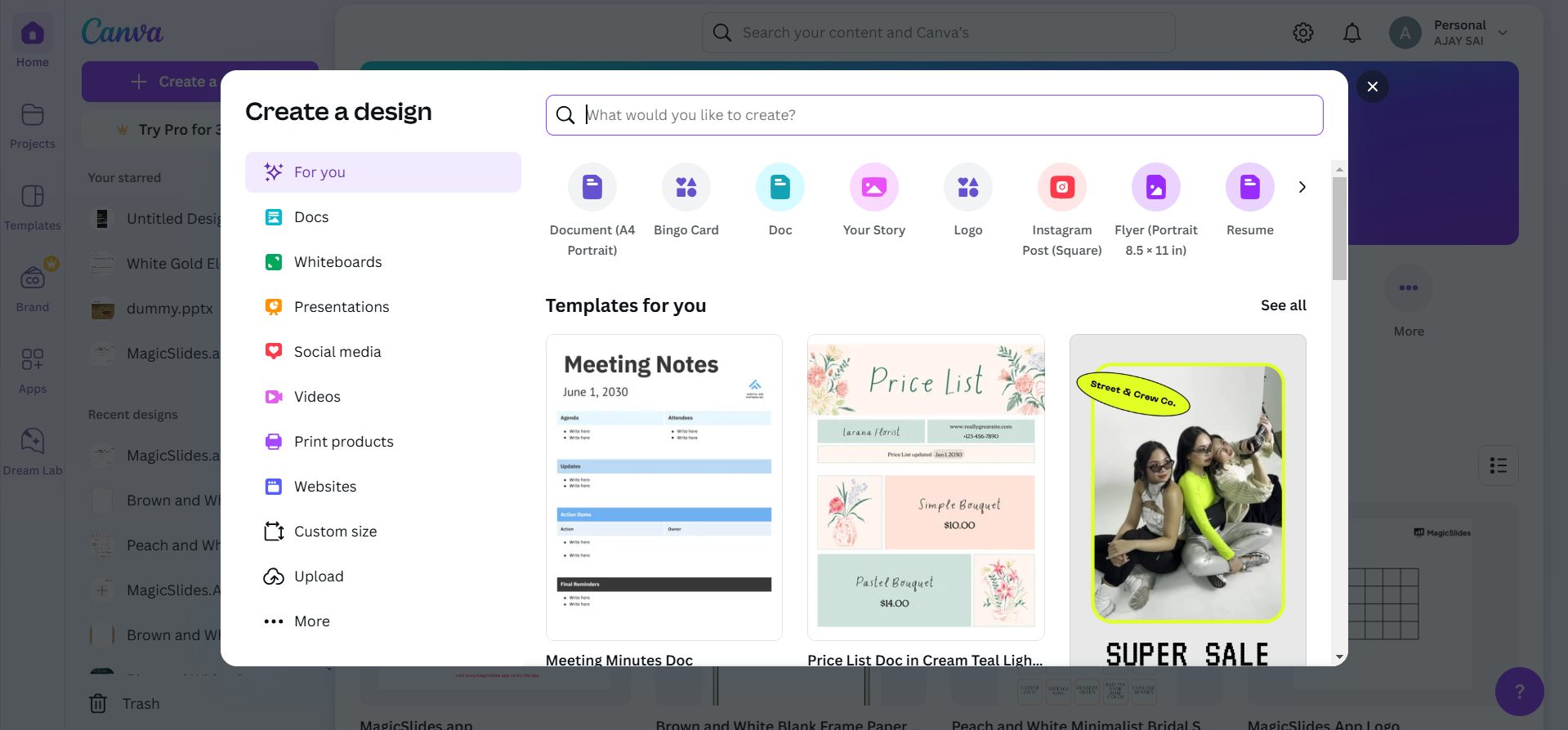
Step 2: Add Text to Your Canvas
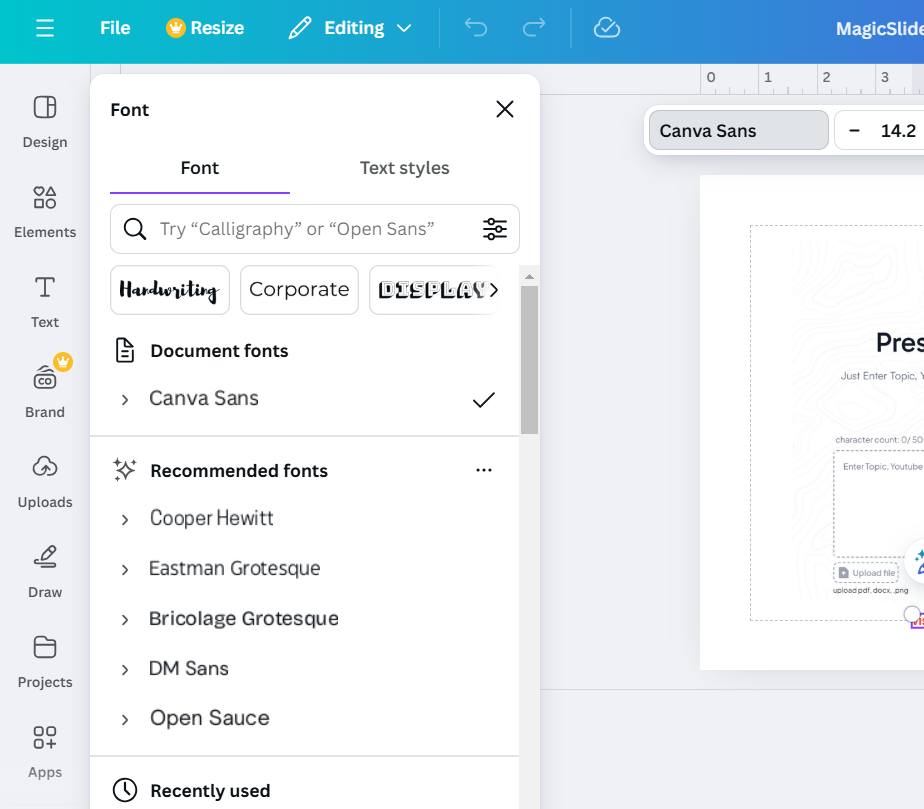
Click on the “Text” tab in the left-hand menu.

Choose a text style or click “Add a Heading” and type your desired text. Use bold and thick fonts like Impact or Anton for the best masking results.
Step 3: Customize the Text
Resize the text by dragging the corner handles to fit your canvas. Center the text or place it where you want the mask effect to appear.
Step 4: Add an Image or Background
Go to the “Elements” or “Uploads” tab to choose an image.
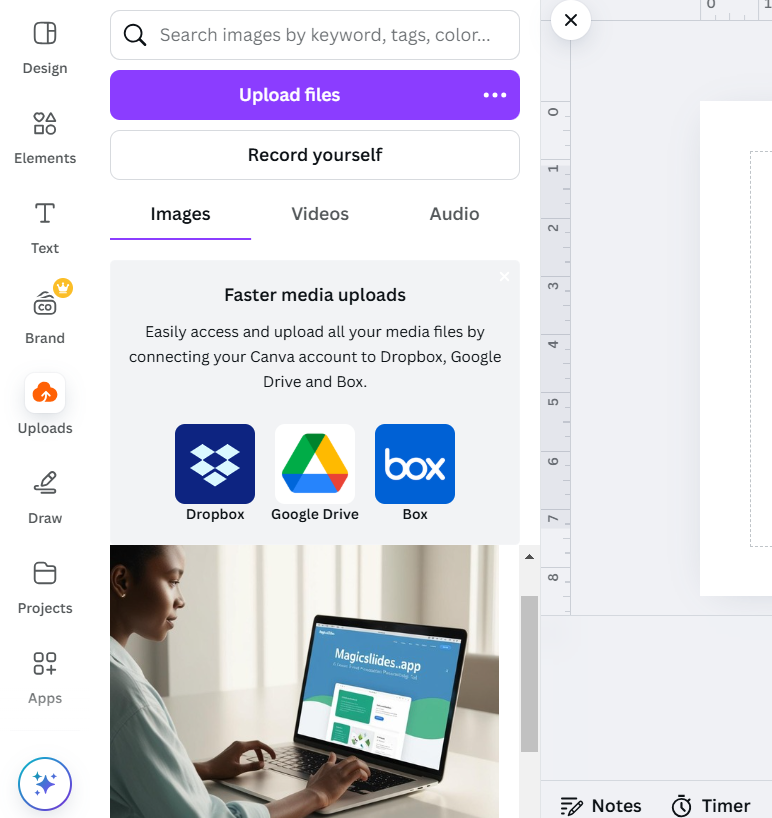
Drag and drop the image onto the canvas, ensuring it covers the text entirely.
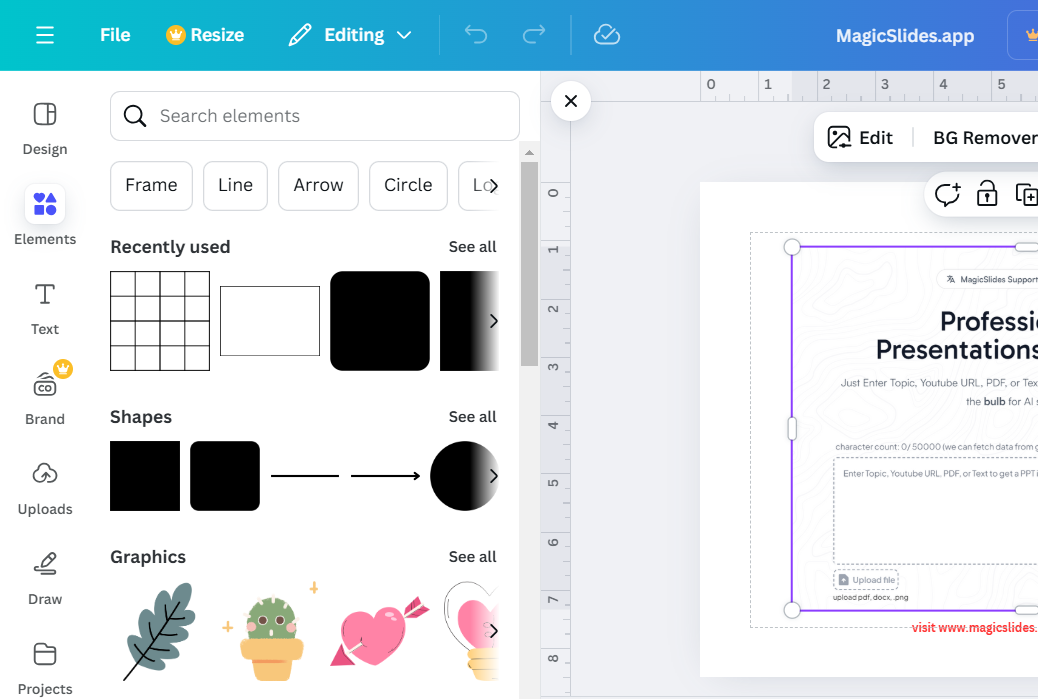
Adjust the image’s position and size as needed.
Step 5: Mask the Text with the Image
Select the image, then hold Shift and click on the text to select both elements.
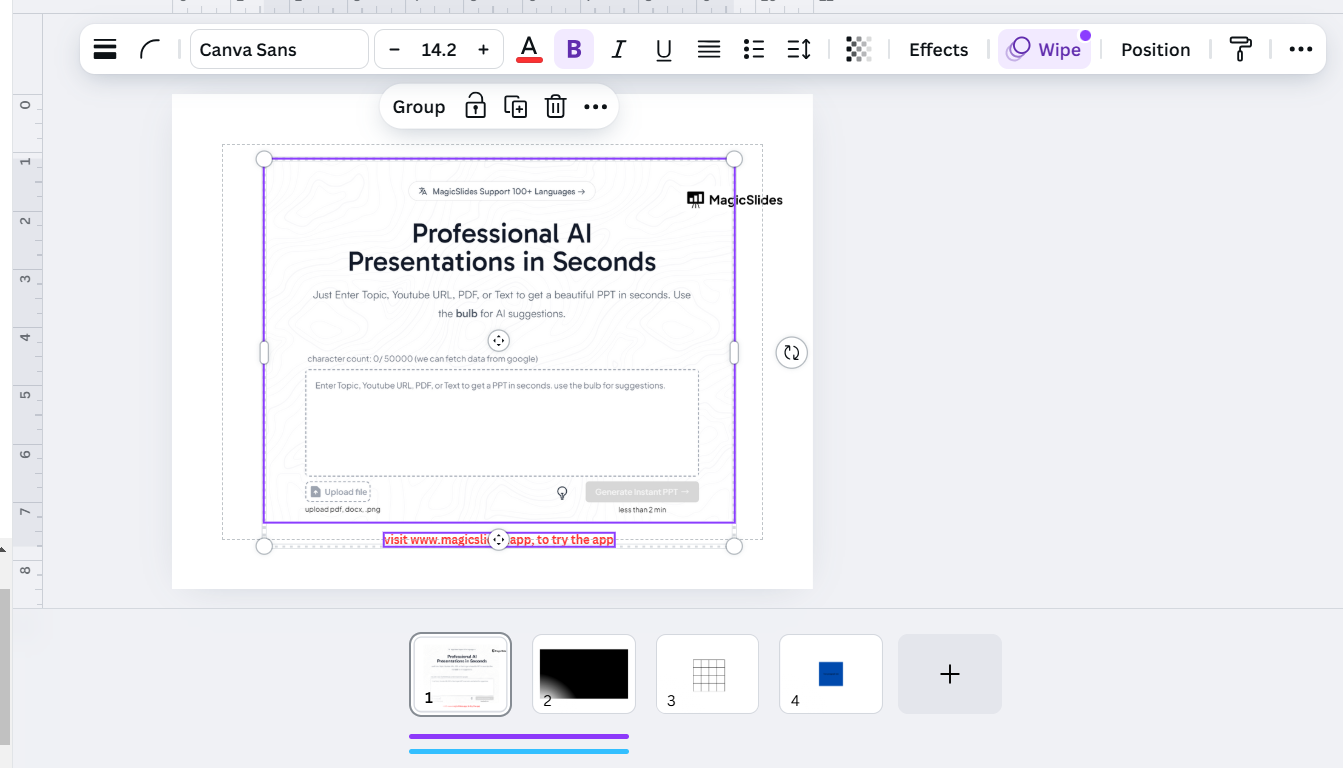
Right-click and choose “Set as Mask” (or look for masking tools in the top toolbar). Canva will automatically clip the image to fit inside the text.
Step 6: Finalize and Download Your Design
Add additional design elements, such as a background or decorative shapes, to enhance the overall look.
When satisfied, click “Share” > “Download” to save your design in the desired format (e.g., PNG, JPG).
Conclusion
Creating a text mask in Canva is a simple yet impactful way to elevate your designs.
With just a few clicks, you can turn ordinary text into an eye-catching element that stands out.
By following these steps, you’ll master text masking in Canva and unlock new creative possibilities for your projects.
FAQs on Making Text Mask in Canva
Can I use any font for text masking in Canva?
It’s best to use bold and thick fonts as they allow the image details to appear clearly.
Is text masking available in Canva’s free version?
Yes, text masking can be done in the free version, but some advanced features may require Canva Pro.
Can I edit the image after applying the text mask?
Yes, you can reposition or resize the image within the text mask by double-clicking on it.
By mastering text masking in Canva, you can add a professional and artistic touch to your designs!


