How to Paste on Google Docs Without Losing Formatting?


Learn how to paste on Google Docs without losing formatting. Preserve your document’s layout with these simple steps explained here.
Google Docs is a powerful tool for creating, editing, and collaborating on documents. However, one common frustration many users encounter is losing formatting when pasting content from other sources. Fear not! In this comprehensive guide, we'll walk you through the steps to paste on Google Docs without losing any formatting.
How to Paste on Google Docs Without Losing Formatting?
Before we dive into the specifics of pasting without losing formatting, let's cover some basics of Google Docs.
Google Docs is a free, web-based word processor offered by Google. It allows users to create and edit documents online while collaborating in real-time with others. With its intuitive interface and robust features, Google Docs has become a popular choice for individuals and teams alike.
Now, let's move on to the main focus of this guide: preserving formatting when pasting content into Google Docs.
1. Open Google Docs
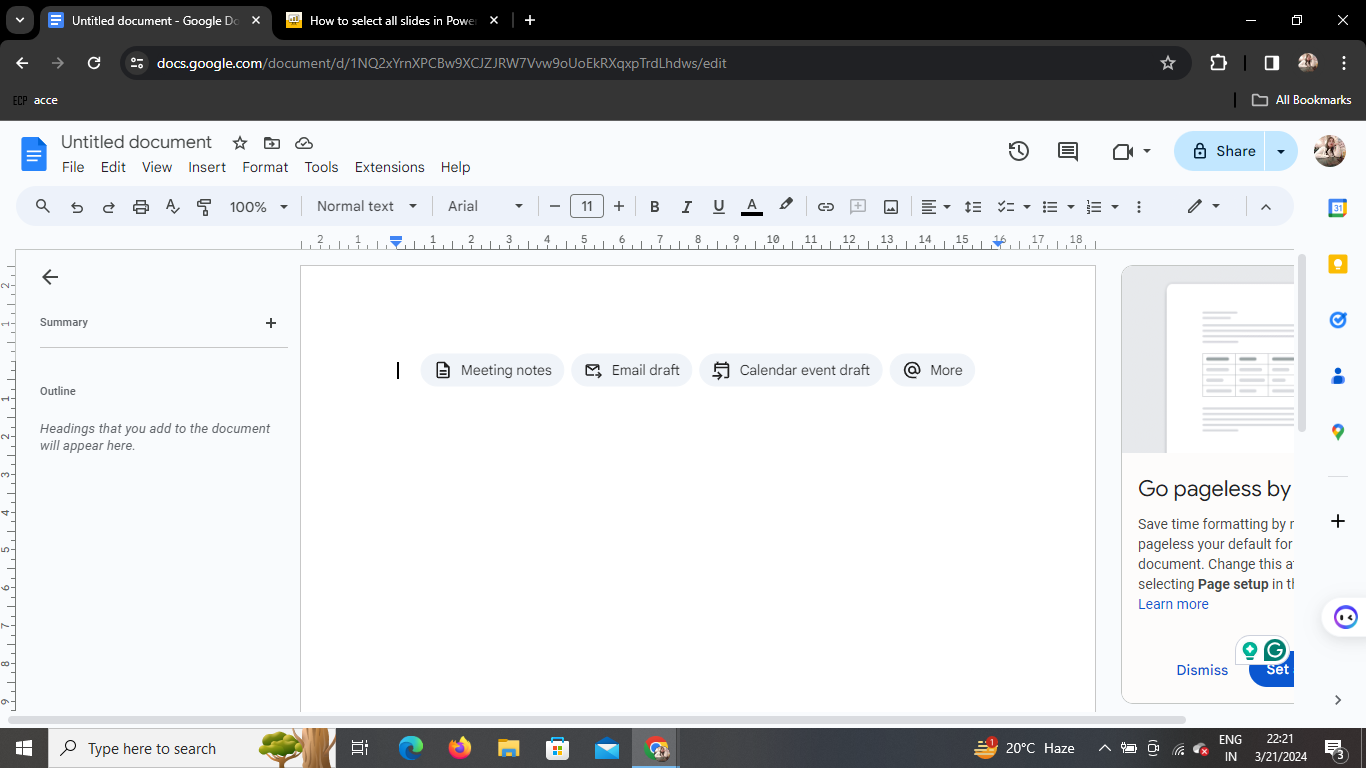
First things first, open your web browser and navigate to Google Docs. If you're not already signed in to your Google account, you'll need to do so to access your documents.
2. Copy the Content You Want to Paste
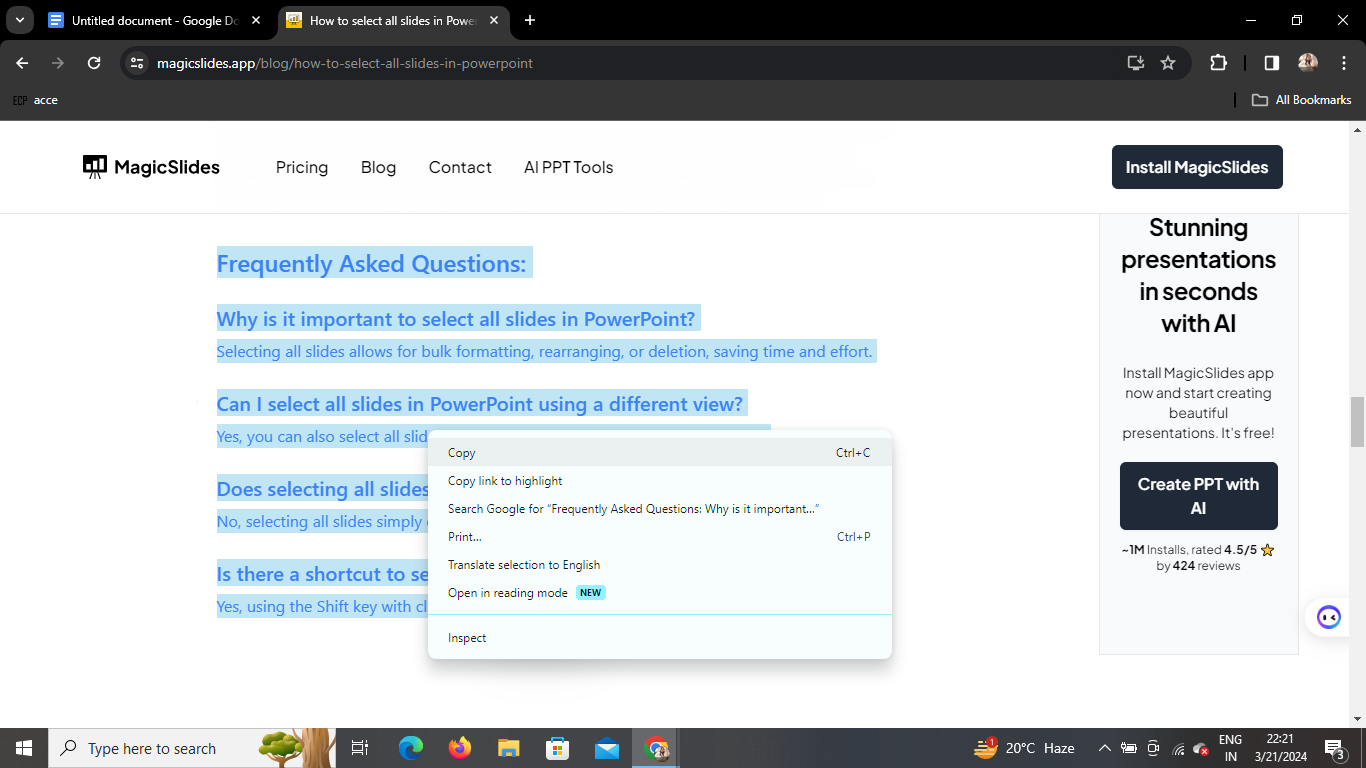
Next, locate the content you wish to paste into your Google Docs document. Highlight the text or select the elements you want to copy.
3. Right Click on Your Mouse
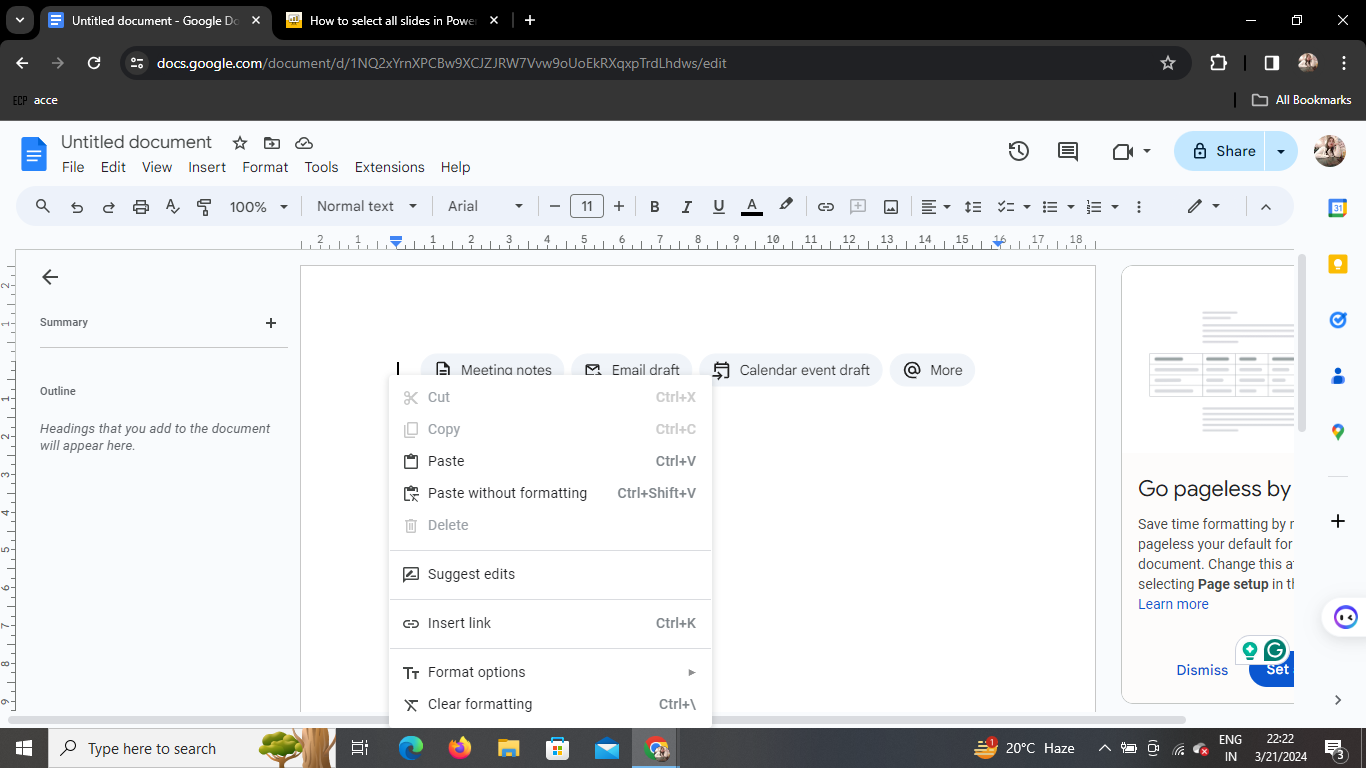
After copying the content, right-click anywhere within your Google Docs document where you want to paste the content. This will bring up a dropdown menu with various options.
4. Click on "Paste Without Formatting"
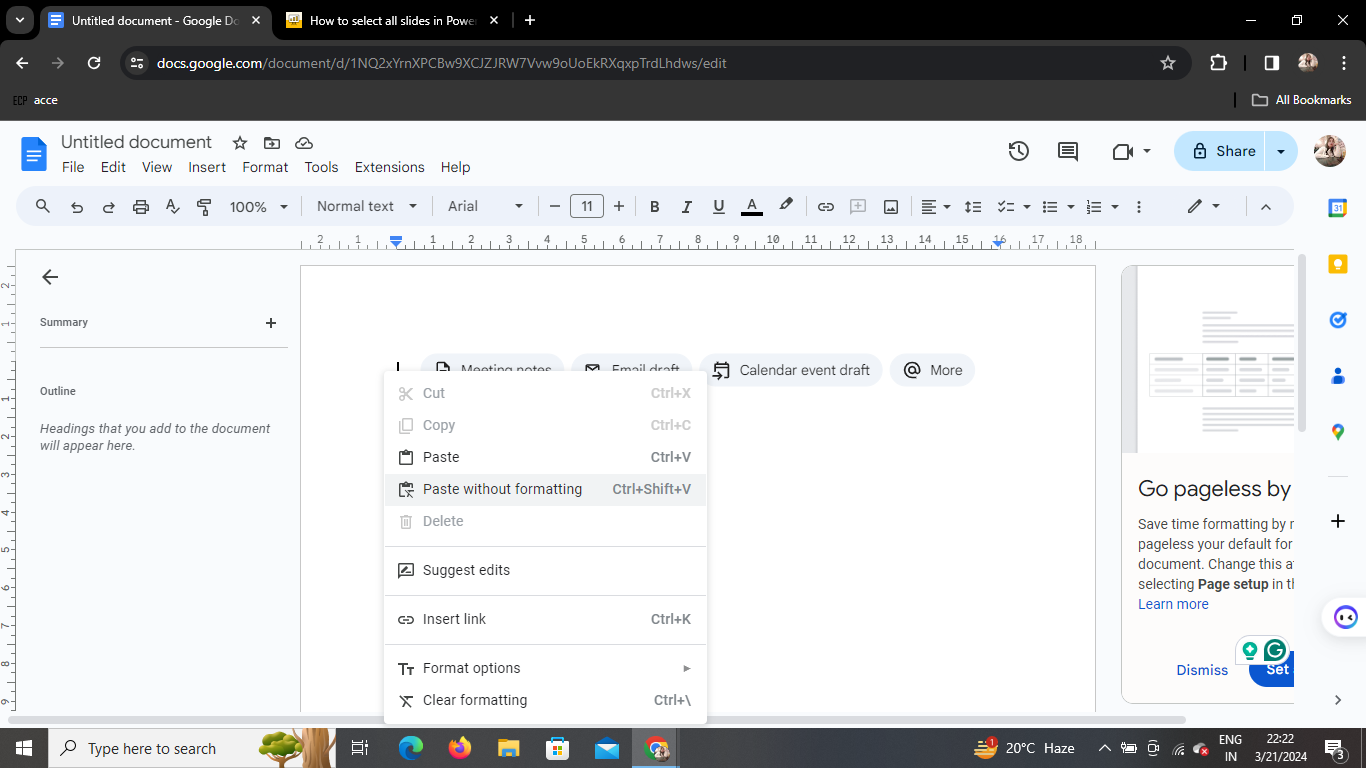
In the dropdown menu, look for the option labeled "Paste Without Formatting" and click on it. This option ensures that the formatting of the copied content is preserved when pasted into your Google Docs document.
5. Your Content Will Be Pasted
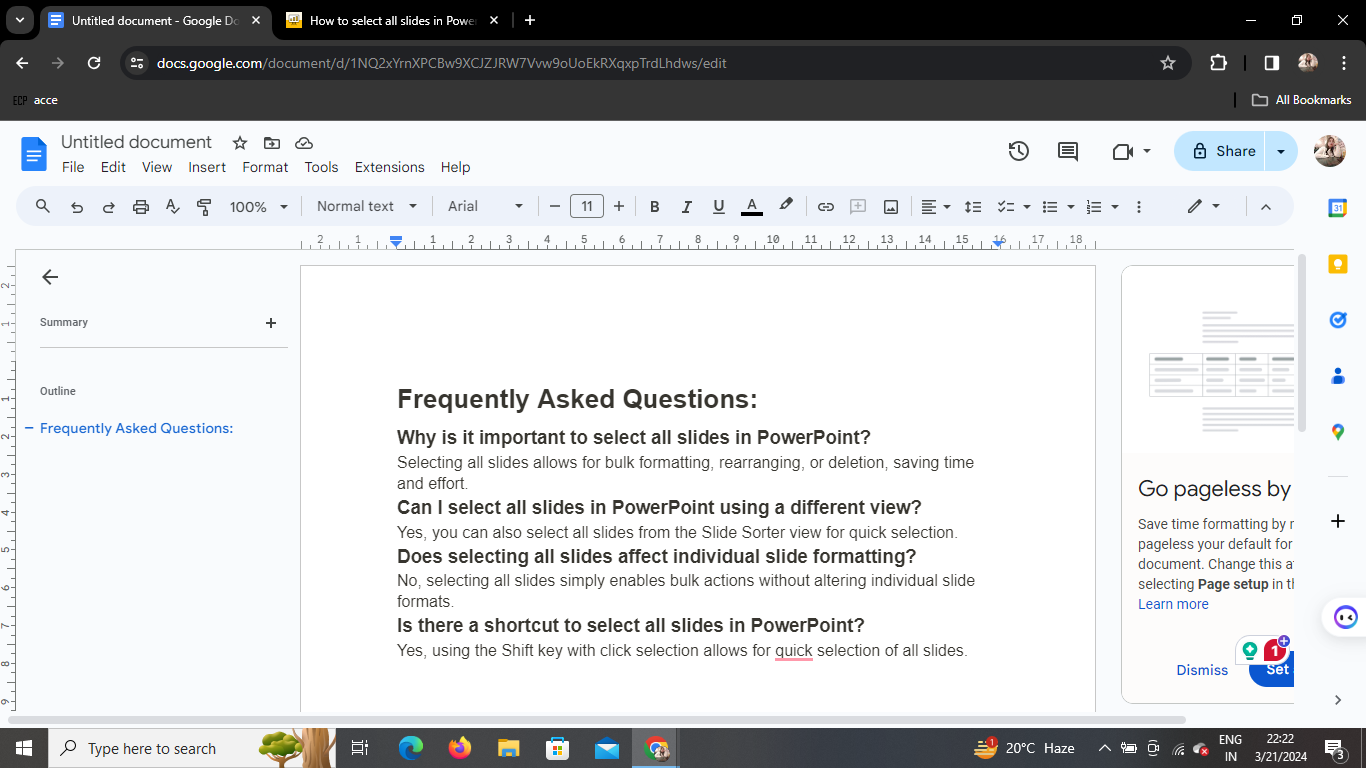
Voila! Your content will now be pasted into your Google Docs document without losing any formatting. You can continue editing and formatting the text as needed.
Conclusion
Pasting content into Google Docs without losing formatting is a simple yet essential skill for anyone who frequently works with documents. By following the steps outlined in this guide, you can ensure that your documents maintain their intended formatting, saving you time and frustration in the editing process.
Frequently Asked Questions
How do I access Google Docs?
To access Google Docs, simply open your web browser and navigate to the Google Docs website. Sign in with your Google account to start creating and editing documents.
Can I paste images without losing formatting?
Yes, you can paste images into Google Docs without losing formatting. Simply right-click and select "Paste" or use the keyboard shortcut (Ctrl + V for Windows, Command + V for Mac) to paste images into your document.
What if the "Paste Without Formatting" option is not available?
If the "Paste Without Formatting" option is not available in the dropdown menu, try using the keyboard shortcut (Ctrl+ V for Windows, Command + V for Mac) instead. This shortcut should perform the same function of pasting without formatting.
Will pasting without formatting remove all formatting from the copied content?
No, pasting without formatting will only remove the formatting that is incompatible with Google Docs. Basic formatting such as bold, italic, and underline will typically be preserved.
Can I paste content from other sources, such as Microsoft Word, without losing formatting?
Yes, you can paste content from other sources into Google Docs without losing formatting. Simply follow the steps outlined in this guide to ensure that the formatting is preserved during the paste process.


