How to Round Corners on Image PowerPoint


Easily round image corners in PowerPoint to create a sleek, modern, and professional presentation design
How to Round Corners on an Image in PowerPoint
Adding rounded corners to images in PowerPoint can make your presentations look more polished and professional.
Whether you're designing a slideshow for work, school, or personal use, this simple effect enhances the visual appeal.
Follow these step-by-step instructions to round the corners of an image in PowerPoint.
Steps to Round Corners on an Image in PowerPoint
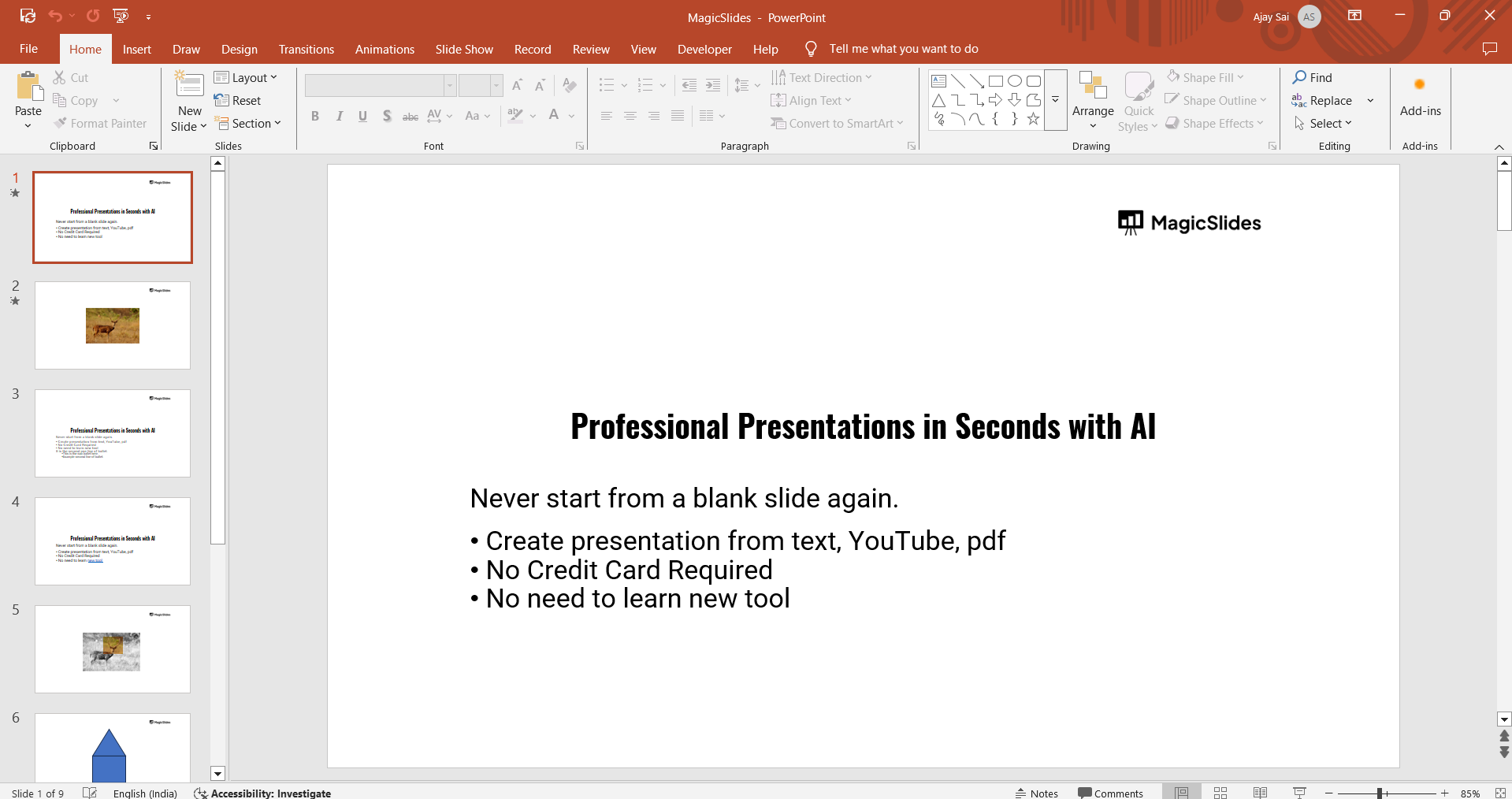
Step 1: Open PowerPoint and Insert an Image
Launch PowerPoint and open a new or existing presentation. Click on the slide where you want to add the image.
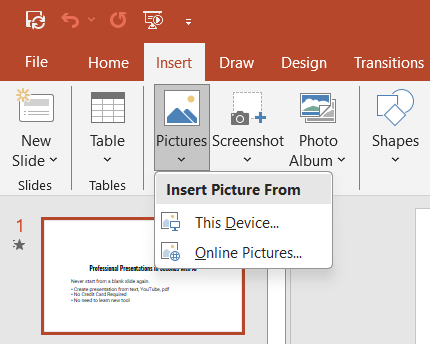
Go to the Insert tab and select Pictures to upload an image from your computer.
Step 2: Select the Image
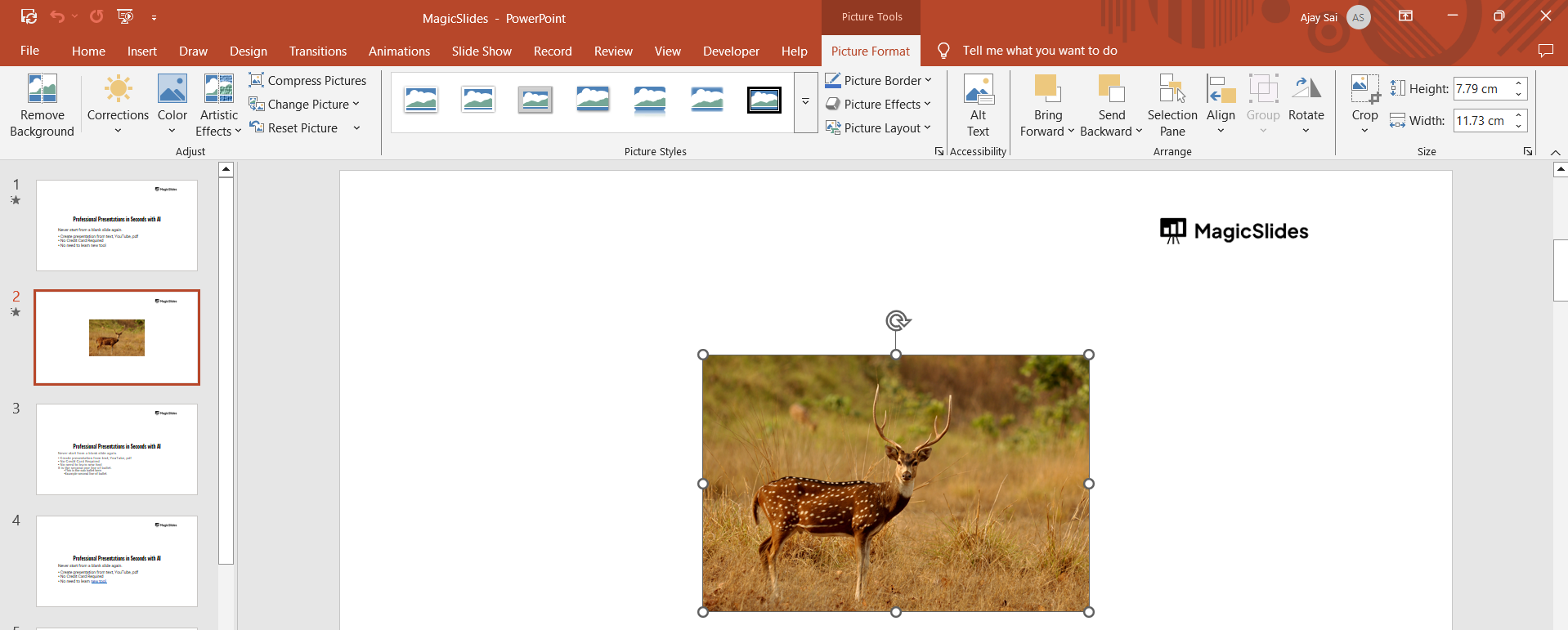
Click on the inserted image to select it.
A new tab called Picture Format (or Format Picture) will appear in the toolbar.
Step 3: Apply the Rounded Rectangle Shape
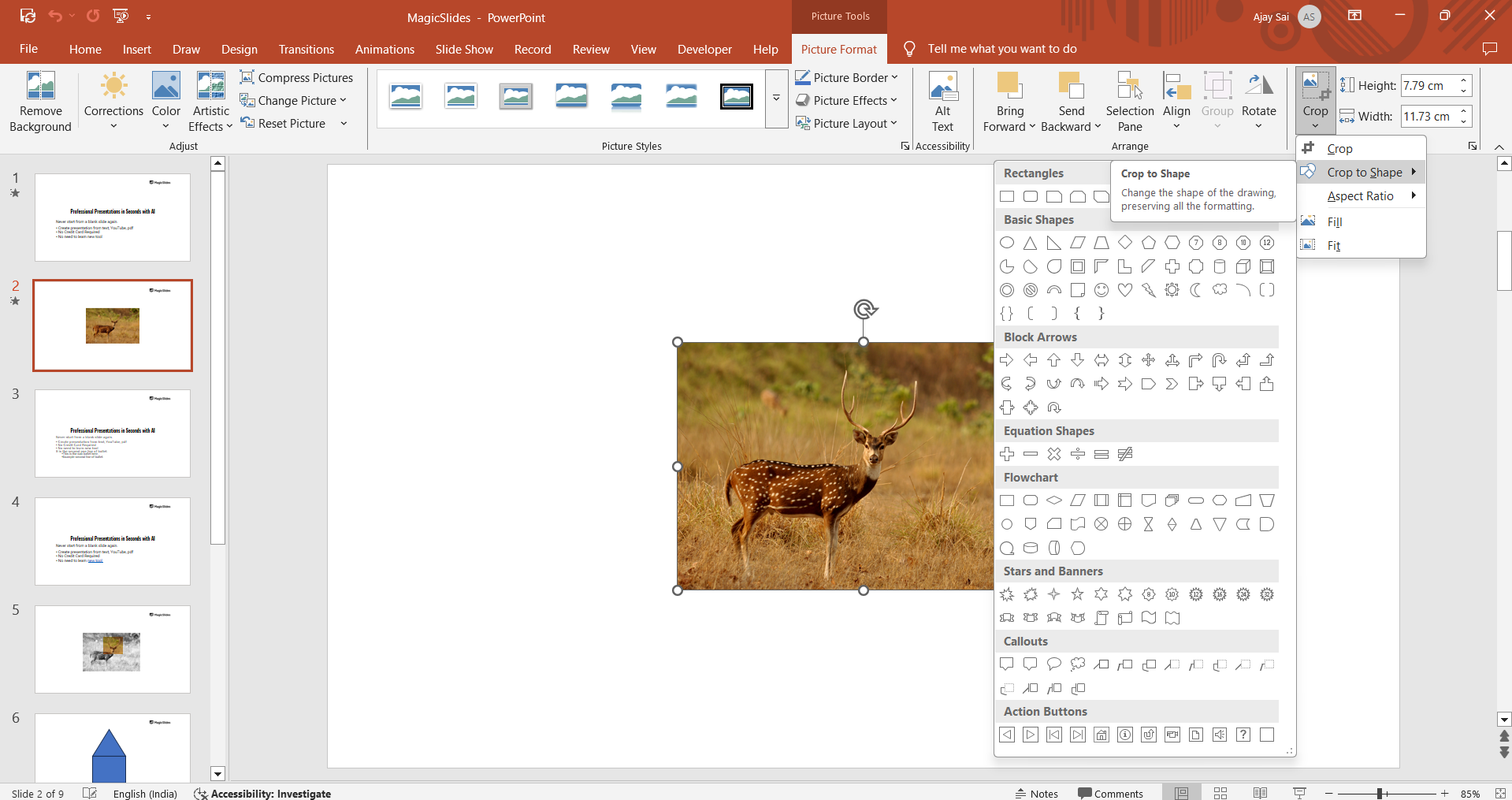
With the image selected, go to the Picture Format tab. Click on Crop and hover over Crop to Shape.
From the shape options, select Rounded Rectangle to round the corners.
Step 4: Adjust the Corner Radius
If the corners are not rounded enough, you can manually adjust them.
Click on the yellow handle (small circular dot) on the shape and drag it to modify the corner curvature.
Step 5: Resize and Position the Image
Adjust the size of the image by dragging the corners while holding the Shift key to maintain proportions.
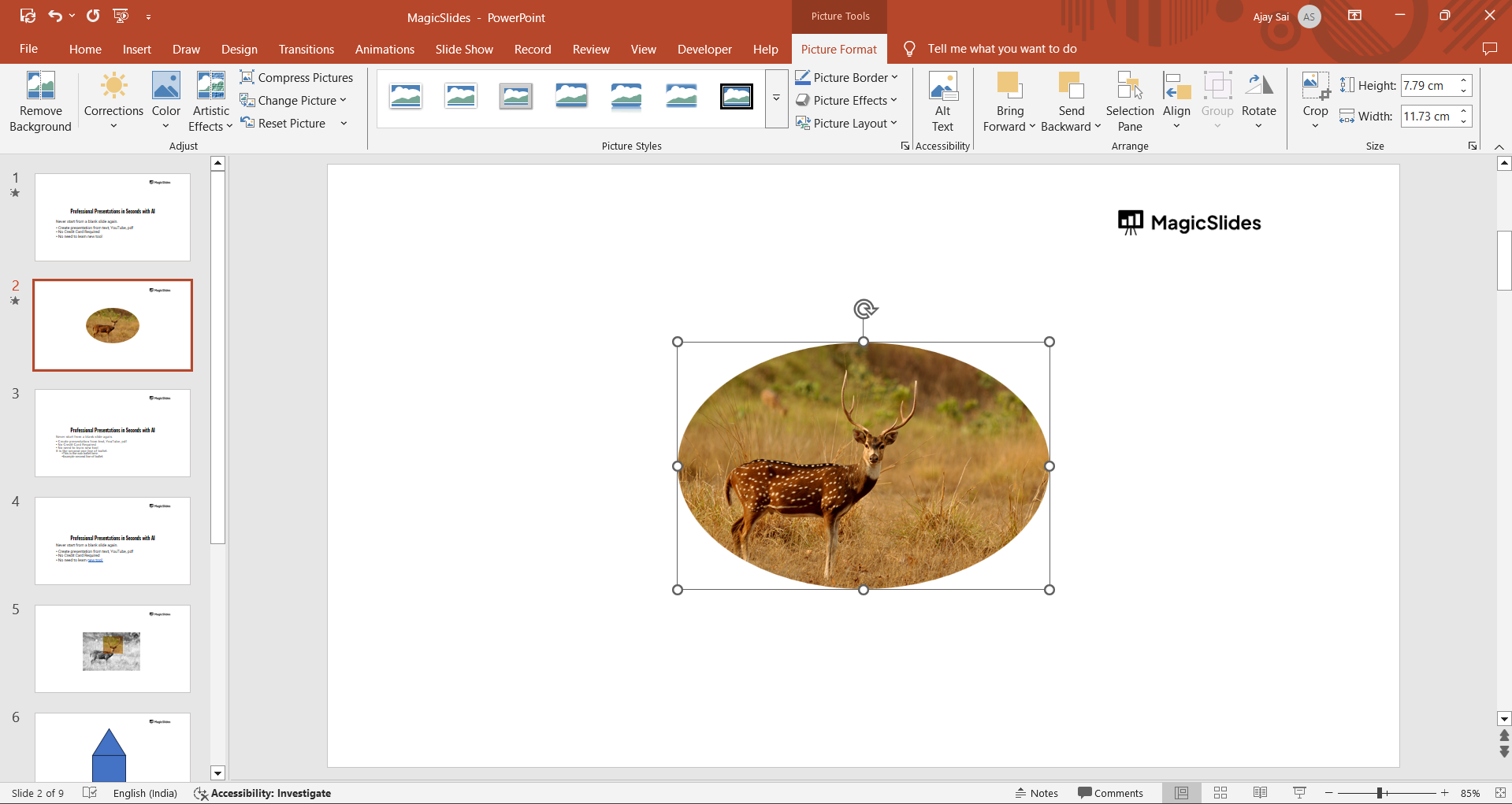
Move the image to your preferred position on the slide.
Step 6: Save or Apply to Other Images
If you want to apply the same effect to multiple images, repeat these steps.
Save your PowerPoint file to keep the changes.
Rounding image corners in PowerPoint adds a sleek touch to your slides. For even more design efficiency, use MagicSlides.app to generate professional presentations instantly, complete with perfectly formatted images and layouts!
Conclusion
Rounding the corners of an image in PowerPoint is a quick and easy way to enhance your slide design.
By following these simple steps, you can create a sleek and modern look for your presentations.
FAQs on Rounding Corners on an Image in PowerPoint
Can I adjust the roundness of the corners?
Yes, you can drag the yellow adjustment handle on the rounded rectangle to increase or decrease the curvature.
Can I apply the rounded corners effect to multiple images at once?
No, PowerPoint does not allow applying this effect to multiple images simultaneously. You need to repeat the steps for each image.
How do I remove the rounded corners if I change my mind?
Select the image, go to Crop to Shape, and choose a standard rectangle or another shape to reset the corners.
Now, you can easily add a stylish touch to your images in PowerPoint! 🎨🚀


