How to select all slides in PowerPoint


Learn how to quickly select all slides in PowerPoint for smoother presentation editing.
Navigating through PowerPoint efficiently can significantly enhance your presentation-building experience. One fundamental skill every PowerPoint user should master is selecting multiple slides at once. Whether you're applying formatting, rearranging slides, or deleting them, knowing how to select all slides in one go can save you valuable time and effort. In this step-by-step guide, we'll walk you through the process of selecting all slides in PowerPoint, ensuring you can streamline your workflow and focus on creating impactful presentations.
Steps to Select All Slides in PowerPoint:
Open PowerPoint:
Launch the Microsoft PowerPoint application on your computer. Ensure you have the presentation file you want to work with ready to go.
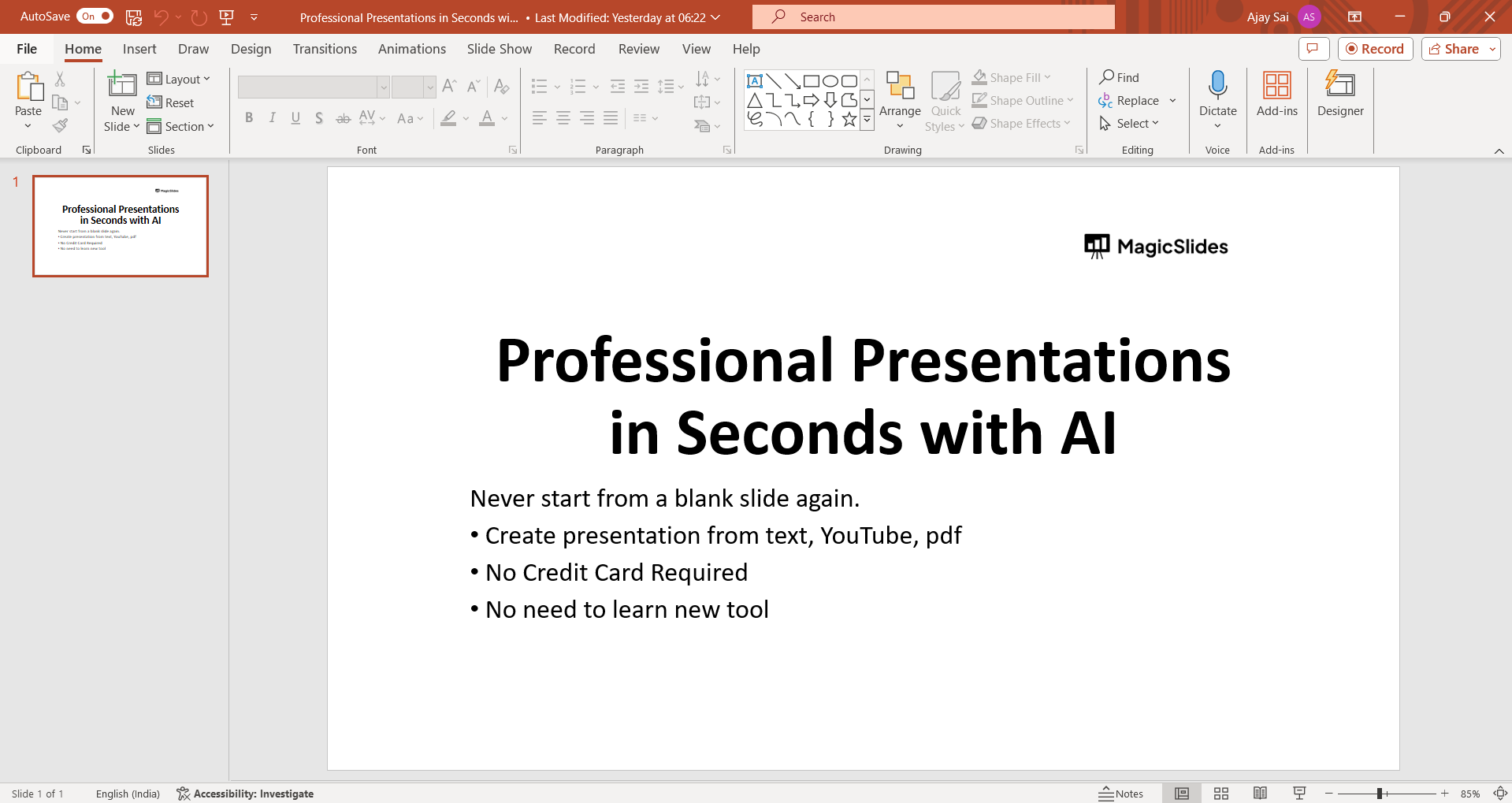
Access Slide Sorter View:
Within PowerPoint, locate the View tab on the ribbon toolbar at the top of the screen. Click on it to reveal various viewing options. Select the "Slide Sorter" view.
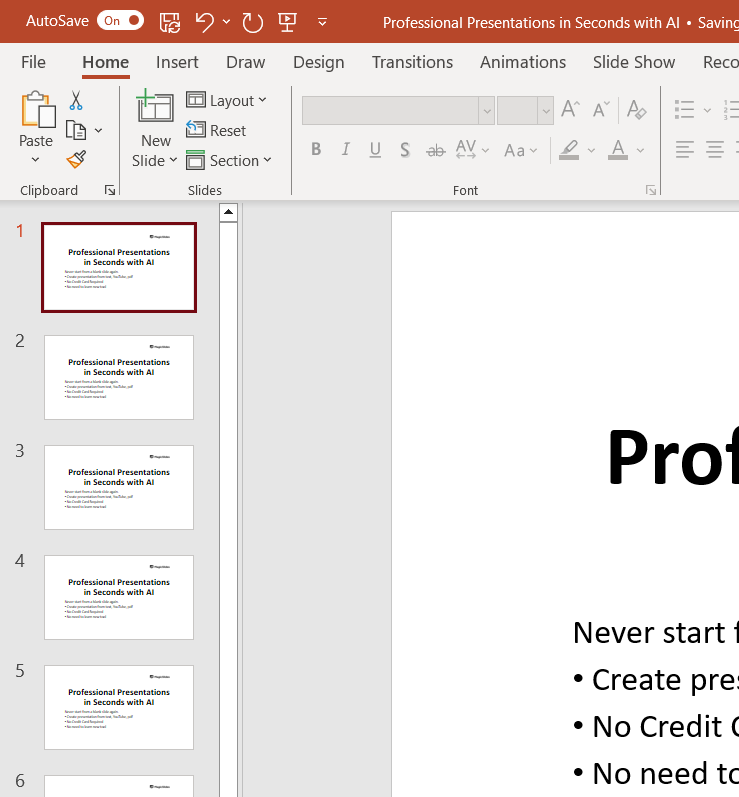
Select First Slide:
In Slide Sorter view, you'll see a grid of thumbnail images representing each slide in your presentation. Click on the first slide to start the selection process.
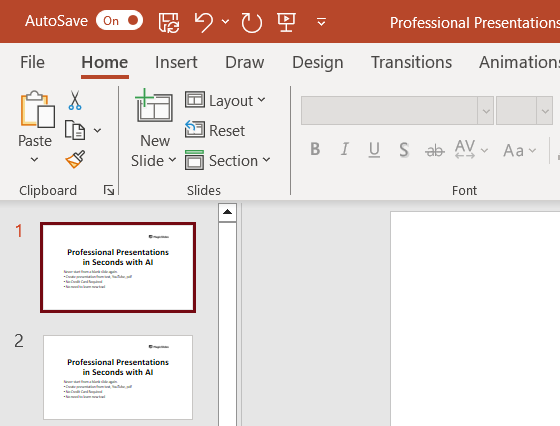
Hold Down Shift Key:
With the first slide selected, hold down the "Shift" key on your keyboard.
Select Last Slide:
While still holding down the "Shift" key, click on the last slide in your presentation. This action will select all slides between the first and last slides, inclusive.
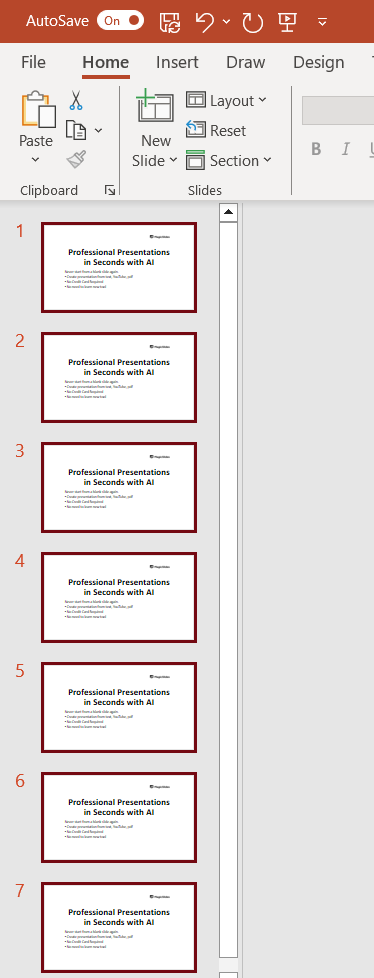
Release Shift Key:
Once all slides are selected, release the "Shift" key. You should now see every slide in your presentation highlighted or outlined, indicating they are all selected.
Conclusion:
Mastering the art of selecting all slides in PowerPoint is a valuable skill that can significantly improve your workflow when creating presentations. By following these simple steps, you can efficiently select multiple slides at once, whether you're formatting, reordering, or deleting them. Incorporate this technique into your PowerPoint repertoire to streamline your presentation-building process and focus more on crafting engaging content. With this newfound efficiency, you'll be well-equipped to create impactful presentations that captivate your audience.
Frequently Asked Questions:
Why is it important to select all slides in PowerPoint?
Selecting all slides allows for bulk formatting, rearranging, or deletion, saving time and effort.
Can I select all slides in PowerPoint using a different view?
Yes, you can also select all slides from the Slide Sorter view for quick selection.
Does selecting all slides affect individual slide formatting?
No, selecting all slides simply enables bulk actions without altering individual slide formats.
Is there a shortcut to select all slides in PowerPoint?
Yes, using the Shift key with click selection allows for quick selection of all slides.


