How to select one Hyperlink after another during a Slide Presentation


Efficiently selecting multiple hyperlinks during a PowerPoint presentation enhances interactivity and smooth navigation
Using hyperlinks in a PowerPoint presentation can make your slides more interactive and engaging by allowing you to navigate to different slides, external websites, or documents.
However, knowing how to select and use multiple hyperlinks during a live presentation is crucial to maintaining a smooth flow.
In this blog post, we'll walk you through the steps to select one hyperlink after another during a slide presentation, ensuring you can efficiently guide your audience through the content.
How to select one Hyperlink after another during a Slide Presentation
Step 1: Insert Multiple Hyperlinks on Your Slide
Before you can select hyperlinks during a presentation, you need to insert them on your slides.
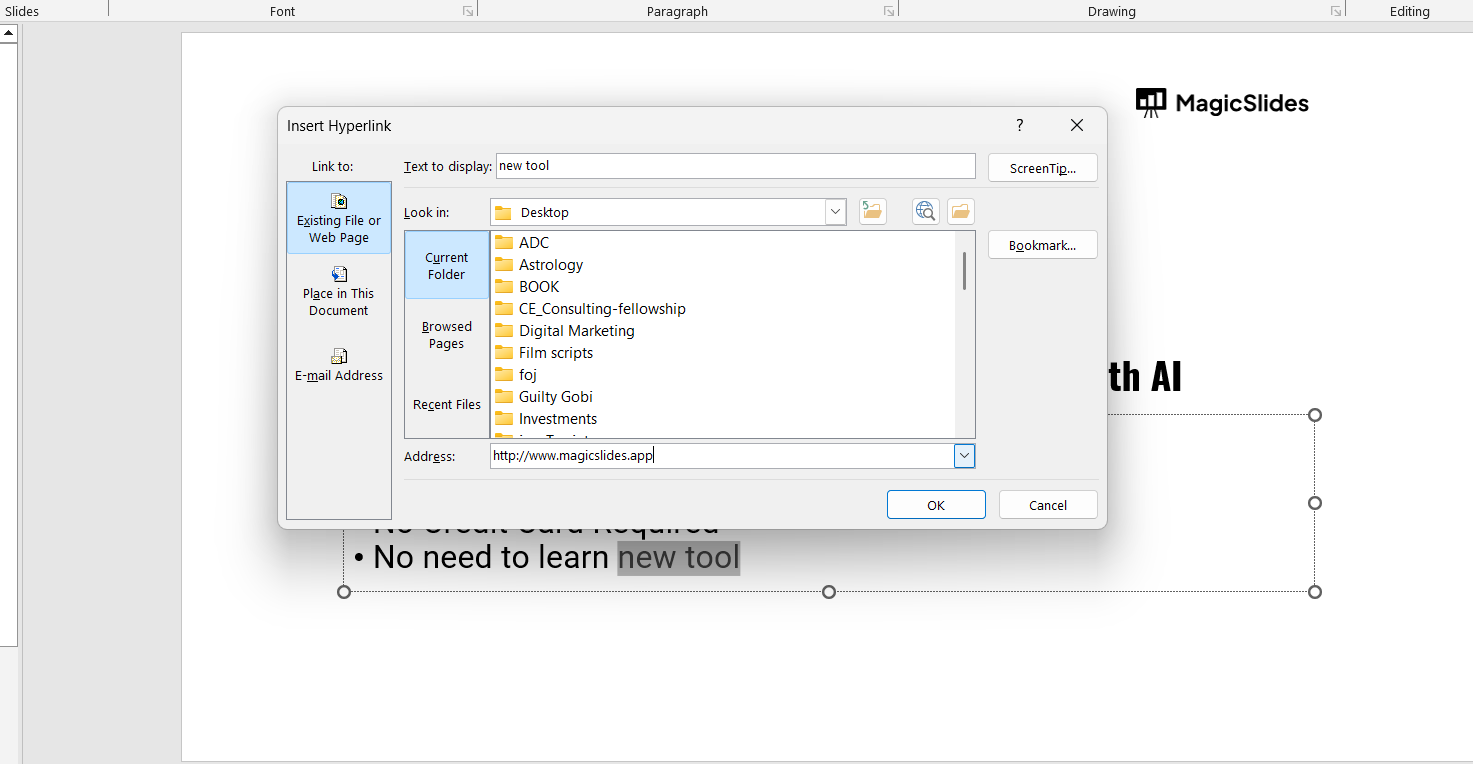
To do this, highlight the text or object you want to turn into a hyperlink, right-click, and choose "Link" or "Hyperlink." In the dialog box that appears, you can link to a specific slide, an external URL, or a file on your computer. Repeat this process to create multiple hyperlinks on your slide.
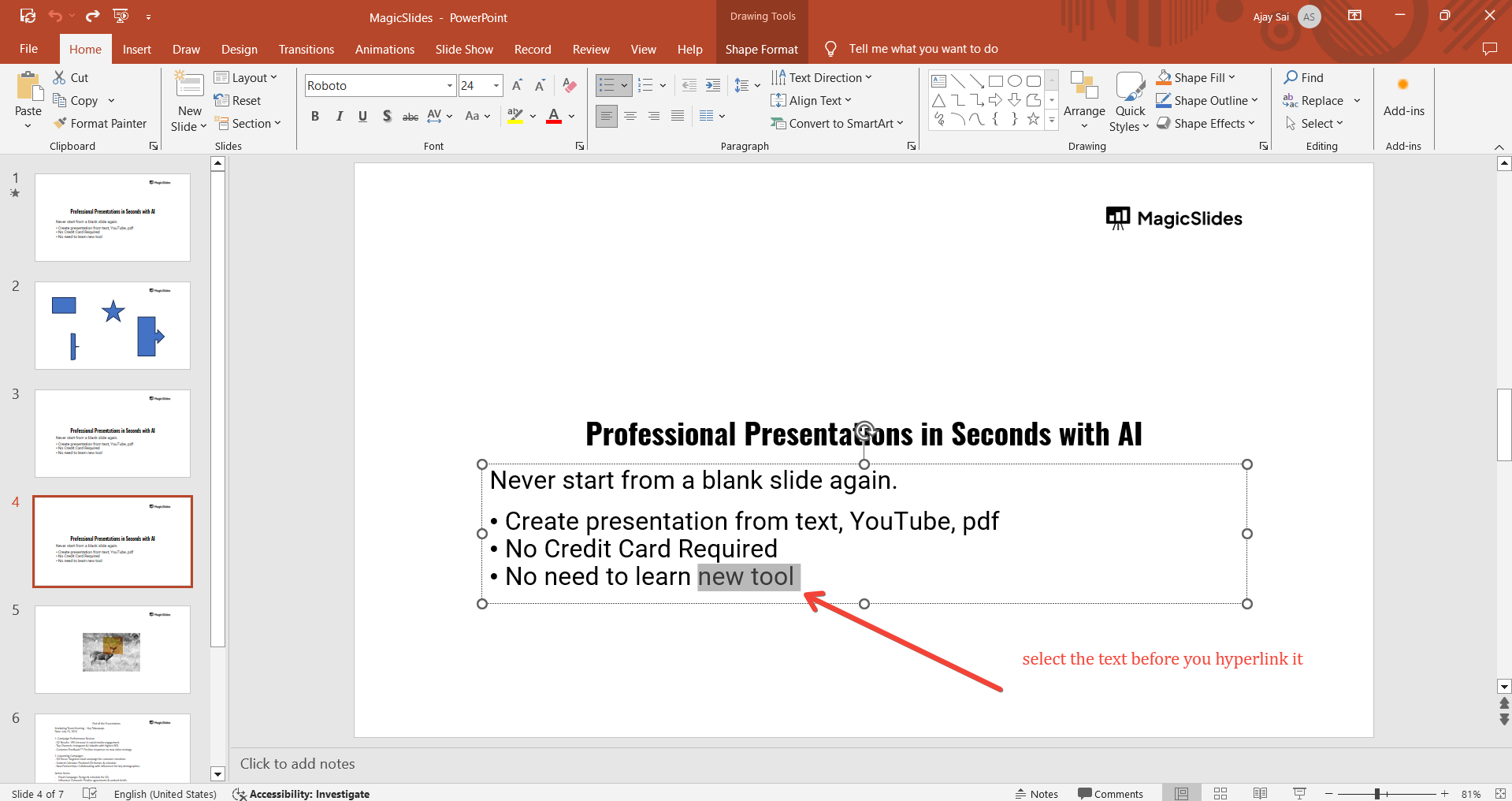
Example: You might link the text "Go to Slide 3" to slide 3, and "Visit Website" to an external website.
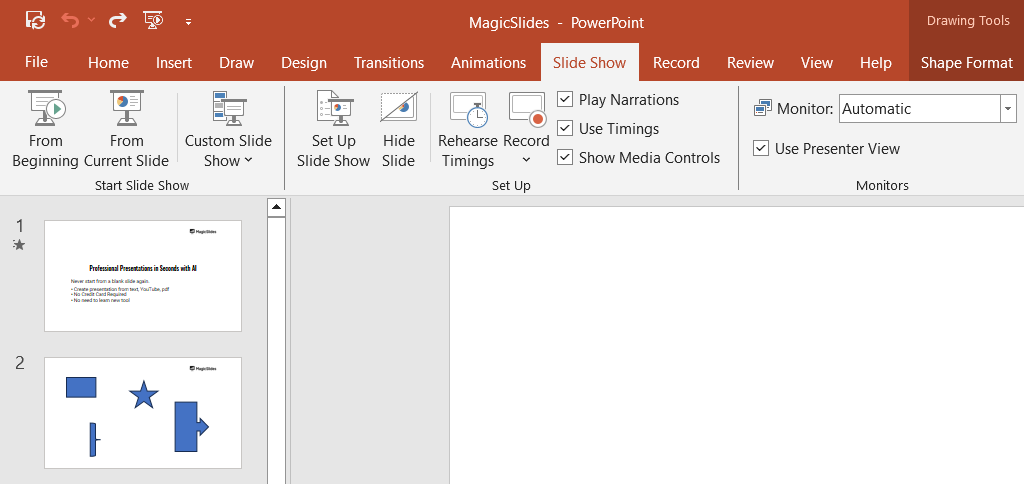
Step 2: Start Your Slide Show
To test and use your hyperlinks, start the slide show. You can do this by clicking on the "Slide Show" tab in the ribbon and selecting "From Beginning" or "From Current Slide." This will activate all the hyperlinks you’ve set up.
Learn to craft a compelling short bio for presentations, enhancing credibility and audience engagement with these expert tips.
Step 3: Select the First Hyperlink
When you’re ready to select the first hyperlink during your presentation, move your cursor over the hyperlinked text or object.
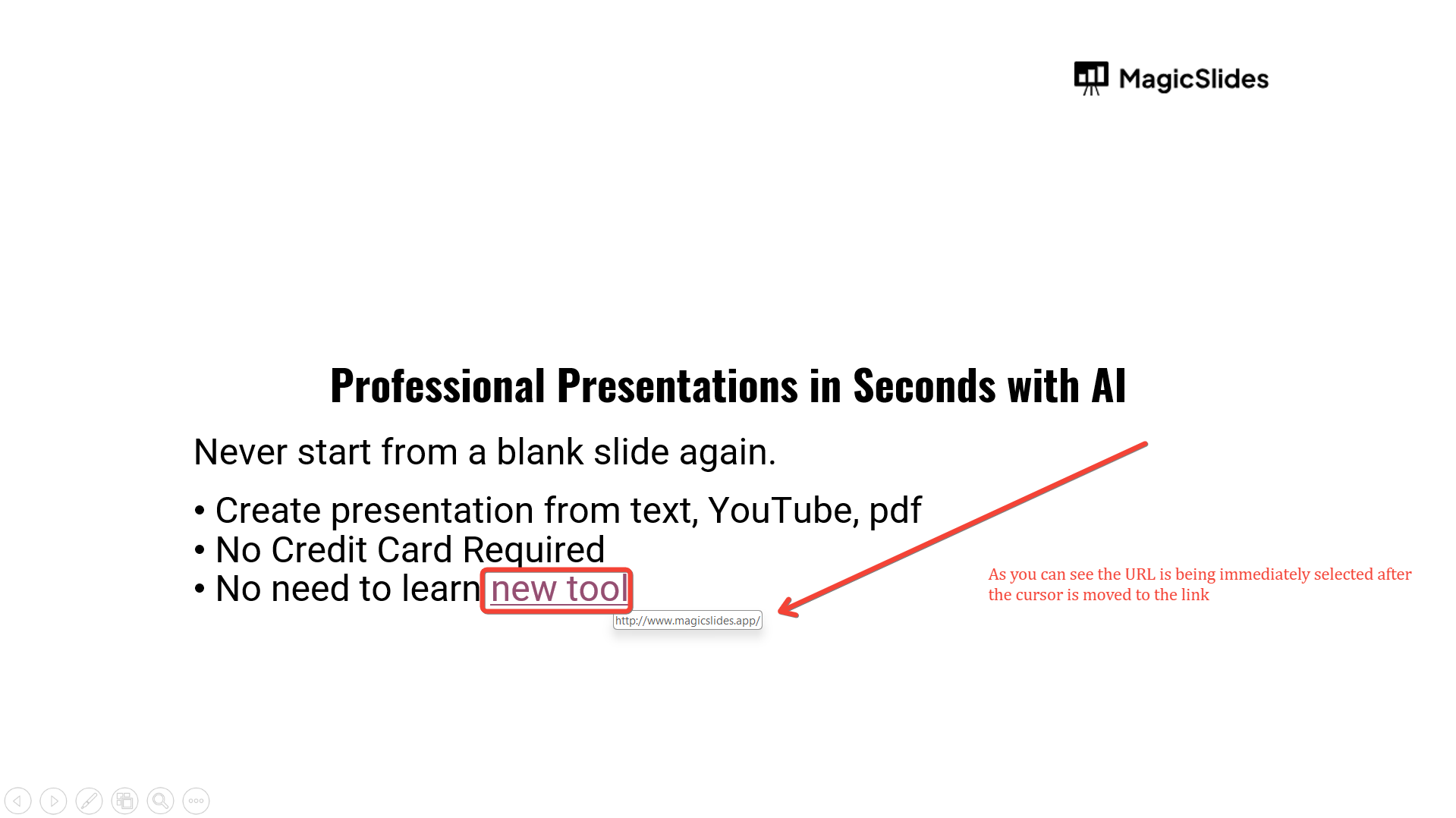
The cursor will change to a hand icon, indicating that the hyperlink is active. Click on the hyperlink to navigate to the linked slide, website, or document.
Example: Clicking on "Go to Slide 3" will take you directly to slide 3 in your presentation.
Step 4: Navigate Back to the Original Slide
After you’ve followed the first hyperlink, you may want to return to the original slide or move on to another hyperlink.
If the link directed you to another slide in your presentation, you can use the "Back" button or arrow keys to return to the original slide.
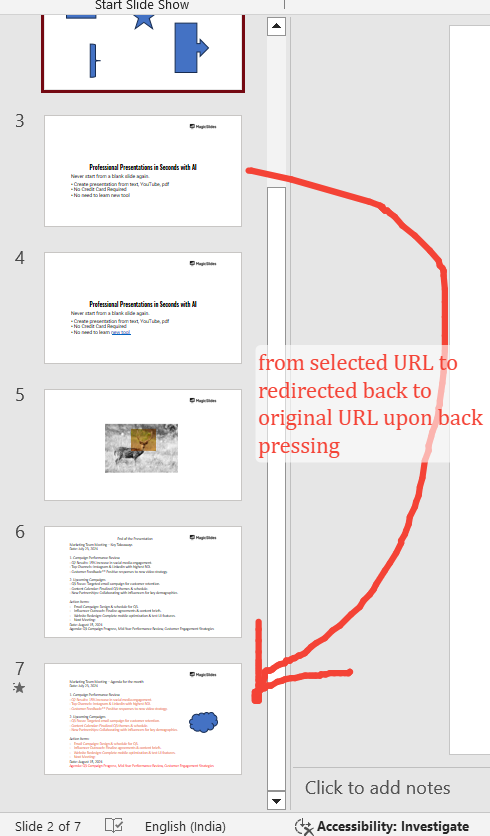
Example: If you navigated to slide 3, press the left arrow key to go back to the slide with multiple hyperlinks.
Step 5: Select the Next Hyperlink
Once back on the original slide, move your cursor over the next hyperlink and click to follow it.
This will take you to the next linked location, allowing you to navigate through multiple hyperlinks as needed.
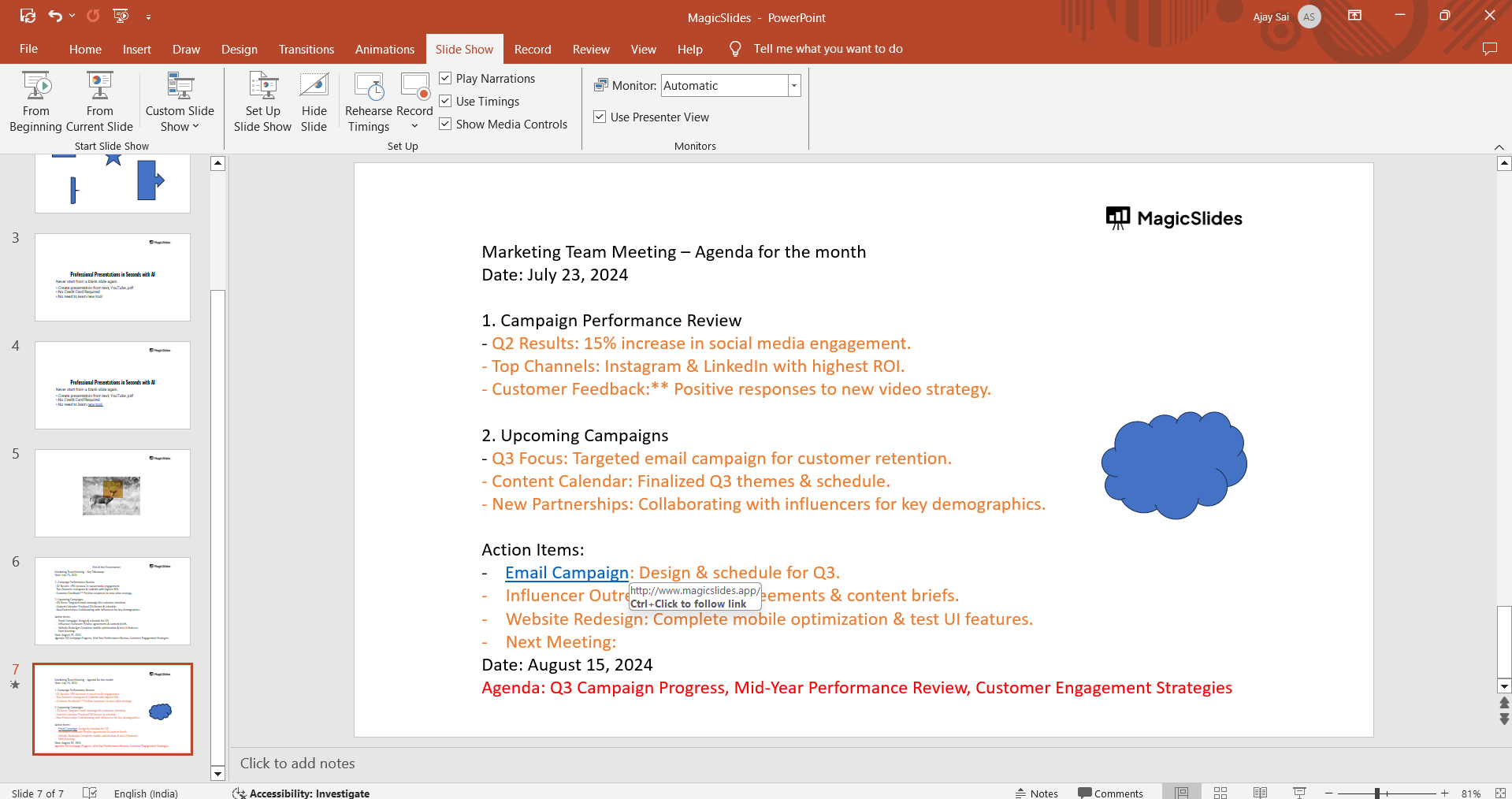
Example: After returning to the original slide, click on "Visit Website" to open the linked website.
Step 6: Practice for Smooth Navigation
It’s a good idea to practice selecting hyperlinks before your presentation to ensure smooth navigation.
Test each link to confirm that it directs you to the correct location and practice moving back and forth between slides or external links.
Example: Run through your slide show several times, selecting each hyperlink in different orders to become comfortable with the navigation process.
Conclusion
Selecting and navigating through multiple hyperlinks during a PowerPoint presentation can significantly enhance interactivity and audience engagement.
By following these steps, you can confidently guide your audience through various linked content, ensuring a seamless and professional presentation experience.
Tired of maing presentations? what if we tell you you can make presentation with just a prompt, convert YouTube videos to PPTs, convert website content to PPTs? Yes! checkout magicslides.app that does all and enjoy the free credits to make presentations in seconds.
FAQs come handy in need!
Can I hyperlink to external websites and other slides in the same presentation?
Yes, you can hyperlink to both external websites and different slides within the same presentation.
How do I return to the original slide after clicking a hyperlink?
Use the "Back" button or arrow keys to navigate back to the original slide.
Can I test the hyperlinks before the actual presentation?
Yes, you should practice navigating through your hyperlinks in Slide Show mode to ensure they work correctly.


