how to share power point in teams


Maximize your Microsoft Teams meetings by learning how to seamlessly share PowerPoint presentations in just four steps.
Microsoft Teams is a powerful platform for collaboration and communication, and one of its key features is the ability to seamlessly share content during meetings.
Sharing a PowerPoint presentation in a Teams meeting can be a game-changer for effective communication, allowing you to engage your audience with visual aids and facilitate discussions. In this guide, we'll walk you through the simple process of sharing your PowerPoint presentation in Teams, so you can make your meetings more engaging and productive.
Step 1: Join or Start a Teams Meeting Begin by either joining an existing Teams meeting or initiating a new one. You can schedule a meeting in Teams or join one that's already in progress.
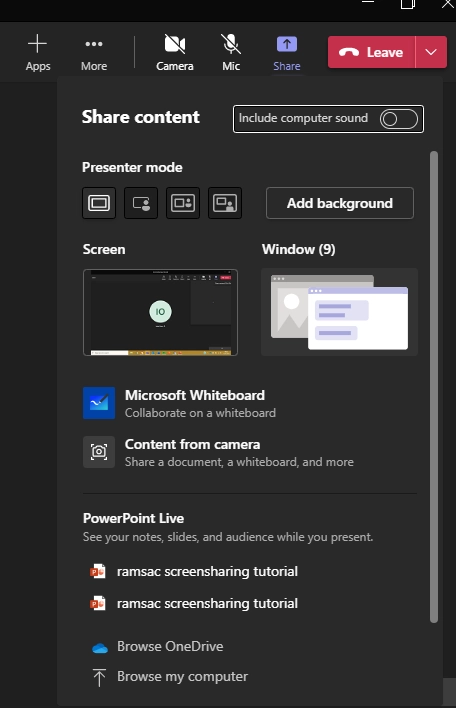
Step 2: Share Your Screen Once you're in the meeting, look for the toolbar at the bottom of the screen. Click on the "Share" button, usually represented by a screen icon. This action opens a menu with various sharing options.
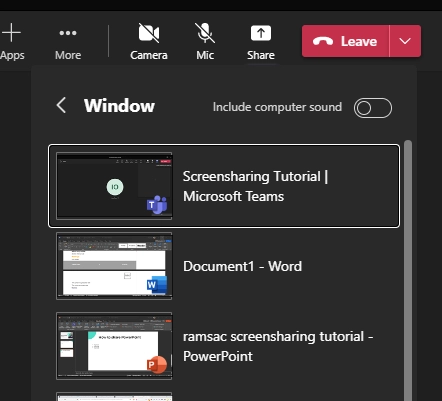
Step 3: Select PowerPoint Presentation In the sharing menu, you'll see a list of all the applications and screens you can share. To share your PowerPoint presentation, select the window or application that displays your PowerPoint file. This will open the presentation for all meeting participants to view.
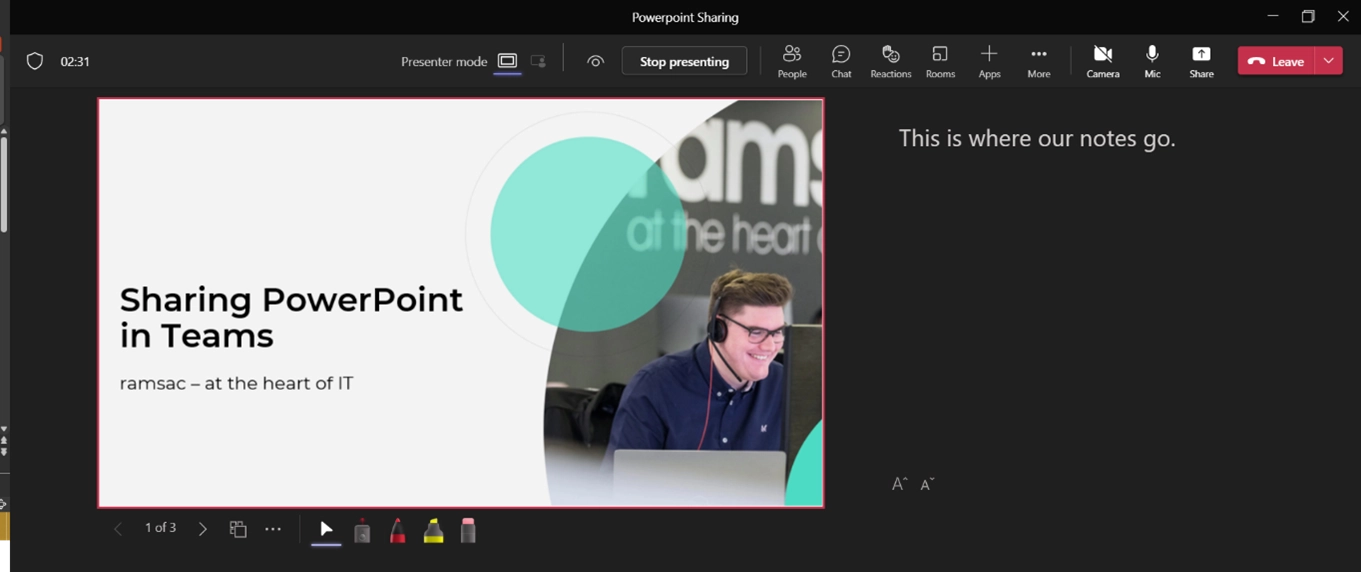
Step 4: Start Presentation Sharing Now After selecting your PowerPoint presentation, click the "Share" button. Your PowerPoint will now be visible to everyone in the meeting. You can start your presentation and navigate through slides as needed. Participants will be able to see your slides and follow along in real-time.
Conclusion:
Sharing a PowerPoint presentation in Microsoft Teams is a straightforward process that enhances the quality of your meetings and presentations. Whether you're presenting to colleagues, clients, or team members, the ability to share your content effortlessly can save time and foster better collaboration.
By following the four easy steps outlined in this guide, you can harness the full potential of Microsoft Teams and make your presentations more impactful than ever before. Happy presenting!


