How to turn Google Slides into a Video


Easily convert Google Slides into a video for seamless sharing, presentations, tutorials, and enhanced engagement
How to Turn Google Slides into a Video
Turning your Google Slides presentation into a video allows for easy sharing, smooth playback, and enhanced engagement. Whether for tutorials, lectures, or business presentations, converting slides into a video is a useful skill. Follow these step-by-step methods to turn your Google Slides into a video.
Method 1: Manually Recording Your Presentation (Using Screen Recording)
Step 1: Open Your Google Slides Presentation
Visit Google Slides and open the presentation you want to convert into a video.
Step 2: Start a Slideshow
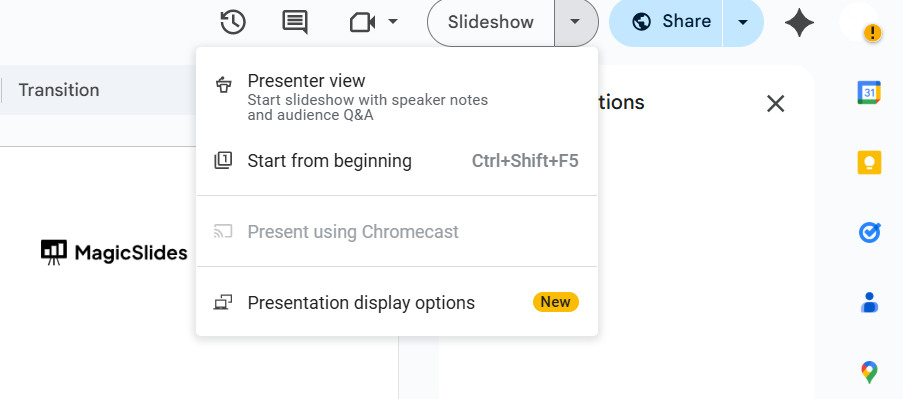
Click on "Slideshow" in the top-right corner to start playing your presentation in full screen.
Step 3: Use a Screen Recorder
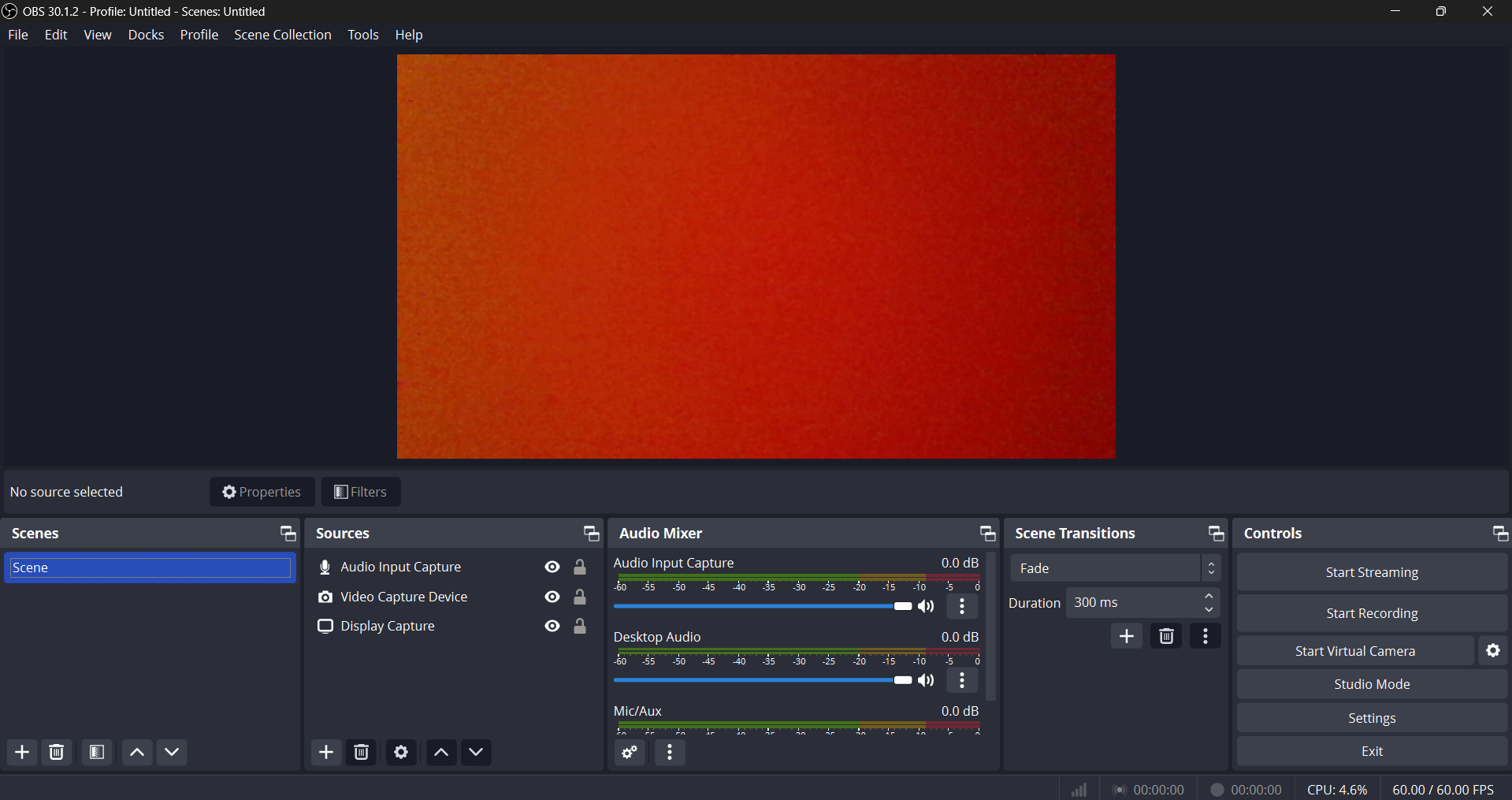
- On Windows: Use built-in tools like Xbox Game Bar (
Windows + G) or third-party software like OBS Studio or Camtasia.
- On Mac: Use QuickTime Player (
Command + Shift + 5) to record your screen.
Step 4: Record Your Presentation
Start recording and manually navigate through your slides, making sure to speak over them if necessary.
Step 5: Stop and Save Your Recording
Once done, stop the recording and save the video file in MP4 format for easy sharing.
Method 2: Using Google Slides Add-Ons (Loom, Screencastify, etc.)
Step 1: Install an Add-On
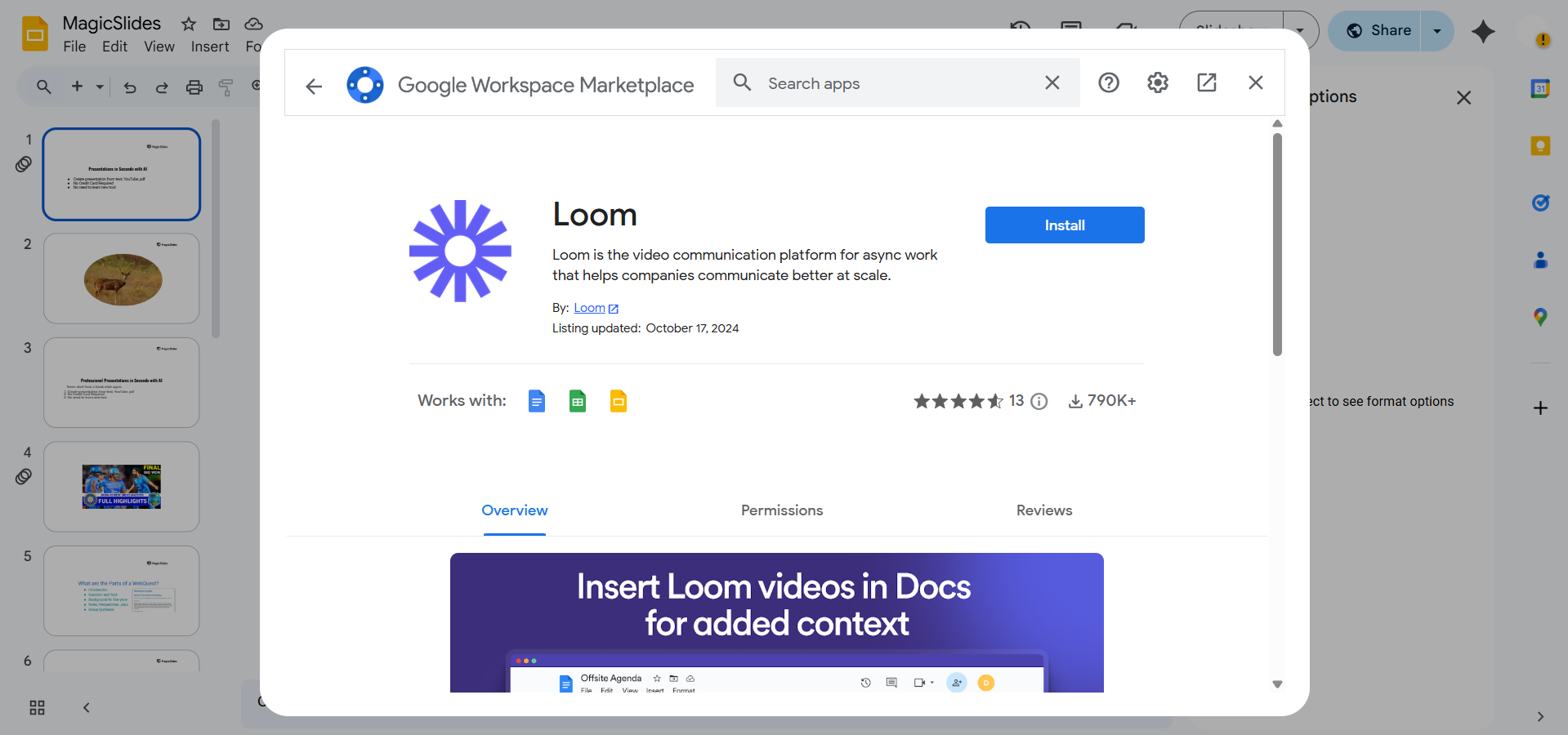
- Click on Extensions > Add-ons > Get add-ons
- Search for Loom or Screencastify and install it.
Step 2: Open the Add-On and Start Recording
- Open the extension and allow it to access your screen.
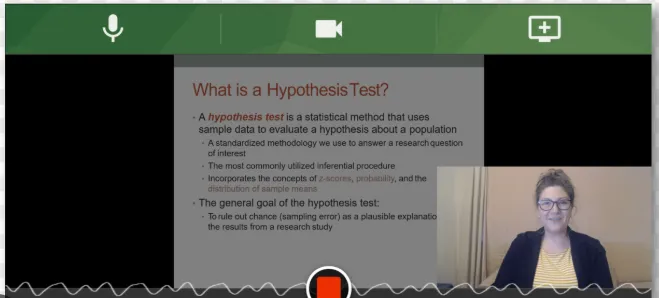
- Start recording while presenting your Google Slides.
Step 3: Download the Video
- After recording, save or download the video in MP4 format.
Method 3: Exporting Google Slides to PowerPoint and Converting to Video
Step 1: Download Google Slides as a PowerPoint File
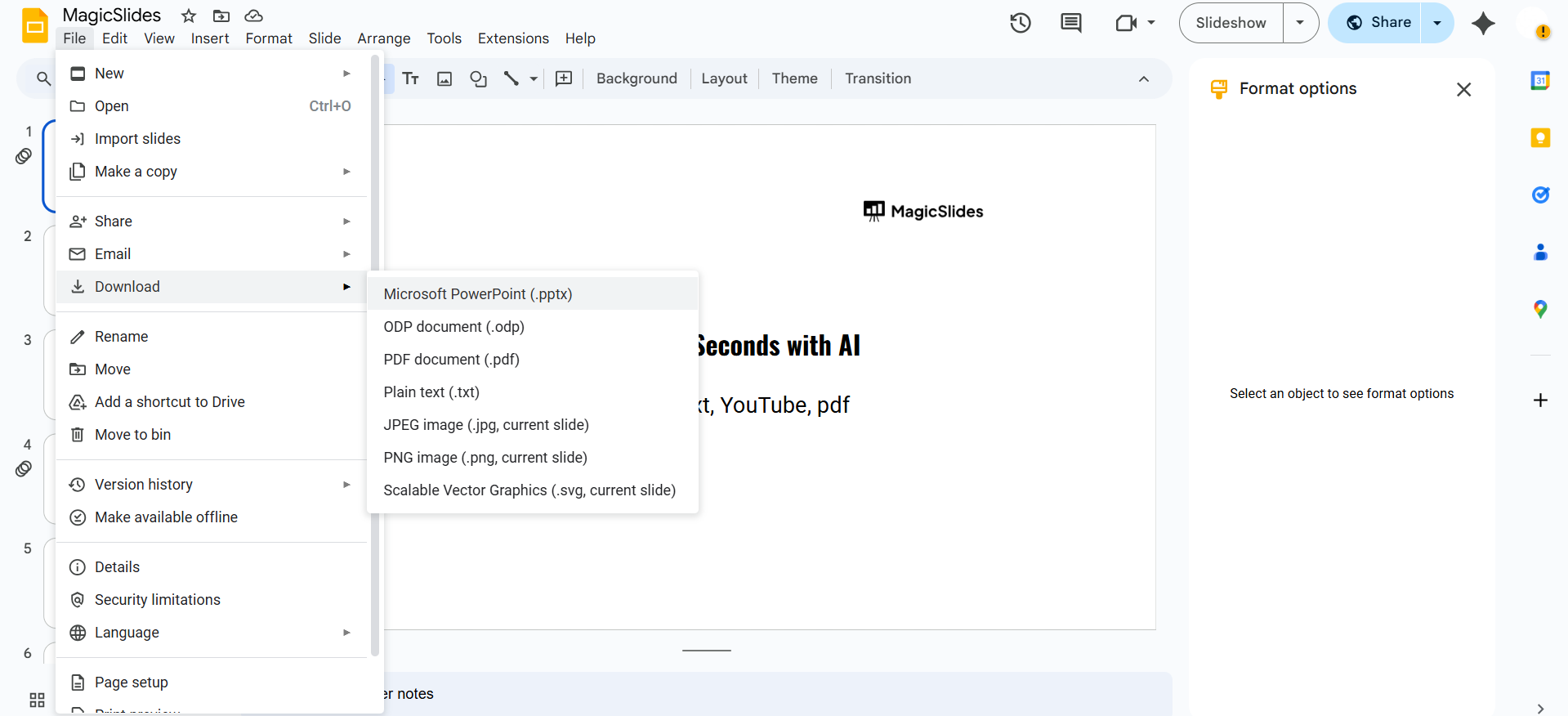
- Click File > Download > Microsoft PowerPoint (.pptx)
Step 2: Open in PowerPoint and Export as a Video
- Open the PowerPoint file, go to File > Export, and choose Create a Video.
- Adjust slide timings and narration if needed.
- Click Create Video and save it as an MP4 file.
Converting Google Slides into a video helps create engaging presentations, but why not let AI generate an entire slideshow for you? With MagicSlides.app, you can create professional slides instantly from topics, PDFs, or even YouTube links!
Conclusion
Converting Google Slides into a video is simple and effective.
Whether using screen recording, Google Slides add-ons, or PowerPoint, these methods help you share your presentation in a video format for better accessibility and engagement.
FAQs can come handy!
Can I add background music while converting Google Slides to a video?
Yes, you can add background music using video editing software like iMovie, Canva, or PowerPoint.
Can I convert Google Slides to a video without screen recording?
Yes, by exporting to PowerPoint and using its built-in Export as Video feature.
What is the best format for a Google Slides video?
MP4 is the best format as it offers high compatibility and good quality.


