How to turn off locked mode on Google forms


Unlocking Google Forms’ Locked Mode: Learn how to disable it with this step-by-step guide
Google Forms is a versatile tool for creating surveys, quizzes, and other forms to gather information.
One of its features, Locked Mode, ensures respondents can’t navigate away from the form until they submit their responses.
However, there are times when you may need to disable this feature. In this guide, we’ll walk you through the steps to turn off Locked Mode on Google Forms.
How to turn off locked mode on Google forms
Step 1: Access Google Forms
Start by opening your web browser and navigating to Google Forms (https://forms.google.com/). Sign in to your Google account if you haven’t already done so.
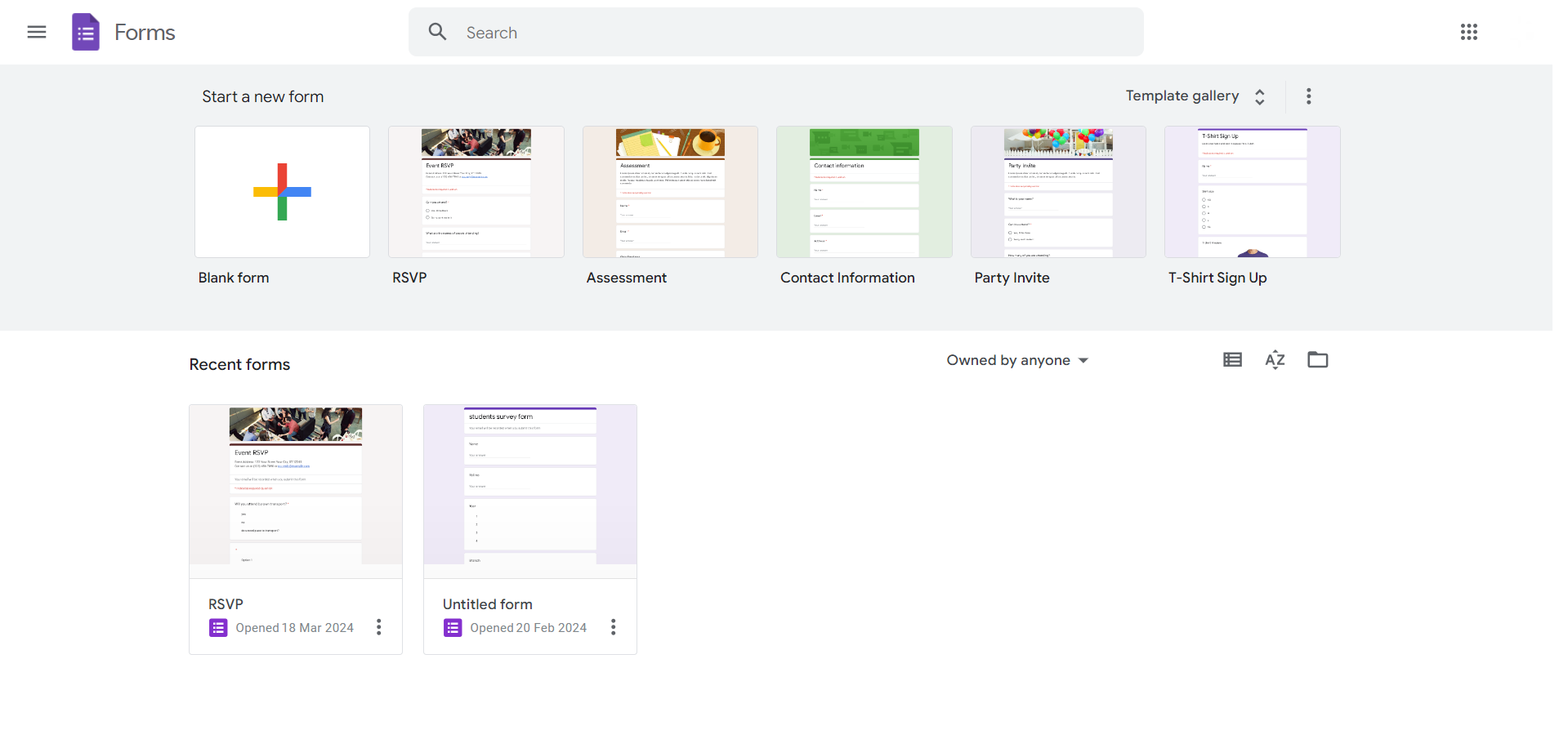
Step 2: Open the Form
Choose the form for which you want to disable Locked Mode from your list of forms or create a new one.
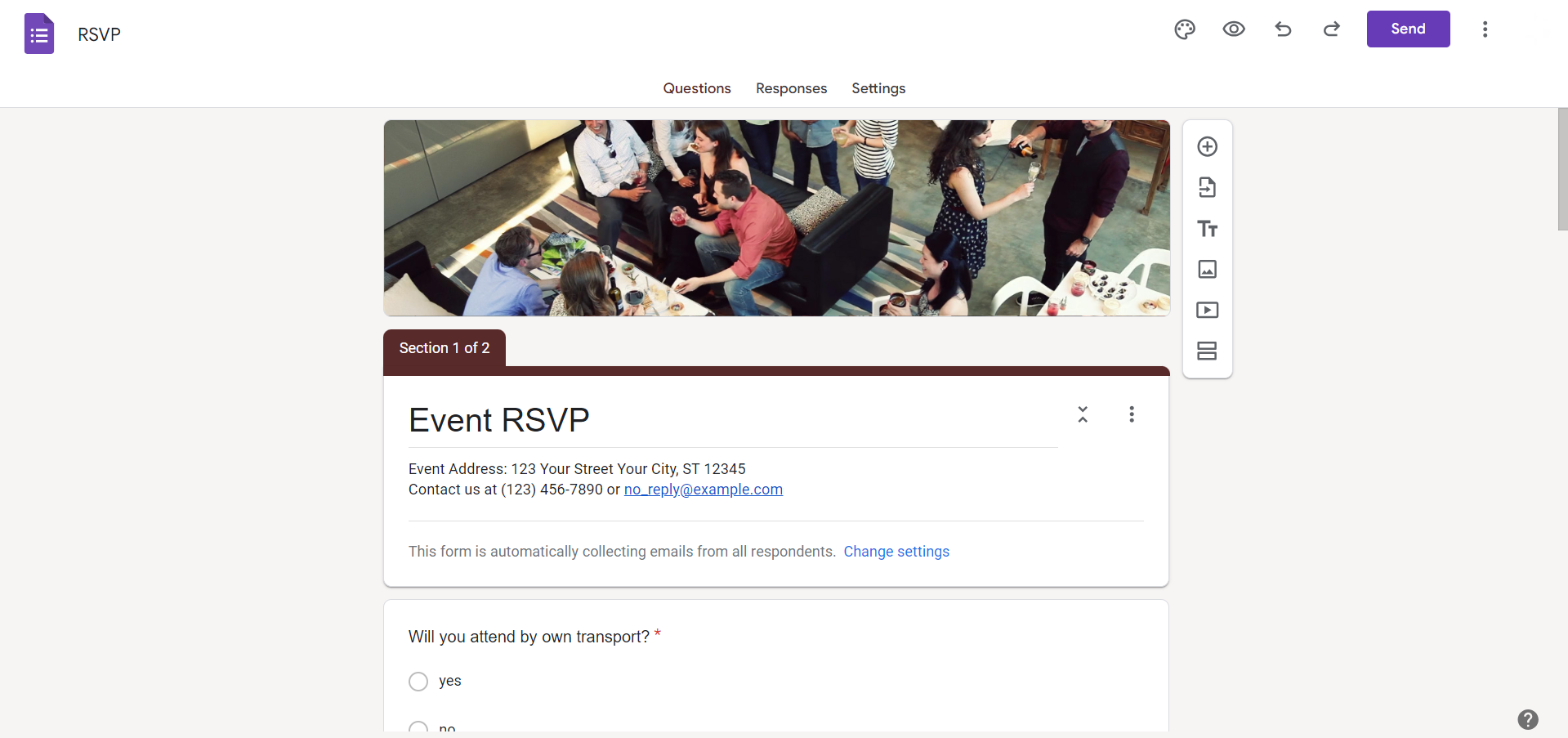
Step 3: Access Settings
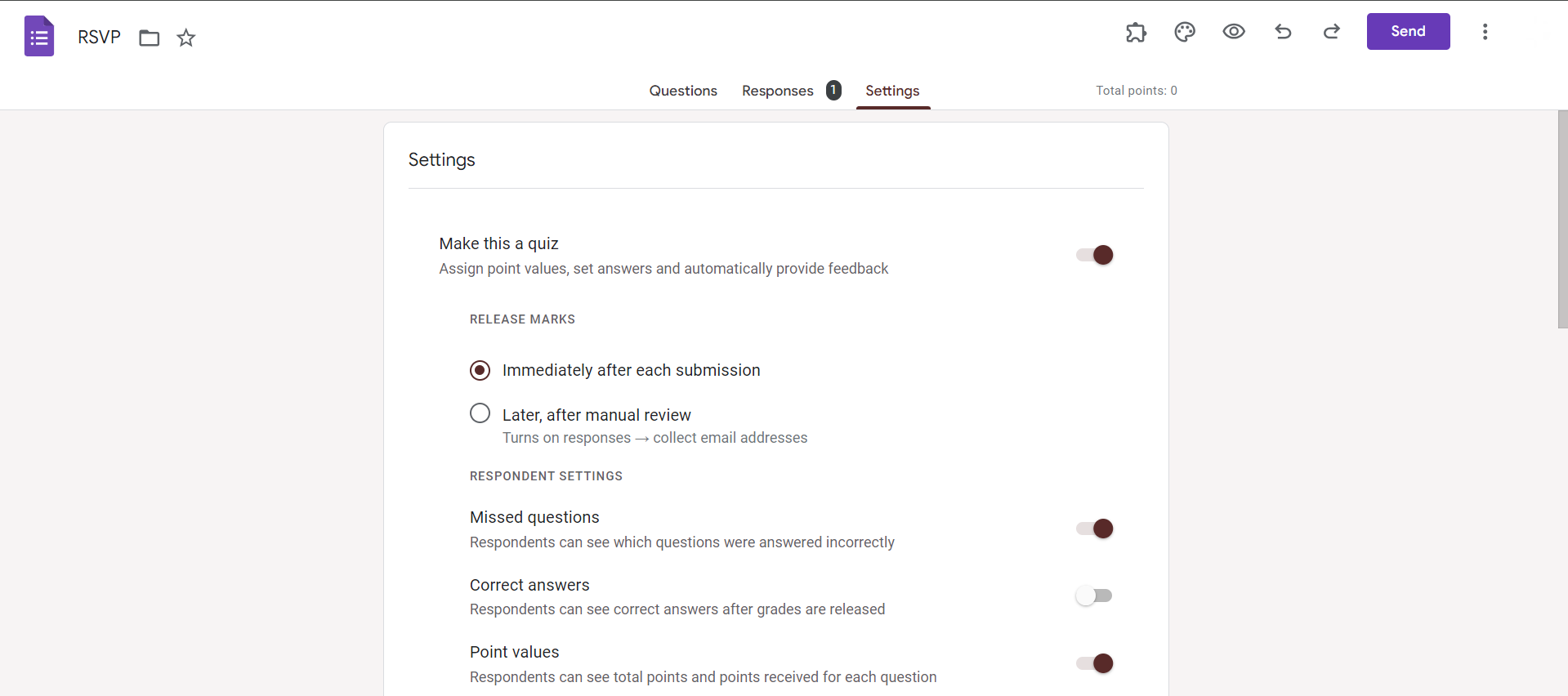
Once your form is open, locate and click on the “Settings” gear icon located at the top-right corner of the screen.
Tired of maing presentations? what if we tell you you can make presentation with just a prompt, convert YouTube videos to PPTs, convert website content to PPTs?
Yes! checkout magicslides.app that does all and enjoy the free credits to make presentations in seconds.
Step 4: Disable Locked Mode
In the Settings menu, scroll down until you find the “Presentation” section.
Here, you’ll see the option for “Locked mode.” Uncheck the box next to it. Don’t forget to click on the “Save” button to apply the changes.
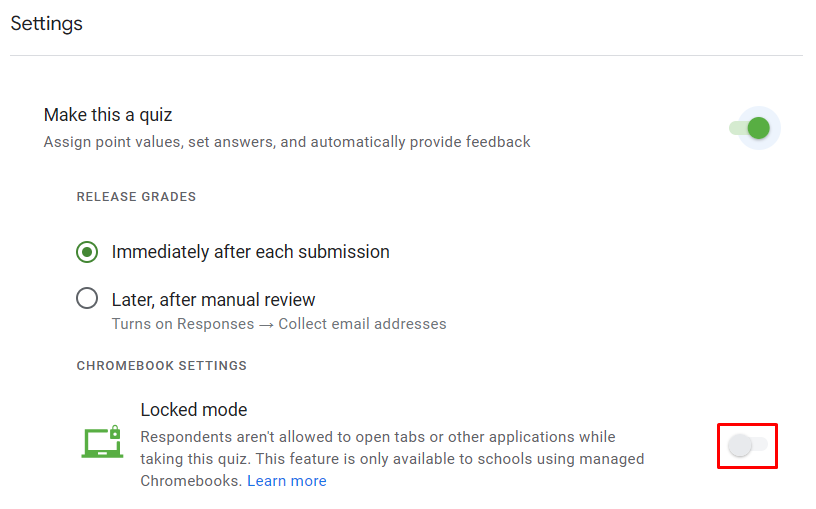
If you’re not seeing the locked mode option, it may not be enabled by your institution’s administrator, or you might not be using Google Workspace for Education so change the mail or use Google forms for education if you want to disable the locked mode for your form.
Conclusion:
Locked Mode in Google Forms serves its purpose by ensuring respondents complete the form without distractions.
However, there are situations where flexibility is needed, allowing respondents to navigate away from the form before submission.
By following the straightforward steps outlined in this guide, you can easily turn off Locked Mode and tailor the user experience according to your requirements.
After giving out permissions check the privacy measures by knowing how to Turnoff locked mode on Google forms
Frequently Asked Questions:
What is Locked Mode in Google Forms?
Locked Mode in Google Forms prevents respondents from navigating away until they submit their responses.
Why might I need to turn off Locked Mode?
Disabling Locked Mode can be necessary if you want respondents to navigate away before submission.
Does turning off Locked Mode affect my form’s functionality?
No, turning off Locked Mode doesn’t impact the functionality of your form; respondents can still submit responses.
Can I turn Locked Mode back on after disabling it?
Yes, you can easily turn Locked Mode back on by following the same steps in the settings.


