How to Turn off Snapping in Canva


Learn how to turn off snapping in Canva for greater flexibility and precise element positioning
Snapping in Canva helps align elements automatically, but it can sometimes feel restrictive when designing.
If you need more control over positioning elements freely, turning off snapping is the solution.
This guide will walk you through the steps to disable snapping in Canva for a smoother, unrestricted design experience.
How to Turn Off Snapping in Canva | Steps to Turn Off Snapping in Canva
Step 1: Open Your Canva Design
Log in to your Canva account and open the design you want to work on.
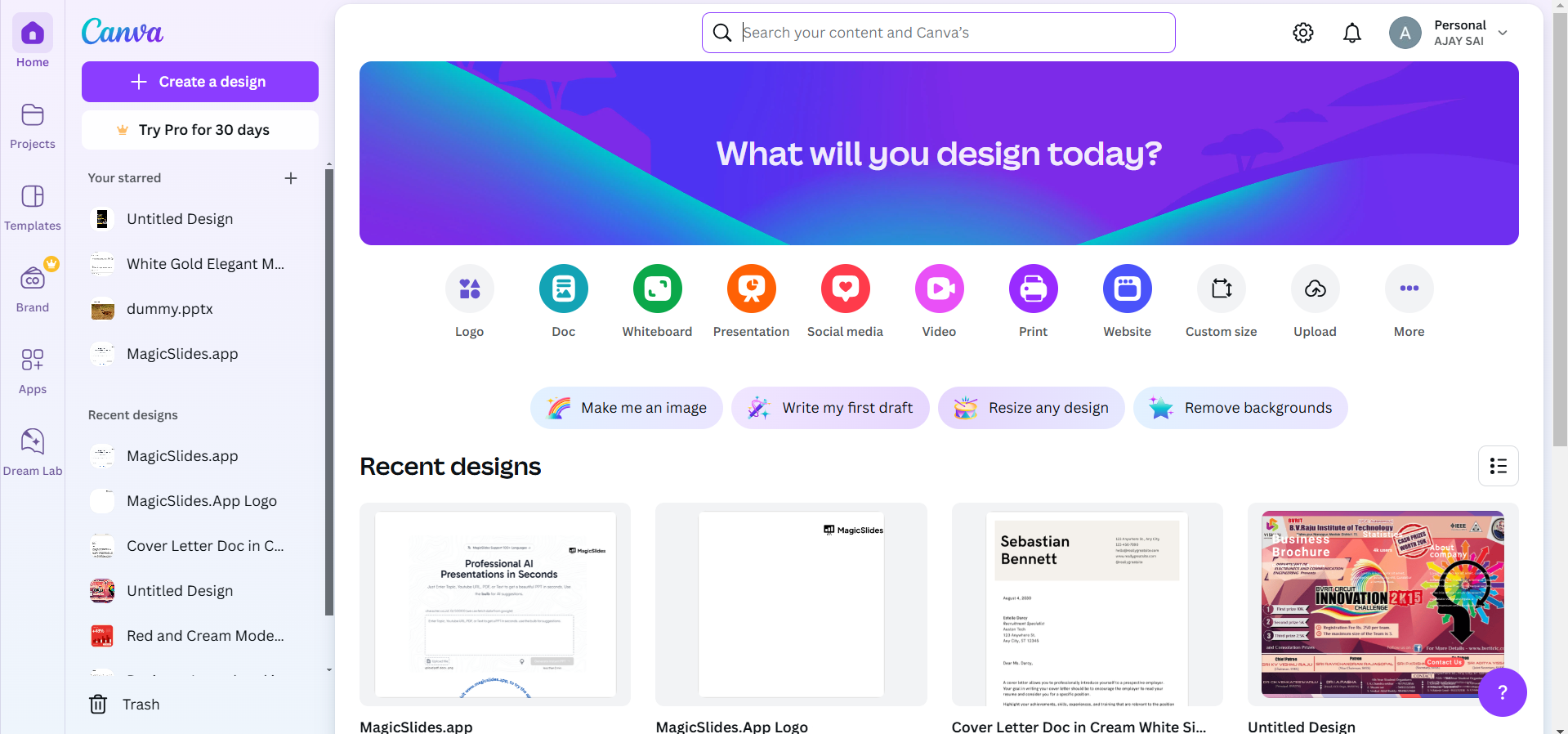
Navigate to the specific page or section where you’re experiencing snapping issues.
Step 2: Enable Free Movement Temporarily Using the Shift Key
If snapping makes it difficult to place an element, hold down the Shift key.
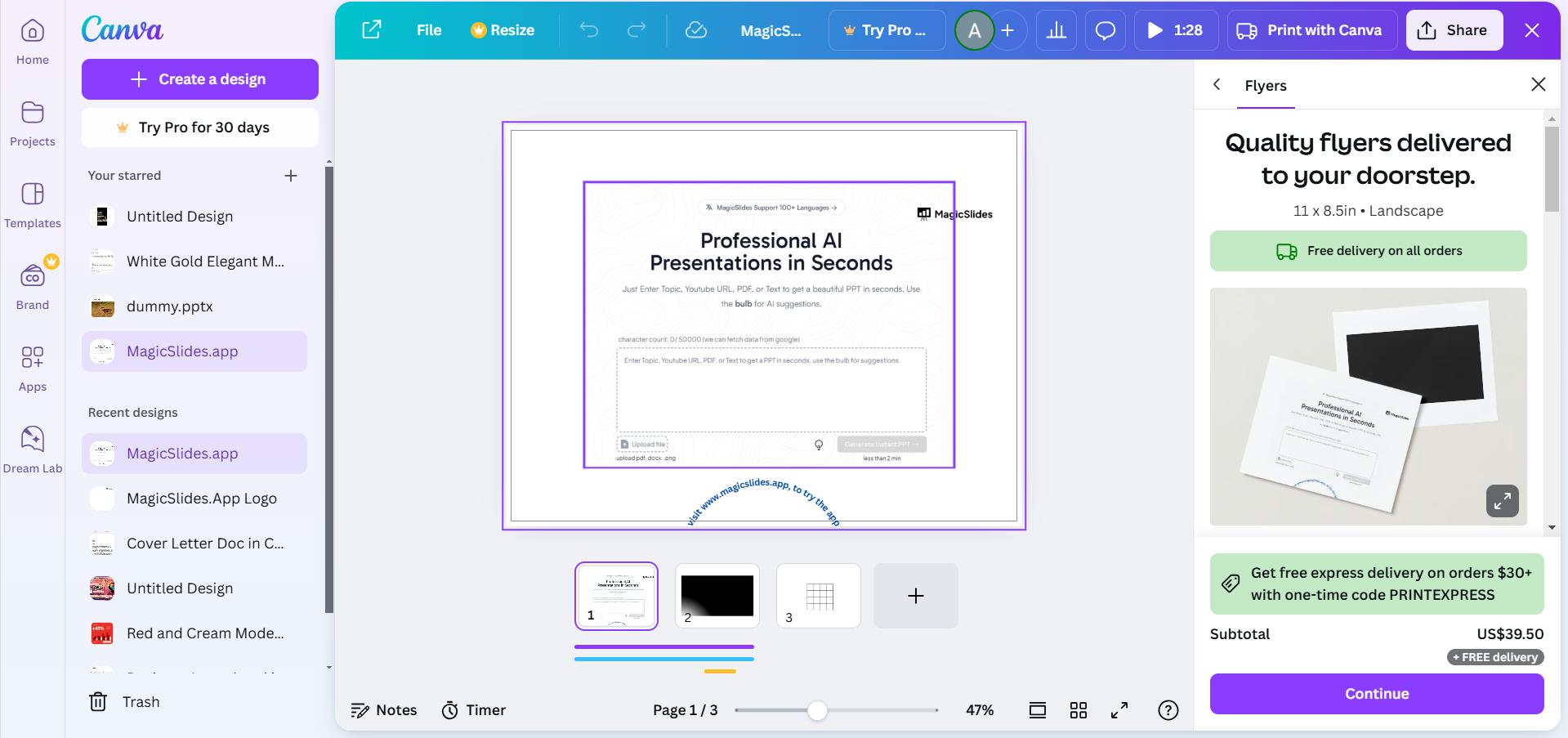
While holding the key, move the element to the desired position. This bypasses snapping for precise placement.
Step 3: Adjust Grid and Ruler Settings
Click on “File” in the top menu bar of Canva.
Select “Show Rulers and Guides” to enable or disable grids that might be causing snapping.
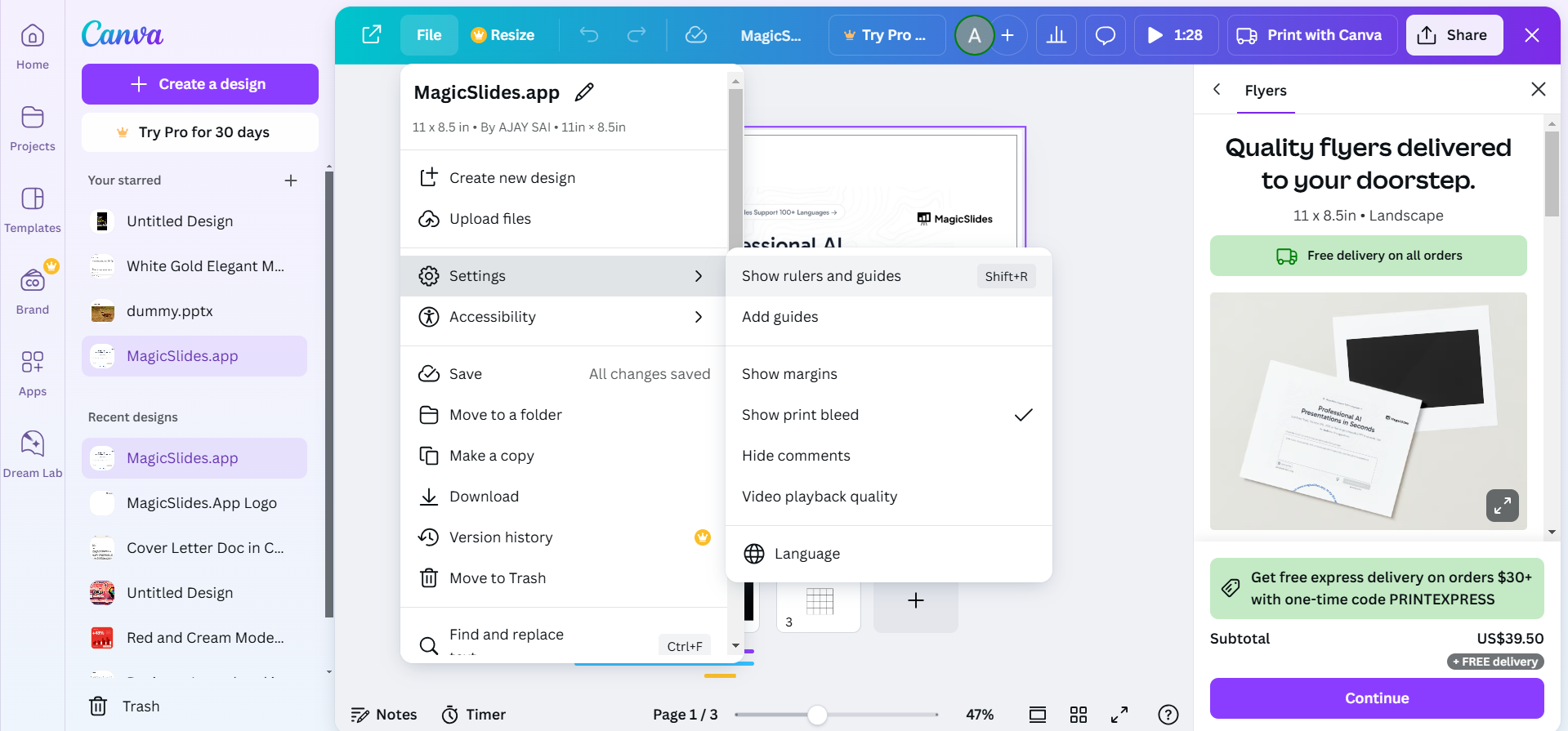
Drag guides manually or adjust ruler settings for more flexibility.
Step 4: Align Elements Without Snapping
For alignment without snapping, avoid dragging elements near predefined grids or borders.
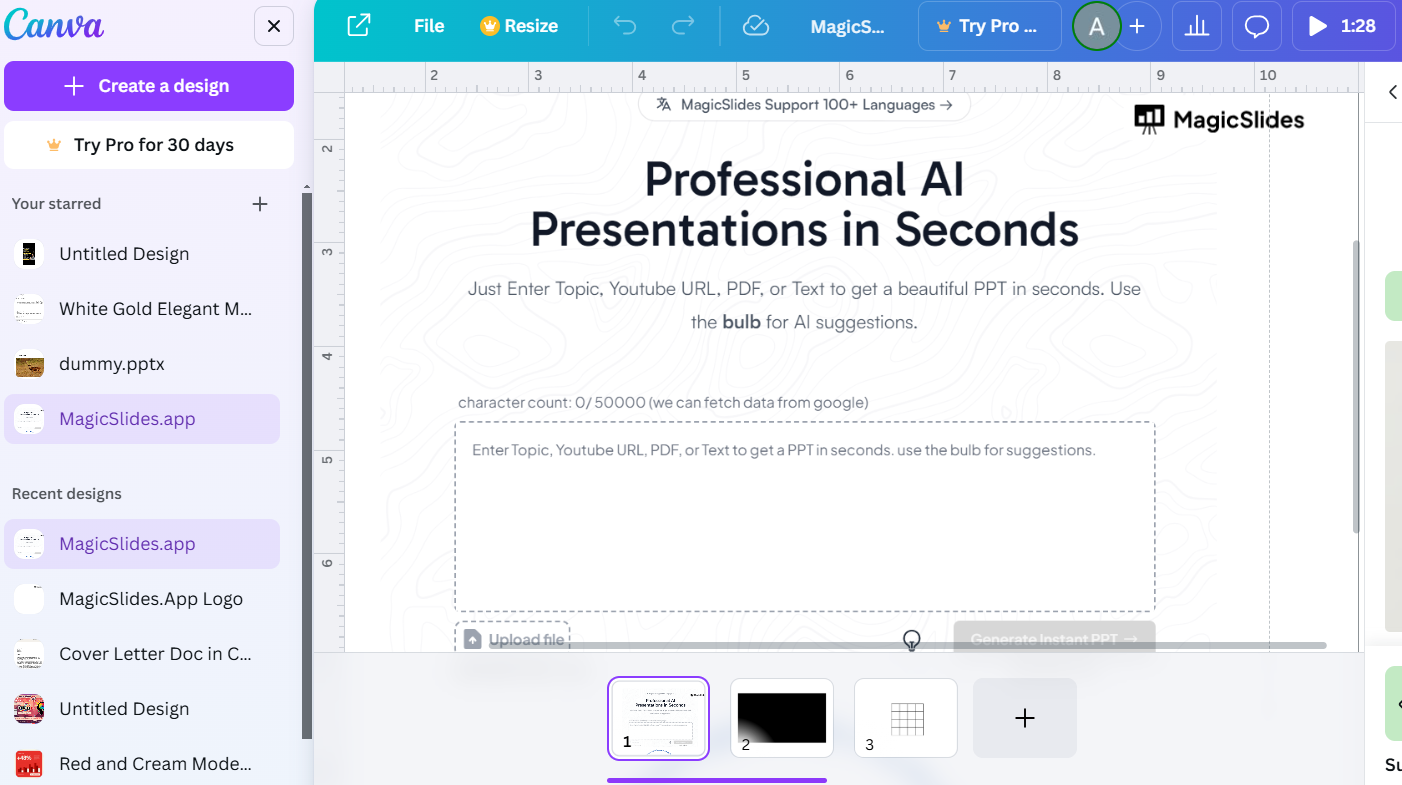
Use the Position tab in the top toolbar to arrange elements manually by specifying their coordinates.
Step 5: Disable Snapping in Grouped Objects
If snapping persists within grouped elements, ungroup them by right-clicking and selecting “Ungroup.”
Adjust each element individually for better control over placement.
Conclusion
Turning off snapping in Canva gives you the creative freedom to position elements exactly where you want them.
Whether you’re designing complex layouts or working on custom designs, these steps ensure a seamless and flexible workflow, allowing you to focus on creativity without restrictions.
FAQs on Turning Off Snapping in Canva
Can I permanently disable snapping in Canva?
No, Canva doesn’t offer a feature to permanently disable snapping, but holding Shift allows temporary bypassing.
Why is snapping enabled by default in Canva?
Snapping helps maintain alignment and consistency in designs, making it easier to create professional layouts.
Does turning off snapping affect guides and grids?
No, guides and grids remain visible unless manually disabled. You can use them independently of snapping.
By following this guide, you can enjoy greater flexibility in Canva and create designs that match your exact vision!


