How to undo and redo actions in Google Docs?


Learn how to effortlessly undo and redo actions in Google Docs with this simple guide. Boost your productivity instantly!
Google Docs is a versatile tool for writing, collaborating, and editing documents online. With its array of features, it's essential to grasp the basics, including how to undo and redo actions. Whether you're a beginner or a seasoned user, understanding these functionalities can streamline your workflow and enhance productivity. In this guide, we'll walk you through the steps to effectively undo and redo actions in Google Docs.
How to undo and redo actions in Google Docs?
Before diving into the specifics of undo and redo actions, ensure you're logged into your Google account and have Google Docs open in your web browser.
Undoing Actions
1. Locate the Undo Button
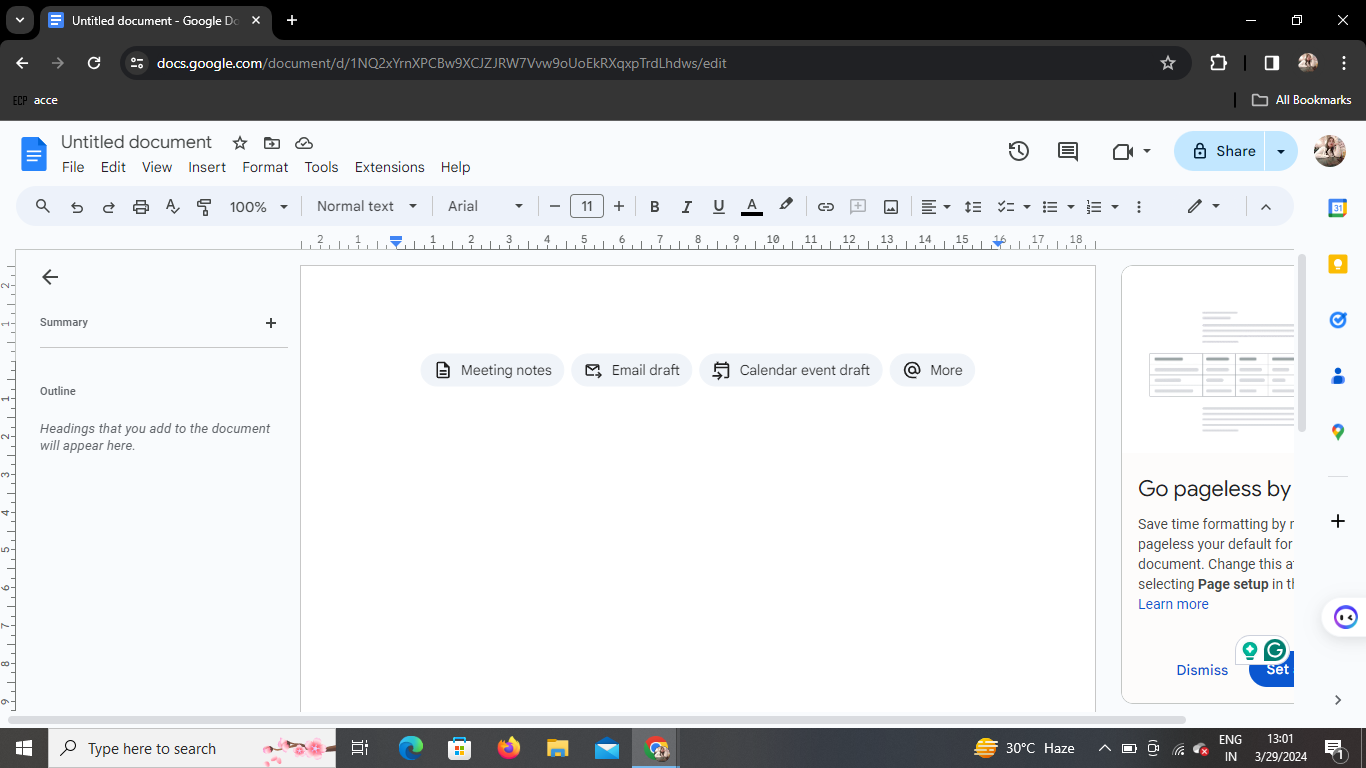
On the top left corner of the screen, you'll notice a backward arrow icon. This is the undo button.
2. Click or Shortcut
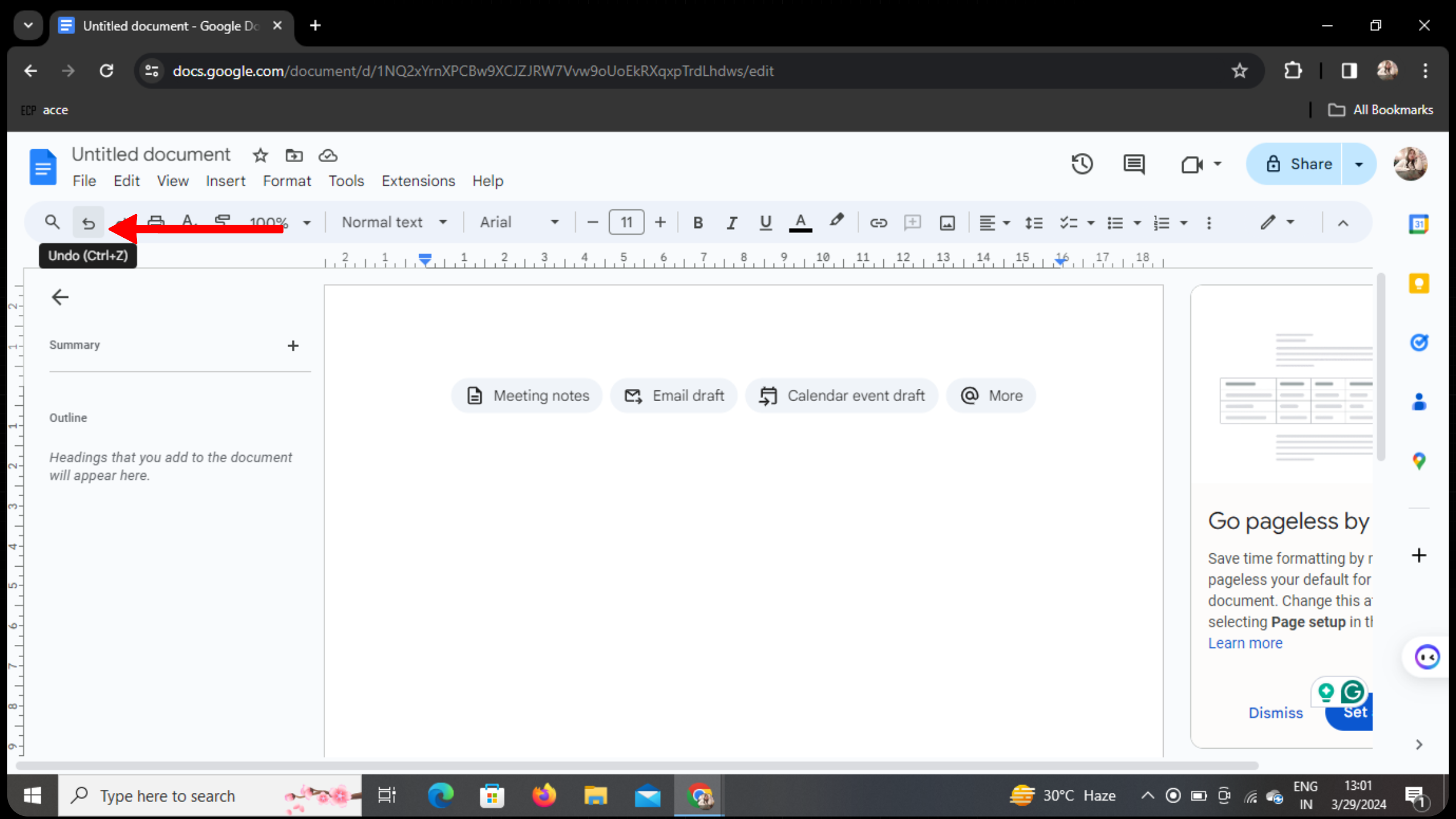
To undo an action, simply click on the backward arrow icon. Alternatively, you can use the shortcut Ctrl + Z (Command + Z on Mac).
3. Action Reversed
Your last action will be undone, whether it's typing, formatting, or any other edit you made to the document.
Redoing Actions
1. Find the Redo Button
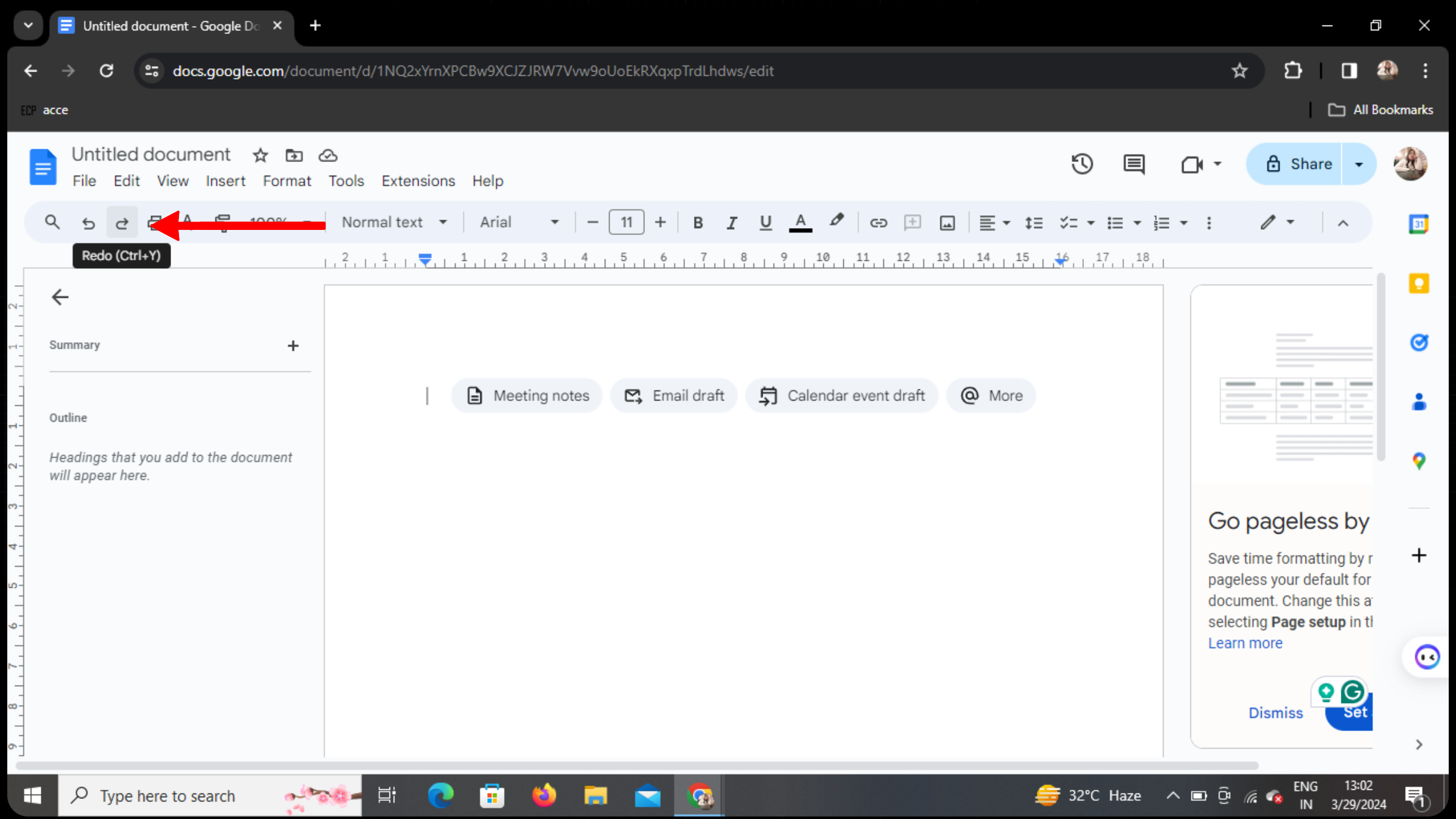
Adjacent to the undo button, you'll see a forward arrow icon. This is the redo button.
2. Click or Shortcut
To redo an action that you've undone or wish to reapply, click on the forward arrow icon. Alternatively, use the shortcut Ctrl + Y (Command + Y on Mac).
3. Action Restored
Your undone action will be reapplied, restoring the document to its previous state.
Conclusion
Mastering the undo and redo actions in Google Docs is fundamental for efficient document editing and collaboration. Whether you're correcting mistakes, experimenting with formatting, or reverting to a previous version, these functions empower you to work with confidence and precision.
Frequently Asked Questions
How far back can I undo actions in Google Docs? Google Docs allows you to undo your most recent actions, but there isn't a specific limit on the number of steps you can undo.
Can I undo changes made by collaborators in a shared document? Yes, you can undo changes made by collaborators in a shared document using the same undo functionality.
Does undoing actions in Google Docs affect other collaborators? Undoing actions only affects your view of the document. Other collaborators' views remain unaffected unless they've made changes that are subsequently undone.
Can I redo actions after closing and reopening the document? No, the undo and redo history is session-based. Once you close the document or refresh the page, the undo and redo history is cleared.
Are there alternative methods for undoing and redoing actions in Google Docs? Yes, apart from using the buttons or keyboard shortcuts, you can also access undo and redo options from the "Edit" menu in Google Docs.


