How to Unlock a Page on Canva


Unlocking pages or elements in Canva allows full editing control for customizing your design freely
Sometimes, you may find that a page or an element on Canva is locked, preventing you from making edits.
Unlocking it is simple and allows you to freely adjust or redesign your project.
In this guide, we’ll go through each step to unlock a page on Canva so you can continue editing with ease.
How to Unlock a Page on Canva: A Step-by-Step Guide
Step 1: Open Your Canva Design
Log in to Canva and open the design containing the locked page or element.
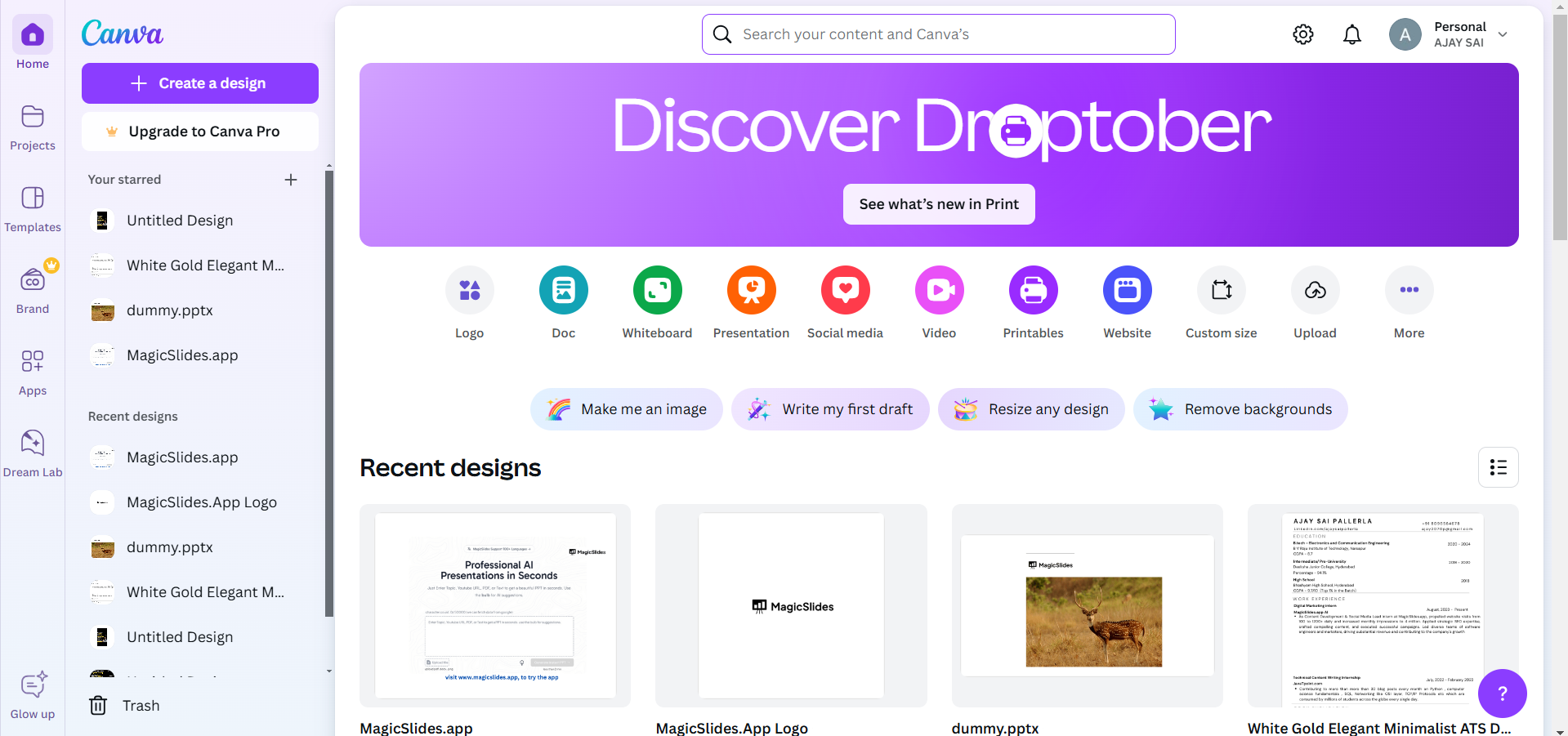
Navigate to the specific page you need to unlock by selecting it in the page panel on the right or by scrolling through your design.
Step 2: Identify Locked Elements
Once you’re on the page, look for elements that are locked, such as images, text, or shapes.
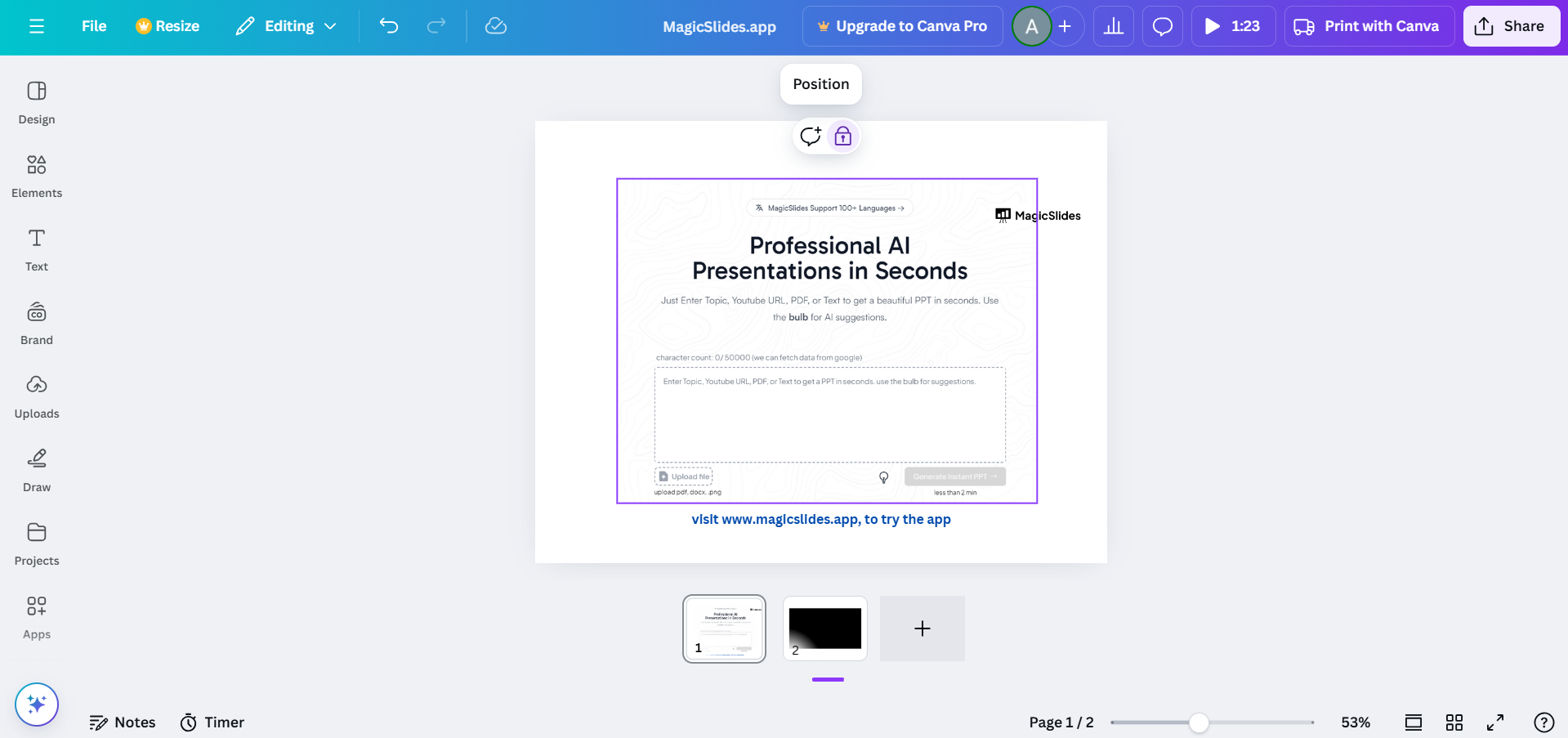
Locked elements will often have a small lock icon on them. This icon indicates that the element is locked and cannot be moved, resized, or edited until it’s unlocked.
Step 3: Click on the Lock Icon
To unlock an element, click on it to reveal the lock icon at the top of your toolbar.
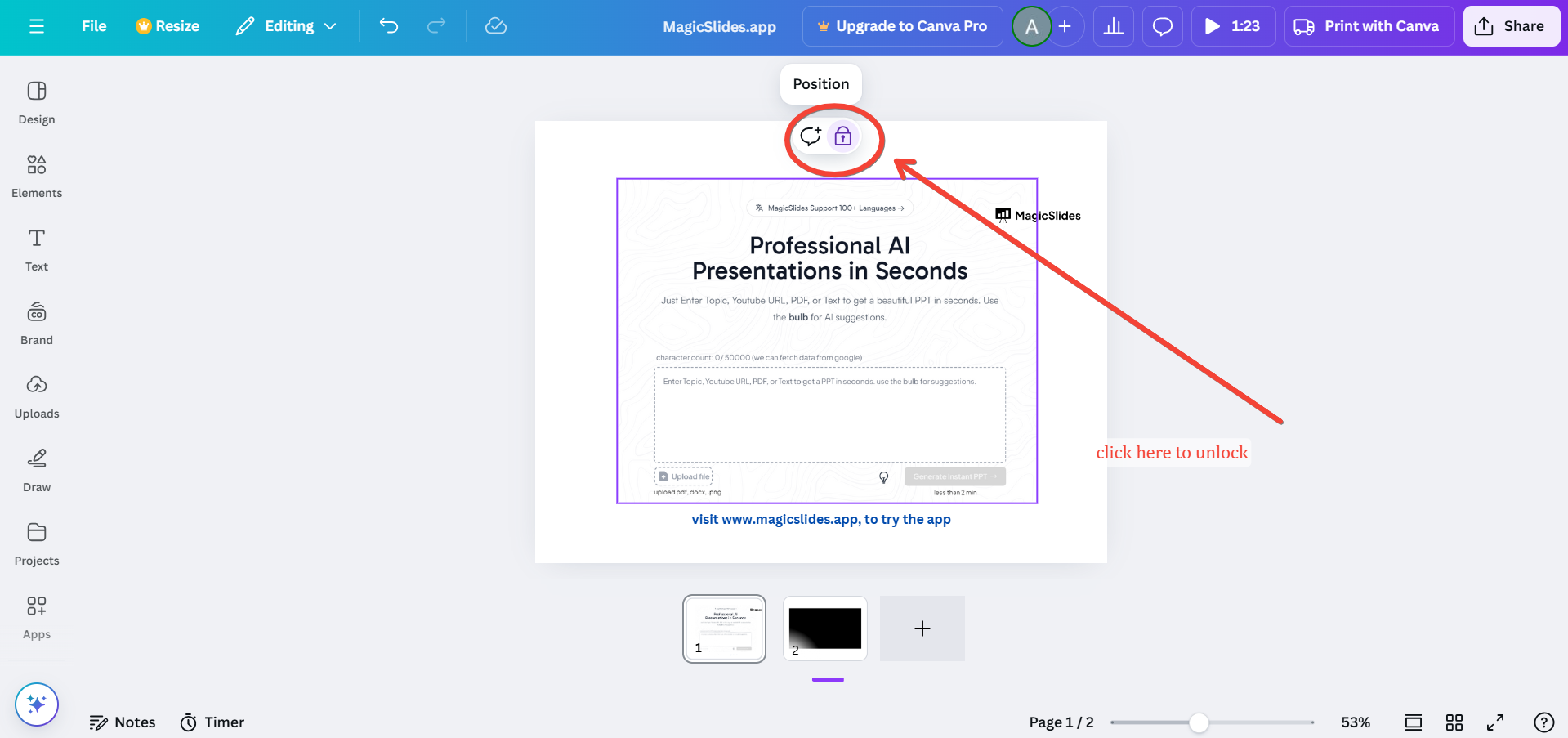
Click on the lock icon to unlock the element, allowing it to be edited freely. If the lock icon does not appear, right-click the element, and you’ll see the option to “Unlock” in the dropdown menu.
Step 4: Unlock the Entire Page (Optional)
If you need to unlock an entire page, go to the page toolbar on the side of your screen, locate the locked page, and click on it.
Right-click to see if there is an “Unlock Page” option available. Note that page locking options may vary depending on your Canva plan and if you’re collaborating with others.
Step 5: Confirm the Element or Page Is Unlocked
Once you’ve unlocked the element or page, try moving or editing it to confirm that the lock has been removed.
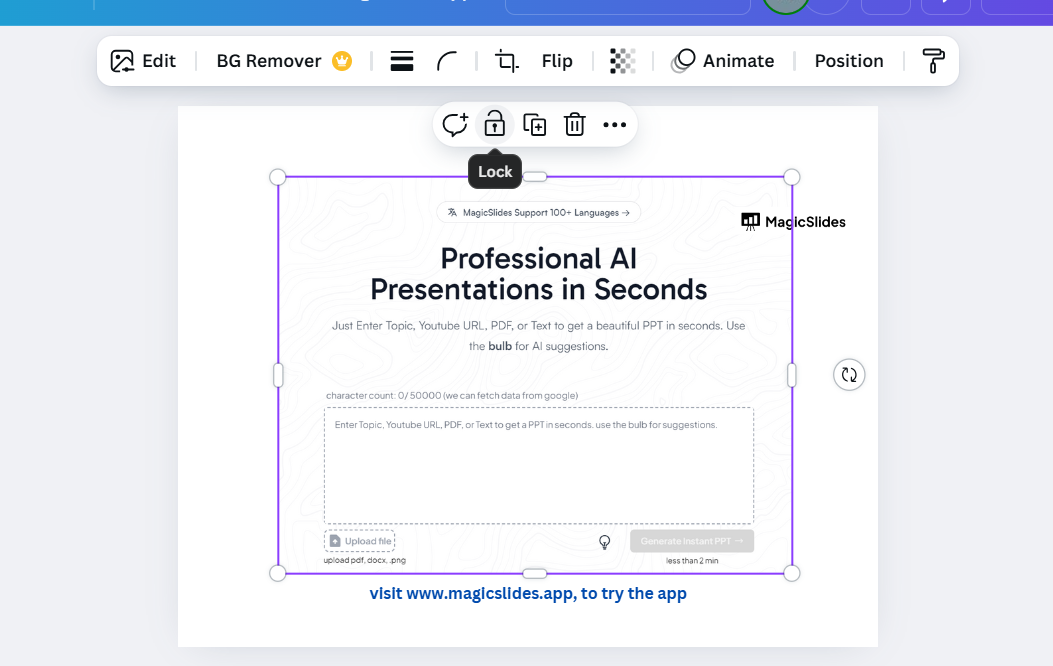
If everything works smoothly, continue with your design adjustments as needed.
Once you’ve unlocked a page on Canva, explore how to change the DPI in Canva to ensure high-quality designs for printing or digital use.
Conclusion
Unlocking pages or elements in Canva is a quick process that lets you regain control over your design.
By following these simple steps, you can freely edit, move, or delete locked elements to enhance your project.
This guide is helpful when working with team-shared designs or templates that may have locked components.
FAQs are here to guide!
Why is a page or element locked in Canva?
A page or element may be locked to prevent accidental edits, especially in shared projects or templates.
Can I lock a page or element again after unlocking it?
Yes, you can re-lock any element or page by selecting it, then clicking on the lock icon in the toolbar.
Do I need Canva Pro to unlock elements?
No, unlocking elements is available on the free version of Canva, although some advanced features may be exclusive to Canva Pro.


