How to Use Designer in PowerPoint (Step-by-Step Guide)


Learn how to use Designer in PowerPoint to turn simple slides into clean, professional layouts instantly and see how AI can generate ppt in seconds.
How to Use Designer in PowerPoint – Learn It Quickly
PowerPoint Designer is the fastest built-in tool to improve your slide design.
It automatically suggests the best layout options along with the text or images you add, making your slides look professional without any manual work.
Below is a clear explanation of how to use it:
How does PowerPoint Designer Works?
PowerPoint Designer looks at every element you add to your slide, such as headings, bullets, images, etc. It then instantly polishes your layouts.
You don’t design anything manually; PowerPoint Designer cleans it up for you.
How to Use Designer in PowerPoint?
PowerPoint Designer is one of the easiest ways to instantly make your slides look professional. There is no need for any design skills or manual formatting, the Designer entirely does the work for you.
Below is the expanded, user-friendly version of the steps:
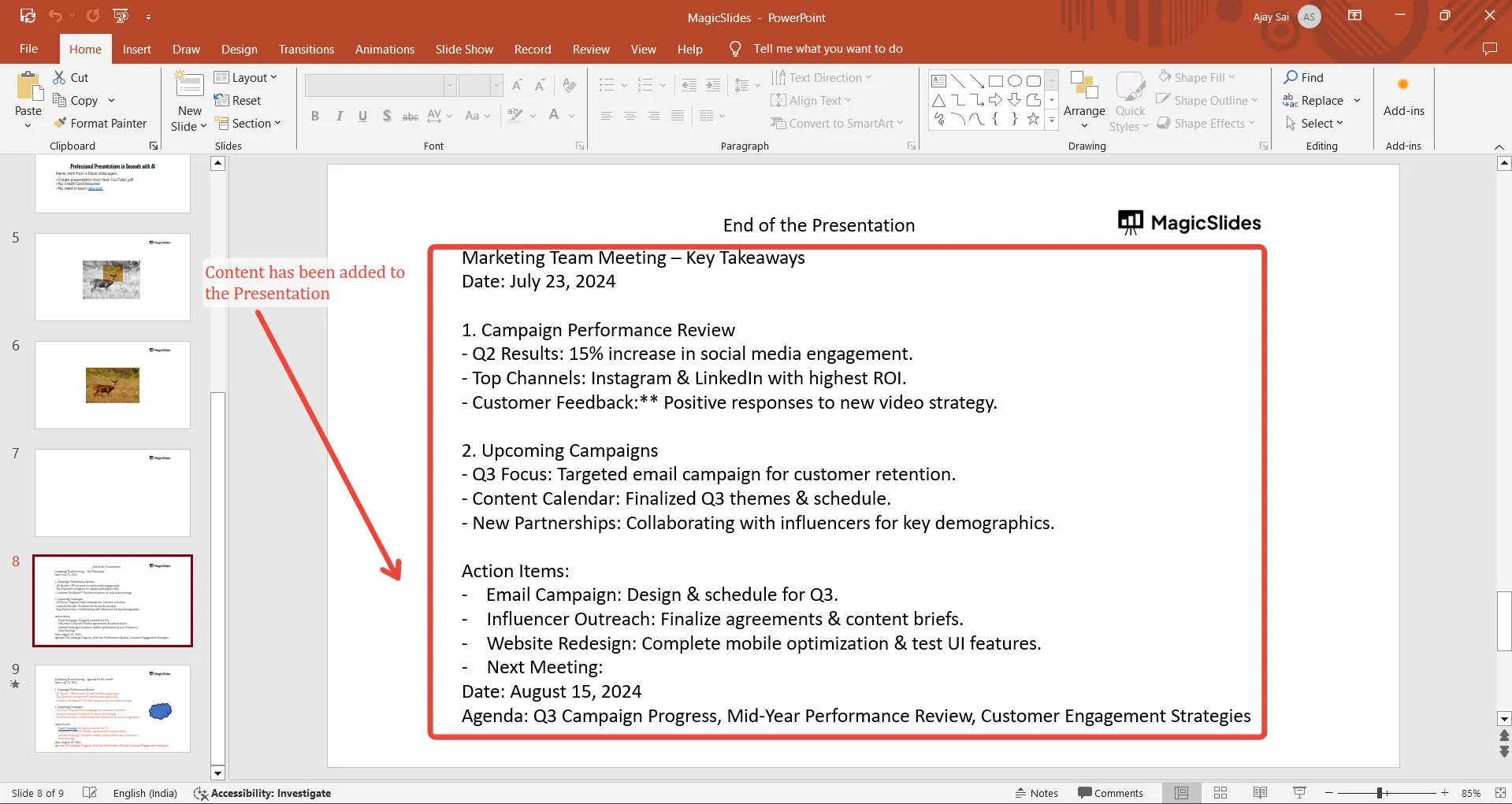
1. Add text or images to your slide
The Designer gets activated only when you have something on your slide. Type a title, add bullet points, or insert an image; this automatically leads to the activation of Designer.
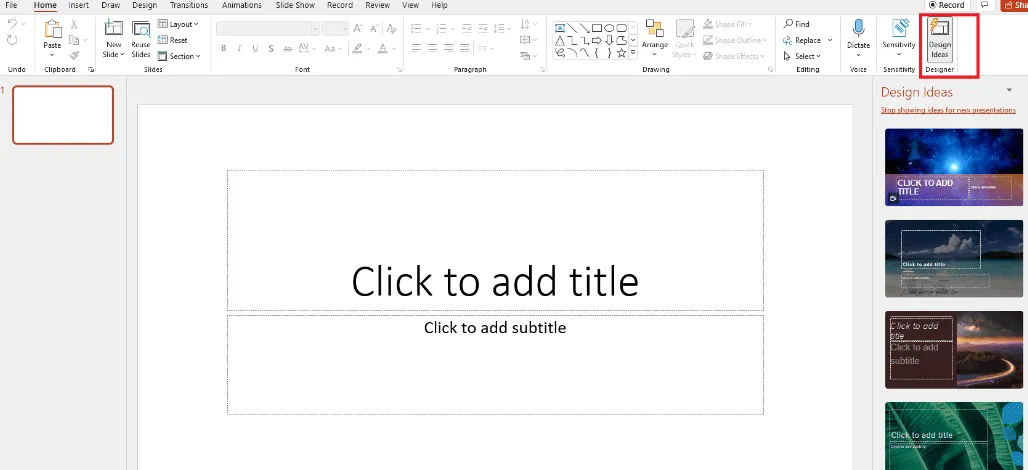
2. Look to the right side of your screen
Once the content is added, a panel called Design Ideas appears on the right side of the screen.
This shows multiple ready-to-apply suggestions based on the content that you have entered.
3. Choose the layout you like
Click on any design that you prefer for the PowerPoint to instantly apply it to your slide. It then reorganizes your text, aligns images, adjusts the spacing, and applies professional styling in a single click.
- That is pretty much everything you have to do.
- No dragging boxes around.
- No resizing images.
- No worrying about alignment or spacing.
- Designer handles everything automatically.
What happens if the Designer does not show up?
Here are the fastest fixes:
- Make sure you’re signed in to Microsoft 365
- Turn on Design Ideas: File → Options → General
- Ensure you’re connected to the internet
- Use a simple slide layout
Once these are set, the designer usually appears immediately.
A Smarter Alternative: MagicSlides.App
The designer only fixes the look of your slide. You still have to write content, structure slides, and design each one individually.
MagicSlides.App, an AI presentation maker tool, however, does everything for you, not just the design.
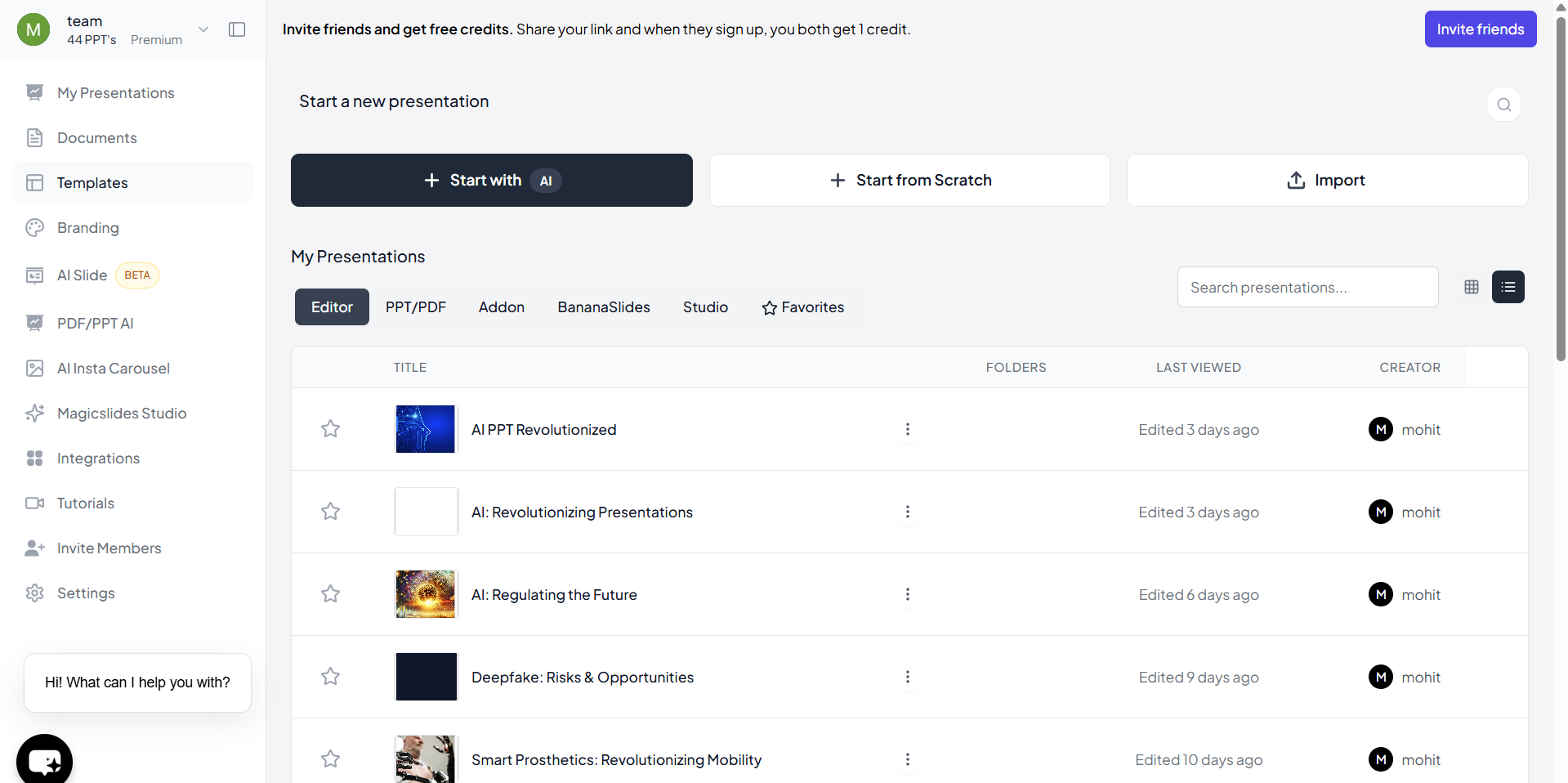
MagicSlides.App automatically:
- Generates the full presentation
- Writes all slide content
- Chooses layouts
- Adds visuals and styling
- Works directly inside Google Slides
- Let's you export to PPT or PDF
Where PowerPoint Designer improves one slide at a time, MagicSlides.App builds the entire deck for you in seconds!
This is perfect for students, teachers, business teams, creators, and anyone who wants quick, professionally stunning presentations.
Conclusion
PowerPoint Designer is a great quick tool for users who only need basic slide layout improvements. If you already have your content, Designer will instantly make your slides cleaner and more professional.
But if you want complete presentations generated instantly with content, structure, design, and visuals, MagicSlides.App is clearly the better choice.
It saves hours of manual work and delivers presentation-ready slides in seconds.
MagicSlides generates the entire presentation for you in seconds.
FAQs
Q1. Why is PowerPoint Designer not appearing?
You may need to enable it, sign in, update PowerPoint, or connect to the internet.
Q2. Do I need Microsoft 365 for Designer?
Yes. Most Designer features require an active Microsoft 365 subscription.
Q3. Does MagicSlides work with PowerPoint?
Yes. Generate in Google Slides and export to PPT instantly.
Q4. Is Designer free?
It’s included in Microsoft 365 plans at no extra cost.
Q5. Which is better for full presentations?
MagicSlides.App, because it generates full content + design, not just layouts.


