How to Access Presentation Setting on Canva? Complete Guide


Learn how to access presentation setting on Canva with all possible ways. Discover the best methods with the help of this guide.
Most people focus on designing slides in Canva. The real difference comes from how to create presentation in Canva. I have worked with many presentations, and the moment you learn how to access the presentation settings in Canva, everything changes. From Canva slides to a smooth and professional delivery of your Canva presentation.
These Canva presentation settings control how your Canva slideshow behaves. Whether you want slide transitions, better timing or a presenter view with notes Canva gives you the tools you need. You just need to know where to find the Canva presentation settings.
In this guide I will walk you through how to access the presentation settings, on Canva step by step while also showing you how to use the Canva presentation mode to make your Canva presentation better.
What are the Different Canva Presentation Modes?
To fully understand how to access presentation setting on Canva, you also need to understand the modes that unlock those settings.
Canva offers three primary presentation modes, and each one serves a different purpose.
Standard Mode is what you get by default. This is where you go through the slides yourself. I think this is really good for when you’re doing a live presentation and you want to be in charge of how fast you go. It is easy to use. It also gives you the freedom to do what you want with the Standard Mode. You have control, over the Standard Mode.
Autoplay Mode is where things get easier. The slides move on their own because of the timing you set. If you want to know how to turn on autoplay in a Canva presentation you should pick this mode. It is great for events. When you have a display that nobody is watching.
Presenter View is for people who give presentations a lot. When you use this mode the people watching only see the slides.
Each of these modes is important for how you use Canva presentation mode. The important thing is that they help you get to the different controls for your presentation.
So, when you are trying to figure out how to get to the presentation settings on Canva remember this: the settings you see are based on the mode you choose. Canva presentation mode has settings depending on the mode you pick, like Autoplay Mode or Presenter View.
How to Access Presentation Settings on Canva?
Step 1. Open Your Presentation in Canva
Log in to your Canva account and navigate to your existing presentation or create a new one.
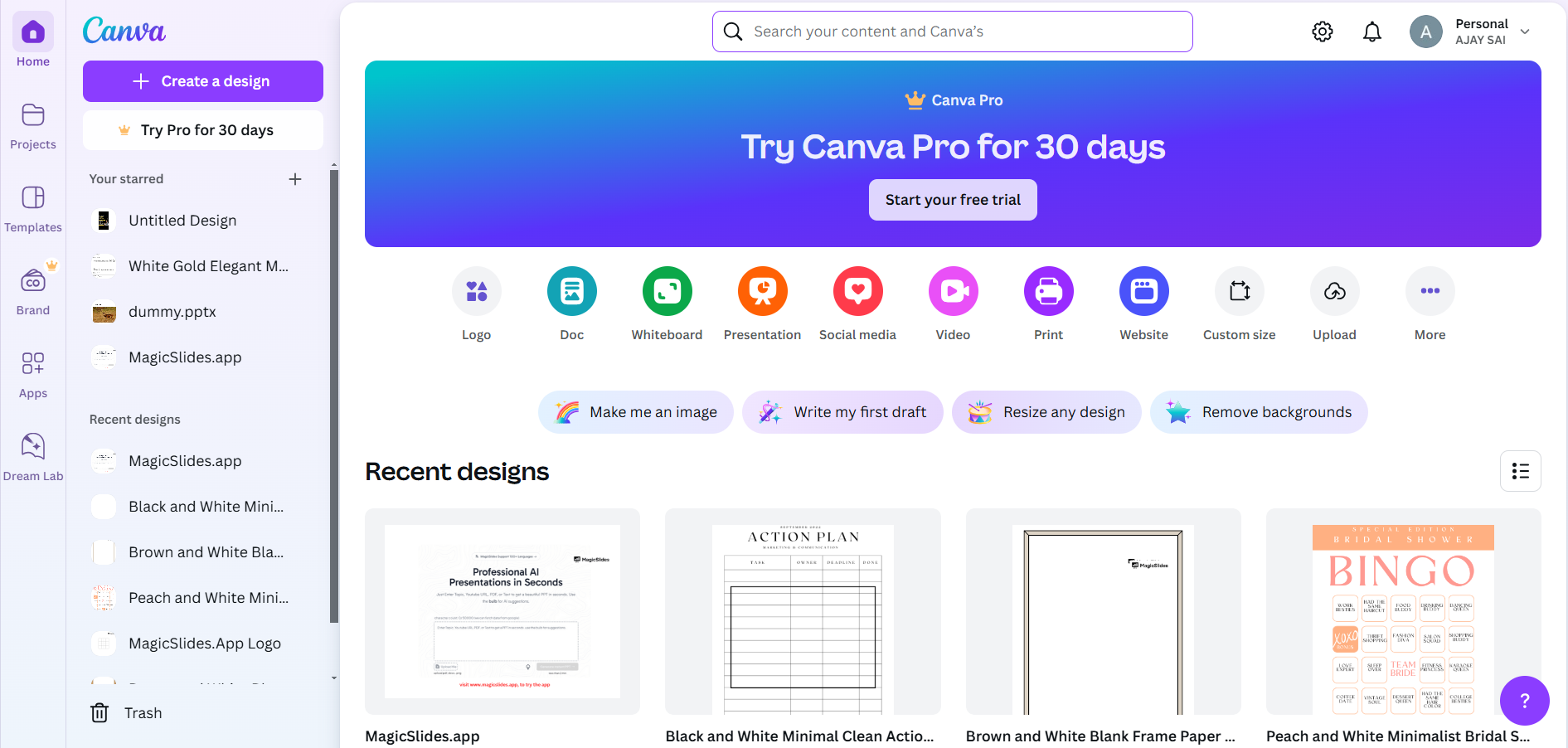
Click on the presentation file to open it in the editor.
Step 2. Click on the “Present” Button
In the top-right corner of the screen, locate the “Present” button. Click it to access the different presentation modes and settings.
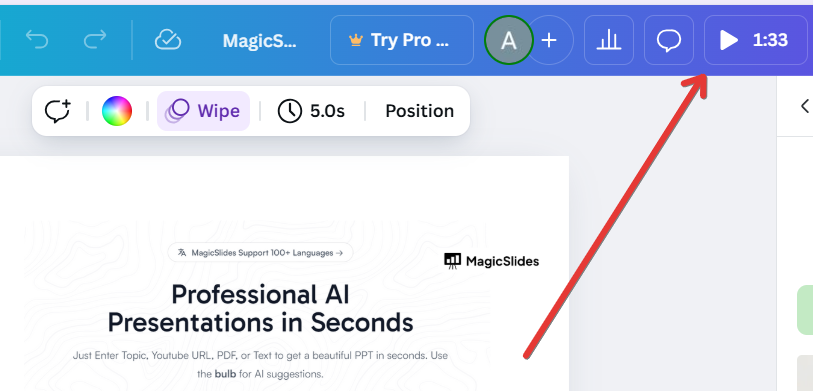
Step 3. Choose Your Presentation Mode
Canva offers multiple ways to present your slides:
- Standard – Manually advance slides.
- Autoplay – Slides move automatically after a set duration.
- Presenter View – See speaker notes and control slides separately.
Select the mode that suits your needs.
Step 4. Adjust the Timing and Transitions
If you choose Autoplay, you can set the timing for each slide.
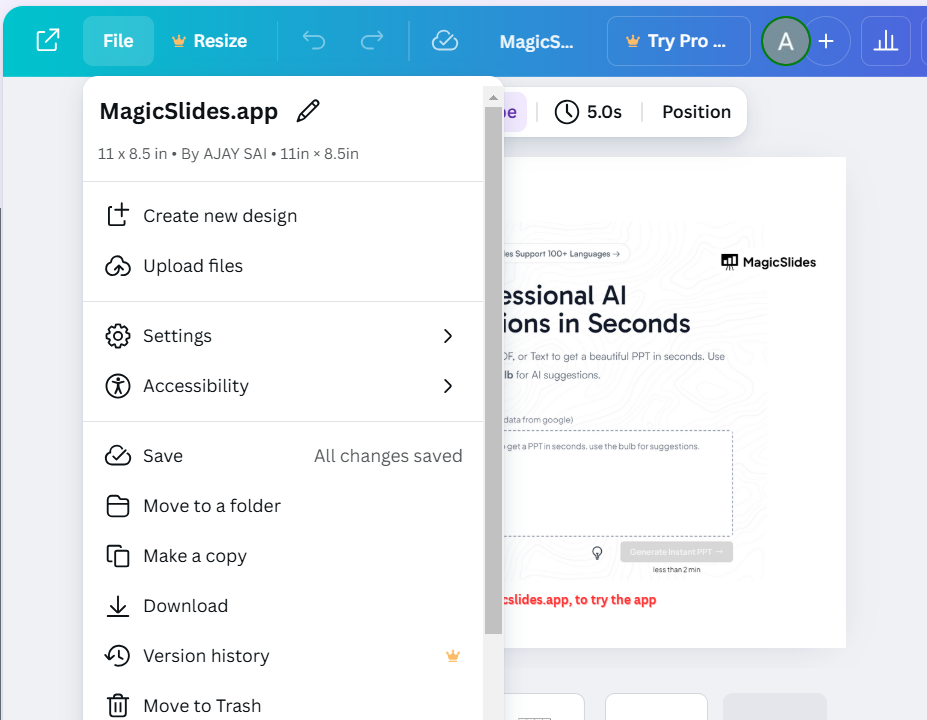
Click on the gear icon or settings to customize transitions and slide duration.
Step 5. Enable Presenter Tools (Optional)
If you select Presenter View, Canva will generate a separate window displaying your speaker notes and next slides.
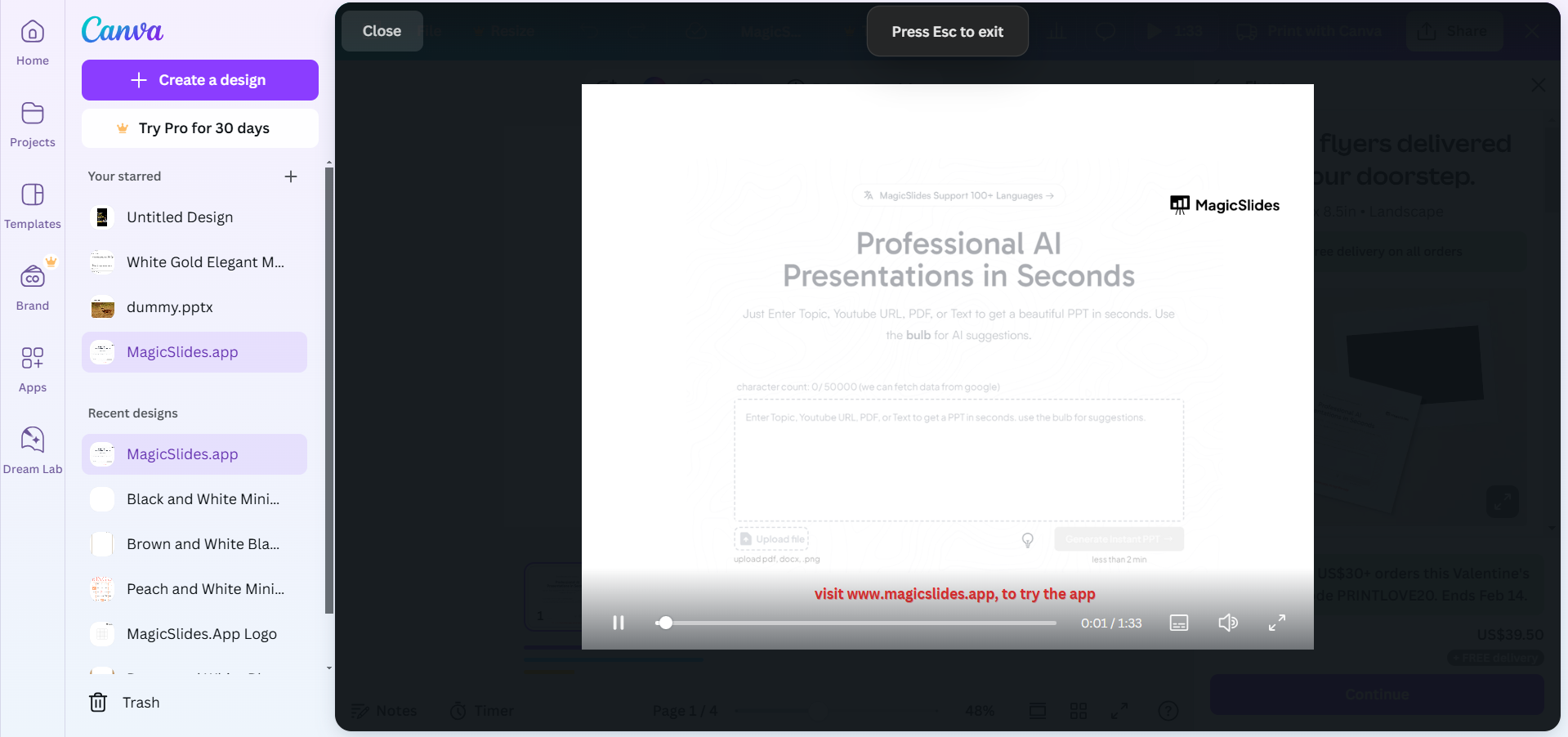
This feature helps with guided presentations without showing notes to the audience.
Step 6. Start Your Presentation
After configuring your settings, click “Present” to start your slideshow. Use the arrow keys or click to navigate through the slides.
After accessing presentation settings on Canva, learn how to use frames in Canva to enhance your design layouts.
In practice, one challenge many users face is the time it takes to build slides before even reaching this stage. To make that part of the workflow smoother, some professionals use tools like MagicSlides AI presentation tool to quickly generate structured presentations. This allows them to focus more on refining settings and delivery inside Canva. Create Better Presentations Faster with this.
In terms of, once you get to know how to access and use these settings, you can share your ideas more clearly. This helps you make an impression on your audience.
Why Learning How to Access Presentation Setting on Canva Matters?
Understanding how to access presentation settings on Canva is really important. It is not about knowing a technical thing. It actually affects how people see your content.
If you do not set things right nice-looking slides can look strange. The timing might be wrong the transitions might be too sudden. Your talk might not flow well.
When you use Canva presentation settings in a good way everything looks better. Slides change smoothly the timing matches what you are saying. Your presentation looks more professional.
As you learn these features, you can also explore tools like how to bulk create in Canva to speed up your workflow and manage multiple slides efficiently. This not only saves time but also keeps your presentations consistent.
In terms if you learn how to access and use these settings you can talk to people more effectively.
Conclusion
By now, you know how to access presentation settings on Canva and use them well. Here is what you do: open your presentation, click Present, pick a mode, and adjust settings with the gear icon. The thing that really matters is how you use these controls to make timing, transitions, and delivery.
You use these controls to improve timing. You use them to improve transitions. With practice you will make presentations that look good and are smooth to present.
You can take it a step further by learning how to use Canva AI tools, which help you enhance your slides faster and more effectively.
They will also look professional. You will present them like a pro.
Frequently Asked Questions
Q. Can I change my slide transitions in Canva?
Yes, you can adjust slide transitions by clicking on the settings in presentation mode.
Q. Where is the present button in Canva?
It is located in the top-right corner of the Canva editor.
Q. Can I record my presentation in Canva?
Yes, Canva allows you to record a presentation with voice-over before sharing or downloading it.
Q. Can Canva presentations run automatically?
Yes, autoplay mode enables automatic slide progression.
Now, you’re ready to use Canva’s presentation settings to create an engaging and professional slideshow!


