How to use locked mode on Google forms


Enhance exam security with Google Forms’ Locked mode, preventing distractions and maintaining academic integrity
Google Forms offers a "Locked mode" feature, which is particularly useful for educators administering quizzes or assessments online. Locked mode prevents students from navigating away from the quiz until they submit their responses, helping maintain academic integrity. In this guide, we'll explore how to use locked mode on Google Forms, ensuring a secure and controlled environment for online assessments.
How to use locked mode on Google forms
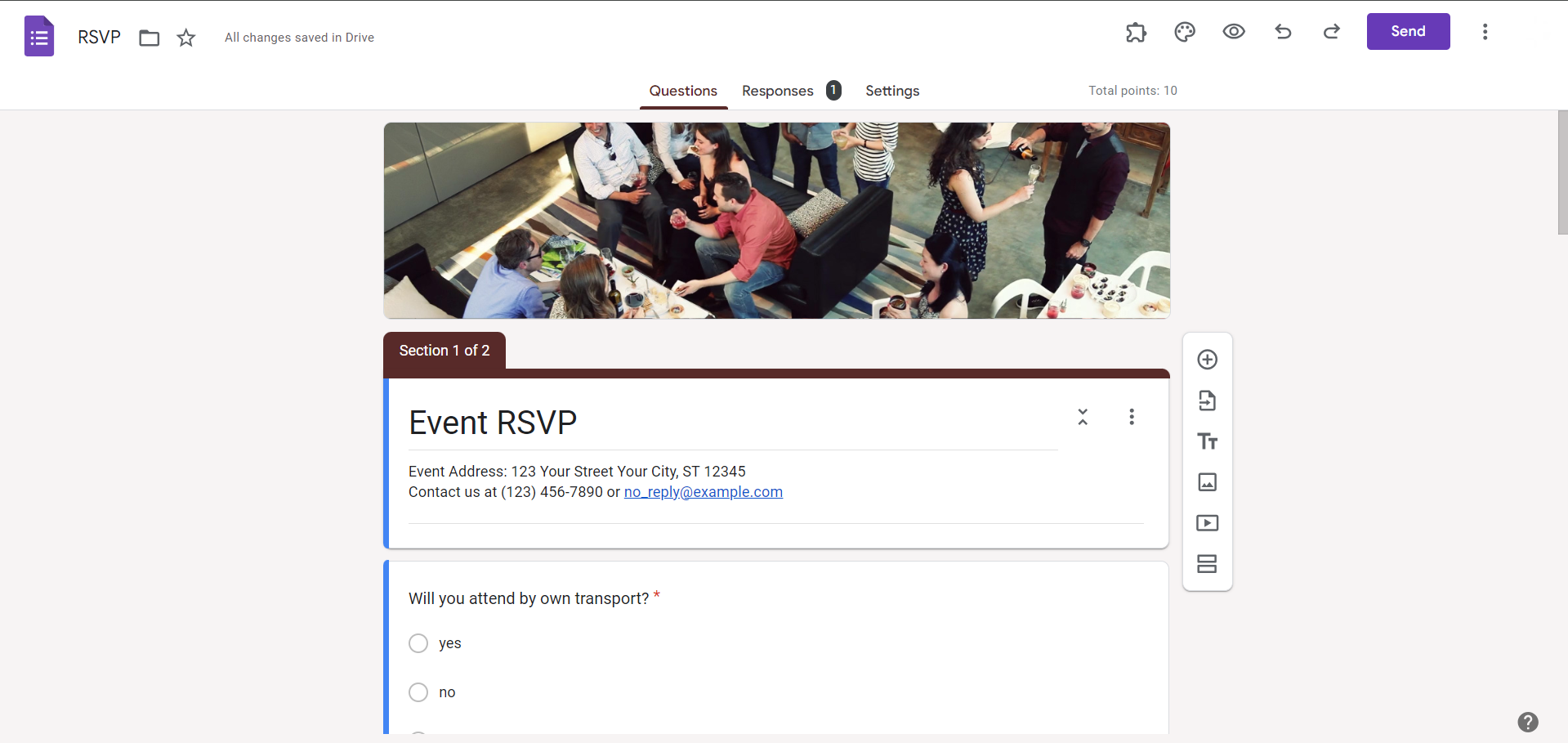
Create or Open a Google Form:
Start by opening Google Forms in your web browser. Create a new form or open an existing one that you want to use for the assessment.
Access Quiz Settings:
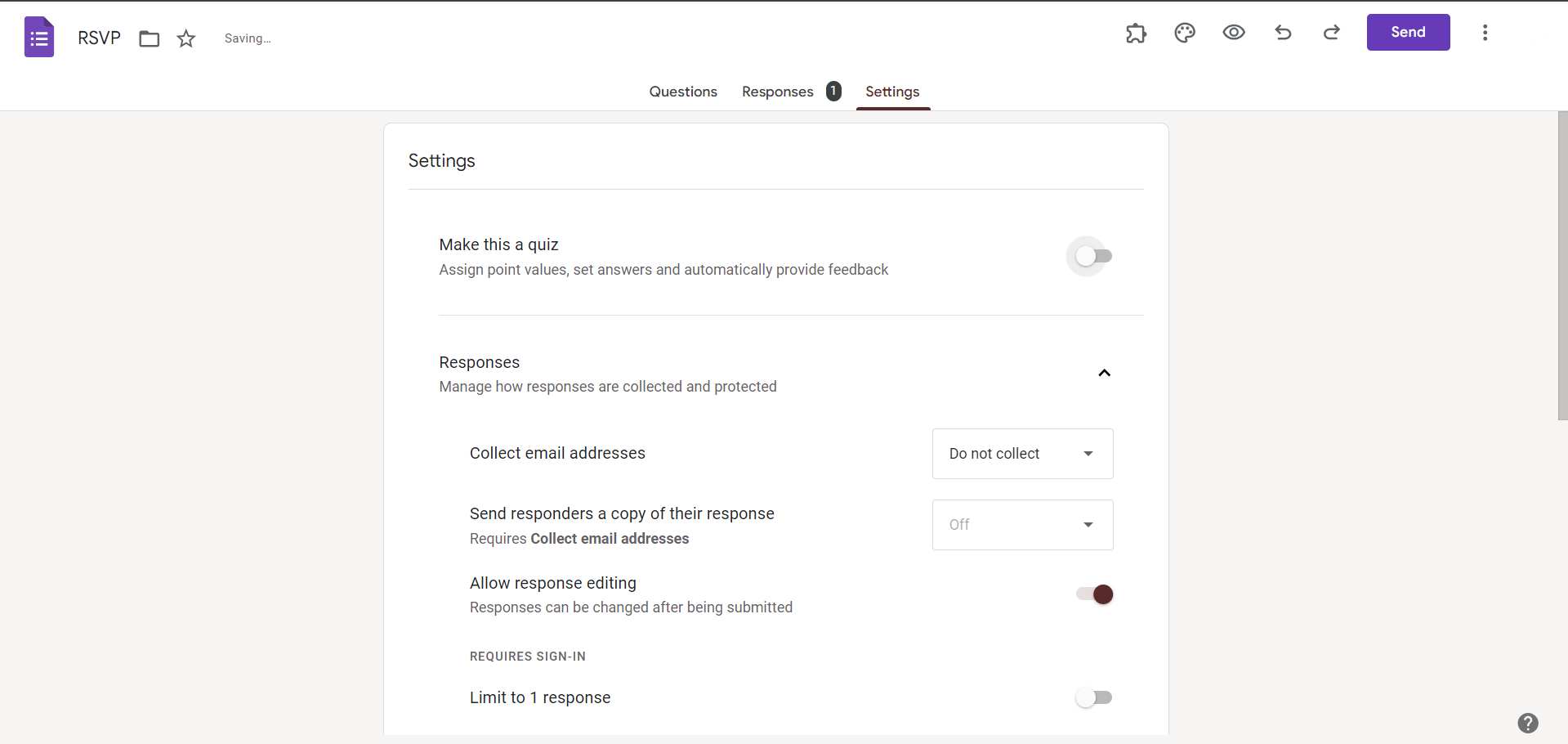
Once your form is ready, click on the settings gear icon located in the top-right corner of the form editor. From the dropdown menu, select "Quizzes."
Enable Quiz Mode:
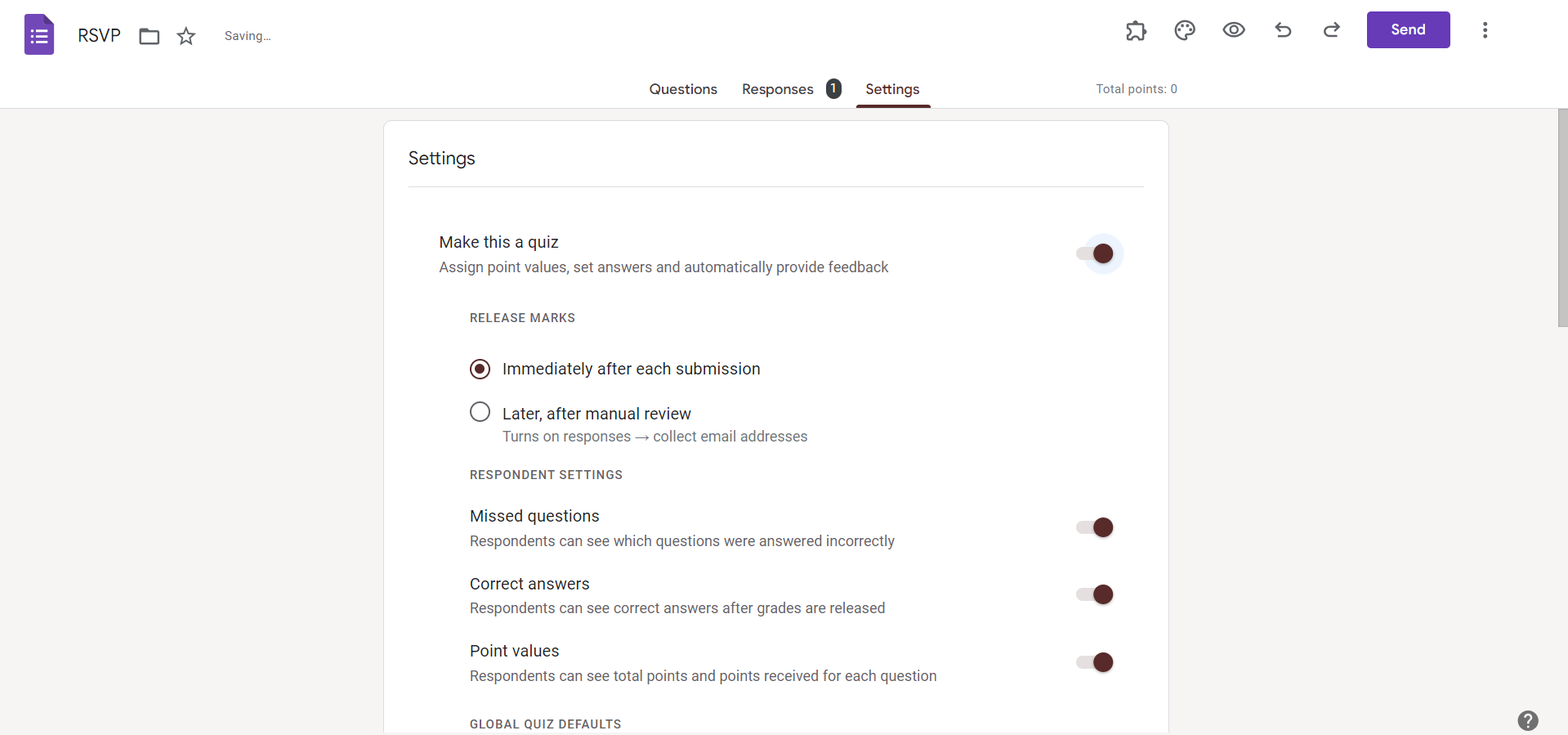
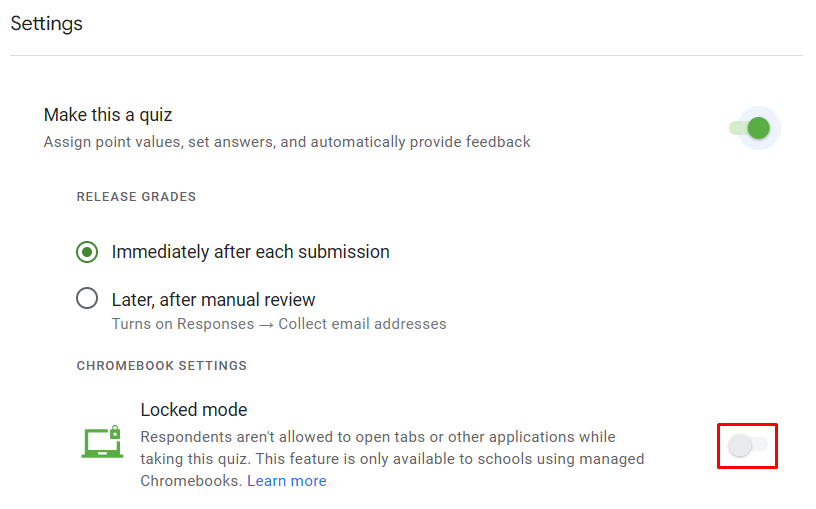
In the quiz settings, toggle on the option that says "Make this a quiz." This step is necessary to access additional quiz settings, including locked mode.
Configure Quiz Settings:
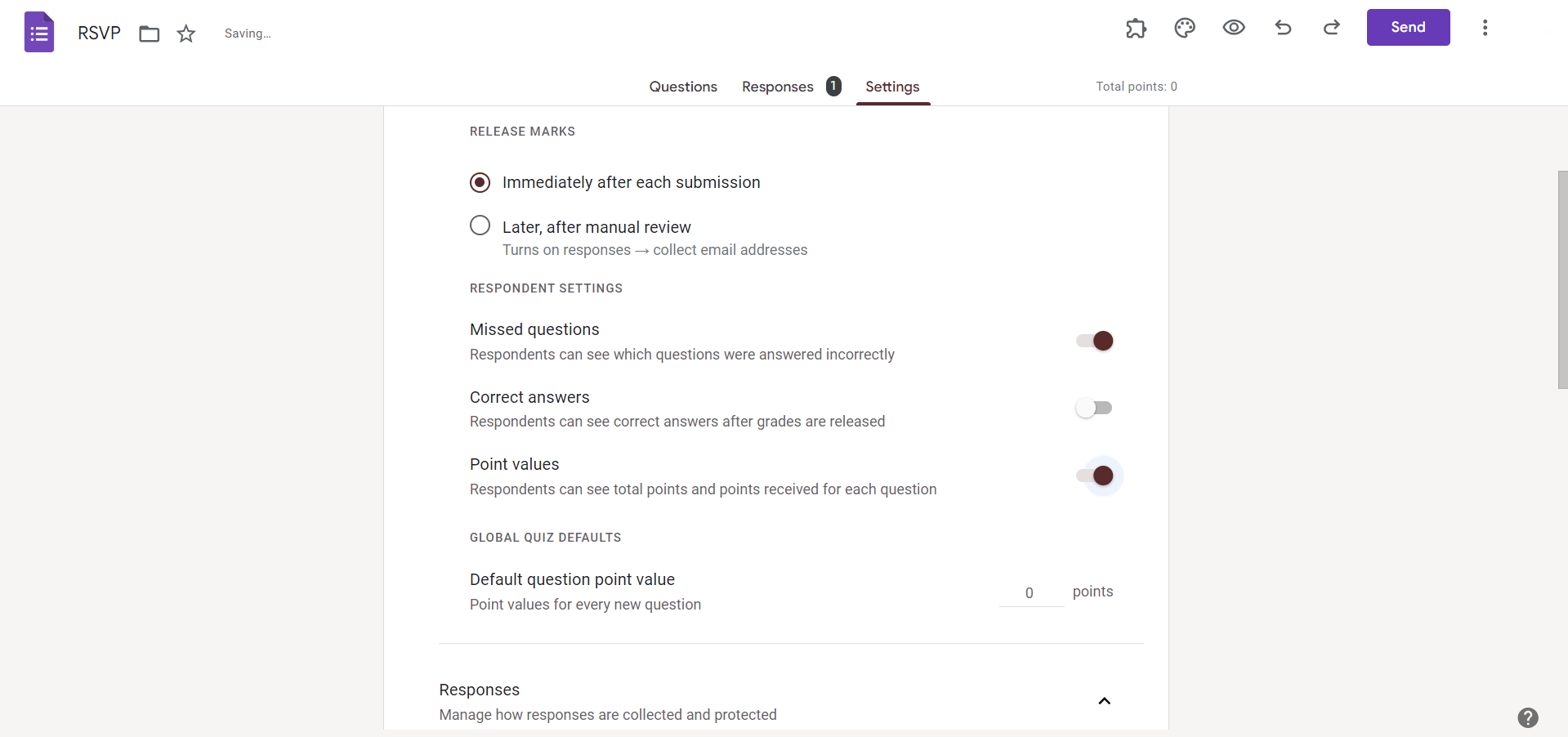
Scroll down to the "Respondent can" section and choose "See missed questions, correct answers, and point values" or "See missed questions and correct answers" based on your preferences. Then, select "Immediately after each question" or "Later, after manual review" for releasing grades.
Enable Locked Mode:
Below the options for releasing grades, you'll find the "Locked mode on Chromebooks" section. Check the box that says "Locked mode on Chromebooks" to enable this feature. If you're not seeing the locked mode option, it may not be enabled by your institution's administrator, or you might not be using Google Workspace for Education so change the mail or use Google forms for education.
Save Changes:
Once you've configured the quiz settings and enabled locked mode, click on the "Save" button to apply the changes.
Conclusion:
Locked mode on Google Forms provides educators with a valuable tool for conducting secure online assessments, particularly in educational settings. By following the step-by-step guide outlined above, you can easily enable locked mode and ensure a controlled environment for quizzes and exams administered via Google Forms. This feature enhances academic integrity by preventing students from navigating away from the quiz until they've submitted their responses. Experiment with locked mode to create a secure and efficient assessment process that meets your educational needs and objectives.
Frequently Asked Questions:
Can I use Locked mode on devices other than Chromebooks?
No, Locked mode is currently only available for Chromebooks, providing a secure environment for assessments.
Can students exit Locked mode once it's activated?
No, Locked mode restricts students from accessing other tabs, apps, or websites until they submit their responses.
Can I customize the settings while using Locked mode?
Locked mode settings are predefined and can't be customized beyond the options provided in Google Forms.
Is Locked mode available for all types of Google Forms quizzes?
Locked mode is specifically designed for quizzes created in Google Forms and cannot be applied to other types of forms.


