How to use Word Art in Google Slides


Create stunning titles and headings by using Word Art in Google Slides with this simple guide
How to Use Word Art in Google Slides
Word Art in Google Slides allows you to create stylized, decorative text that stands out from regular text formatting.
It’s perfect for titles, headings, or emphasizing important points in your presentation.
In this blog post, we’ll guide you step-by-step on how to use Word Art in Google Slides and customize it to suit your design needs.
https://guidejar.com/guides/b14ae40a-c643-4182-9285-9b0856b8e948
Step-by-Step Guide to Using Word Art in Google Slides
Step 1: Open Google Slides
- Go to Google Slides.
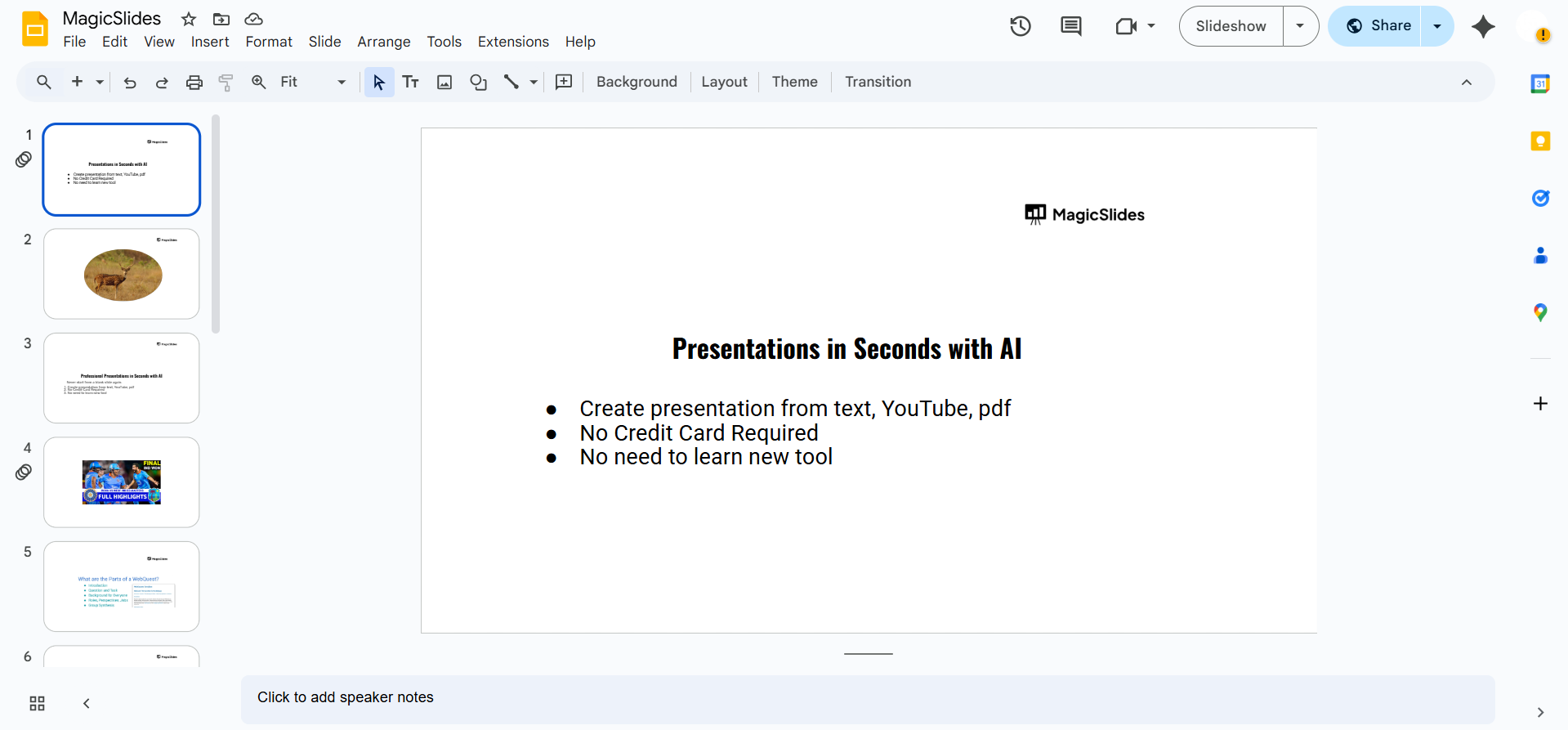
- Open an existing presentation or create a new one by typing
slide.newin your browser.
Step 2: Insert Word Art
- Click on the Insert menu in the top menu bar.
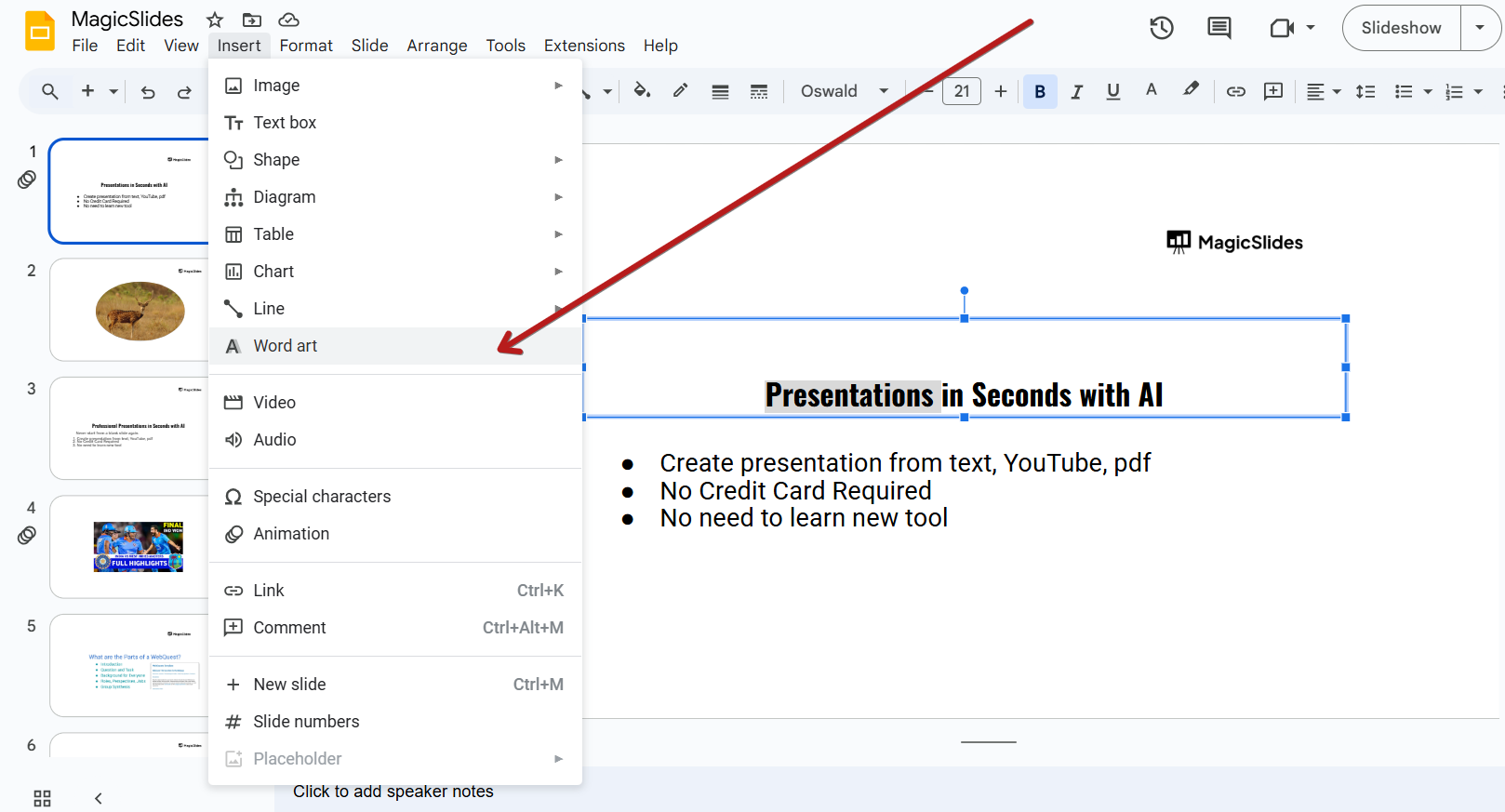
- Hover over Word Art, then click on it from the dropdown.
- A text box will appear at the top of the slide.
Step 3: Type Your Text
- Type your desired text.
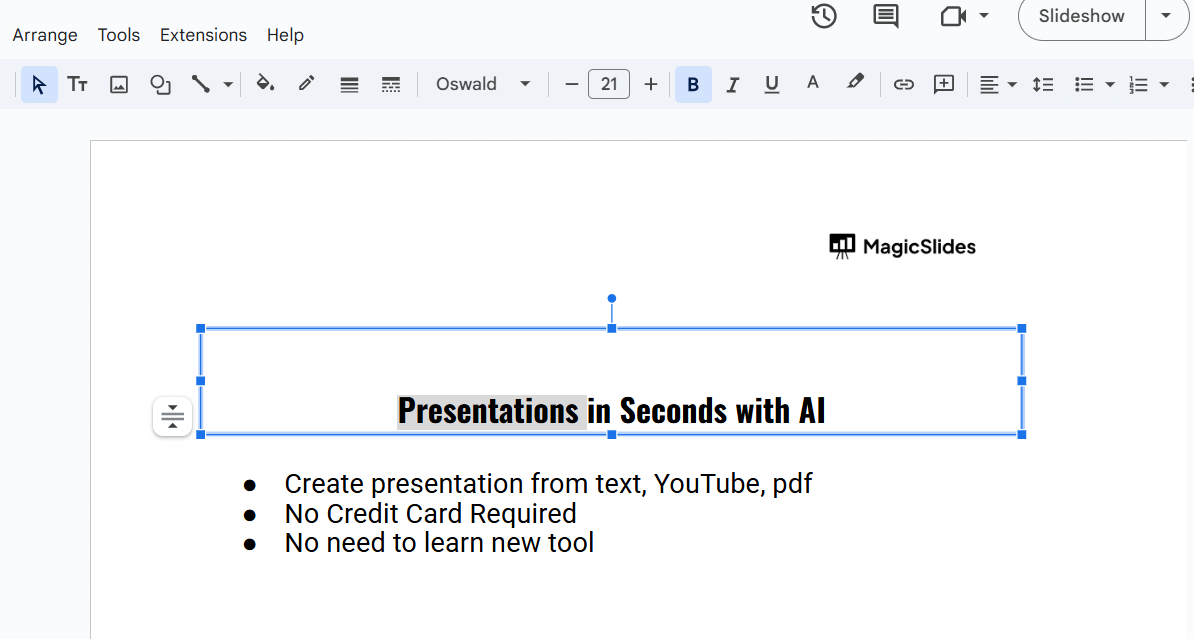
- Press Enter on your keyboard to place the Word Art on the slide.
- You can add spaces or use Shift + Enter for multiple lines.
Step 4: Resize and Move the Word Art
- Click and drag the corners of the Word Art to resize it.
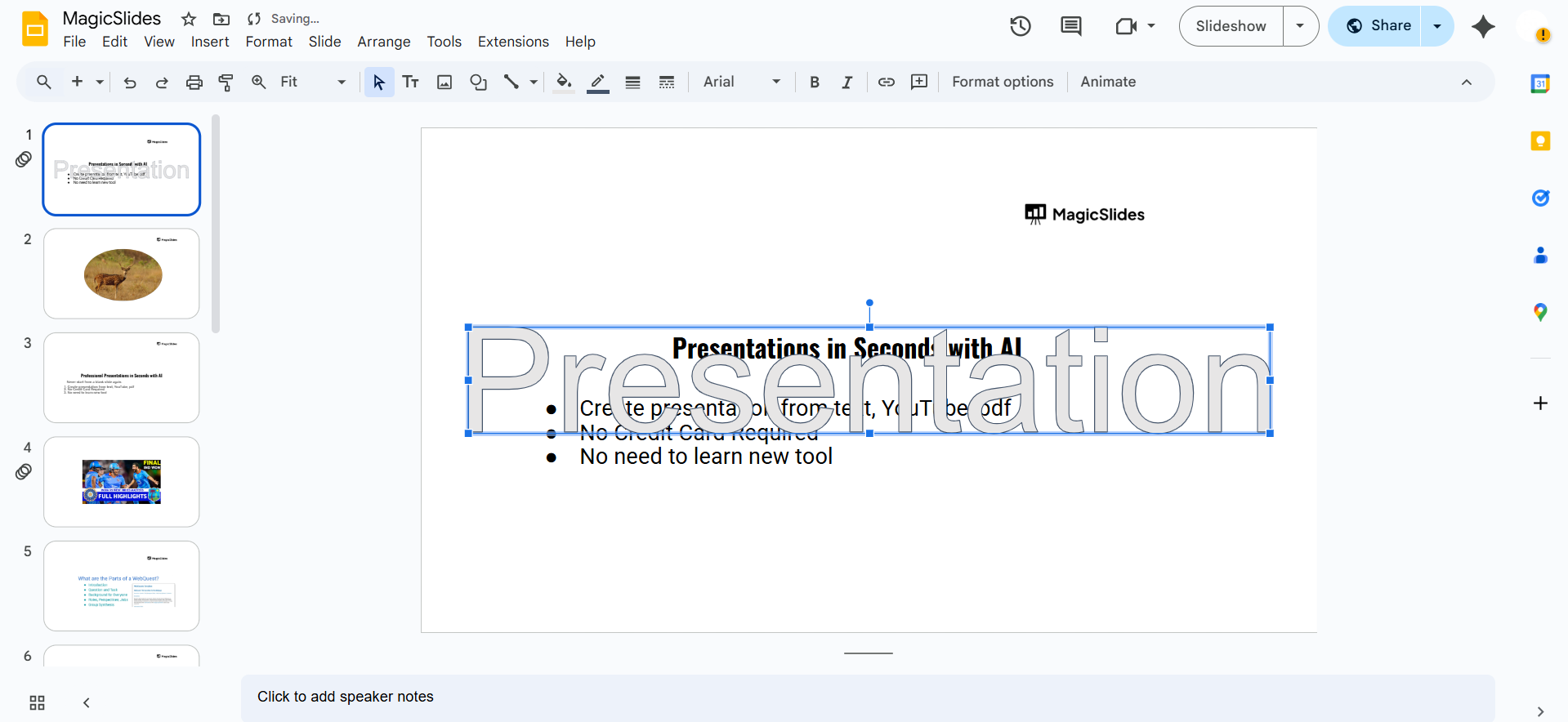
- Click and drag the Word Art itself to reposition it anywhere on the slide.
Step 5: Customize the Appearance
- Use the Format options in the toolbar to change fill color, border color, and font style.
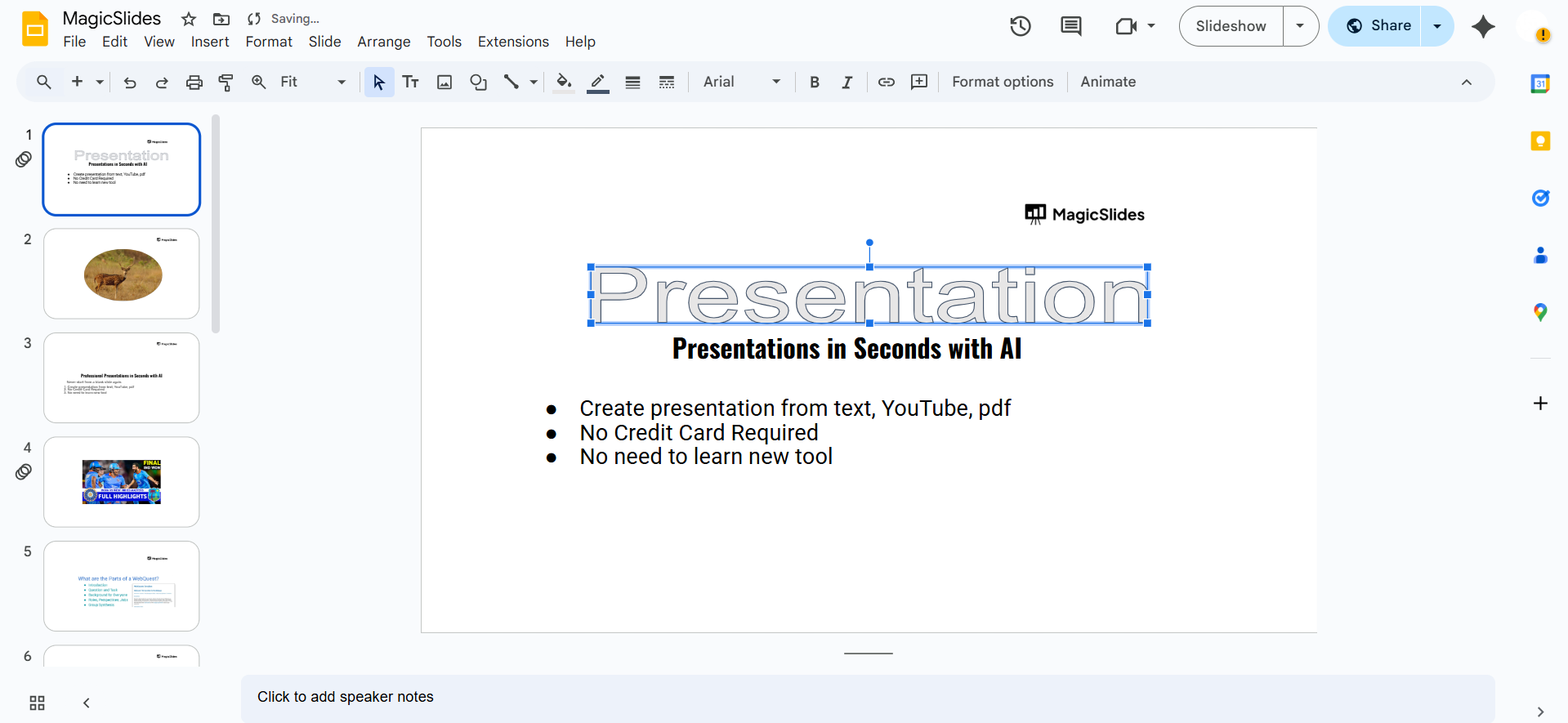
- Add shadow or reflection effects by clicking Format > Format options > Drop shadow / Reflection.
- Experiment with different fonts and styles to match your theme.
Word Art adds a creative flair to your slides. Want to take your designs further? Try MagicSlides.app create beautiful, AI-powered presentations instantly with text effects, layout options, and more!
Conclusion
Adding Word Art in Google Slides is a fun and effective way to enhance your presentations.
It allows you to grab your audience’s attention and give your slides a unique look.
With just a few clicks, you can turn plain text into eye-catching designs that support your message.
FAQs can come handy!
Can I curve Word Art in Google Slides?
Google Slides does not support curved text natively, but you can use third-party tools like WordArt.com or use images of curved text.
Can I animate Word Art?
Yes. Click the Word Art text, then go to Insert > Animation and choose your preferred animation.
Can I change the font of Word Art in Google Slides?
Absolutely! Select the Word Art, then use the font dropdown in the toolbar to choose a different font.


