how to wrap text in google slides


Text wrapping in Google Slides elevates visual appeal, enhancing message clarity and audience engagement.
In the world of visual presentations, Google Slides stands out as a powerful tool for creating engaging and informative slideshows. One of the advanced techniques you can use to enhance the visual appeal of your slides is to wrap text around objects. Whether it's an image, a shape, or any other object, this feature allows you to seamlessly integrate text and visuals for a more professional and captivating presentation. In this article, we'll walk you through the steps to achieve this effect in Google Slides, ensuring your presentations leave a lasting impression.
Step 1: Opening Your Presentation
To get started, open your Google Slides presentation. If you don't have one yet, you can create a new presentation or open an existing one from your Google Drive. Locate the slide where you want to add text wrapped around an object.
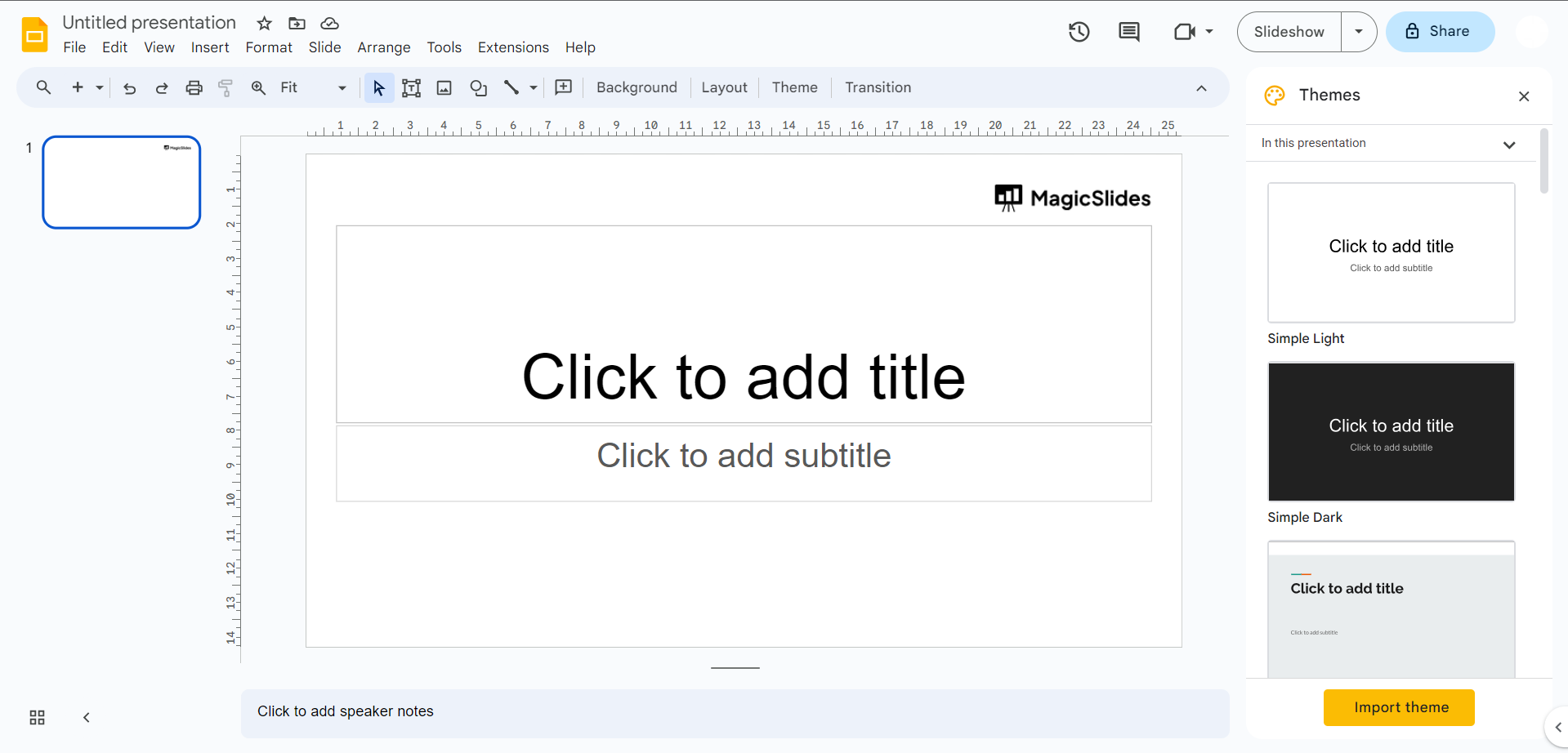
Step 2: Adding a Text Box
Position your mouse pointer precisely where you want to add your text box. This is where your text will appear. To do this:
- Click on the slide where you want to add the text box.
- Go to the "Insert" menu in the top toolbar.
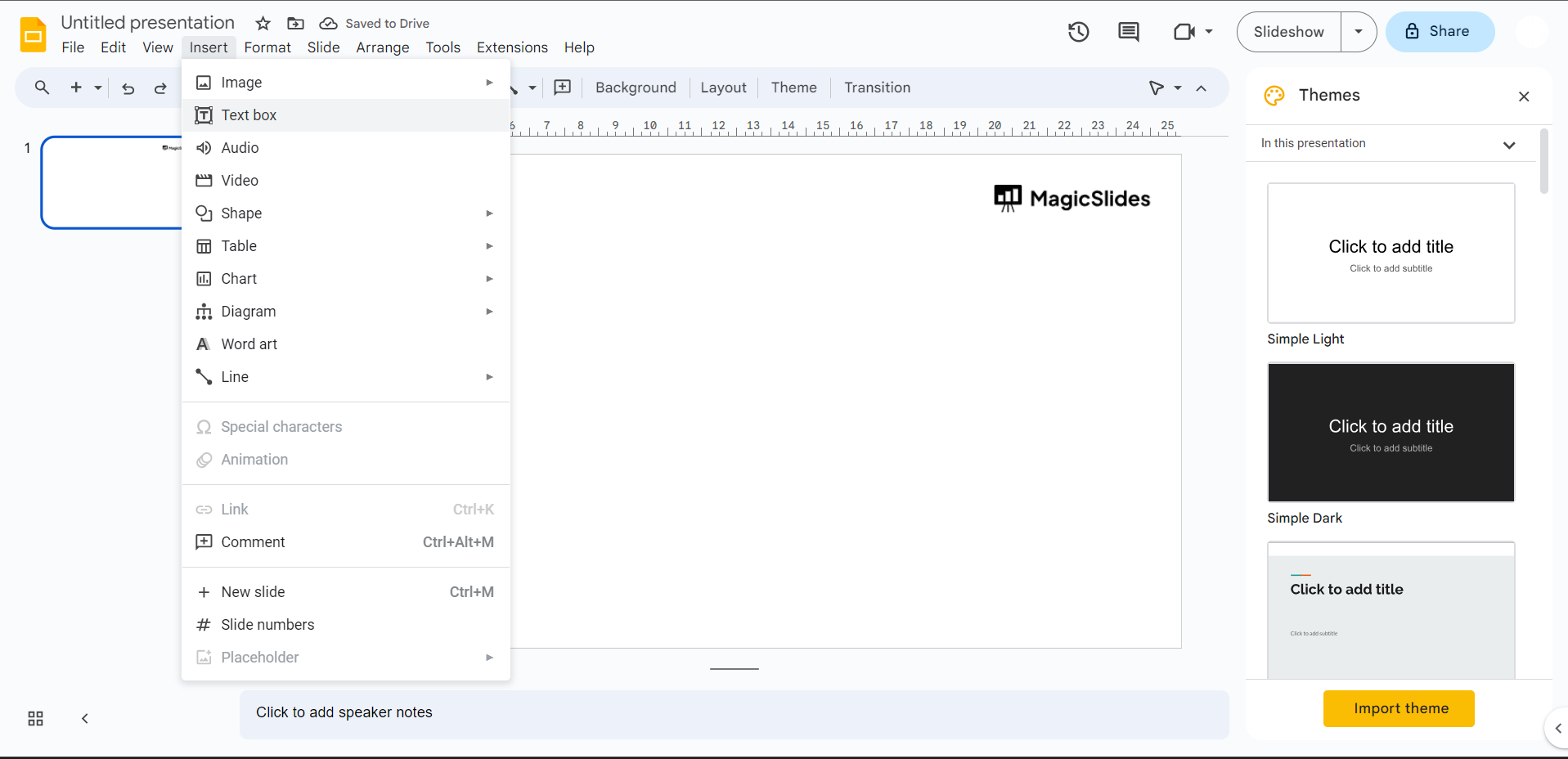
- Choose "Text box" from the dropdown menu.
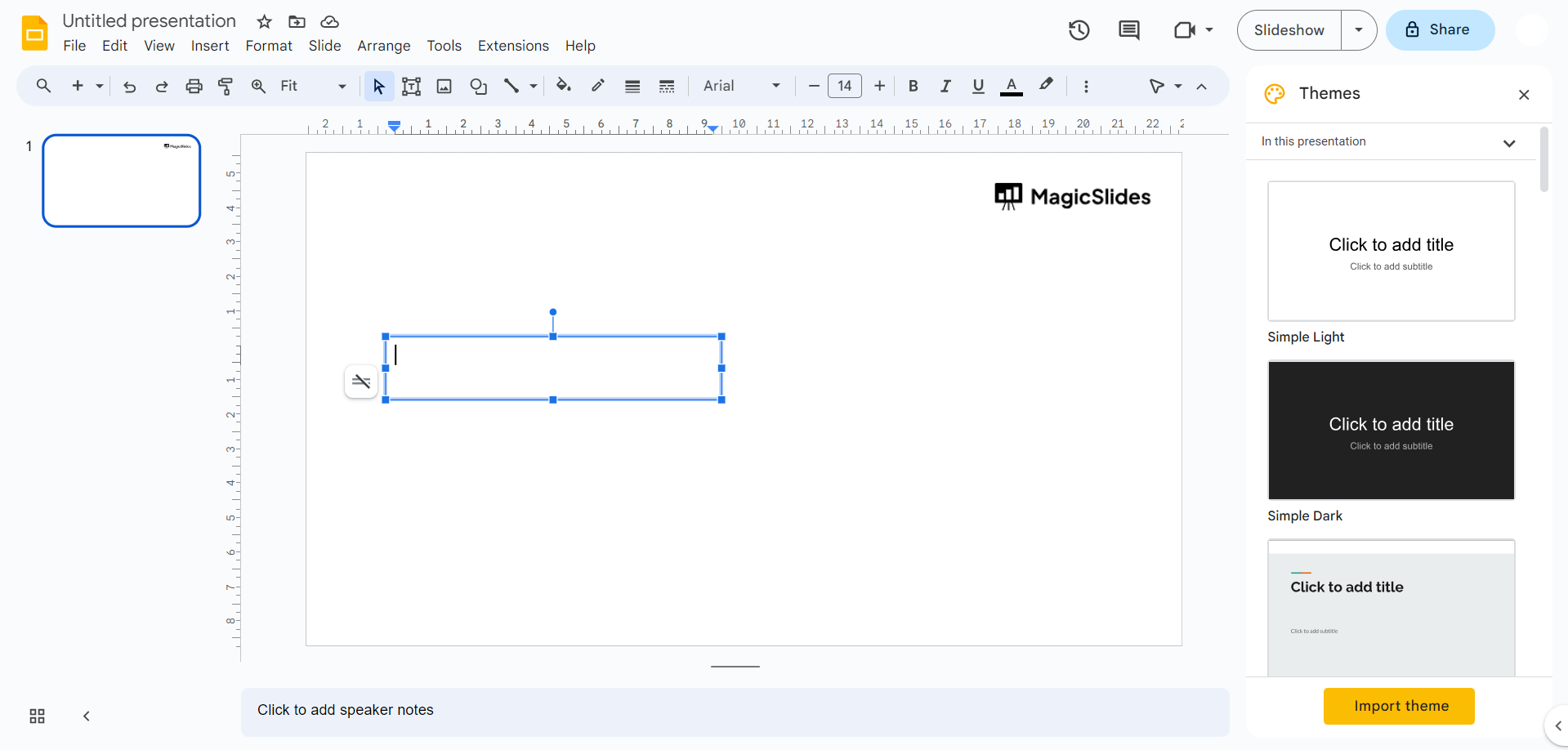
- Click on the slide again, and a text box will appear at the selected location.
Step 3: Typing Your Message
Now that your text box is in place, simply type in your desired message. This can be any text you want to include on your slide. You have the flexibility to format and style this text as you would with any other text box in Google Slides.
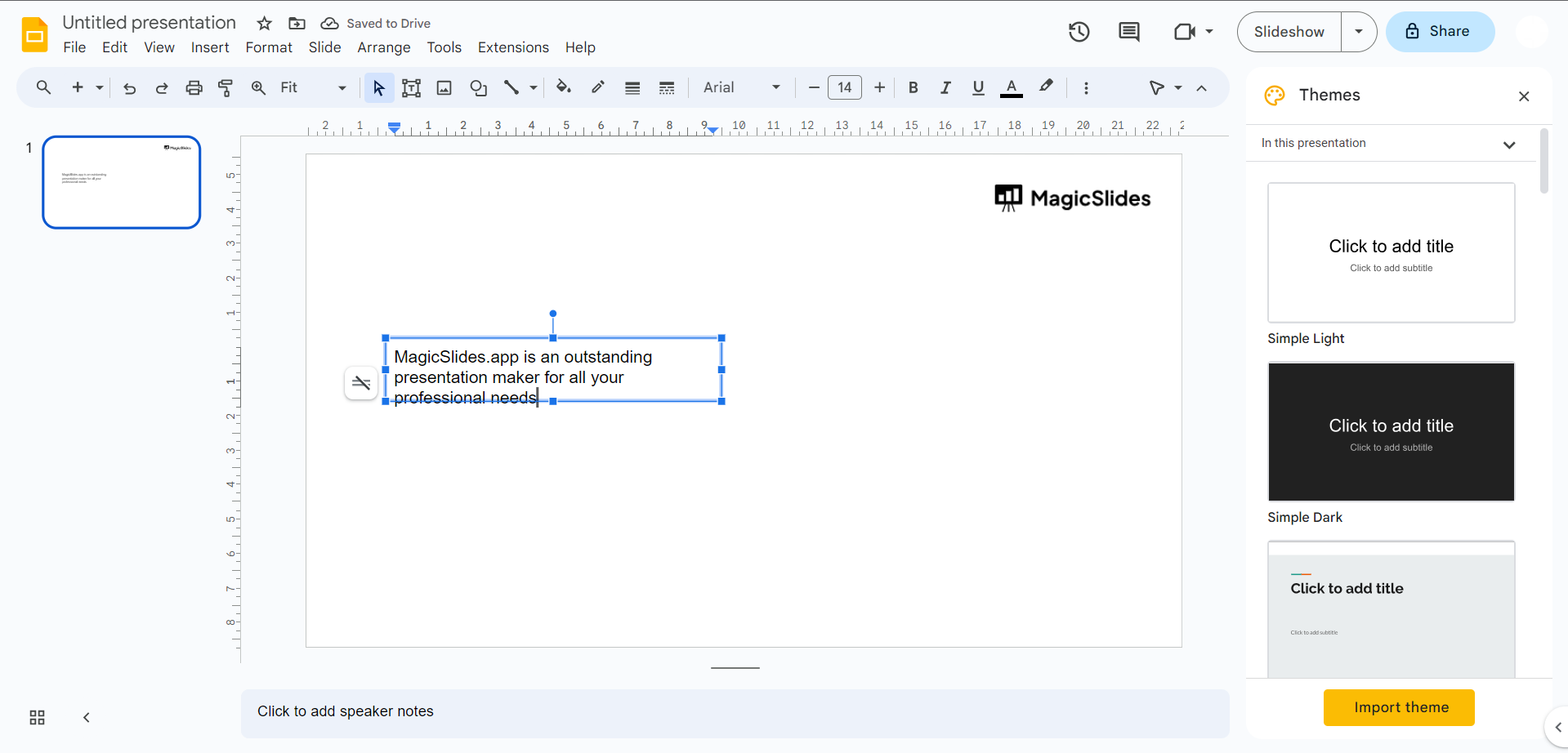
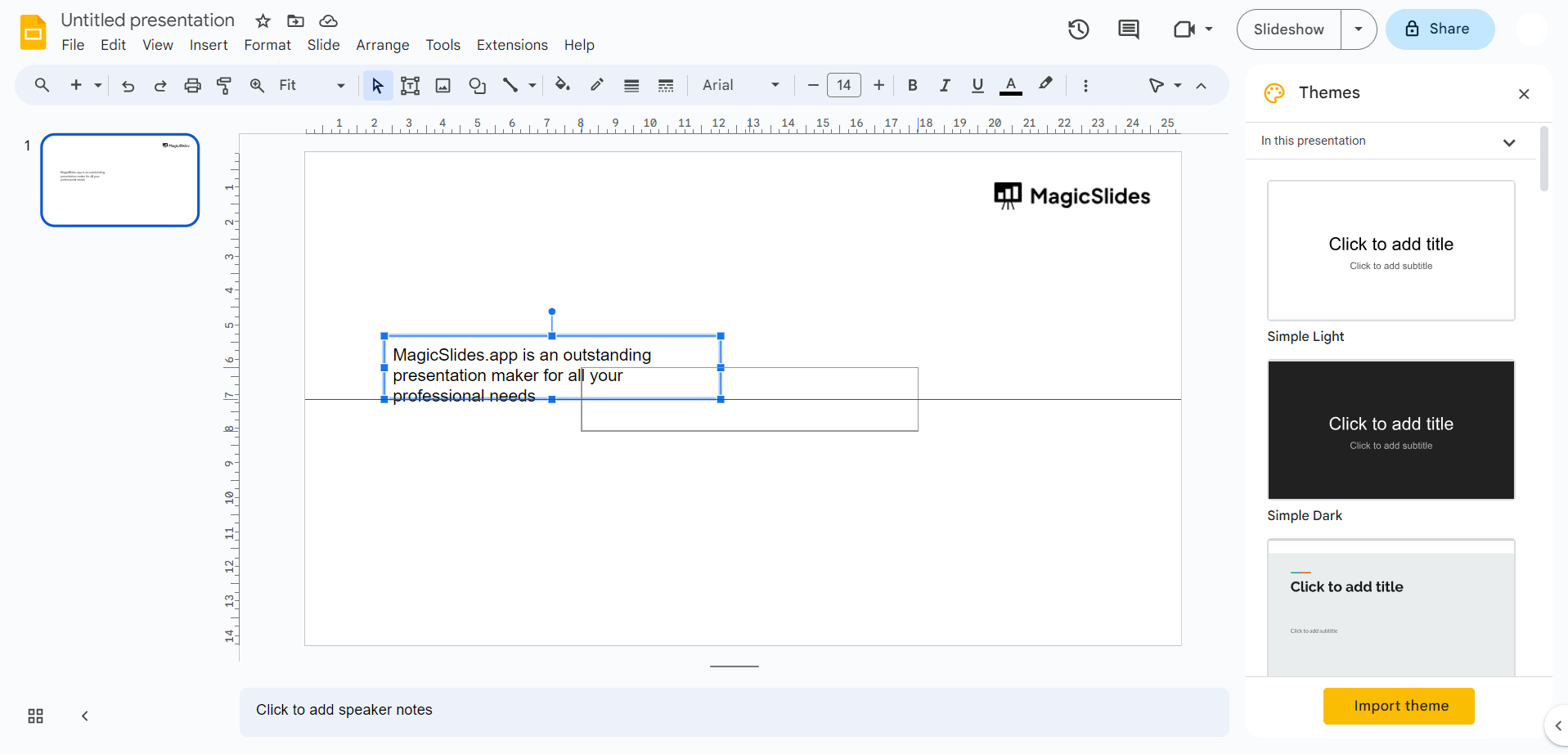
Step 4: Aligning and Wrapping Text
Position the resized text box next to the image or object you intend to wrap text around. Ensure that it's aligned correctly and that the text flows smoothly around the object. Google Slides will automatically adjust the text flow to wrap around the object you've placed it next to.
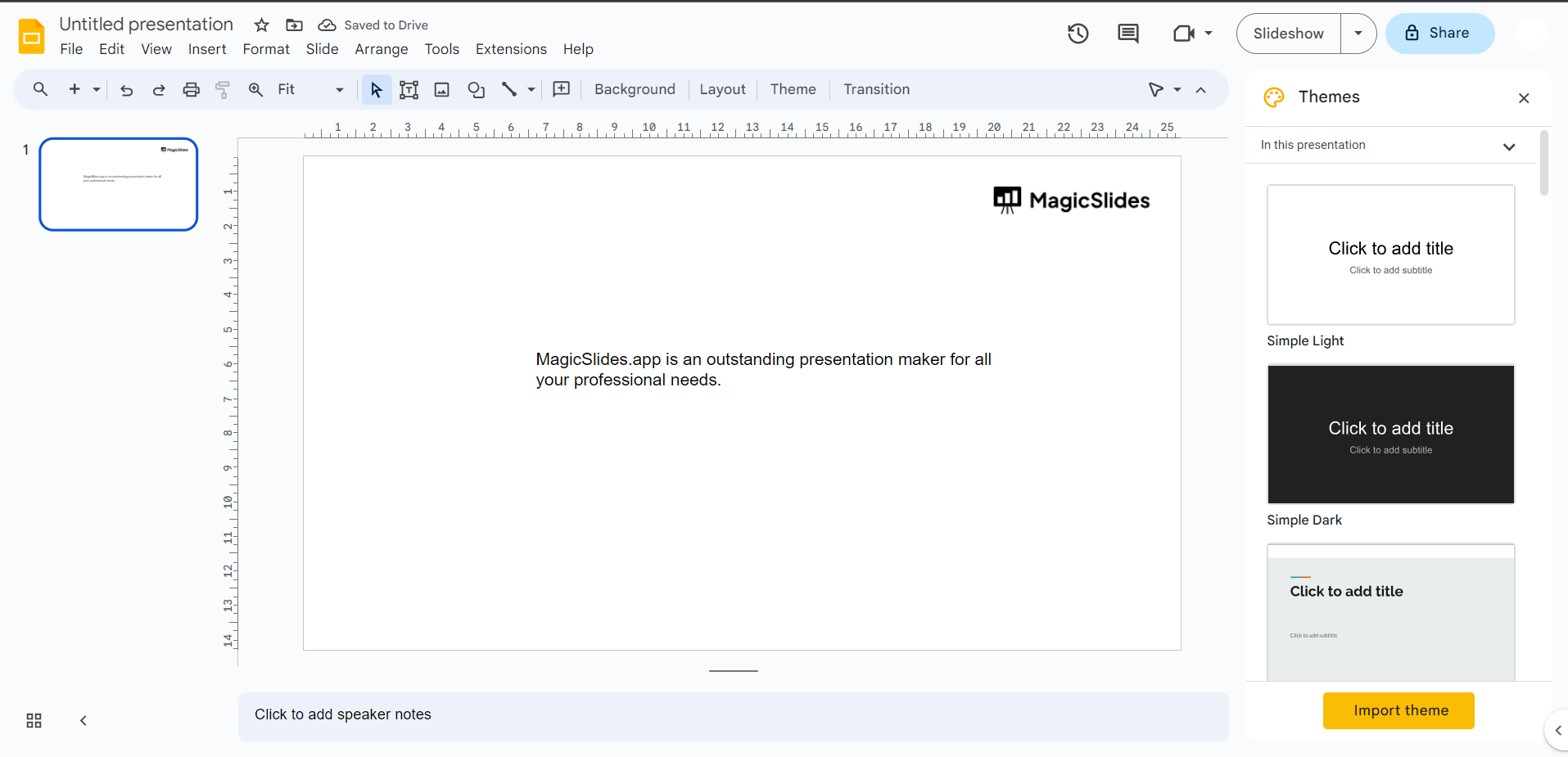
Conclusion:
By following these straightforward steps, you can easily wrap text around objects in Google Slides. This advanced feature allows you to create visually appealing and engaging presentations that effectively convey your message. Whether you're designing educational materials, business presentations, or creative projects, mastering this technique can take your Google Slides presentations to the next level, leaving a lasting impact on your audience. So, go ahead and experiment with text wrapping in your next presentation, and watch your slides come to life with enhanced visual appeal.


